
Text Documents
How to create a text document
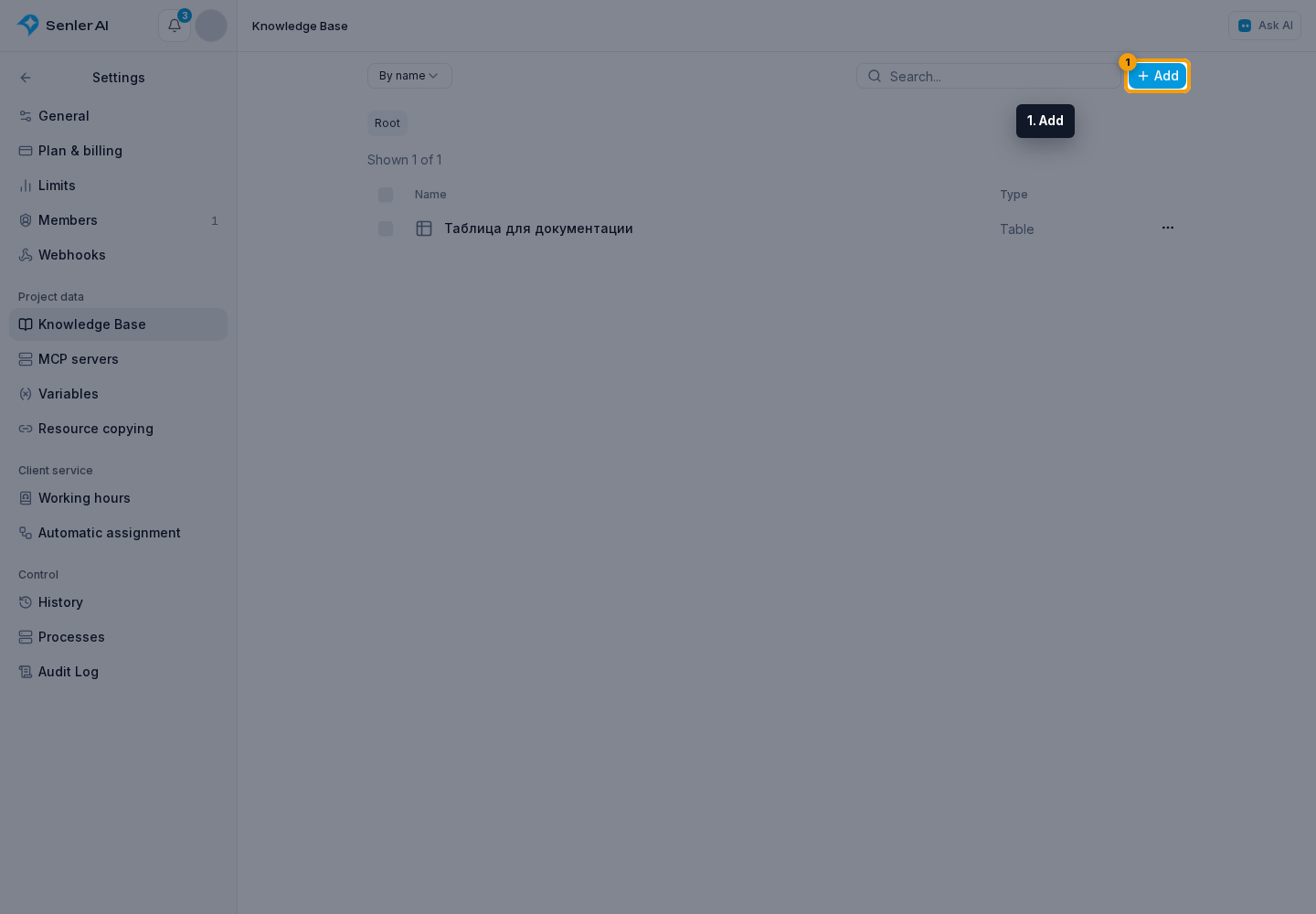
- Select the Settings gear button to the right of the project name and go to the knowledge base.
- Click Add.
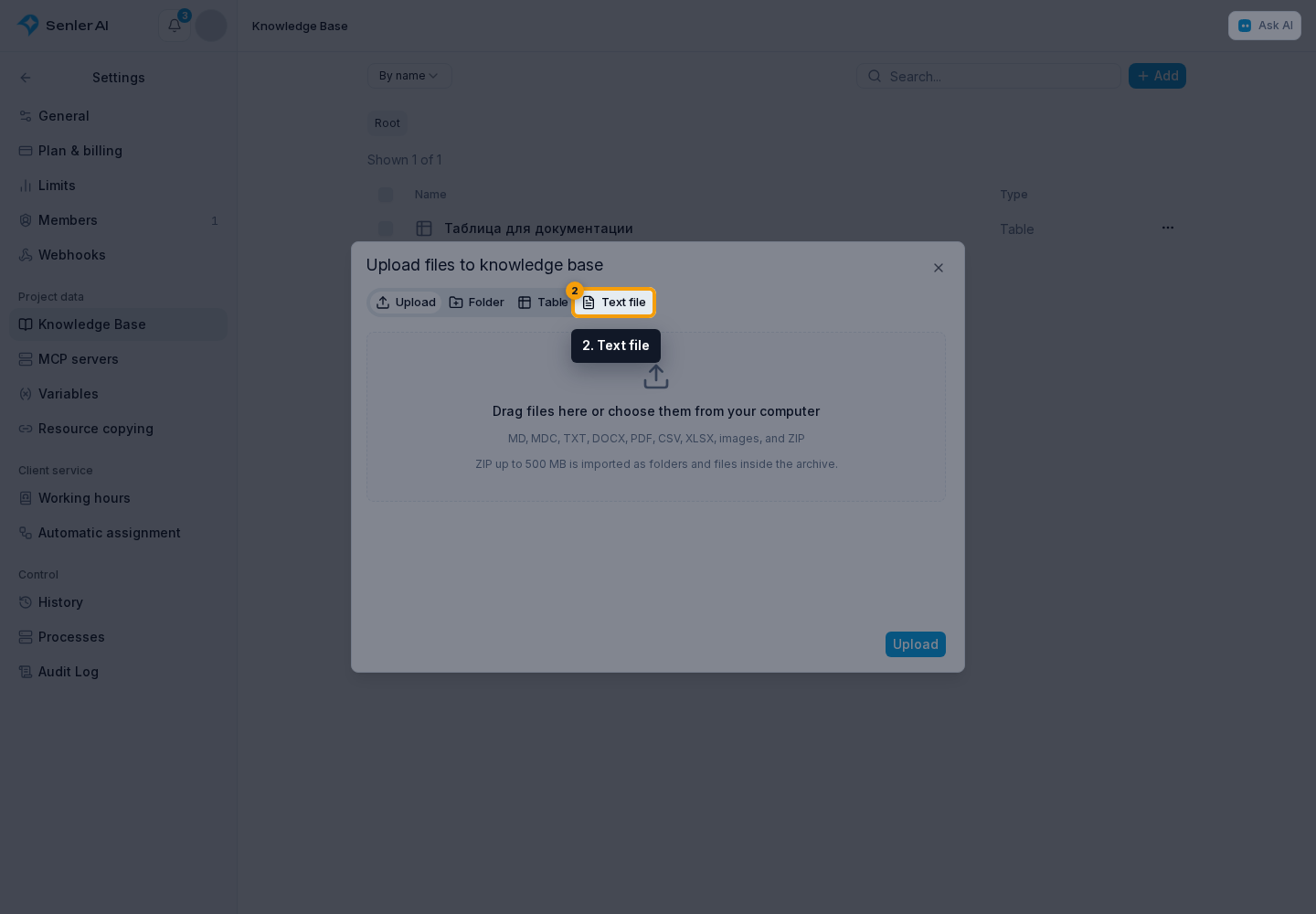
Select Text file.
- Enter the title.
- Add the content.
- Click Create.
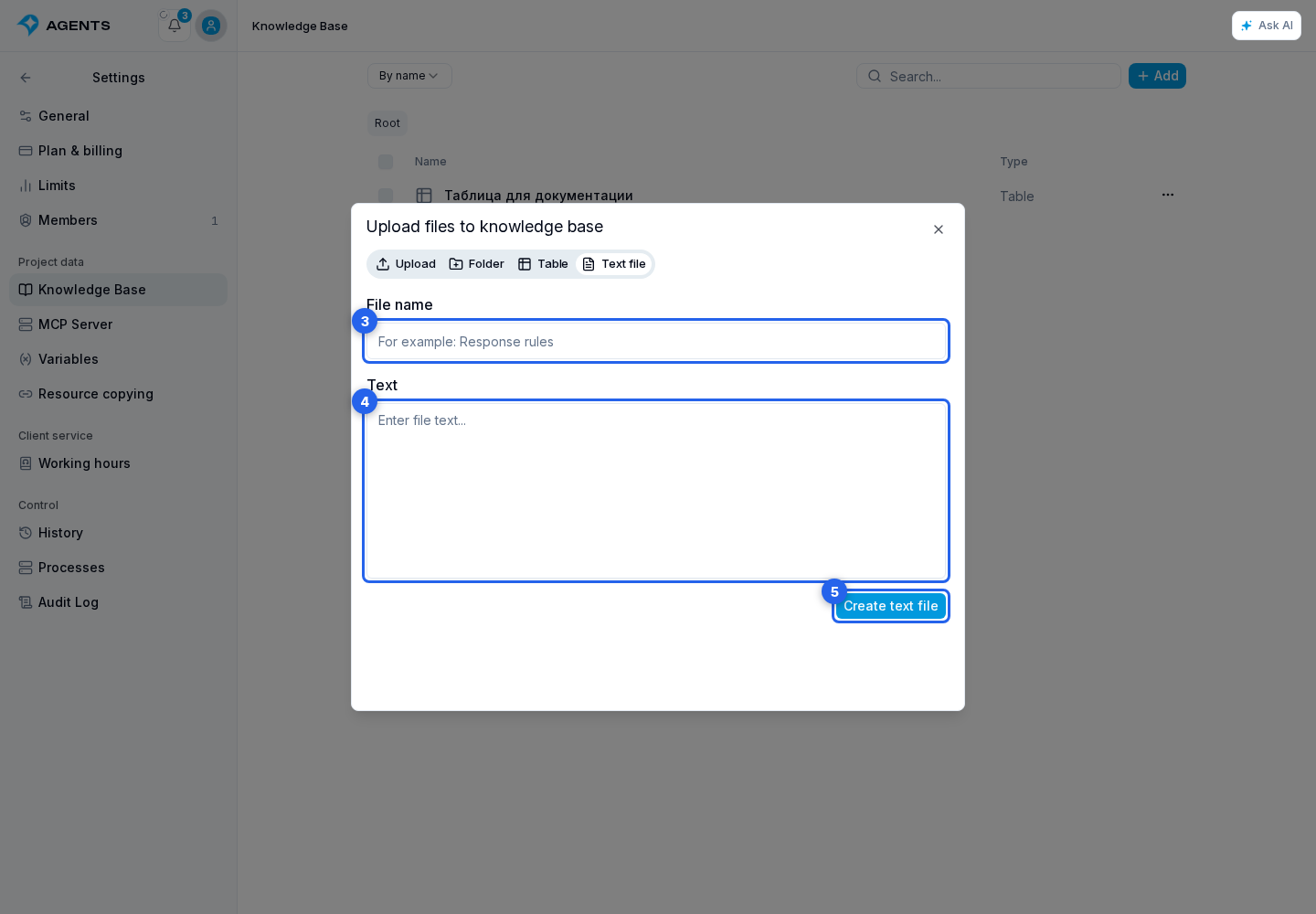
This creates a regular text document. To use the full editor, open the new document. You can also open its menu and select Edit.
Form fields
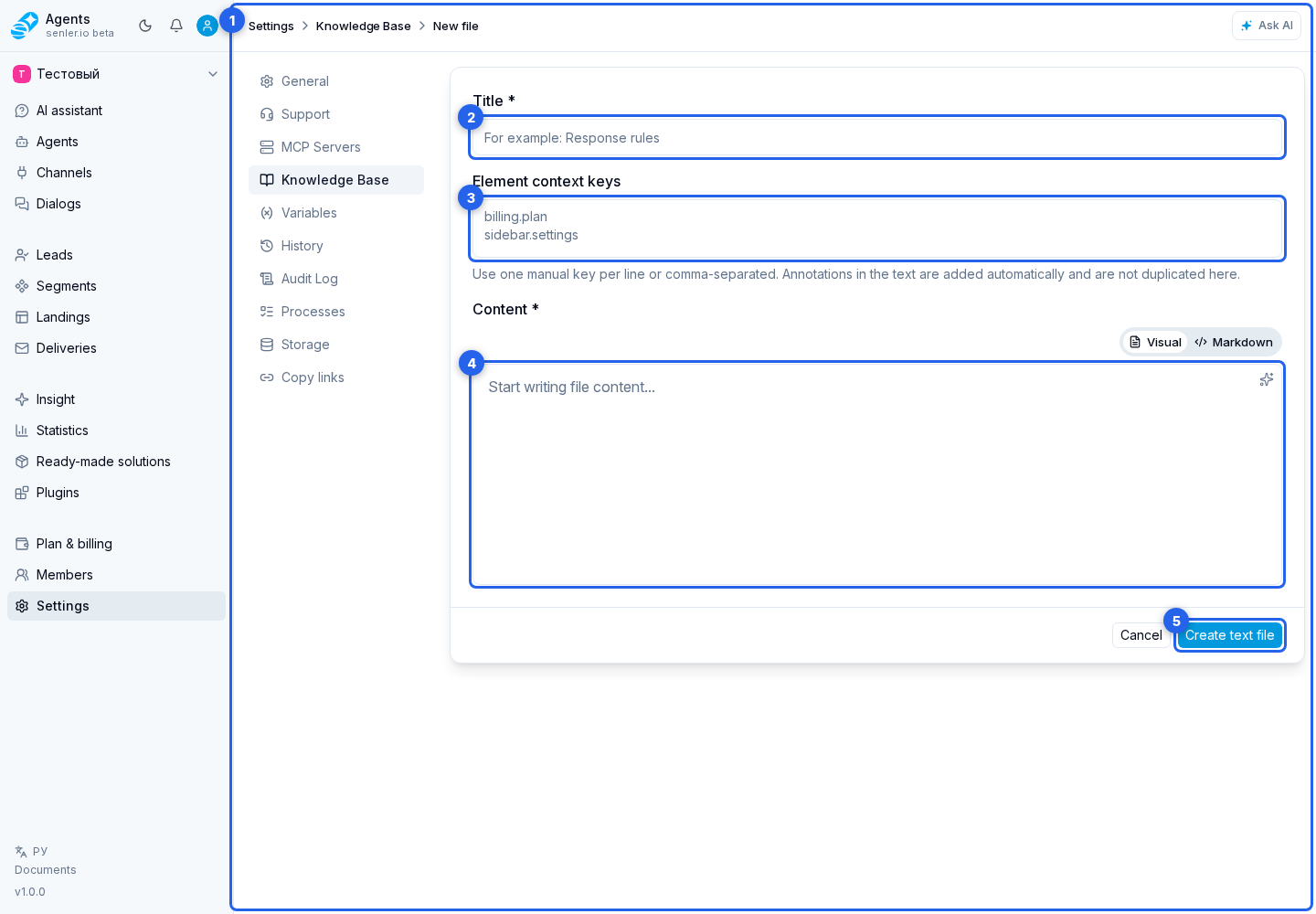
The text document creation or editing page contains:
- title;
- context keys for elements, described separately under Context Keys;
- content and its validation message;
- create or save button and cancel;
- deletion when editing, with a separate confirmation.
Title and content are required. The title should be clear for searching: for example, “Return Rules”, “FAQ on Tariffs”, “Instructions for the Add Channel Button”.
Content
Content can be written as structured Markdown: headings, lists, tables, example questions and answers. More useful support documents include:
- purpose;
- where the function is located;
- what each field means;
- frequent mistakes;
- what to check before escalation.
If Markdown contains an extra fields block at the beginning of the file, these fields help search and link the answer to the document source: for example article ID, section route, source importance, or an external link. Do not store secrets there: these fields are for search, routing, and explaining the source, not for private data.
Markdown links and images can use regular syntax:  or [policy](docs/rules.pdf). If the target file is uploaded to the knowledge base, the cabinet can show it in preview or connect it with the document for the answer.
Editor modes
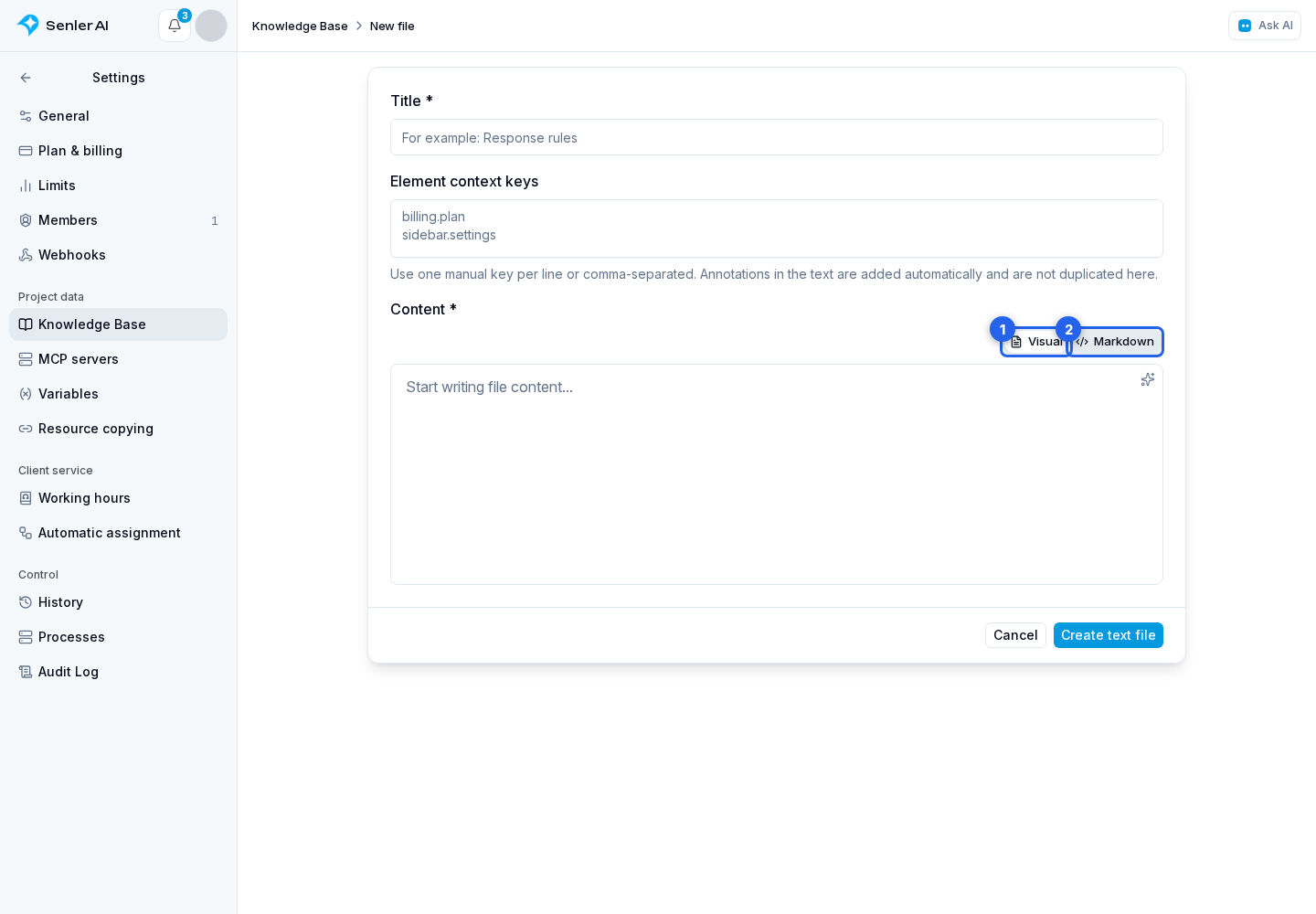
The Visual mode is suitable for regular formatting: work with text, headings, lists, quotes, links, and code blocks without editing Markdown punctuation manually.
Markdown mode shows the source text and is suitable for tables, images, and other markup that must be preserved exactly. Switching modes does not create a document copy: both editors change the same content, which is saved as Markdown.
If the document contains markup that the visual editor cannot change without data loss, the cabinet opens Markdown immediately. If you try to switch to the visual mode, it shows a warning and a read-only preview; continue editing in Markdown. The content is not deleted or simplified automatically.
Editing selected text with AI
In both the visual editor and Markdown mode, you can select a fragment and choose Ask AI. The edit is scoped to the selected text, which makes the action useful for shortening, rewording, or clarifying a specific paragraph.
The result does not replace or save the document automatically. The cabinet first previews the proposed complete text: check how the selected fragment changed and whether anything else was affected, then accept or reject the edit. Open the related assistant chat when you need a less constrained discussion.
Save conflict
If a newer version of the same file appears on the server while you are editing, the cabinet shows a newer-version warning and blocks saving. Copy your text, reload the page, compare the new version with your changes, and apply them again. This prevents overwriting changes made by another user or process.