
AI-Sensey
What it is
The AI-Sensey item in the side menu opens a full-page chat inside the current project.
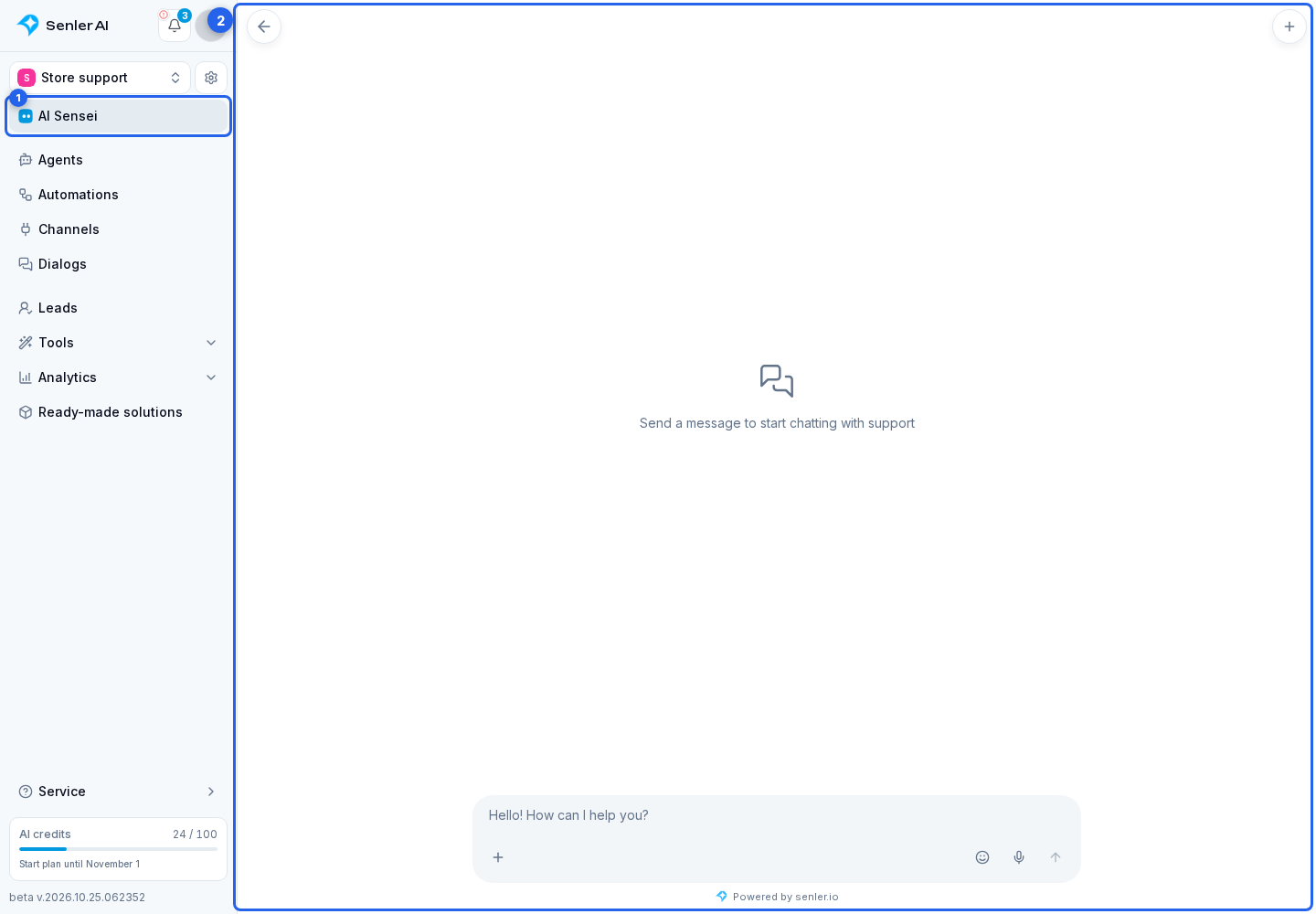
The assistant automatically accounts for the current project and open section. When a specific entity is open, that entity is also included, such as an agent, channel, automation, segment, landing, or MCP server. In dialogs, the assistant also receives the selected dialog and its channel.
How to ask a question
Describe the result. When the required entity is already open, you normally do not need to repeat its name: check it in the Context menu on the left of the message field. If you only want advice, say so explicitly: “Tell me where this setting is changed. Do not press or change anything.” For a question about a particular place on the page, select that element before sending the message.
You can ask the assistant about saved conversations. Open the dialog you need and ask, for example: “What was the customer interested in?” or “Why didn't the agent add this customer to the Egypt segment?” After reviewing the conversation, you can move on to an action: “Add this customer to the ‘Family holidays’ segment.”
To look into several conversations, specify which ones interest you, such as inquiries about family holidays from the past week. A large selection is easier to review in smaller groups. For an overview of a week or month, visit Insight.
The main actions are in the header and message field:
- The history button.
- Context opens the current project, entity, and additional actions.
- Attach file in this menu adds an attachment.
- Selection in the same menu lets you attach an element from the open page.
- The smiley opens emoji.
- The microphone records a voice message.
- Enter your question in the message field.
- Select the send arrow. In the compact layout, it replaces the microphone after you enter text or add an attachment.
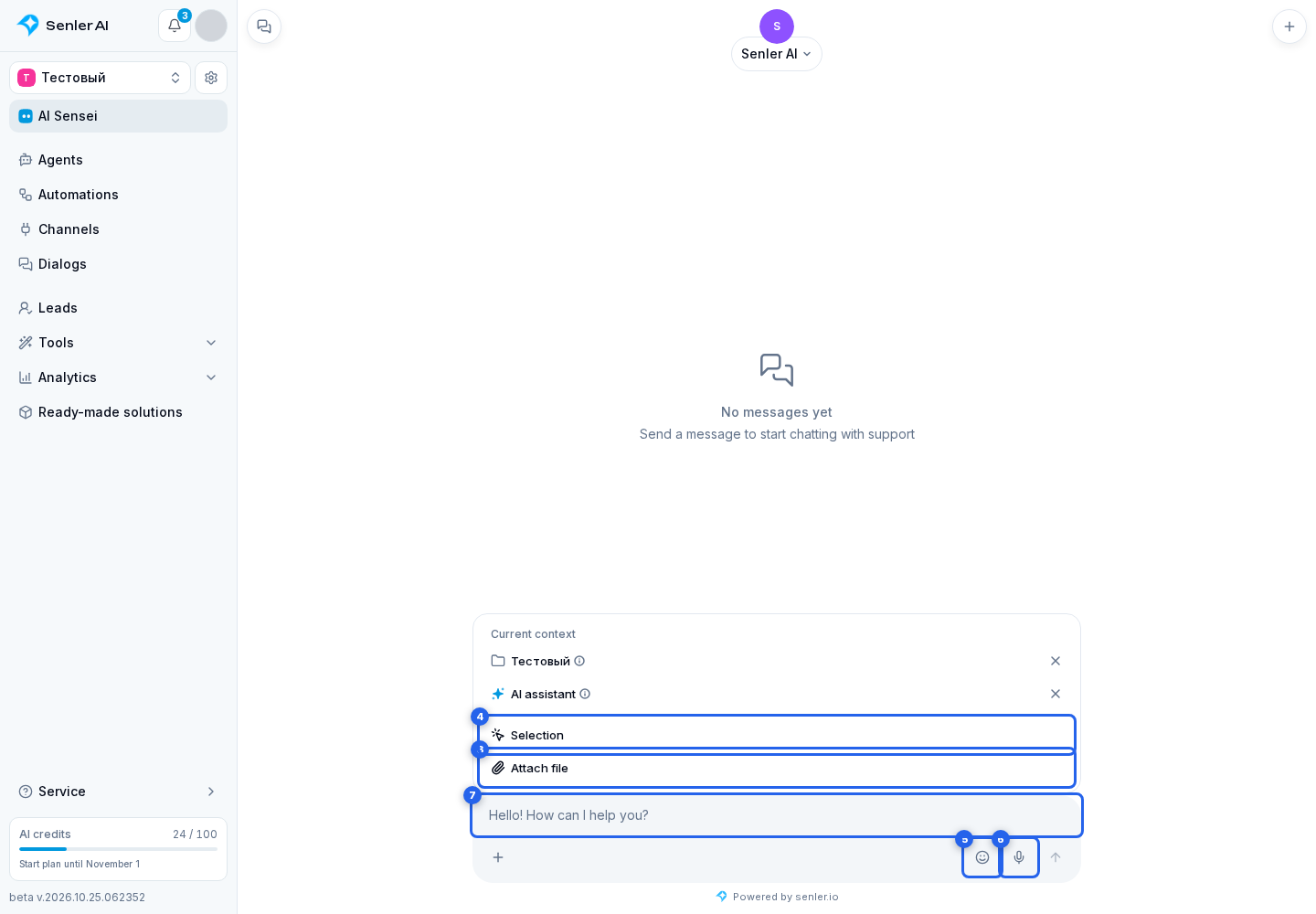
For a focused question, attach a page element; to change a setting, ask the assistant to perform an action.
Counting the Current Lead Selection
Open the lead list, choose General mode, and set the filters. Then ask the assistant: “How many leads are in the current selection?” It can request the exact count using the open page's filters, including search and selected channels. The count covers the full selection, not just the visible table rows.
This counting method does not work in Deliveries, Variables, or Automations mode. Changing the project or filters while counting interrupts the request: ask again for the new selection. The result appears in the assistant's reply.
Conversation history
The history button opens the conversation list: search for a previous conversation and open the chat you need. For a separate task, select New chat in the header.
A new conversation is useful for a separate task when the previous context is no longer relevant. Moving between sections of the current project does not delete the open conversation.
Working over other pages
On other pages, the Ask AI button opens the same assistant over the current section. On a wide screen, the display settings let you choose a side panel or a floating window. On a narrow screen, the assistant occupies the available area.
The selected mode is saved in the current browser. When you move to another section, the assistant updates its automatic context and keeps the open conversation. A manually selected element is not replaced automatically: remove it from the Context menu or select an element on the new screen.
Help with Text
In fields that support AI, you can write text or improve its wording and compare the suggestion with the original text before accepting it.
Contact support
If you need help from a person, ask Sensei to hand the current conversation over to an operator. Other contact options and details to include in an error report are listed in Contact Senler.io support.