
History
How to open History
Select the Settings gear button to the right of the project name, then select History.
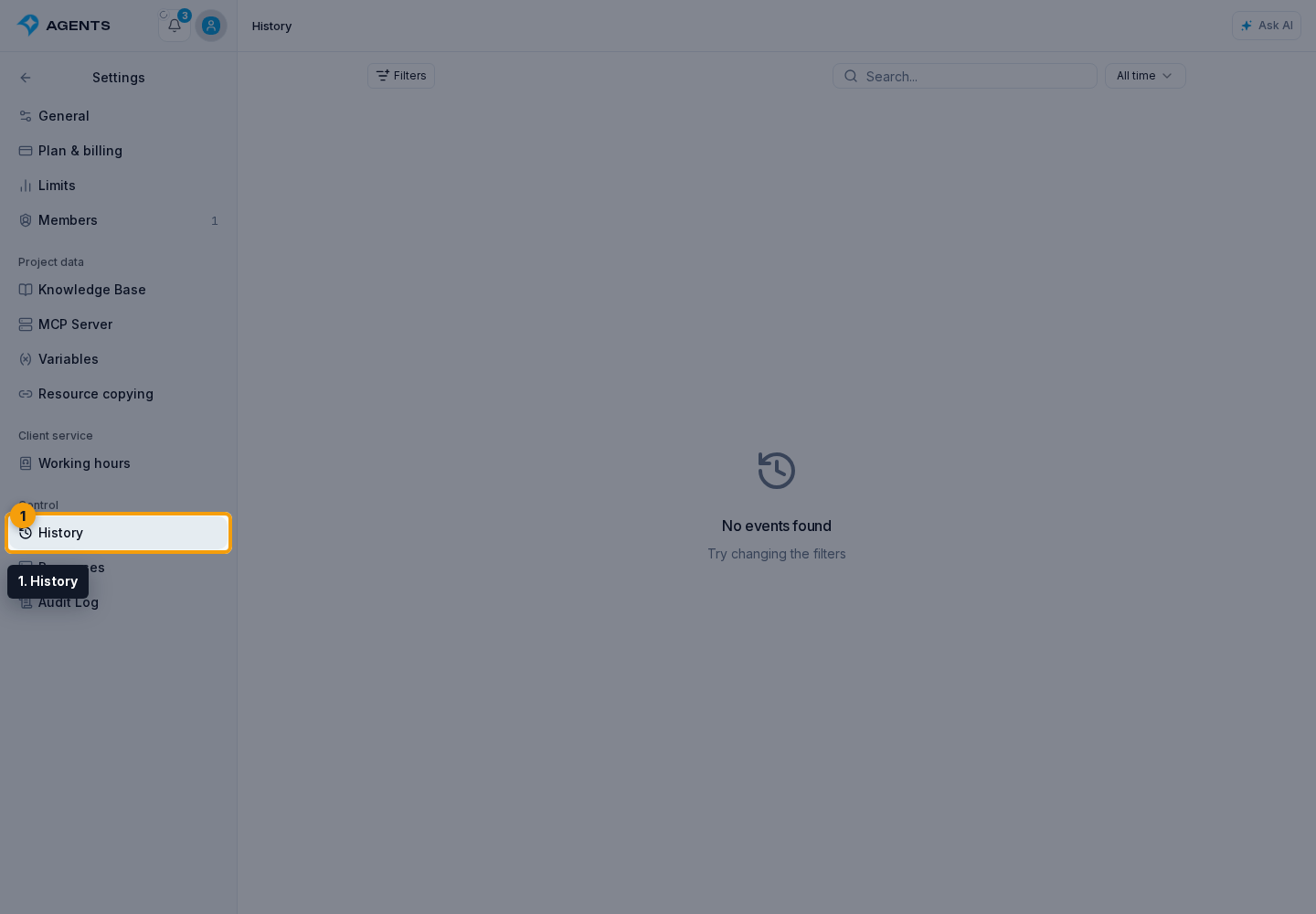
The History page lets you reconstruct what happened in the project: when a message arrived, an agent or tool ran, an error occurred, and whether the reply was delivered. To answer “who changed this setting?”, use the Change log.
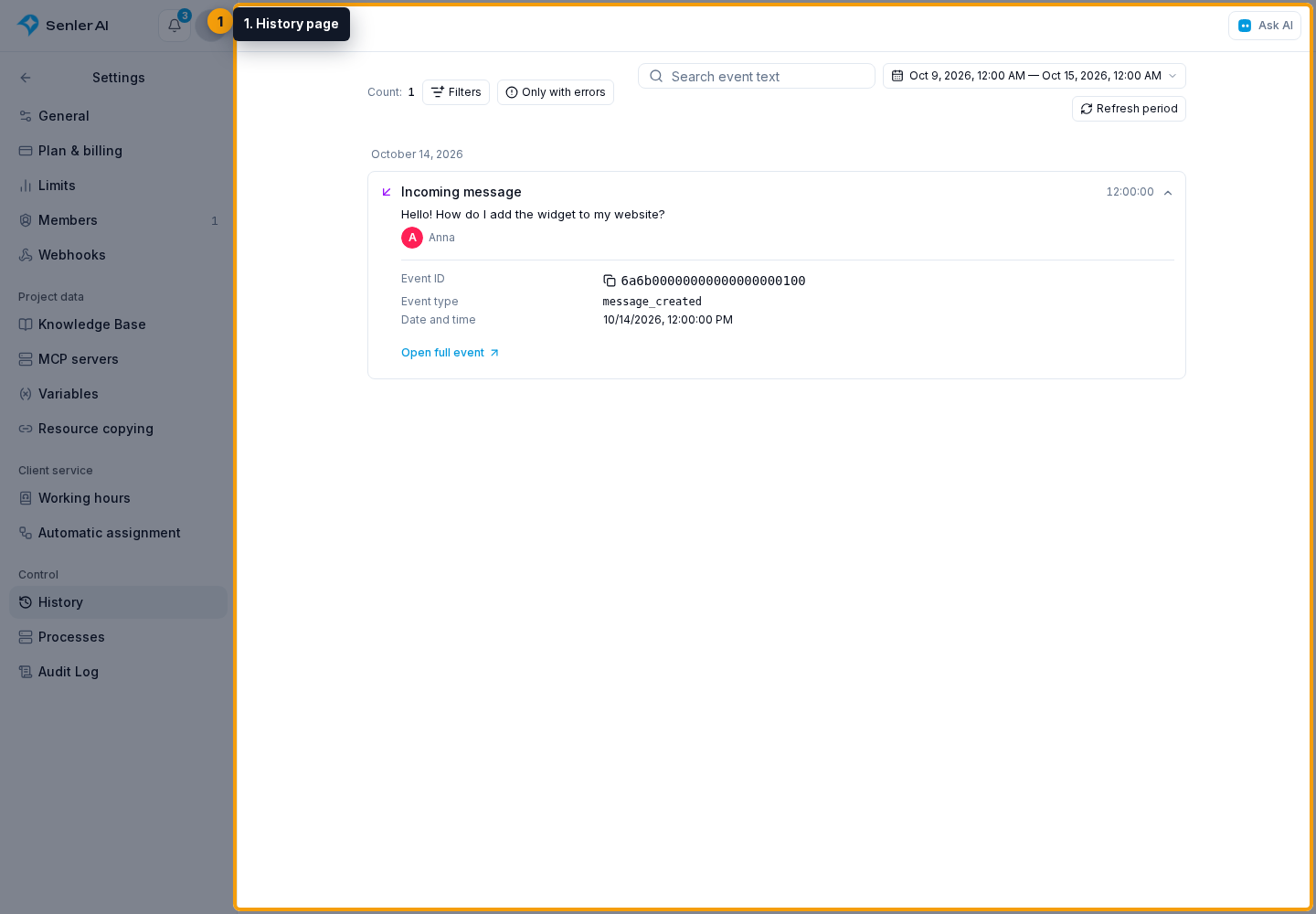
Events are grouped by day. A collapsed card shows the time, summary, sender, and available channel and sending information. Click the card to expand it in place: you can copy the full ID and follow Open full event to a separate page with details.
How to find an event
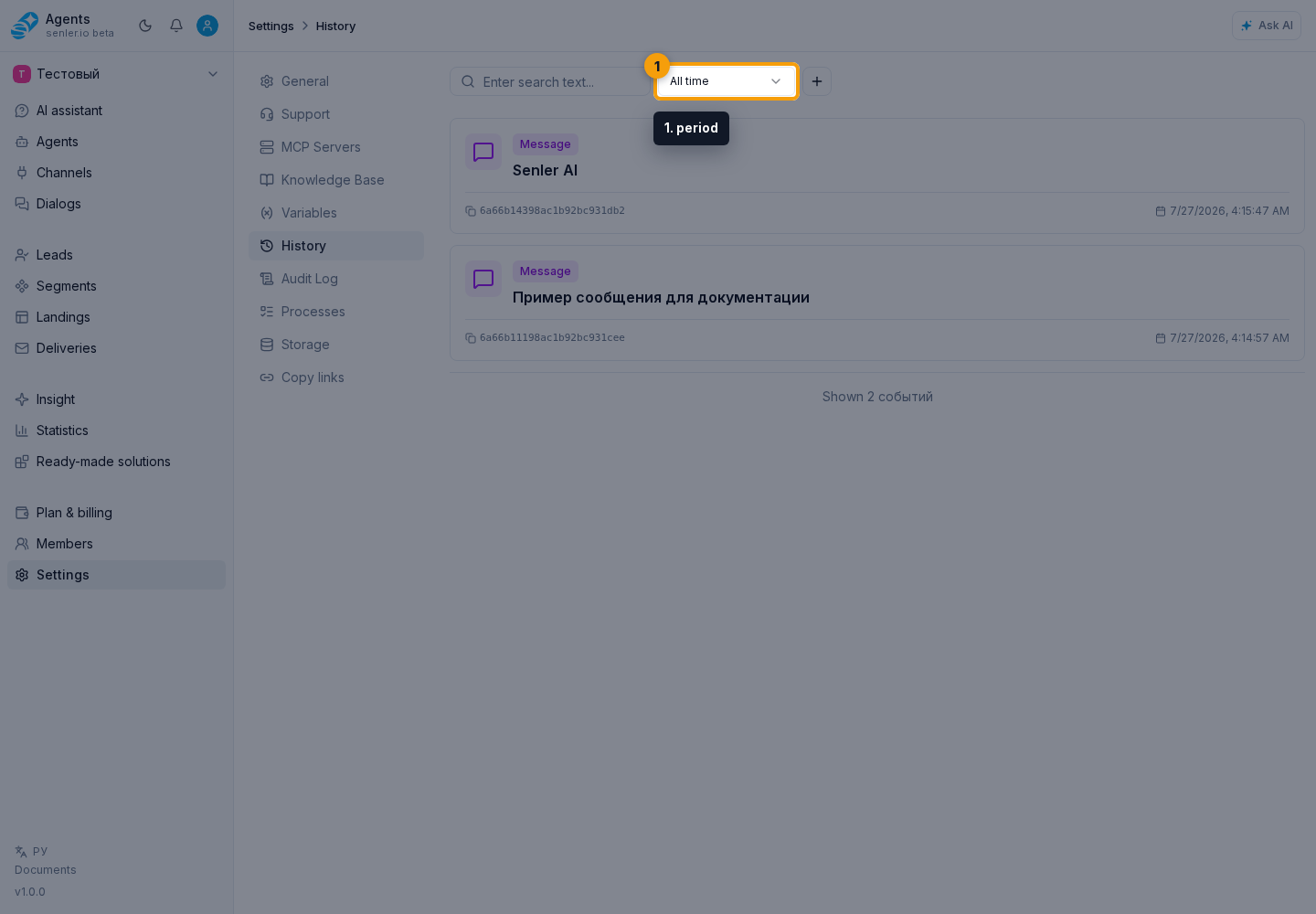
In the filter bar, choose a period. History initially shows the last 7 calendar days, including today.
Enter a fragment of a message, tool result, or error in the search field. Search is case-insensitive and matches text, not a participant's name. For a specific lead, agent, or channel, use the add filter button.
Use the add button to display additional fields:
- event type;
- one or more channels;
- dialog ID;
- lead: search by name and available contact details;
- agent: select by name;
- MCP server ID;
- credit transaction ID;
- rolled-back events: all, only rolled back, or exclude rolled back;
- order: newest first or oldest first.
Messages and senders
- Add the Event type filter and choose Messages.
- Select the direction: all, incoming, or outgoing.
- For outgoing messages, narrow down the sender: AI agent, operator, automation, or another project source.
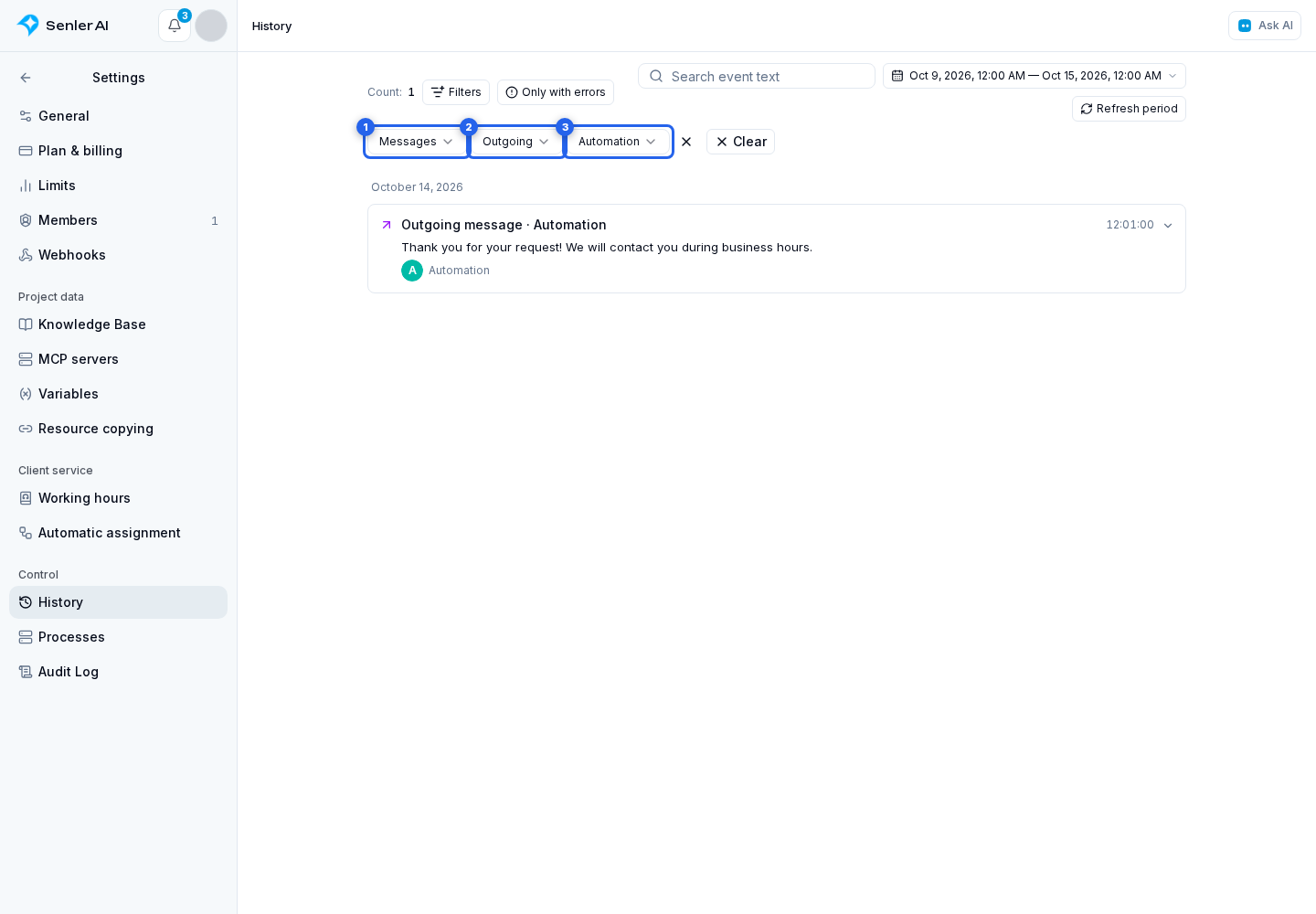
Operator replies sent through the platform also count as outgoing. Messages sent on behalf of a channel without an identified author belong to other project sources.
Direction and sender work together with the period, channels, and text search. Changing the event type resets message refinements; changing direction resets the sender. The list and full message detail show the same direction. Internal messages and messages with an unknown direction remain available when all directions are selected. An outgoing message may still be waiting to send or may fail: delivery status is shown separately.
Only with errors
Enable Only with errors to find all records marked as errors: standalone error events, tool failures, sending failures, and delivery failures. The toggle works with other filters. These are error records, not a list of unresolved issues: a later attempt may have succeeded. The Error event type selects only standalone error events and does not replace this toggle.
Find a lead
To select a lead, start typing a name or contact detail and choose a result. If you know the internal lead ID, paste it into the same field and select Show lead events by ID. This option appears only for a full 24-character hexadecimal ID; typing alone does not apply the filter. You can find events by ID even when the lead record is unavailable. When opening a link, the selected lead and agent are restored by ID; if the lead name cannot be loaded, its ID remains visible. The filter stays active until you remove it.
Share and refresh a selection
Search conditions and exact period boundaries are stored in the page URL. You can reload the page, return from an event using Back or the History link in the top navigation, or share the link with a colleague who has project access. The link preserves the time interval even when opened on a different day; the events themselves may have been updated. The period button shows the actual dates and times. For example, a Today link saved on October 15 at noon still shows October 15 up to noon when opened on October 16.
For presets, Refresh period recalculates the boundaries relative to the current time and reloads the first page. Today and the last 7, 30, or 90 days update up to the current moment; Yesterday becomes the full day before today. For a custom range, the button is called Refresh: it reloads events for the same dates and times. Other filters are preserved. Additional pages already loaded are reset so old and new results are not mixed.
Clear clears search, removes extra filters, and restores the last 7 days with newest events first. The Load more button at the bottom appends the next records, keeping the ones already loaded.
Choose dates
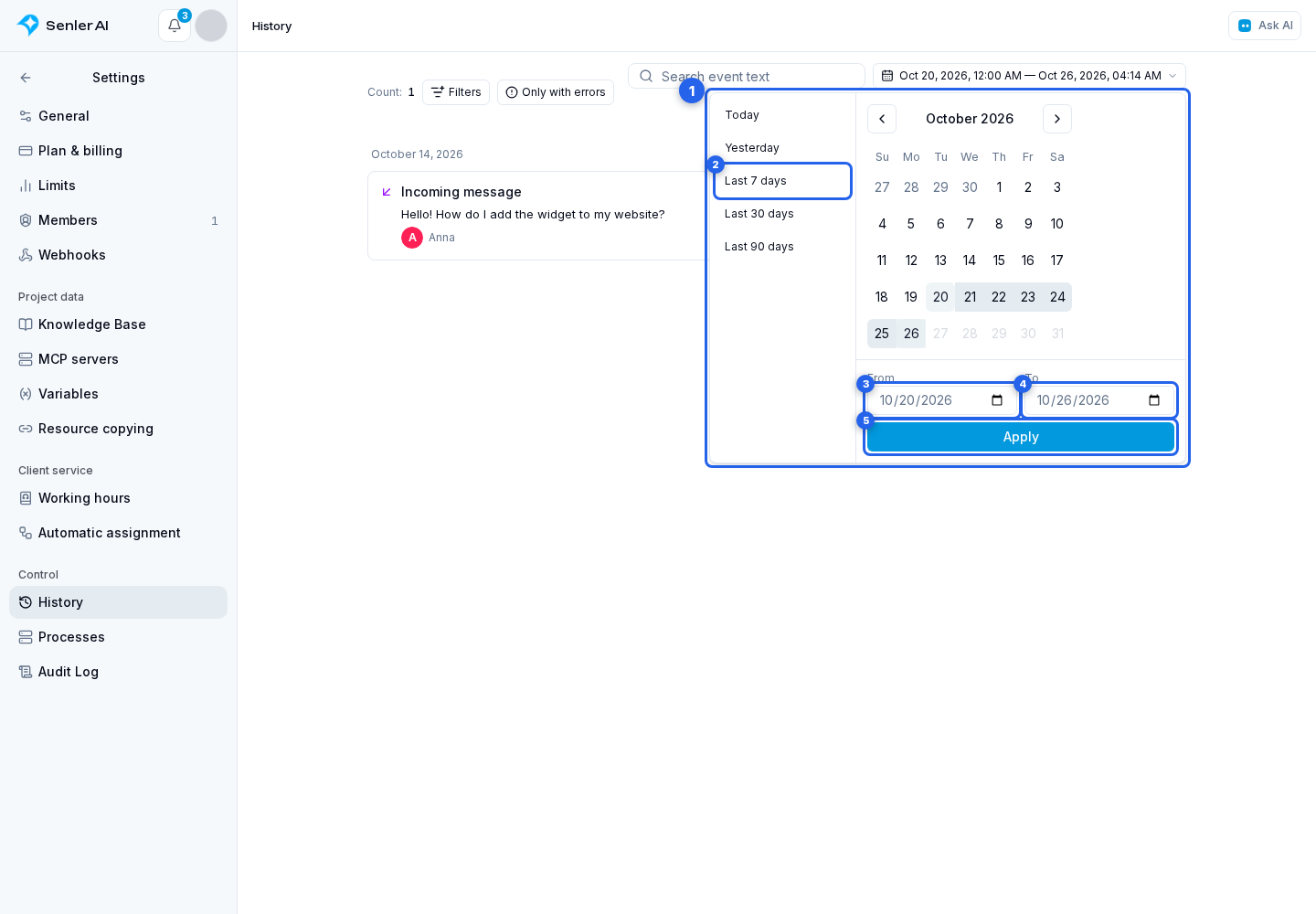
Click the period to open the calendar. Select a preset: Today, Yesterday, or the last 7, 30, or 90 days. It applies immediately.
For a custom range, select dates in the calendar or fill in From and To, then click Apply. Dates use the browser's time zone; future days cannot be selected.
If search reports that the query is too broad, shorten the period or add a dialog, lead, or channel filter.
Event types in the filter
The interface offers these types:
- Messages;
- Tool starts;
- Successful tool completion;
- State changes;
- Error event;
- Rollbacks;
- Reasoning;
- Metrics;
- Delivered;
- Read;
- Lead created;
- Lead updated;
- Dialog started.
Search may match other event data, but the event type filter is limited to this set.
What is on an event page
The event page shows only the data supplied for the selected event. Therefore, a message, tool call, and error have different blocks.
The main area may contain:
- a title and technical ID;
- creation and update times;
- links to related entities such as an agent, channel, dialog, lead, MCP server, or credit transaction;
- rollback information and a link to the rollback event;
- the original structured data for technical diagnostics.
Event data tabs
The tab block displays only non-empty sections. Depending on the event, the following are available:
- tool input, output, and tool error;
- message buttons and the clicked button;
- attachments, sender, and source context;
- delivery, status, and message interactions;
- typing indicator and timer;
- AI data, costs, and generation parameters;
- event error, related-event hierarchy, and trigger context;
- moderation, broadcast, reaction, and chat changes.
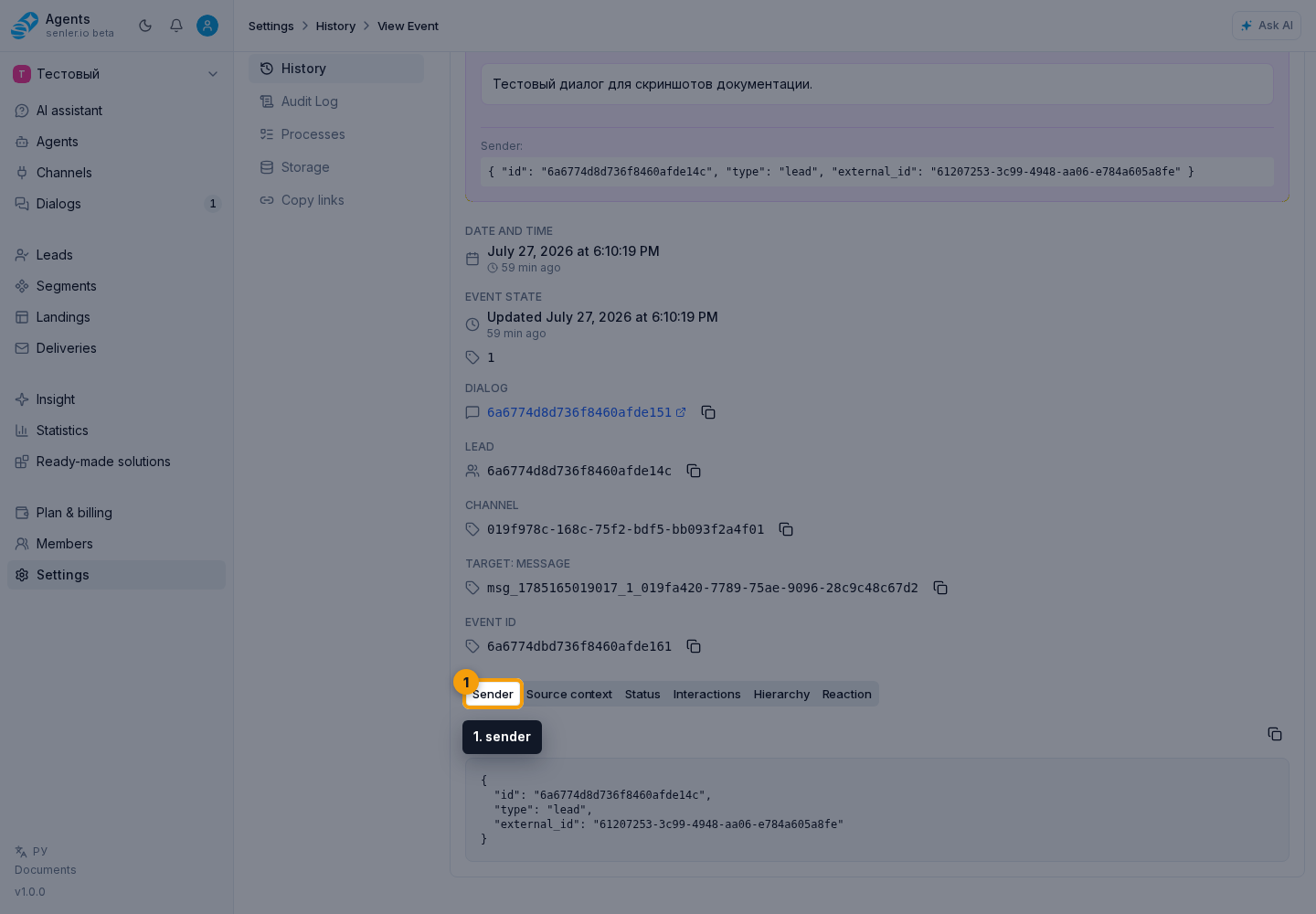
If a tab is absent, that block is not present in this event's data; it is not a separate interface error.
Distinguish A Subscription Event From A VK Check
When importing or synchronizing a VK lead, Senler may verify whether the community can send messages to that person. If the check changes the lead status, History records that message availability was clarified by a platform check. This record does not mean the person subscribed or unsubscribed at that moment.
If the agent did not reply
- Select a lead or channel, or add a dialog ID filter.
- Confirm that an incoming-message event exists.
- Check subsequent agent-start, tool, and generation events.
- Open error events and the Tool error or Event error tabs if they appear.
- Check the reply delivery event.
For a support request, copy the relevant event IDs and provide the time of the issue.
If you need to verify a credit charge
Add the credit transaction ID filter or open the linked transaction from the event page. On a generation event, inspect the model, AI data, and costs only when those blocks are present.