Message Information
The Event Information panel shows data for the selected entry in dialog history. Its contents depend on the event: a regular message, an AI response, a tool call, and an error have different sections.
How to open the panel and what it contains
- Open the context menu of the message you need: on a computer, right-click it; on a phone or tablet, touch and hold it.
- In the menu that opens, select Information.
- The Event Information panel opens on the right.
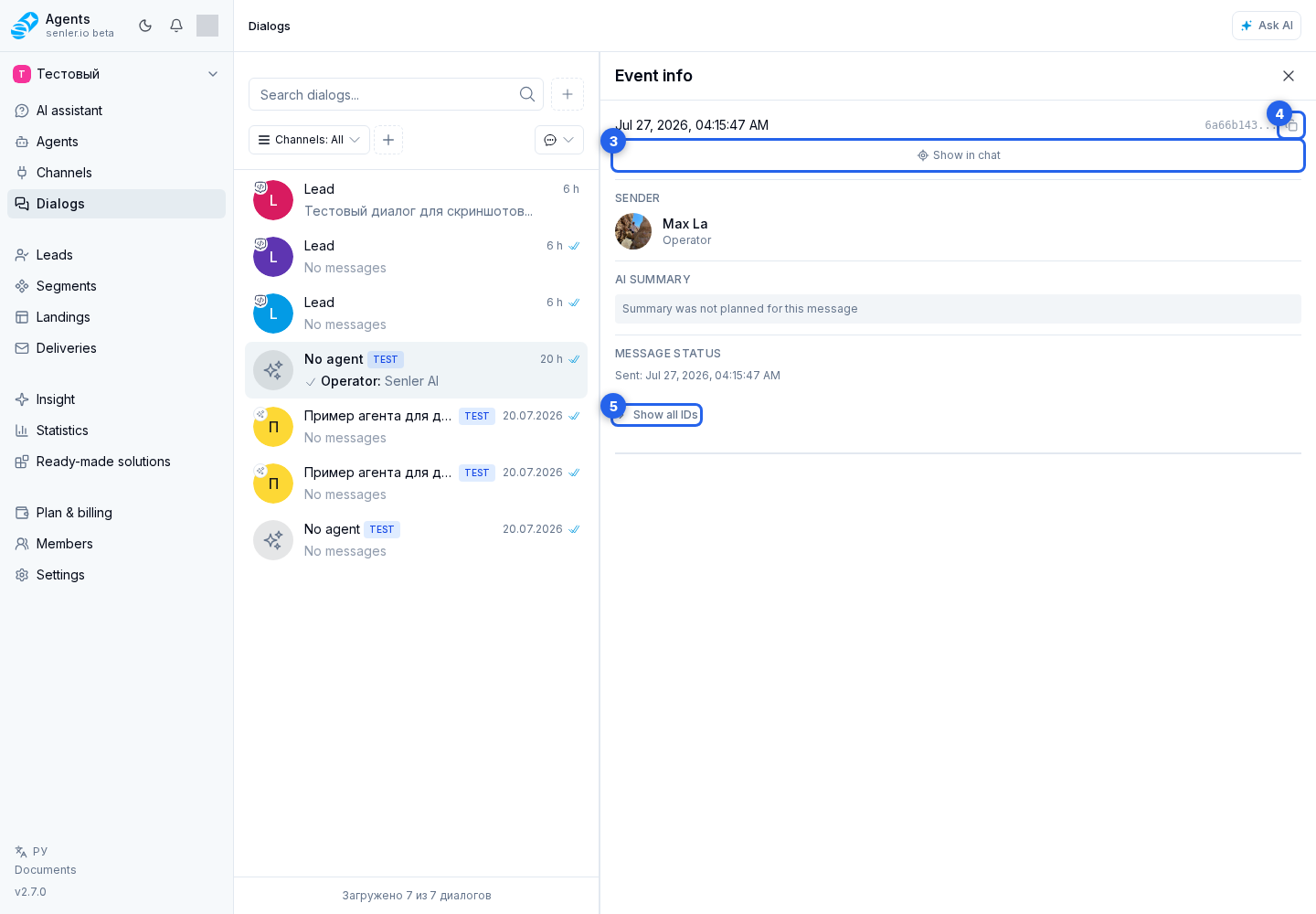
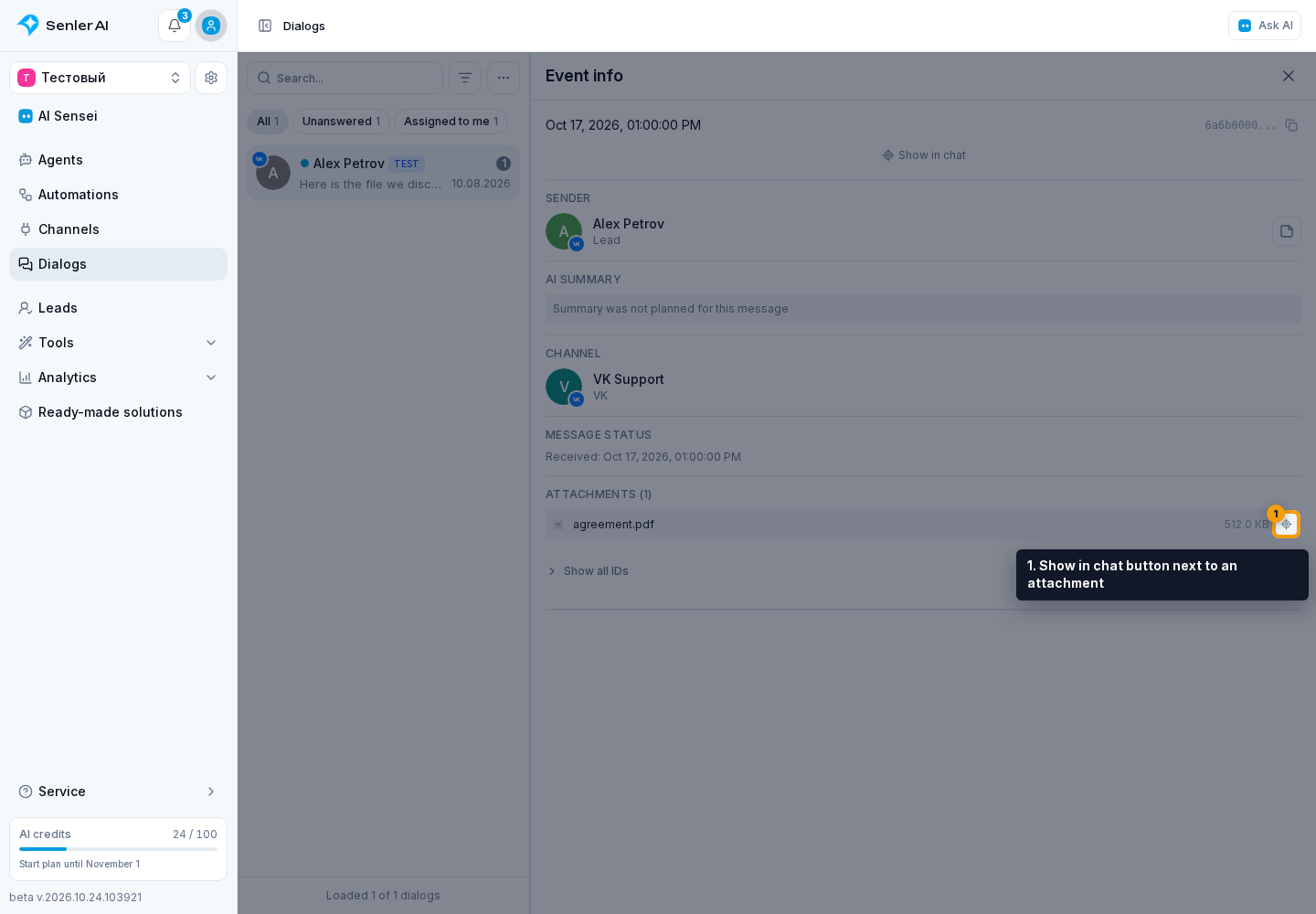
At the top of the panel, you can see the event date and time and a shortened ID. For a regular message, you can show the event in chat or copy its ID. At the bottom of the panel, Show all IDs expands the event's other identifiers.
Below this, the panel shows the sender, channel, and dialog space when those details are available. For an incoming message, the Message Status section shows when it was received. For an outgoing message, it shows the sending state, sending time, recipient read state, and the failure reason if sending failed. If the text was sent but some attachments were not delivered, this section also shows the number of undelivered files; the message is not treated as entirely unsent.
AI, tool, or error data
Additional sections appear only when the selected event contains the corresponding data. For an AI response, the panel may show a summary, processing duration, the reason a response or metrics were skipped, the model, and token counts. In AI Analytics, you can expand a long text metric or an object metric.
A Progress update entry shows intermediate text about the agent's work. A tool-call entry shows the tool name, state, duration, input parameters, result, and error text when an error occurred. An error event shows its code and message. A button-click event shows the button text, action, transferred data, and link when these were saved in the event.
If the history shows that the agent response could not be received, a Retry button may appear below that entry. It requests recovery of the reply to the original message rather than sending the customer's message again. The button is available while no new messages or AI response runs have appeared after the error and recovery has not already been started. Starting recovery requires permission to manage dialogs.
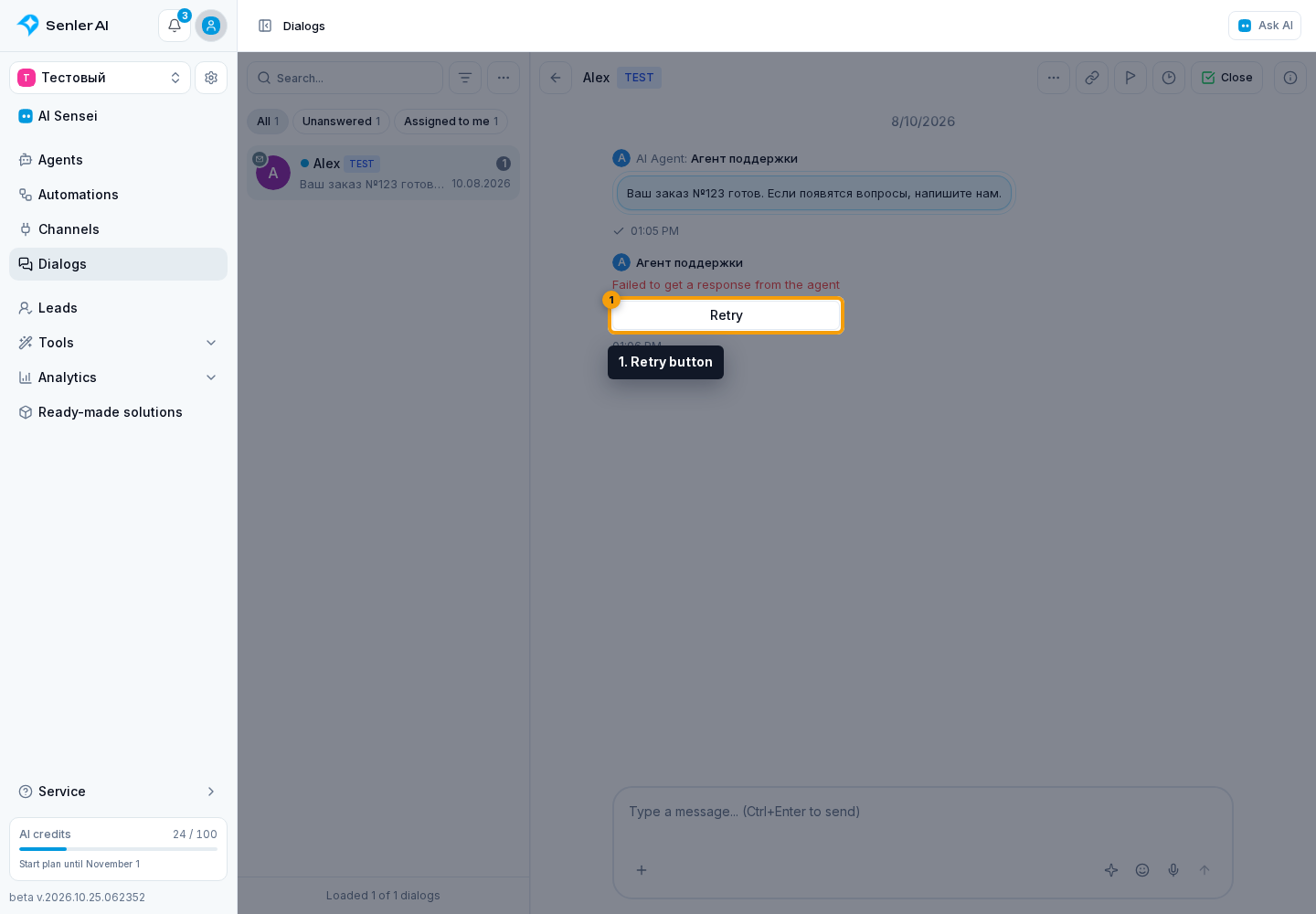
The recovery-started notification confirms that the request was accepted, not that the reply is ready: the result appears in the dialog history. Recovery uses available saved data from the previous attempt and tool results; it does not mean that every tool action will run again.
If the error appeared because the plan or credits ran out, its card may contain a Retry button. It appears only after the plan and credits are restored and while no operator or another agent has replied for this case. Recovering missed replies explains bulk and individual retries.
If the history shows Waiting for tool result, the application has not returned the final result yet. This is a separate service event, not a completed customer reply. Check subsequent tool events before treating the action as completed.
Check The Cost Of A Specific Reply
For an AI event, open the context menu of the required message and select Information. The Costs section shows the tokens, deducted credits, and approximate expense in the project currency for that selected event.
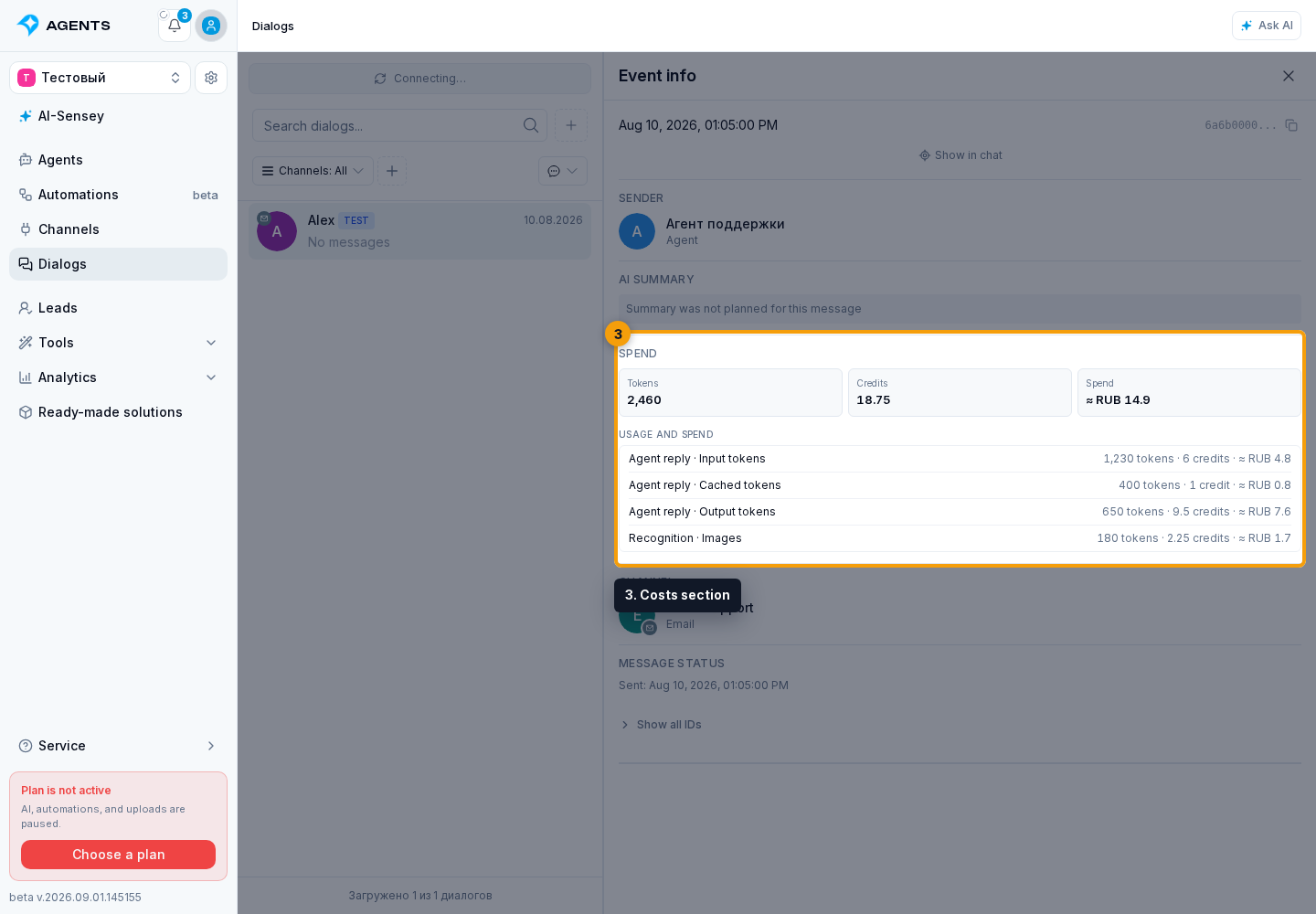
The breakdown lists only operations that actually contributed to this reply: text-model work, incoming image or speech recognition, material creation, metrics, and summaries. If an older event retains only a total without a complete breakdown, part of the usage appears as Other.
The monetary equivalent is provided for estimation and is not an additional balance charge. Use credit history to verify the actual reduction in credits.
A cancelled reply can still have a cost if work had already started. “Costs pending” does not mean that no credits were charged. See If an agent reply is cancelled for the meaning of each status.
Attachments and additional data
When a message has attachments, the panel shows their names and available details. An outgoing attachment has its own platform delivery status and, when available, the failure reason returned by the platform. The Show in chat button next to an attachment jumps directly to it. A shared location has separate actions to show its message in chat and open its coordinates in Yandex Maps.
If the event has tags, the panel shows them in the Additional section.
How to copy an ID
After you select Show all IDs, the list contains only identifiers that are present on the selected event, such as the dialog, project, channel, lead, agent, external message, or related event ID. Select the copy button next to the identifier you need to copy its value.
View Information About AI Activity
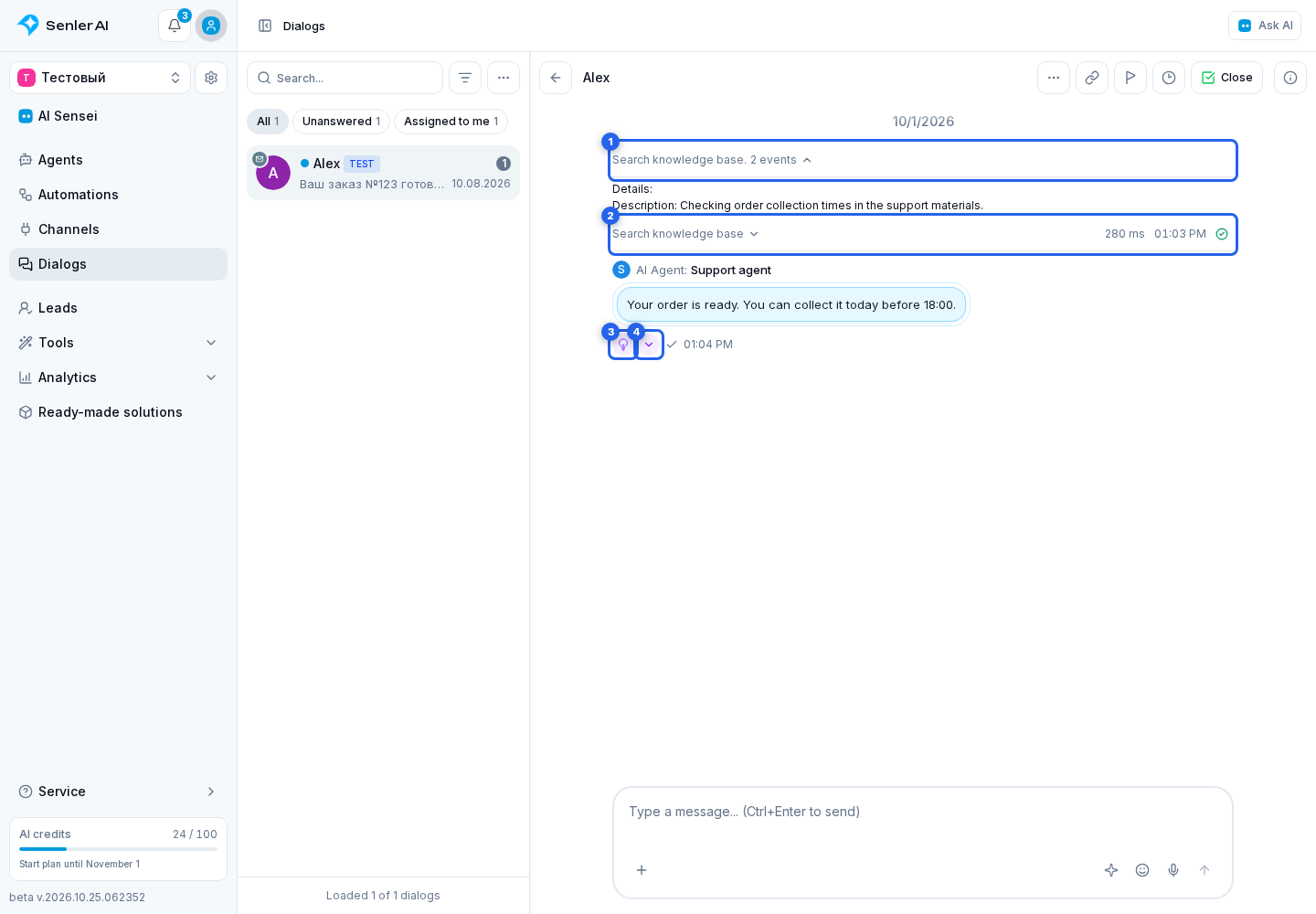
Several consecutive records about AI activity may be combined into one row. Select the technical event group to expand these records.
A Progress update contains an intermediate explanation of the agent's work, not a finished reply to the client. Its text is immediately visible in an expanded group. If the agent calls a tool after text has appeared, that temporary text is removed from the unfinished reply and saved as a separate Progress update; the final reply appears separately after the work is complete.
You can also expand tool call information. The analytics button opens message information in a side panel. If a summary arrow appears next to it, select the arrow to show or hide a short summary directly in the history.