
Channels Overview
Channels
Open the section through the Channels item in the side menu. Channel - connection to an external platform. Messages are received through the channel and replies are sent.
Channel list
In the channel list, use search or select a channel row to open its settings. The add button opens the platform chooser for a new channel.
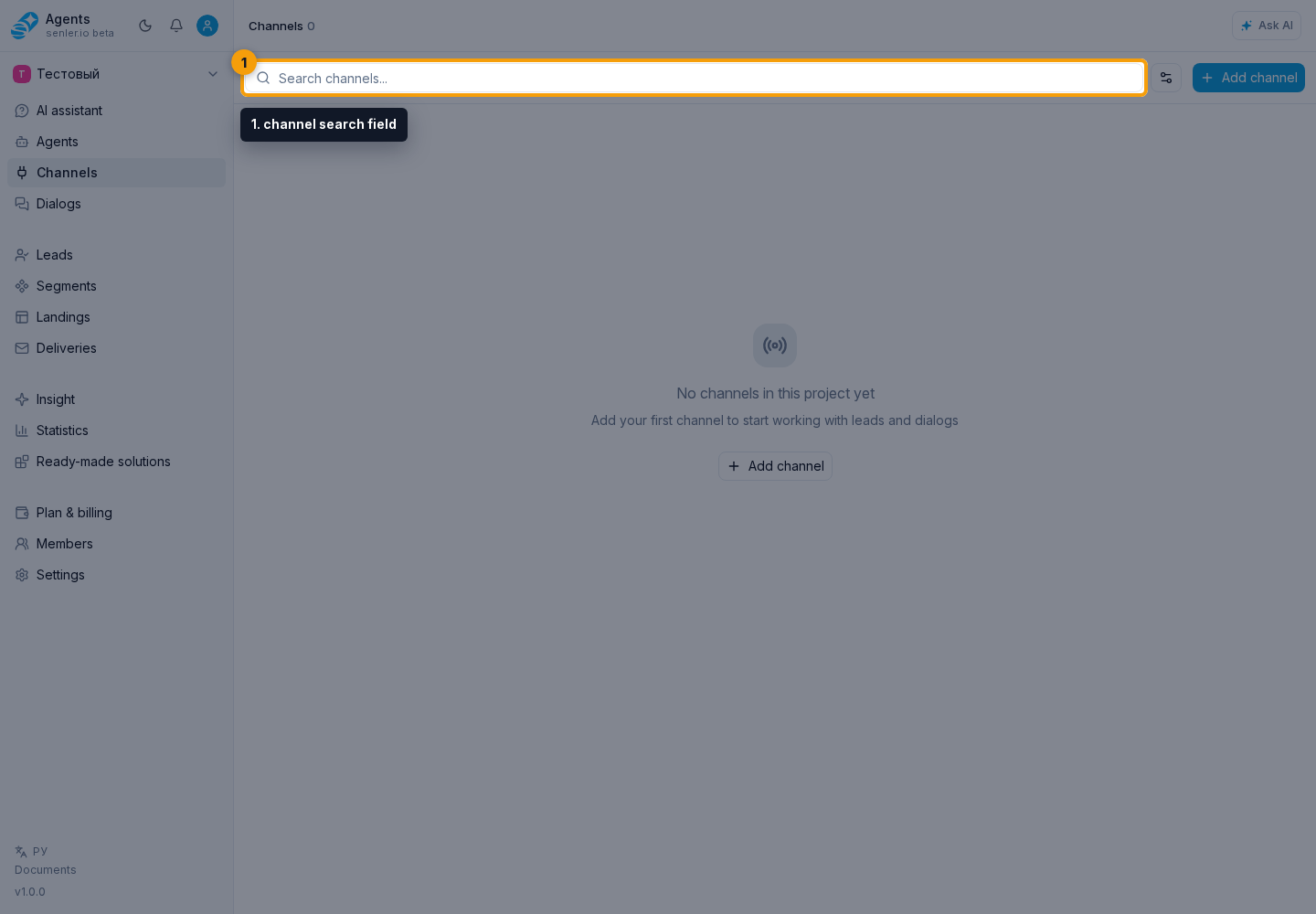
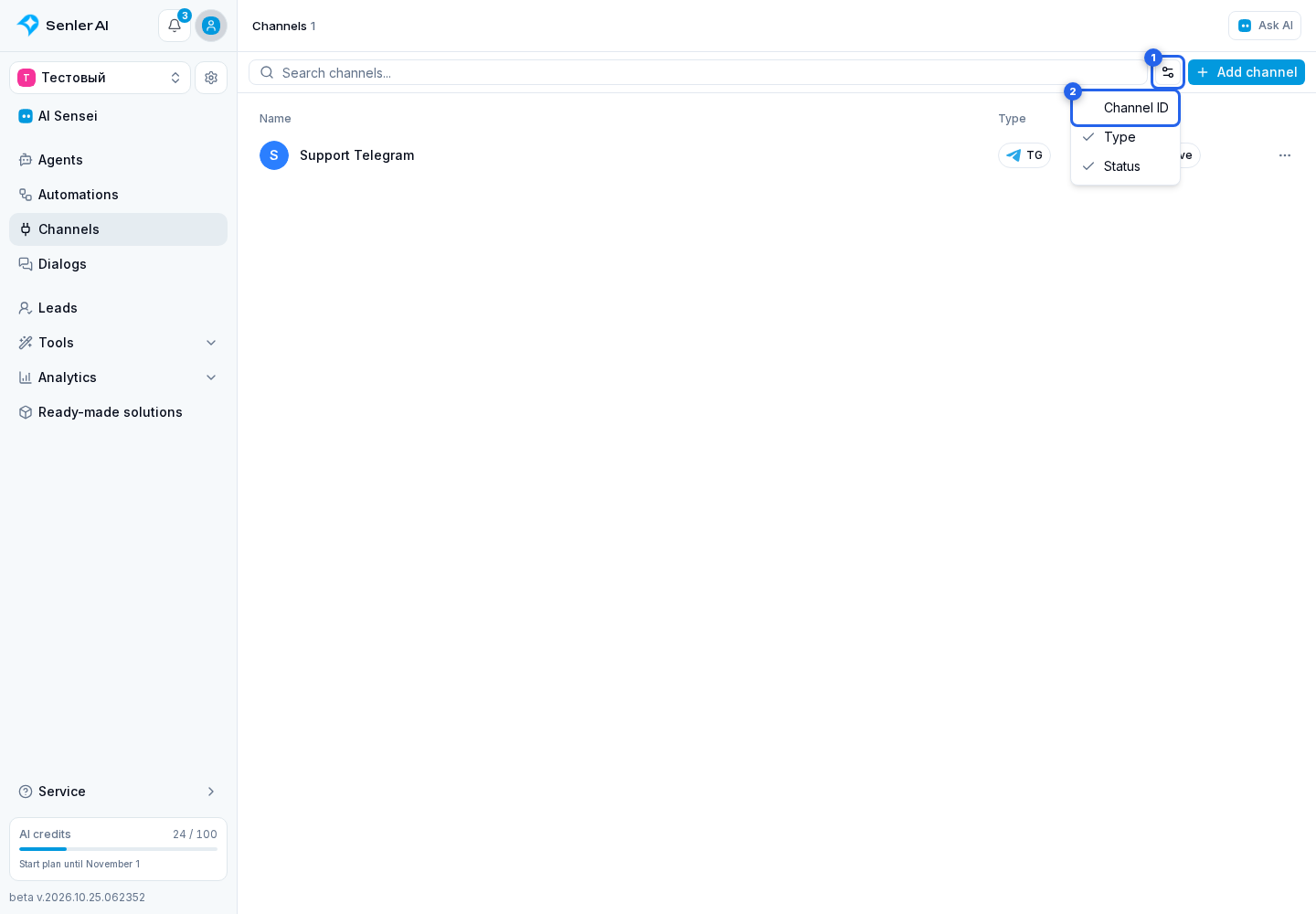
Table columns
Use table settings to show or hide the ID, type, and status columns.
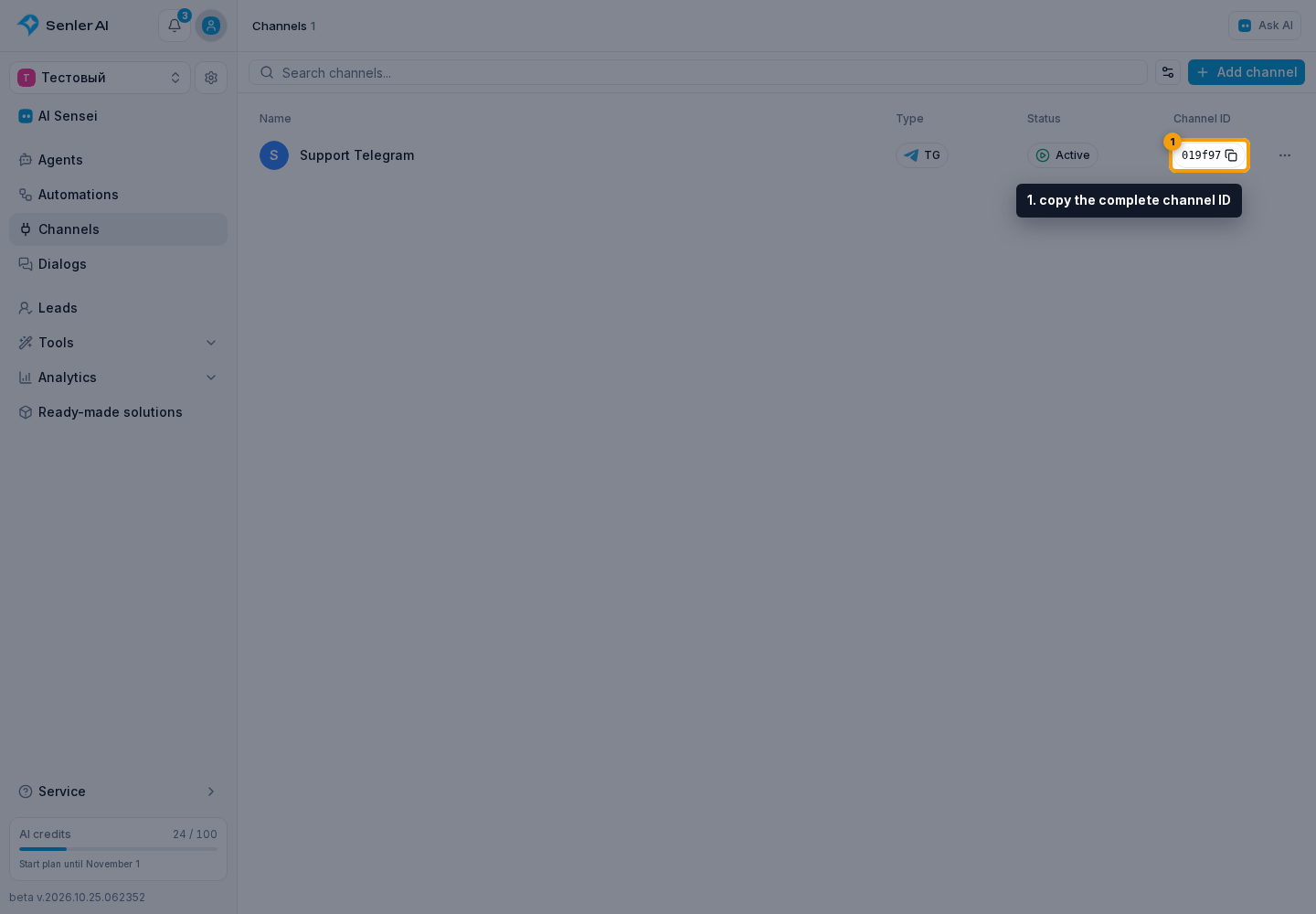
When the ID column is enabled, the button beside the identifier lets you copy the complete channel ID.
Channel actions
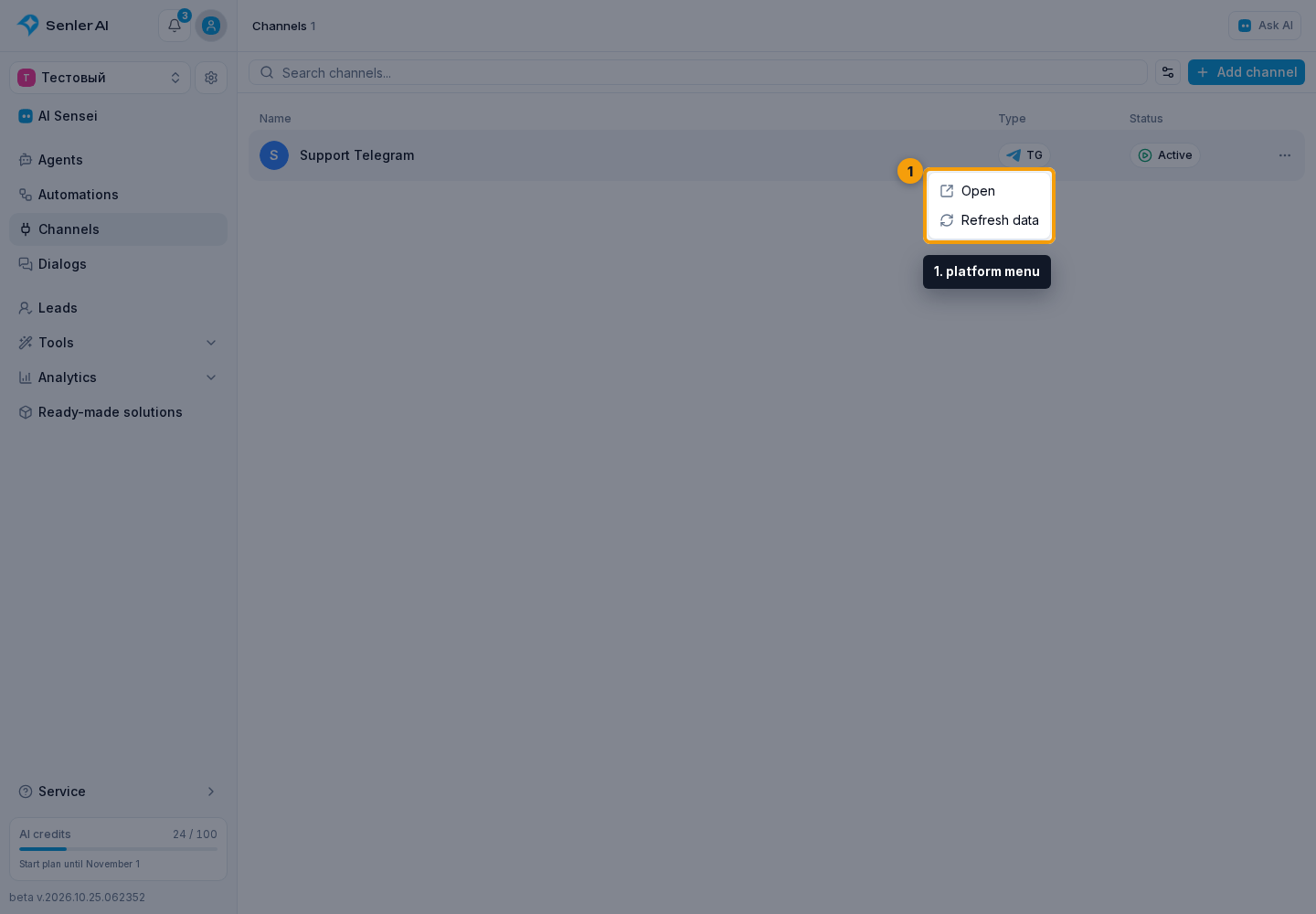
Click the platform type in the channel row. The platform menu lets you open the external channel page when the platform has a public link, or refresh this channel's data.
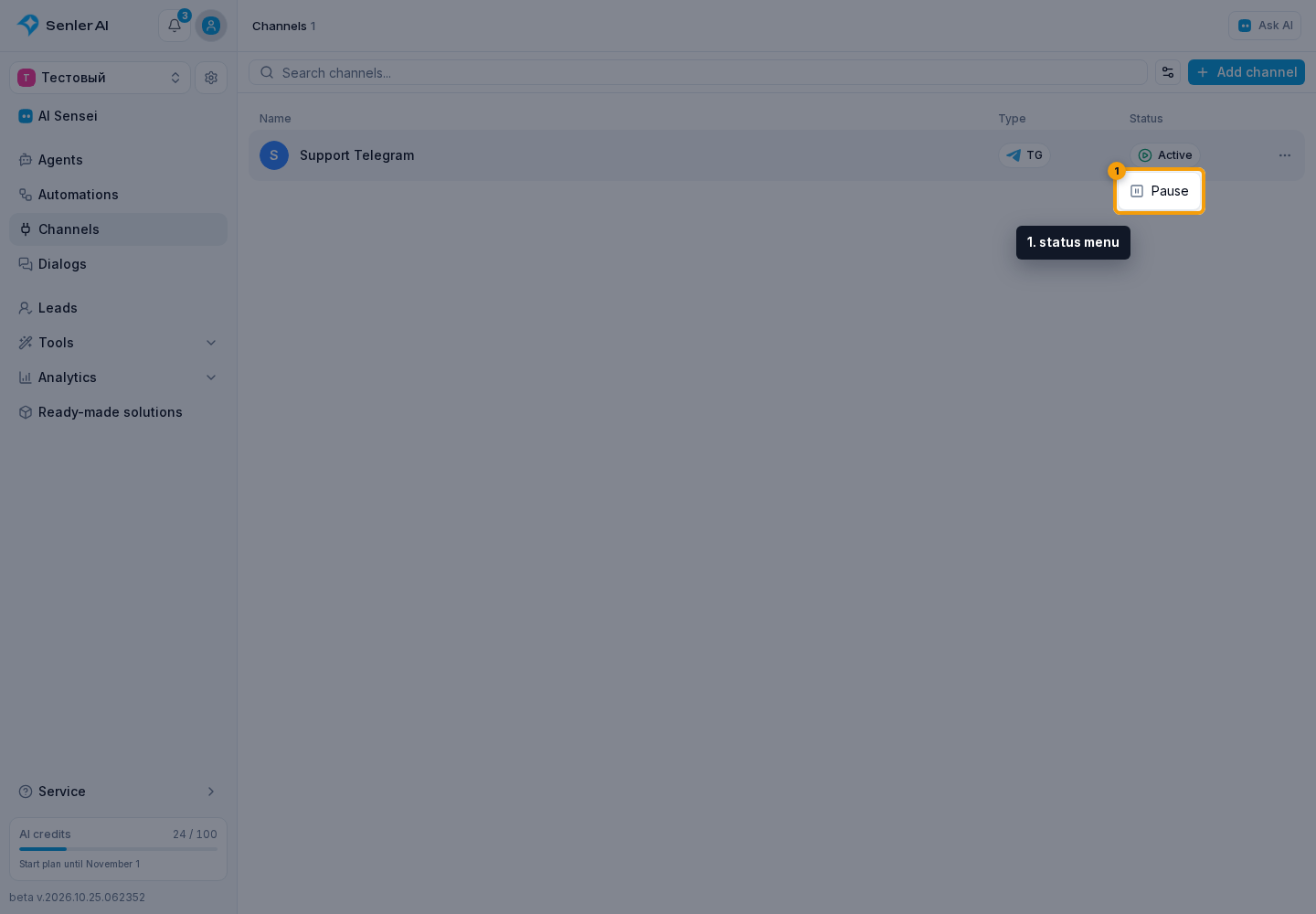
Click the channel status. In the status menu, choose pause or unpause and confirm the action in the dialog that opens.
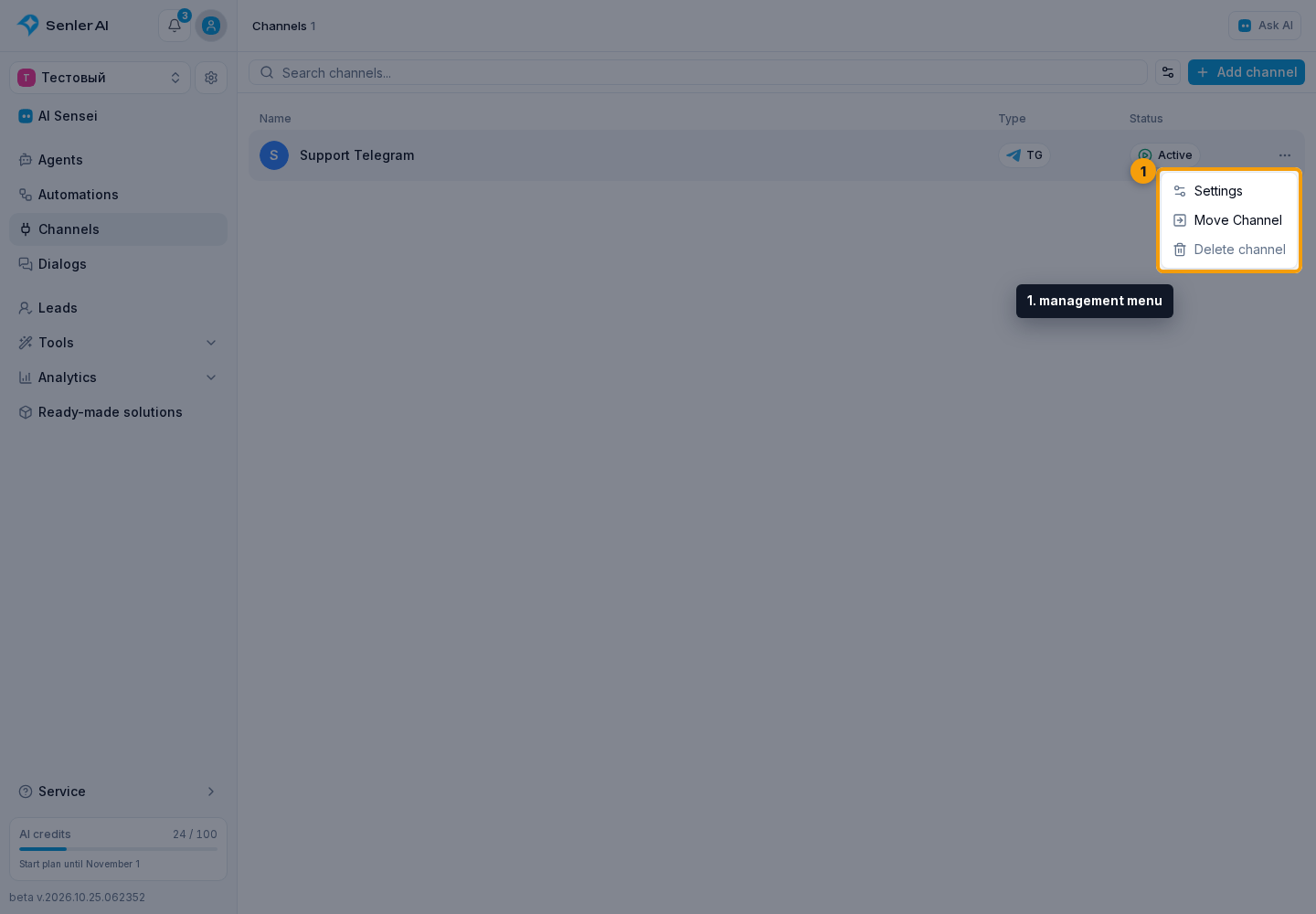
Click the ellipsis in the channel row. The management menu contains channel settings, moving to another project, and deletion. Moving and deleting require permission; selecting a menu item opens the corresponding dialog rather than performing the operation immediately.
You can also start background channel updates and view their history with counts for updated, skipped, and failed items. See channel settings for details on refreshing and managing a connection.
Adding a channel
- Open the section through the Channels item in the side menu.
- Click Add channel.
- On the Add channel page, choose the required connection in the platform chooser.
- Complete the selected platform form. After a successful connection, the cabinet opens the new channel settings.
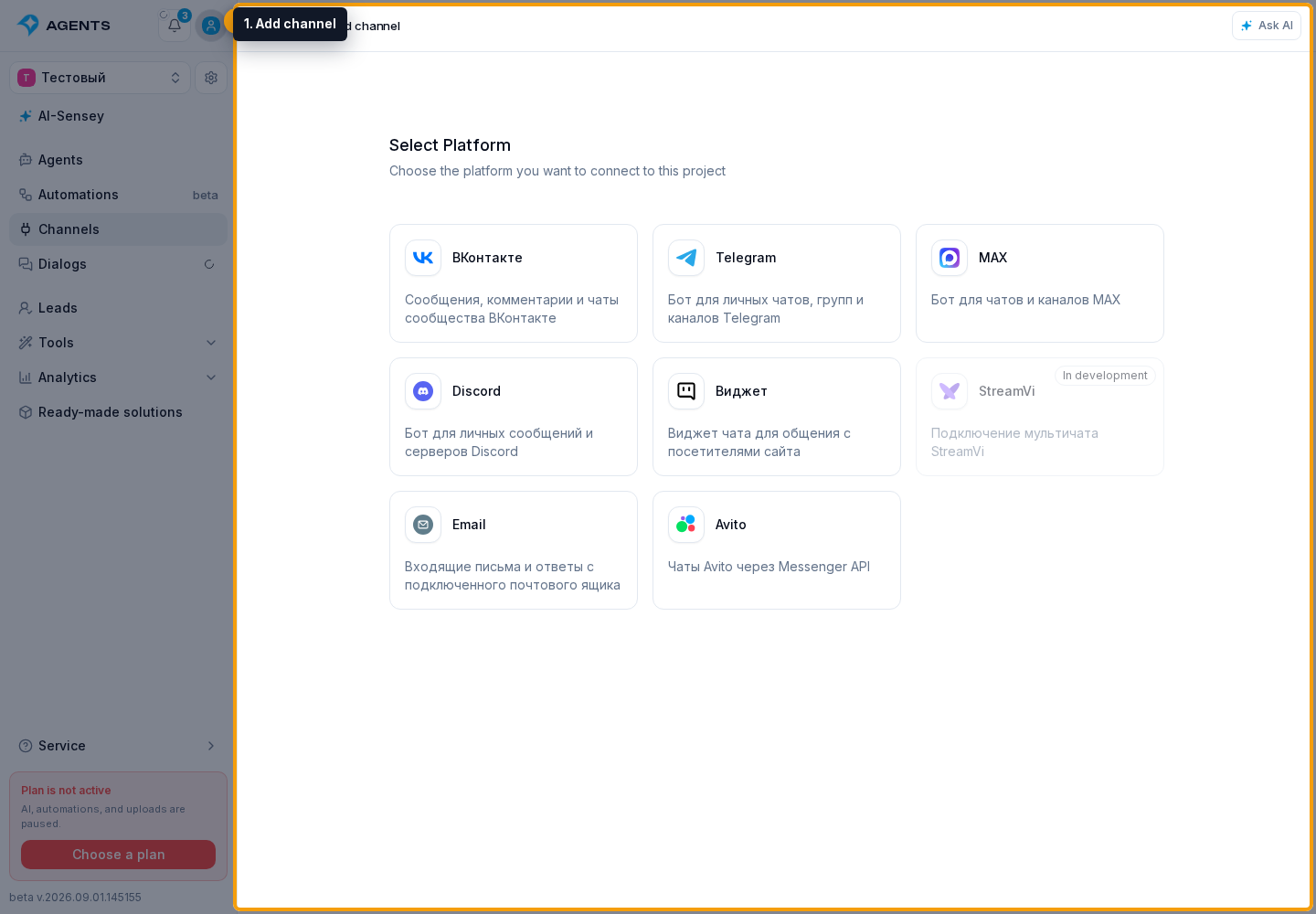
If the platform card is not available
In development means that only Senler AI service administrators, not ordinary project administrators, can connect the platform. Unavailable means that the cabinet does not currently support creating this channel type. The tariff and project settings do not affect the card state. Platform-specific guides are listed in adding a channel.
Selecting channels in forms
In forms that select one channel, click the channel selector. In the list that opens, select the required row: the selection is passed to the form immediately and the list closes. Platform tabs appear when multiple channel types are available.
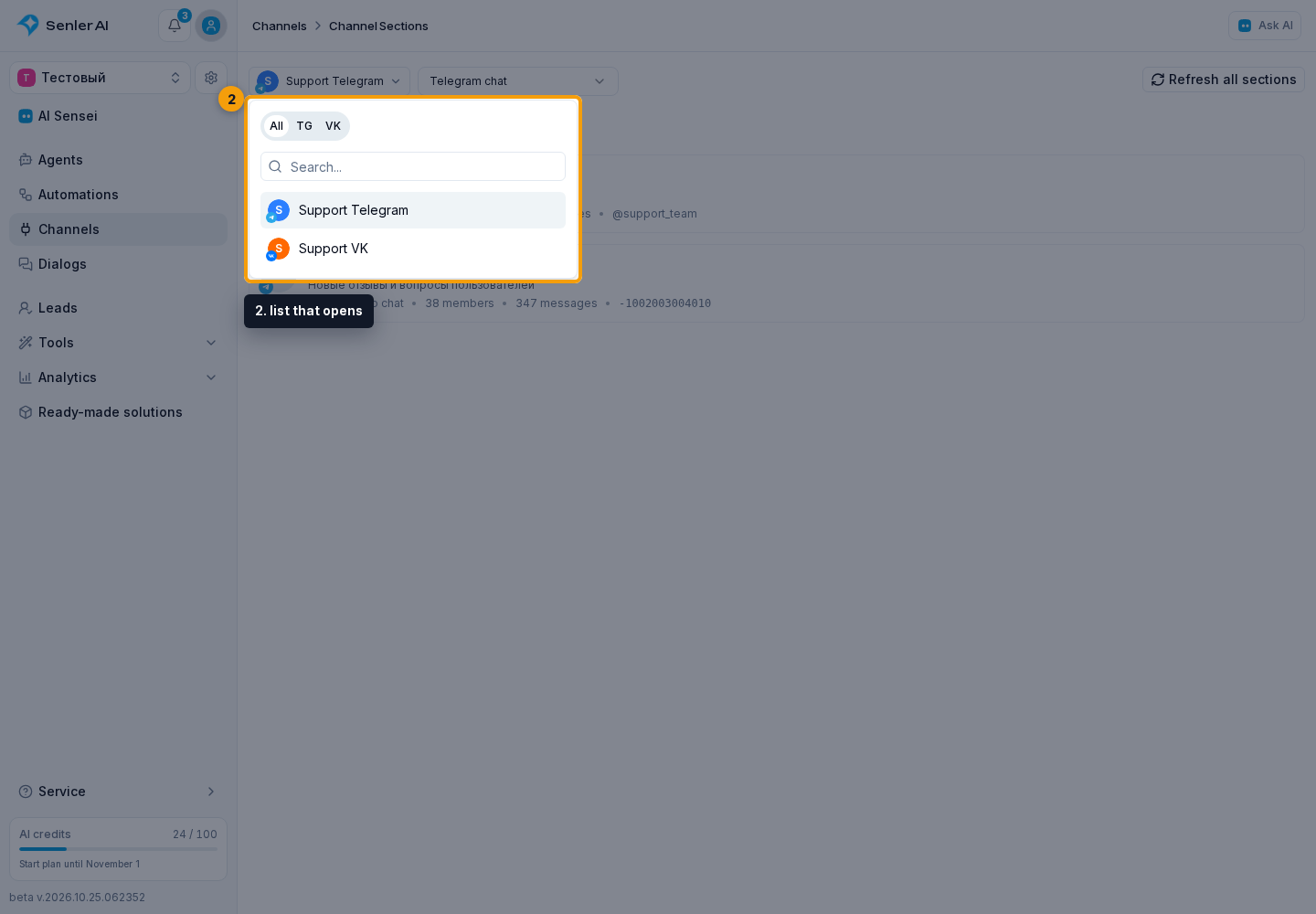
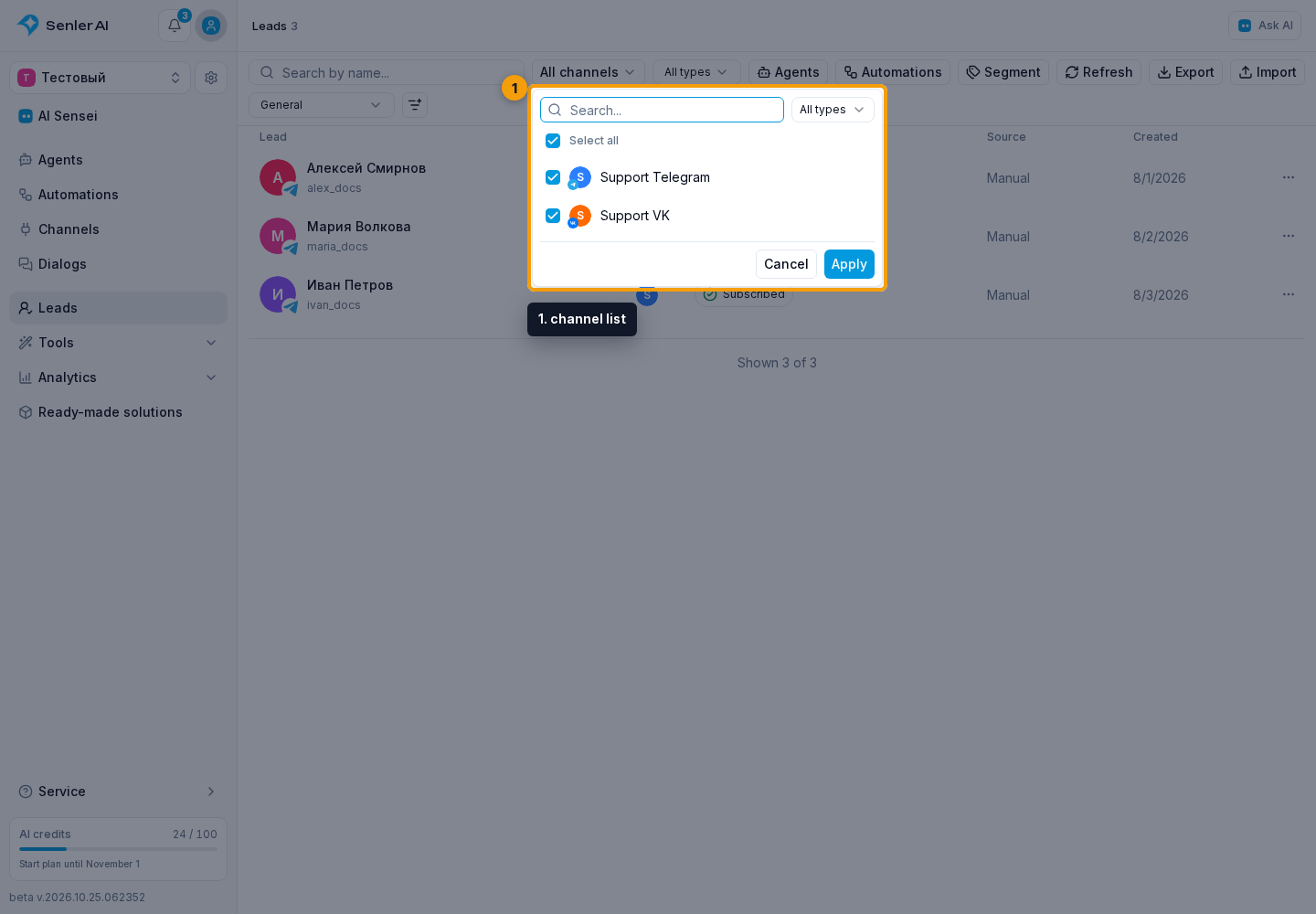
To select several channels, open the channel list. Use search by name, external ID, bot username, or type and, when needed, the platform filter. Check the required channels; Select all checks or unchecks only the current search and filter results. Other channel selections are preserved.
When Apply appears below, select it to pass the selection to the form. With an empty selection, choose at least one channel. Cancel closes the list without applying changes. In forms without these buttons, selections apply immediately; the form itself may still require a separate save.
Channel selection mode appears in saved settings: agent autostart, automation incoming messages, funnel transition conditions, and delivery audiences.
- All channels, including future channels also covers channels added to the project later.
- Specific channels saves a fixed list, even when selecting 1 of 1 or every current channel. Select all current channels in this list fills it without including future channels.
An unavailable saved channel remains a separate item: remove it and select a replacement. Specific channels requires at least one channel before applying. An example of the window with these modes is shown in Autostart settings.