
Avito Connection
The Avito channel connects messages from an Avito account to Senler AI. Requests appear in dialogs, and the assigned agent can use details from the related listing when preparing a response.
What to prepare
- access to the required Avito account;
- an Avito tariff that includes Messenger API access;
- browser permission to open the OAuth window;
- an understanding of which Senler AI project should receive messages.
How to connect
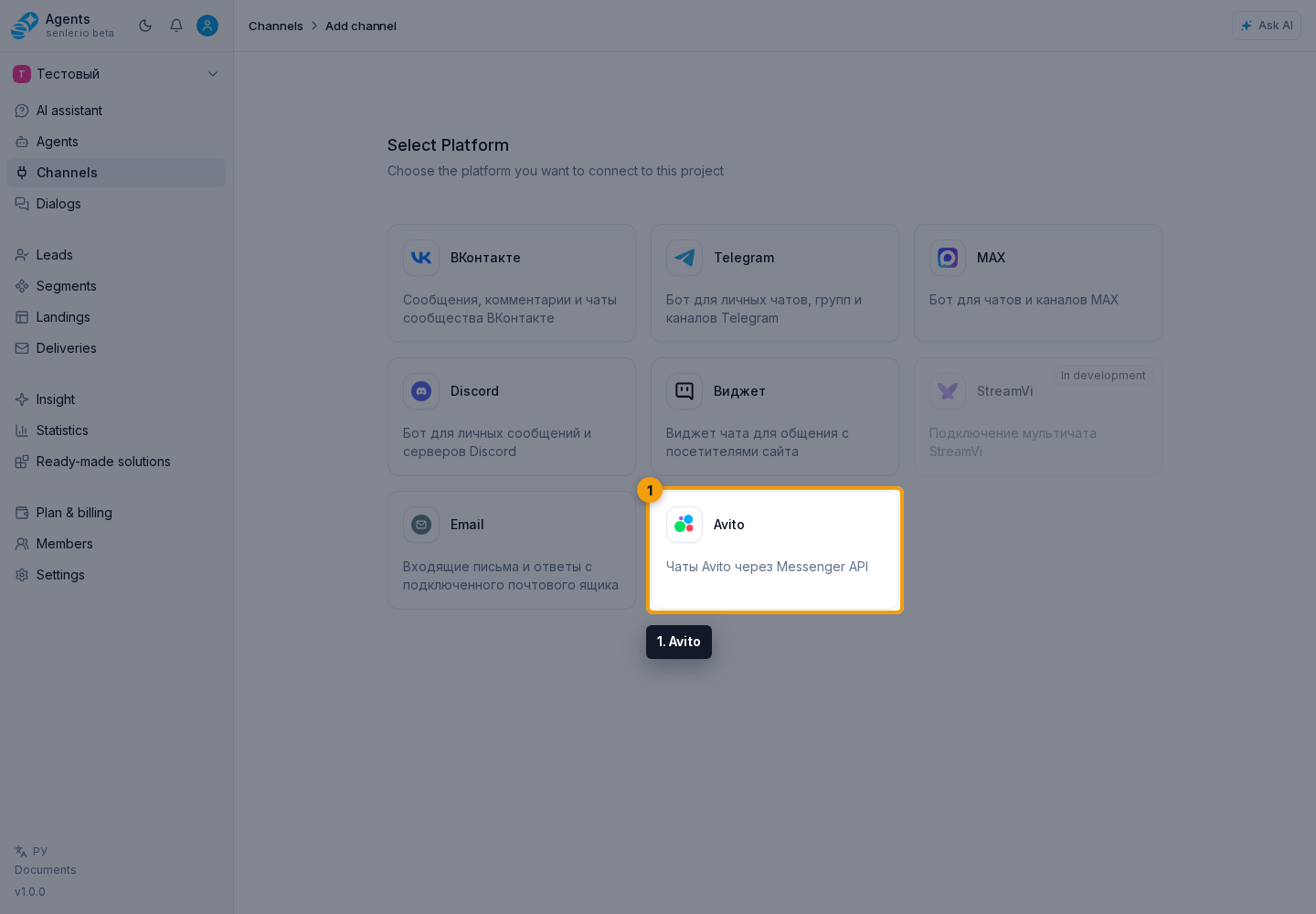
Open the section through the Channels item in the side menu and click Add channel.
Select Avito.
Click Connect Avito.
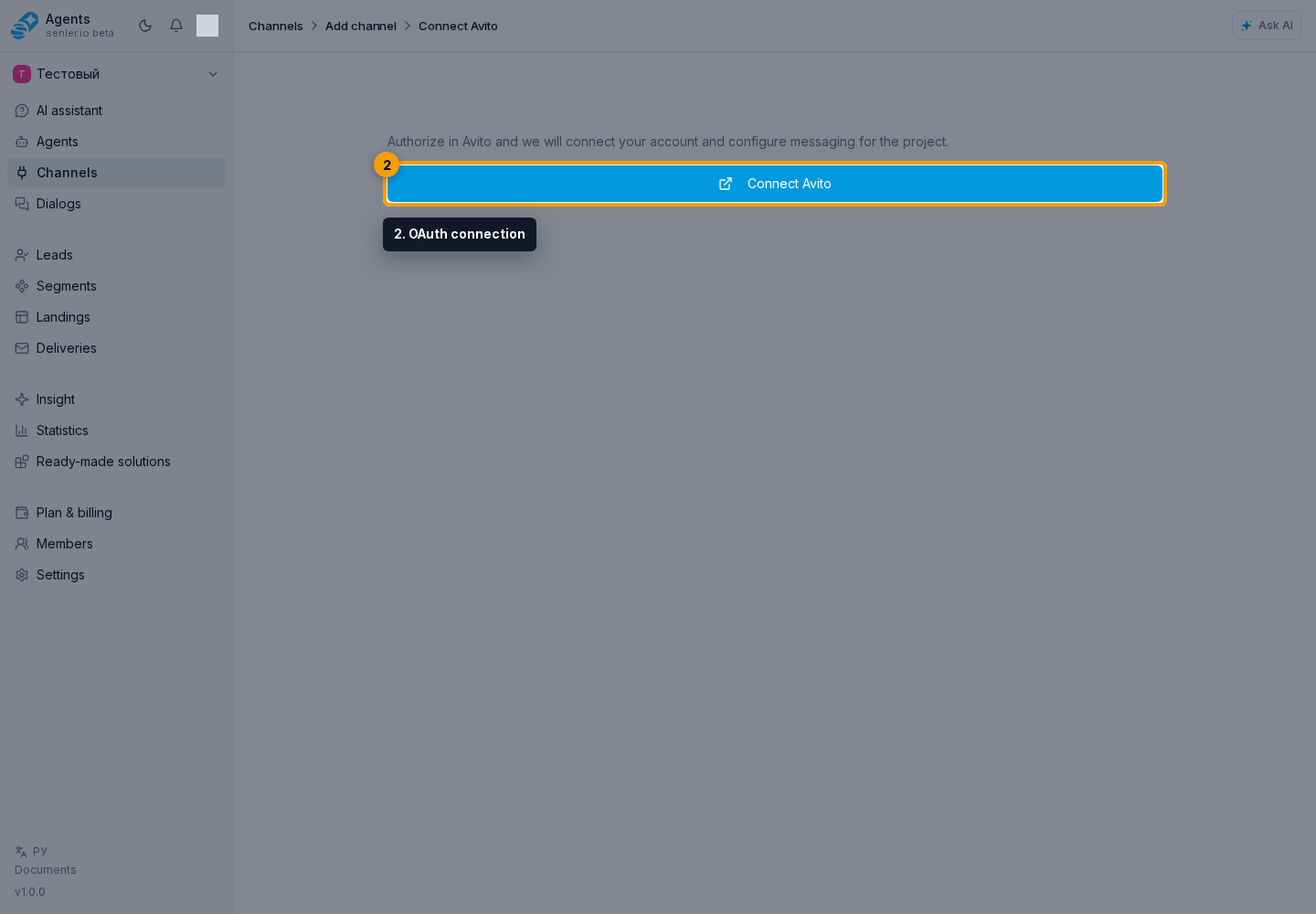
In the window that opens:
- Sign in to the required Avito account.
- Allow the access required for message exchange.
- Wait until you return to the Senler AI cabinet and check the channel status.
After connection
The channel settings show the connected account and its user ID. Synchronization refreshes available account data, while the webhook section shows the state of incoming message delivery.
Successful OAuth and an active webhook do not by themselves confirm permission to read and send messages. Senler also checks actual access to Avito chats and messages.
If Messenger API Access Is Unavailable
When Avito reports that the current tariff does not include message access, the settings show a No access to Avito Messenger API warning. The channel remains connected, but Senler cannot read or send messages.
Select Open Avito tariffs and enable an Avito tariff with Messenger API access. Return to the channel settings and select Check again to repeat the access check.
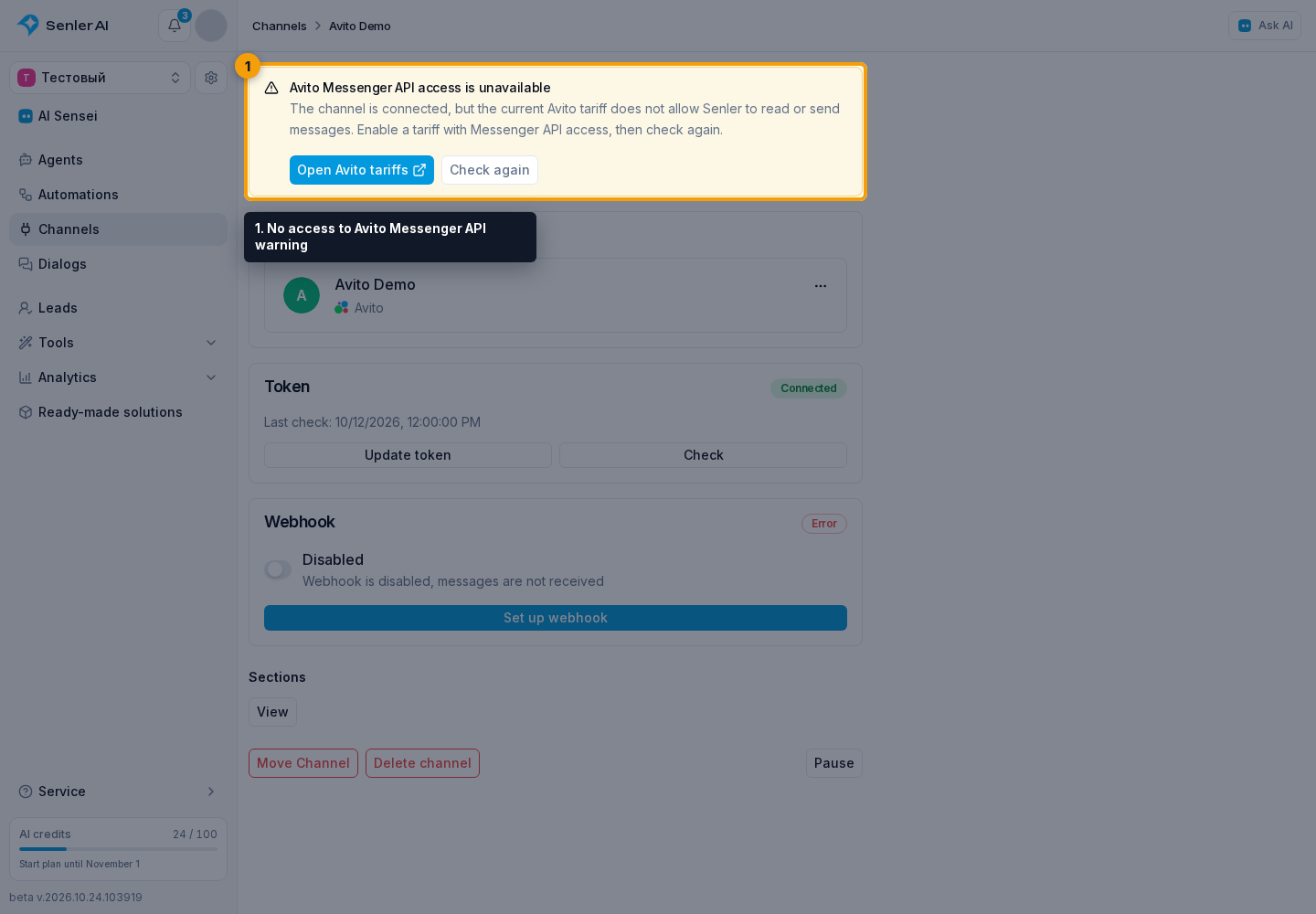
Repeating the check requires permission to manage this channel. With view-only access, the warning and tariff link remain visible, but Check again is hidden.
Listing Details In Agent Responses
Senler links an incoming dialog to an Avito listing and stores it as a channel space. Replies can use only data available through the Avito API: title and URL, ID, price, currency, city or region, address, category, status, publication dates, image count, and available account and listing identifiers.
If image recognition is enabled for the assigned agent and its model supports images, it can also use text descriptions of listing photos. This helps it answer questions about the item or service without asking for the link and images again.
The available details depend on the data returned by Avito. Senler does not invent or fill in missing fields.
Open The Listing Card
- Open the connected Avito channel settings and go to Spaces.
- Find the listing by name or ID and open its row.
- In the details dialog, review the listing card and Avito listing data block.
The card may show the price, currency, status and status ID, city or region, address, category and category ID, image count, account and owner IDs, autoload ID, and publication start and end dates. Data sources and completeness are also shown as Basic details, Messenger data, or Extended listing data.
If extended data has not been received yet, refresh that space. The result still depends on the account's access and the available Avito API methods.
Why The Description Or Full Gallery Is Missing
The Avito API methods available to the integration do not return the listing description. The card may therefore show a Listing description was not received notice. Refreshing cannot create this text or reconstruct it from other fields.
The Avito Messenger API may also provide only a small thumbnail without the gallery or originals. In this case, the cabinet shows the actual image without stretching it and reports how many images the listing declares and how many Senler received. Image recognition can process only the received files, not unavailable originals.
If Connection Does Not Complete
- check that authorization is performed with the correct Avito account;
- check whether the browser blocked the OAuth window;
- if the channel is connected but a Messenger warning appears, follow the steps above;
- if the webhook shows an error, repeat the check in channel settings and save its text for support.