ruLog in to Senler

Statuses and Actions

The status shows the stage of the latest run and determines the available commands. A delivery that already ran cannot be cleared and reused: create a copy for a new run.

Statuses

  • "Waiting" - the delivery has not run yet and is being prepared;
  • "Scheduled" - a future start is set;
  • "Queued" - a sending process was created;
  • "Collecting leads" - the system is fixing recipients from the saved filters;
  • "Sending" - messages are being sent;
  • "Completed" - all recipients were processed;
  • "Error" - the run failed;
  • "Stopped" - sending was stopped by a user;
  • "Deleted" - the delivery was moved to deleted.

In the delivery card, the status appears next to the name. In the list, statuses are grouped under "Waiting", "Processing", "Completed", and "Deleted".

Available Actions

In the list, open the delivery's actions menu. In the delivery card, the main available commands appear next to the name.
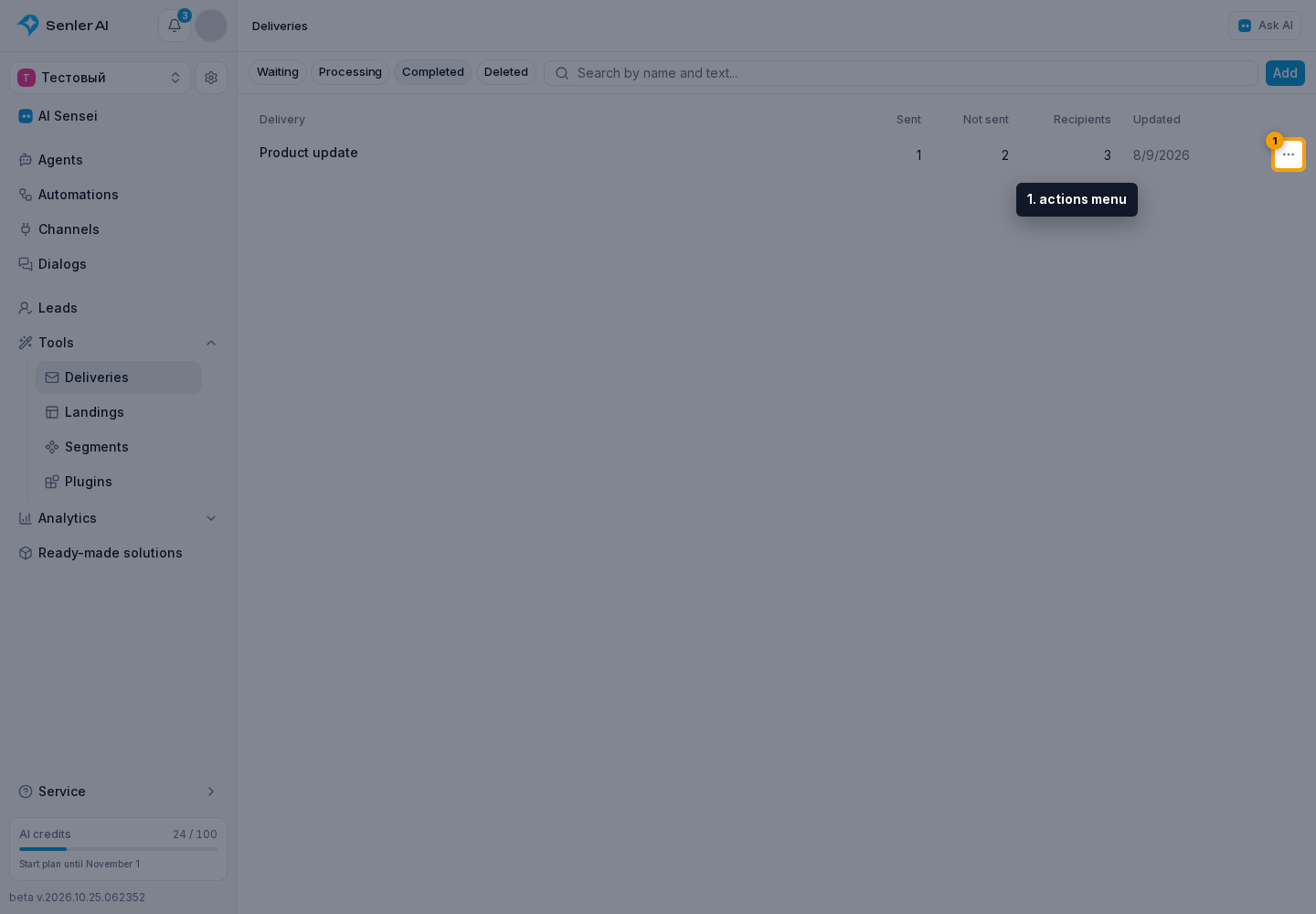
For a delivery with no runs in the "Waiting" or "Scheduled" state, editing, testing, starting, schedule settings, and deletion are available.

During "Queued", "Collecting leads", and "Sending", you can stop the delivery. After completion, failure, or stopping, copying, sharing by link, and deletion are available. A deleted delivery is read-only; restore and new actions are not available for it.

Available Actions. Highlighted elements: 2. copying; 3. sharing by link; 4. deletion
2 / 2
2. copying · 3. sharing by link · 4. deletion

Sending Results

In the run card, the Delivery results section separates recipients into All, Sent, Errors, and Not sent tabs. Sent means that the message was created and passed to the channel; each row separately shows Sent or Delivered. Errors includes both sending errors and channel-confirmed delivery errors with their reason. Not sent means that no sending attempt was made, for example because the recipient was skipped or remained after both the daily limit and one-time message stock were exhausted.

A row opens the current lead card, and the dialog button opens the exact dialog where the message was sent. If the lead was deleted after the run, the saved sending details remain in the results, but the lead card cannot be opened.

View in leads opens the lead list in Deliveries mode with the run selected. In this mode, you can additionally choose a channel, channel type, sending result, and a specific lead. To select an exact lead, start entering a name, username, or ID and choose a suggestion. You can export the resulting selection; the export runs as a background process. Other General mode filters cannot be combined with delivery results.

A delivery first uses the daily plan limit and recurring increase, then purchased one-time message stock. When both sources are exhausted, remaining recipients move to Not sent and the run pauses. The daily limit refreshes by Moscow date. A message that fails does not consume one-time stock: its reservation is returned.

Run details and its error can be checked under Settings -> Processes.

Stopping

Select Stop and confirm. New messages stop after the stop request is processed. Messages already sent remain with their recipients.

Copying

Select Copy. In the dialog, review the package contents, enter a copy name, and choose the target project. Copying runs as a background process.

The copy includes the message, attachments, filters, and discovered segment and variable dependencies. Run history, results, and scheduling are not transferred: the new delivery has no runs.

When copying to another project, specific leads, channels, and spaces from the source project are not transferred. Related segments are imported and mapped into the copy filters, while the remaining project bindings must be selected again. Before starting, check recipients, variables, and the test send.

The complete copying workflow and package contents are described in Resource copying.

Stop an active delivery first. A deleted delivery cannot be copied.

Select Share, review the package contents, set its name and expiration, then create the link. The recipient can import the delivery into an available project.

The link transfers the same contents as copying: the message, attachments, filters, and discovered dependencies. Run history, results, scheduling, specific leads, channels, and spaces are not transferred. After import, the recipient must recheck the audience, project bindings, and test send.

You can share a delivery once it is eligible for copying: after completion, stopping, or failure. Stop an active delivery first; a deleted delivery is unavailable.

Deleting

Select Delete and confirm. Only an inactive delivery can be deleted. It moves to the "Deleted" tab and can no longer be started, copied, or shared by link.