
Adding funds and payment
Select the Settings gear button to the right of the project name, then select Plan & billing. On this page, you can add funds in advance or use the monetary balance to pay for plans, add-ons, and one-time packages.
Before the first payment, open settings next to the balance and save the country, payment system, and payer details. An order cannot be created without payment settings.
Adding funds to the balance
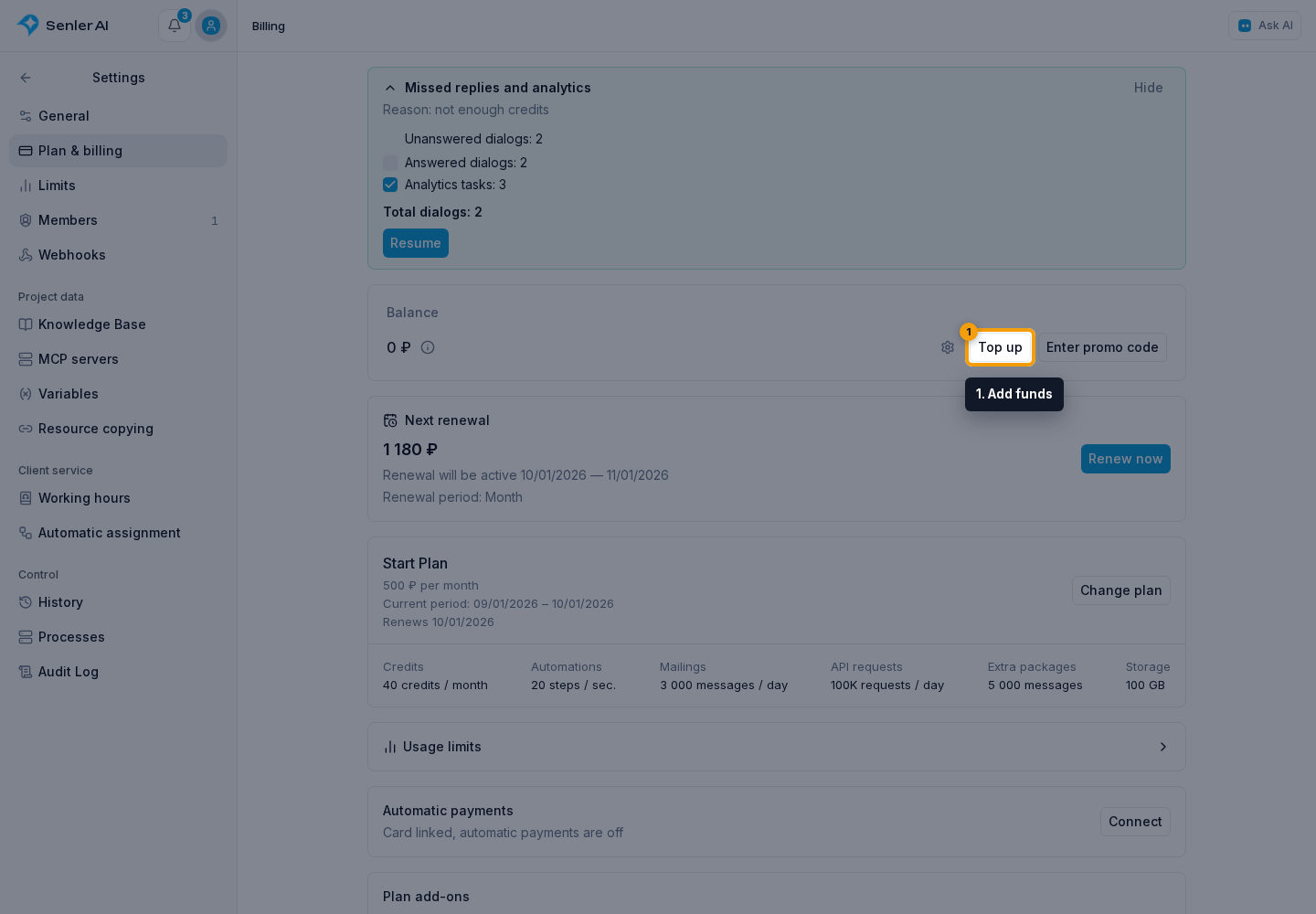
Click Add funds next to the monetary balance.
In the dialog:
- Enter the amount.
- Choose a saved card or one-time payment. For a one-time payment, open the payment system list and select a method available for the project currency.
- Click Add funds. Cancel closes the dialog without creating an order.
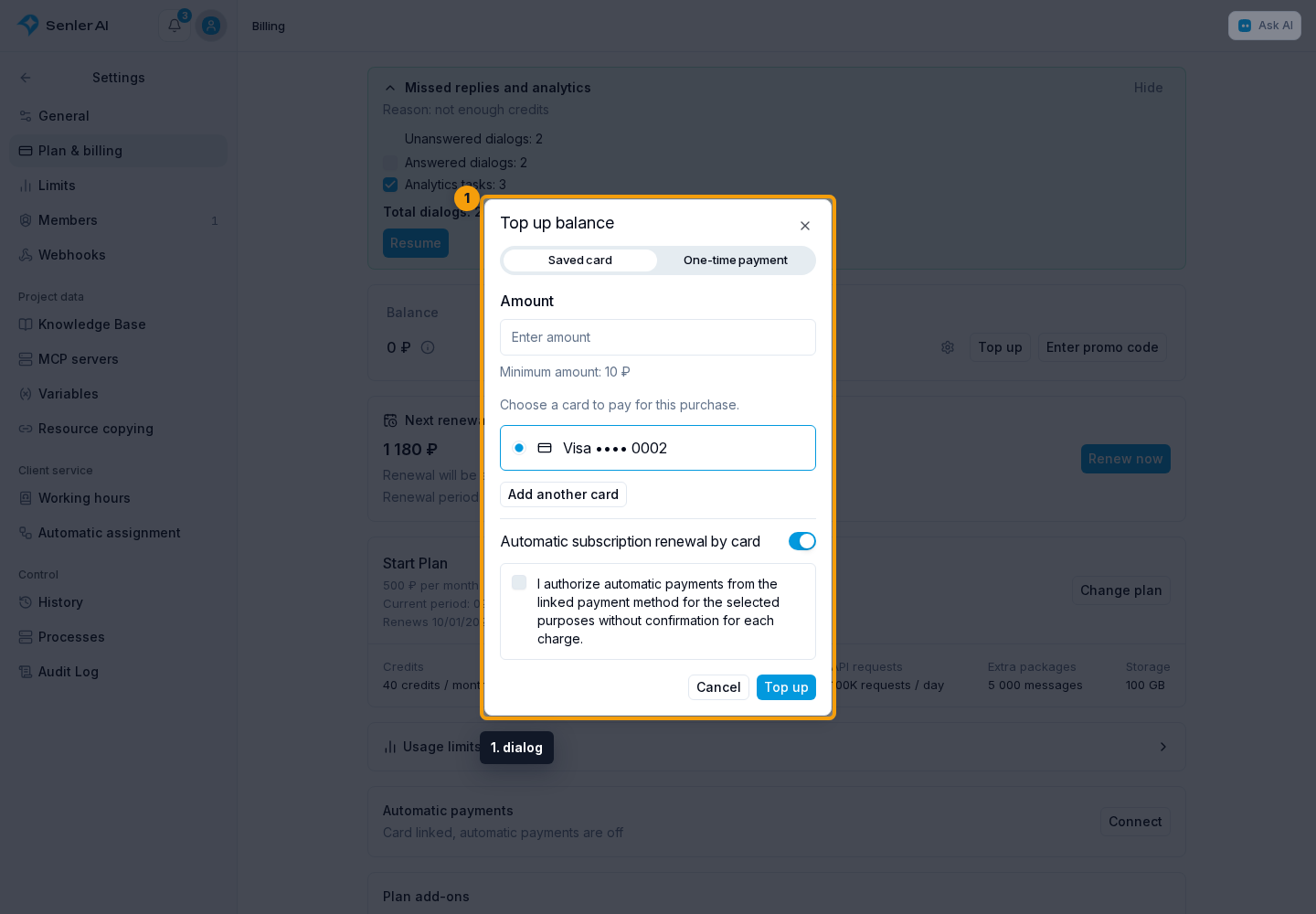
Only payment methods that support balance deposits are shown. The selected payment system validates its minimum and maximum amount.
If the saved payment method does not support balance deposits, the form is replaced by a message asking you to change the country or payment method in payment settings.
Paying for a plan, add-on, or package
When buying a plan, recurring add-on, credits, or a message package, Senler first shows a calculation. If balance payment is enabled, project funds reduce the external amount:
- with sufficient balance, the purchase is confirmed immediately;
- with a partial balance, the payment system receives only the missing amount;
- with balance payment disabled, an external payment is created for the full price.
A regular payment opens on the payment system's page. A cryptocurrency method continues inside the dashboard; see Cryptocurrency payment.
Payment result
After returning to the dashboard, the result dialog shows the current status, amount, order number and date, payment system, and order items. A declined or canceled payment also shows the known reason.
For a partial payment, the amount at the top is the external payment, while the item shows the full purchase price. The difference has already been covered by the project's monetary balance and is not a second payment.
A Checking or Awaiting confirmation status means the payment system has not yet returned a final result. Click Refresh in the same dialog. Do not create another payment while the order is awaiting confirmation.

After a successful deposit, the funds appear on the balance. For a plan or package payment, the order first adds the paid amount and then activates the purchase automatically. You can verify the linked records in transaction history.