
Setting Up a Ready-made Solution After Installation
What to configure
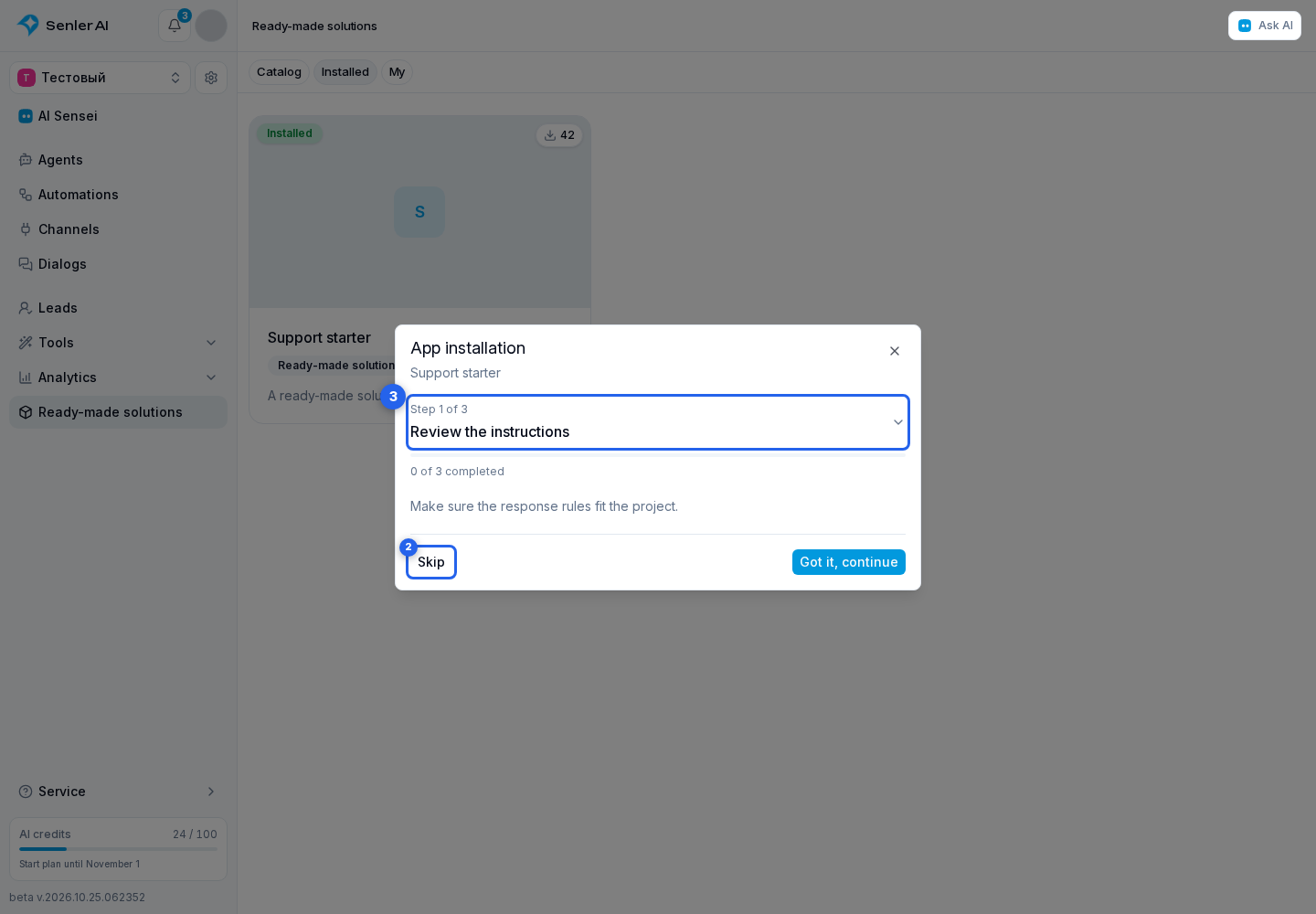
During installation, the cabinet shows stages in the order defined by the ready-made solution author. A required stage must be completed, while an optional stage can be skipped.
Depending on the solution, you may need to fill in project variables, select an agent, assign an agent to a specific dialog, receive ready-to-use links, or follow an instruction from the author.
Ready-made solution setup
If the setup window is closed, select the required ready-made solution card on the Installed tab. An unfinished installation opens its current stage immediately. Continue installation in the solution management window also leads there. Complete the stage and select the confirmation button. You can skip an optional stage; a required stage must be completed before the installation becomes active.
Select the Step N of M header with the arrow to open the list, see stage statuses, and choose a stage. You can view and fill in a future stage, but can only confirm it after the preceding stages. Go to current step returns to the first unfinished stage.
Moving between stages keeps your entries in the open window but does not apply them to the project. Use the confirmation button for each stage to apply its values.
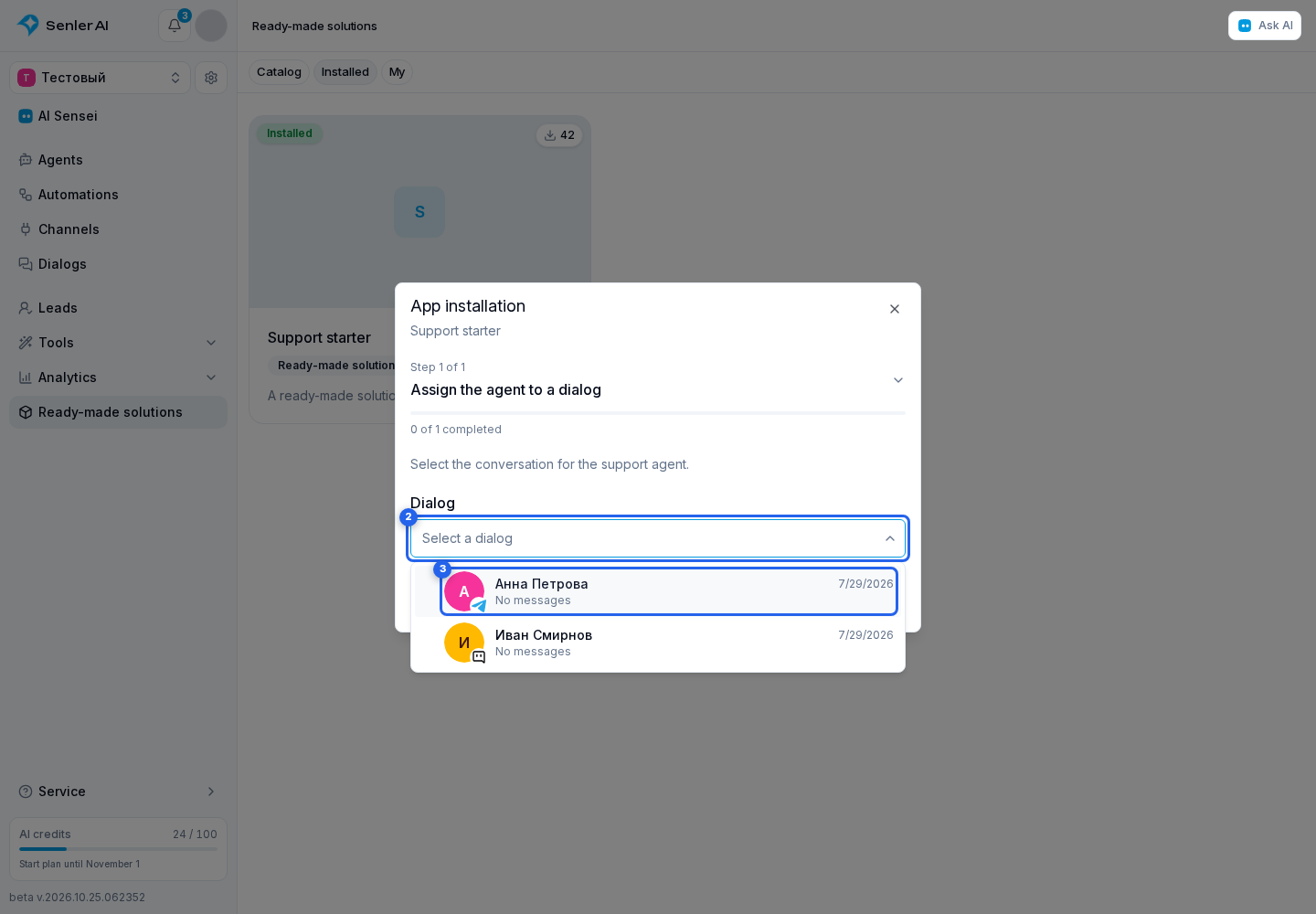
Assigning an agent to a dialog
Open the dialog selector. The list shows the participant or space name, avatar, platform, and dialog identifier. Enter a name or part of a message in search, then choose the required dialog. Select the confirmation button: the agent specified by the ready-made solution author is assigned to that dialog.
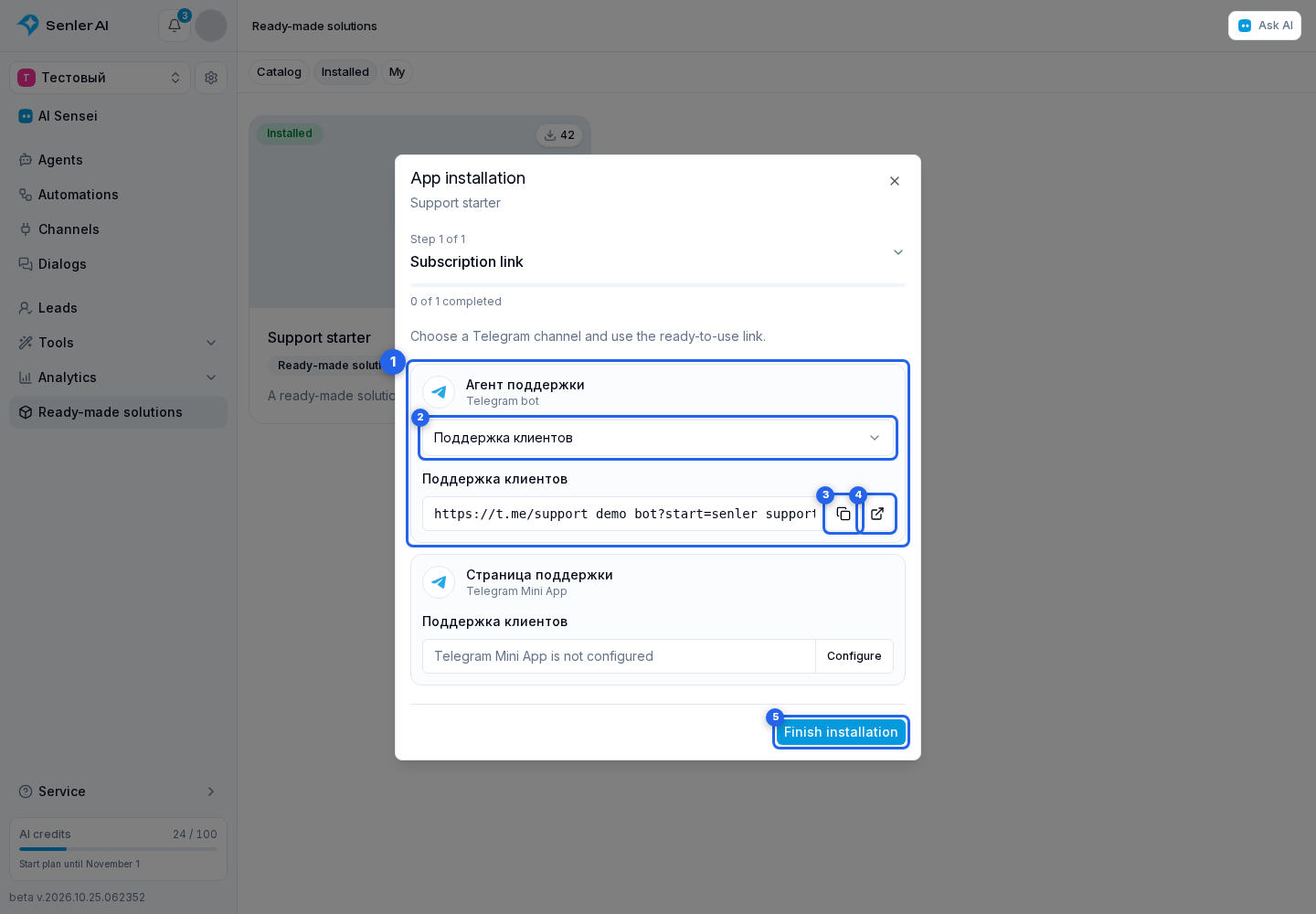
Getting ready-to-use links
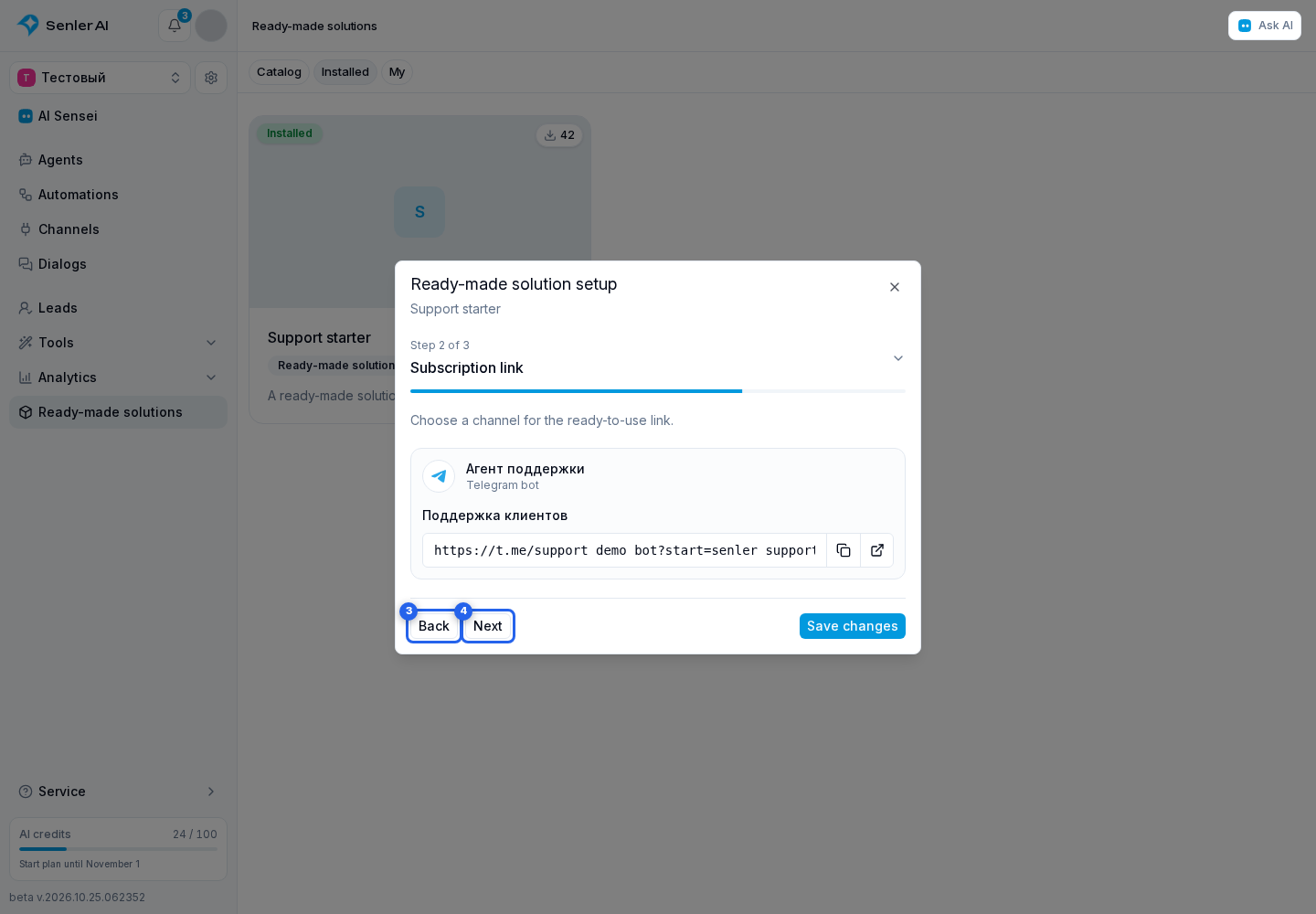
A links step shows each result in a separate row. When several project channels match one link type, select a channel in the channel field.
You can copy or open an available link.
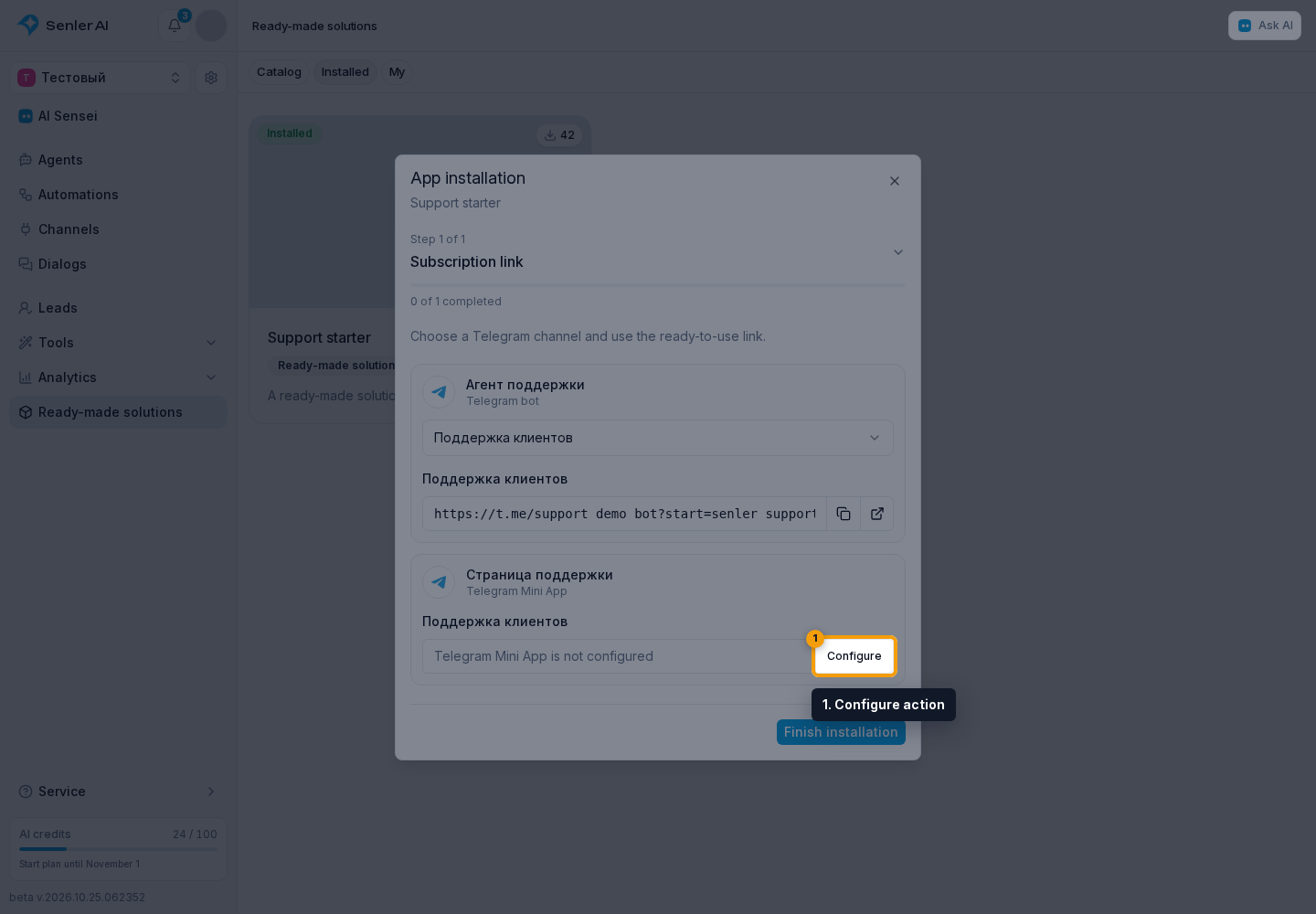
If the address is not ready, the row shows the exact reason and, when the issue can be corrected from the cabinet, a Configure action. At least one link must be available to complete the step. Select the confirmation button to complete it.
Editing completed steps
After installation completes, select Settings. You can reopen these settings later from the installed solution card. Choose a stage in the header menu, change the values, and select Save changes. At the last stage, the button is called Save and finish.
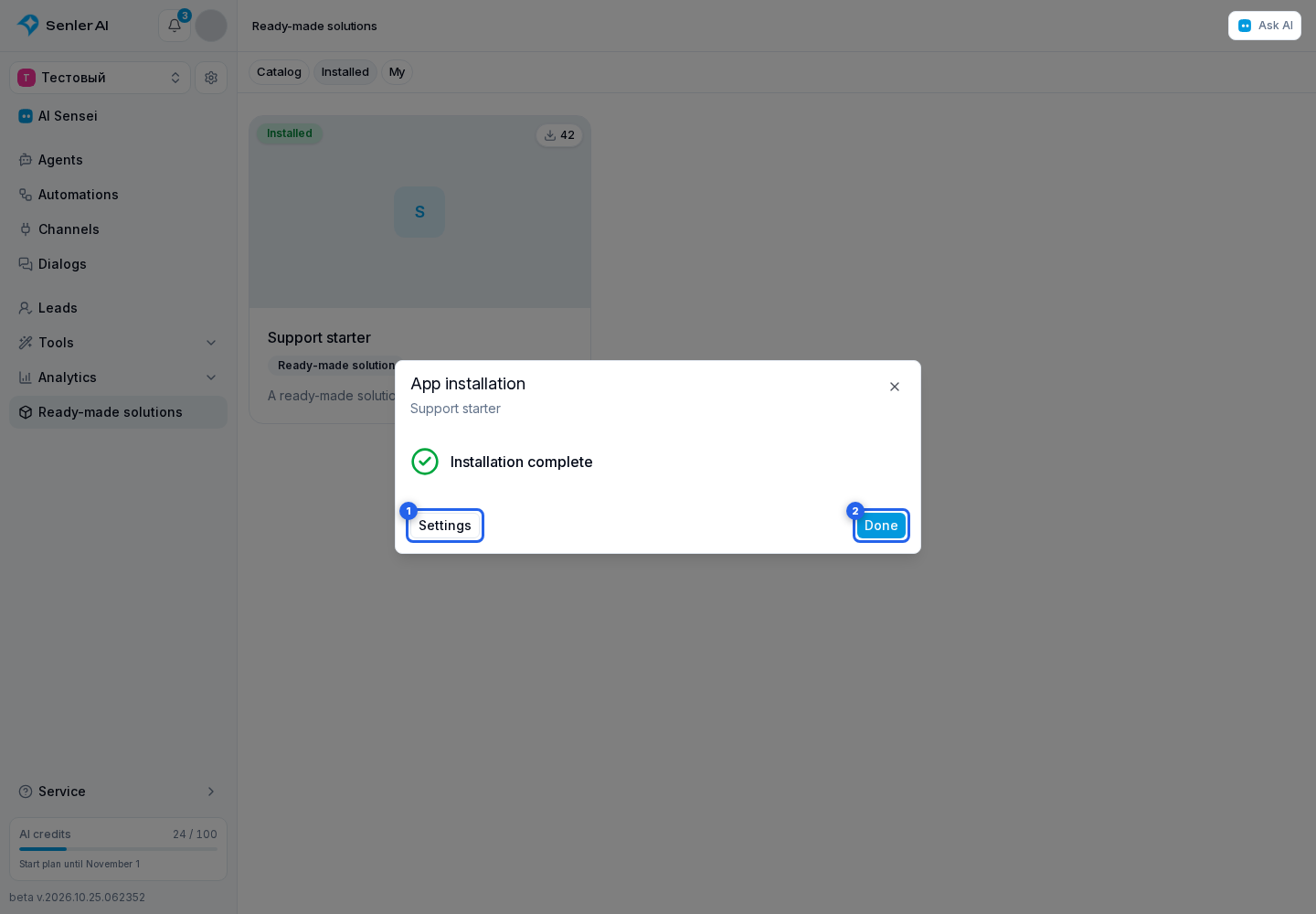
In settings, use Back and Next to move between stages. These buttons do not save changes. Ready-to-use links are available at their stage. After installation or an update completes, Done closes the window.
After an update
A manual update can add new update steps prepared by the ready-made solution author. Complete the required steps to return the installation to Active status. The impact of the new version is explained in Updates and statuses.