
Context Keys
A context key associates knowledge base material with an element in the site or cabinet. When a user selects the element and asks a question, a document with the same key receives higher search priority.
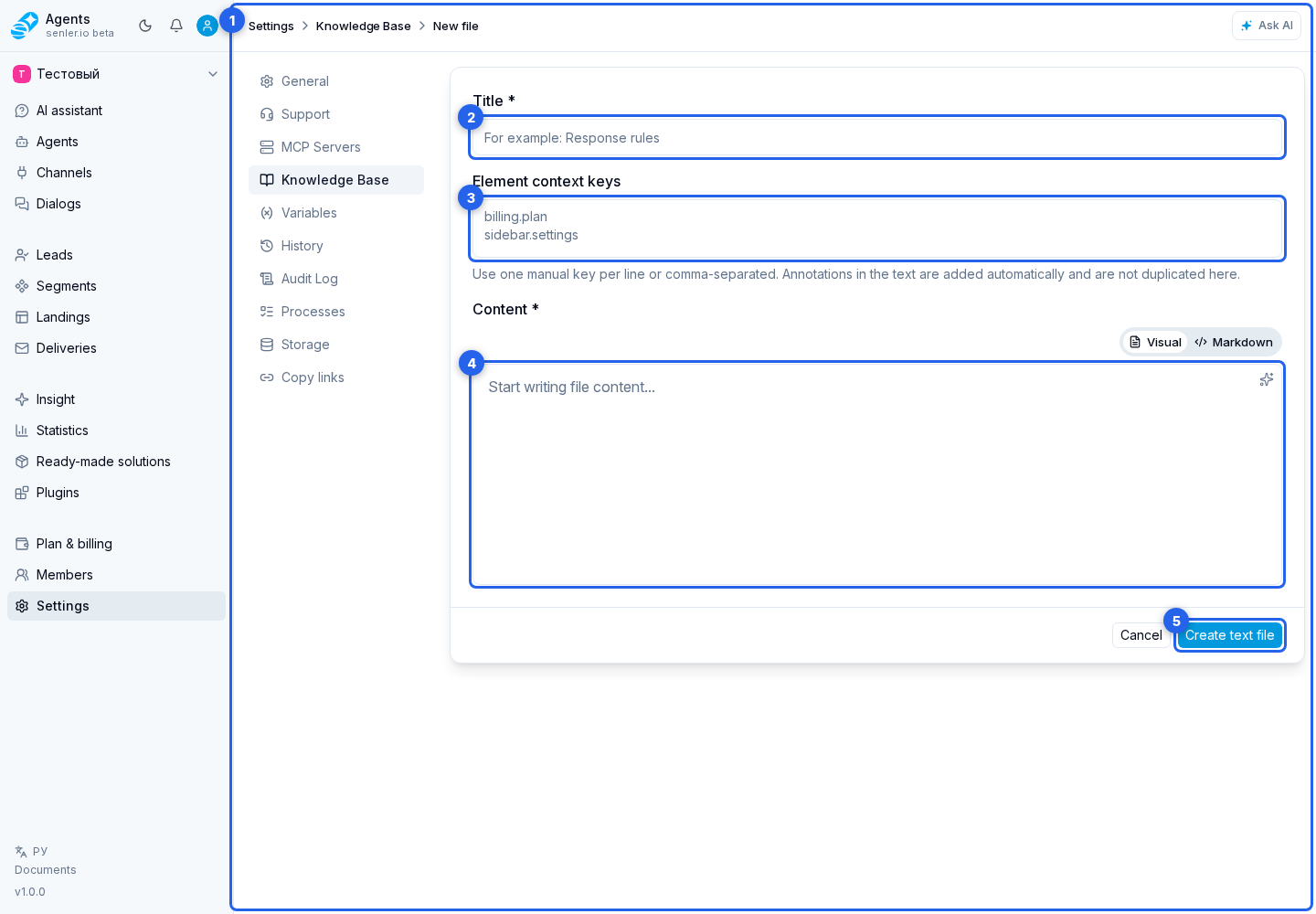
Key for the whole document
Open a text document and enter keys in the Context keys for elements field. Enter one key per line or separate keys with commas.
The same key must be set on the site or cabinet element in its data-ai-context-id attribute.
If the file came from an MD/ZIP upload, check this field after import. The import also extracts keys from inline data-ai-context-id annotations in the Markdown body.
Key for a text fragment
If only a specific document fragment is associated with an interface element, add an annotation directly in Markdown:
Click the <span data-ai-context-id="channels.add">Add channel button</span>.The key must contain at least two dot-separated segments, such as channels.add or widget.custom-action.create. Latin letters, numbers, hyphens, and underscores are allowed; the total length is limited to 120 characters. Spaces, Cyrillic letters, and empty segments are not supported.
To add an annotation, open Markdown mode and wrap the required text in a span. You can then return to visual mode, where the annotated fragment is highlighted. Click it to open the context annotation panel.
In the panel, change the key and apply it with Save. Remove annotation removes only the association and keeps the text. Closing the panel does not apply an unsaved change.
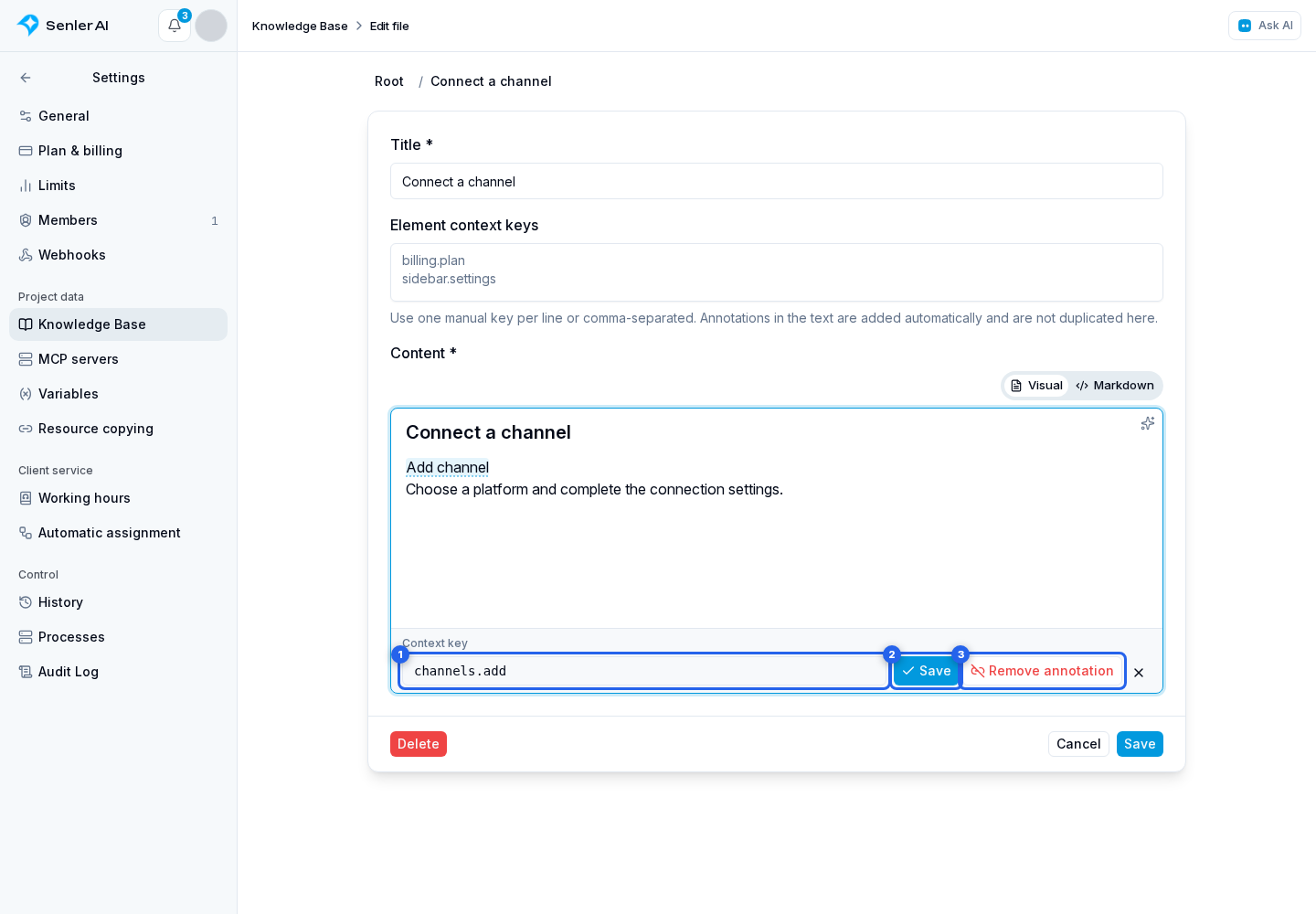
The cabinet adds keys from inline annotations to the document automatically and does not duplicate them in the manual-key field. If the annotation markup is invalid, correct it in Markdown; visual editing may remain unavailable until it is fixed.
Site markup example
<button data-ai-context-id="channels.add" data-ai-kb-query="how to add a channel">
  Add channel
</button>
If the document is not found by the element
- Check that the document contains the required key.
- Check that the element has the same
data-ai-context-id. - Compare key spelling and remove extra spaces.
- Make sure the file is active and linked to the agent or available through the selected folder.
- Add enough words for regular text search instead of relying on a short key alone.