
Plugins
Plugins extend an existing project. They can connect Senler AI to an external service, add new agent actions and events, or display their own interface inside the cabinet.
Open the project, expand Tools in the sidebar, and select Plugins.
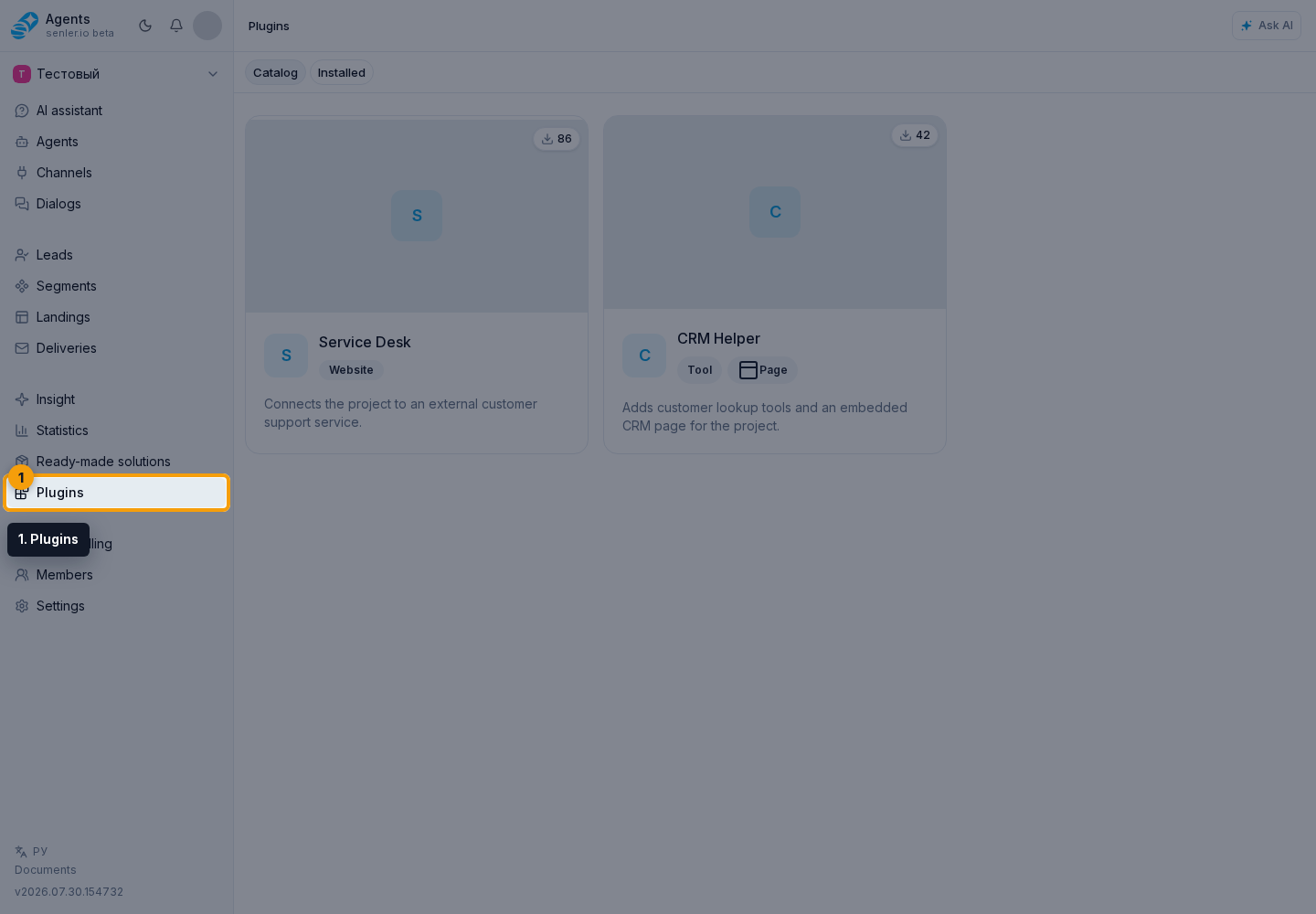
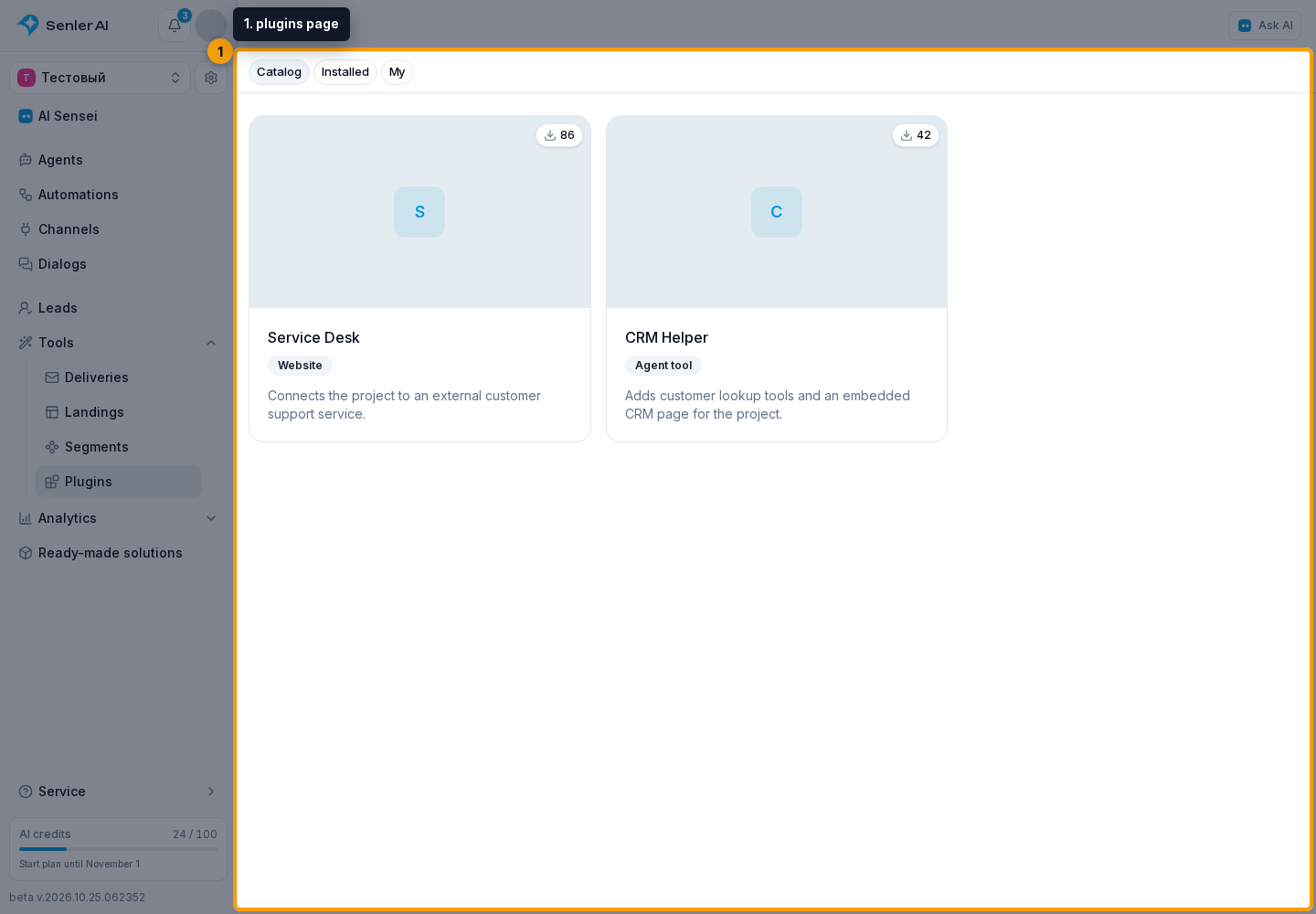
The plugins page has a Catalog tab, an Installed tab, and a My tab.
What you can do
- Find and install a plugin — compare plugin types, open the author's documentation, and connect a suitable option to the project;
- Open and configure an installed plugin — return to its embedded interface, review granted access, or remove the installation;
- Understand OAuth access — learn when a plugin requests project data or permission to act on a user's behalf;
- Add tools and events to an agent — select only the installed plugin capabilities required by a particular agent.
Plugin or ready-made solution
A plugin adds capabilities to the current project but does not create a prepared set of project resources. To install a set of agents, segments, landing pages, and settings for a particular workflow, use Ready-made solutions.
My tab
The My tab contains integrations and tools you created. An application card opens its settings, while the developer banner opens the application list and creation flow. Instructions for authors are available under Application development.