
Creating and listing segments
Creation and list
To create an ordinary segment:
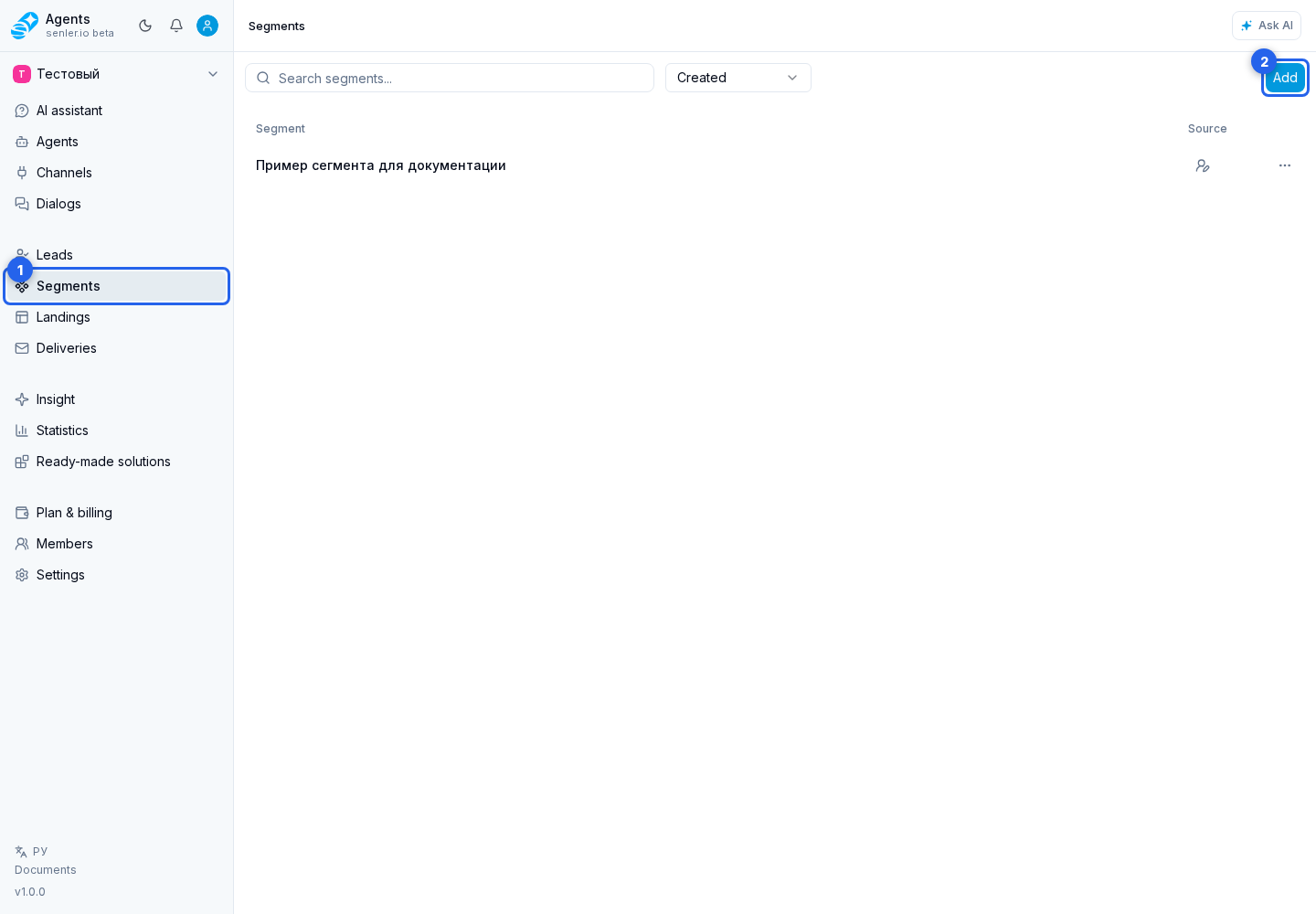
- In the project menu, open Segments.
- On the segments page, select Add.
- Enter a name.
- Select Add.
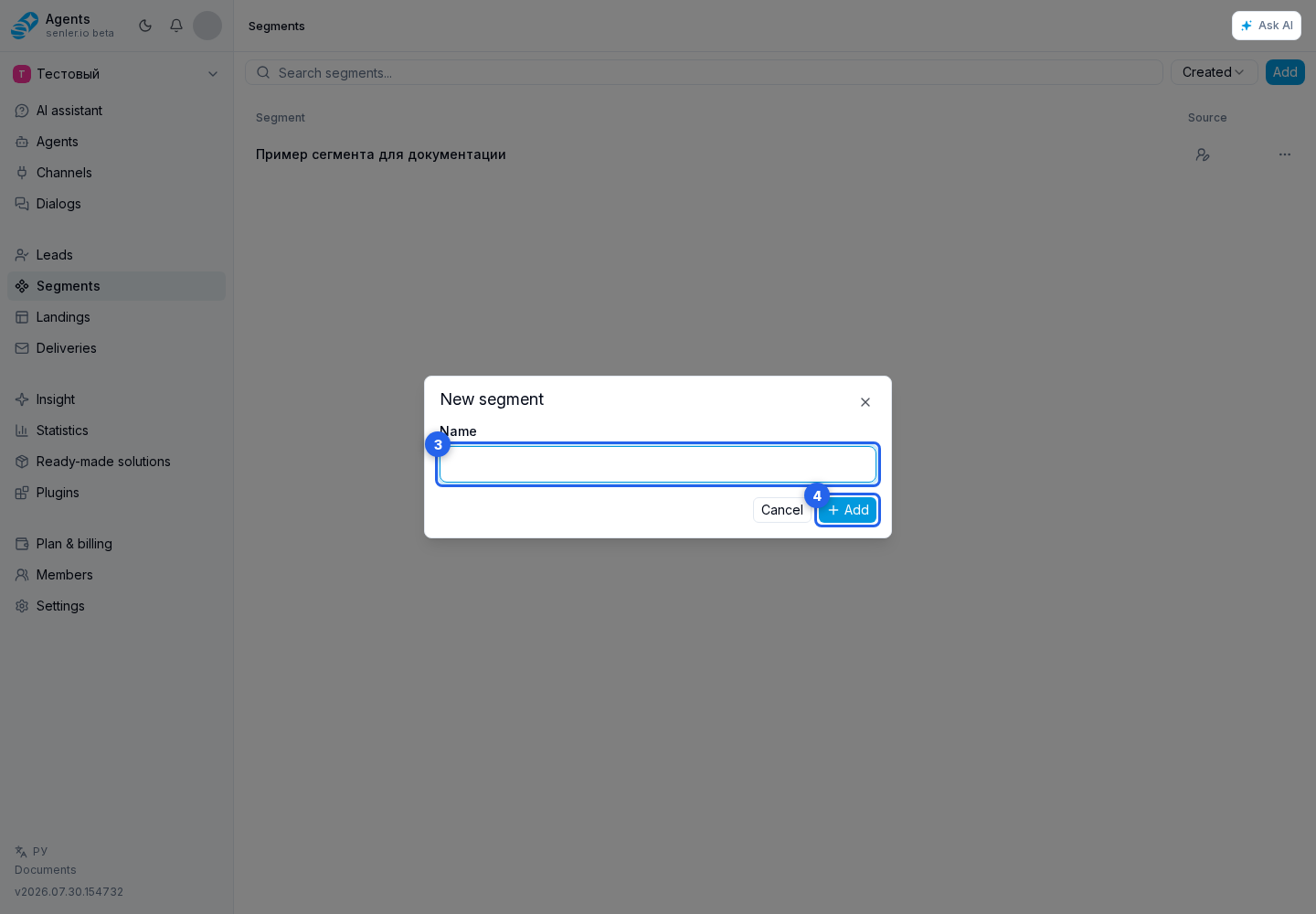
When the list is empty, the page displays a separate add button. The created segment opens in the editor, where you can configure consents and agent assignments and get a subscription link.
Search and source filter
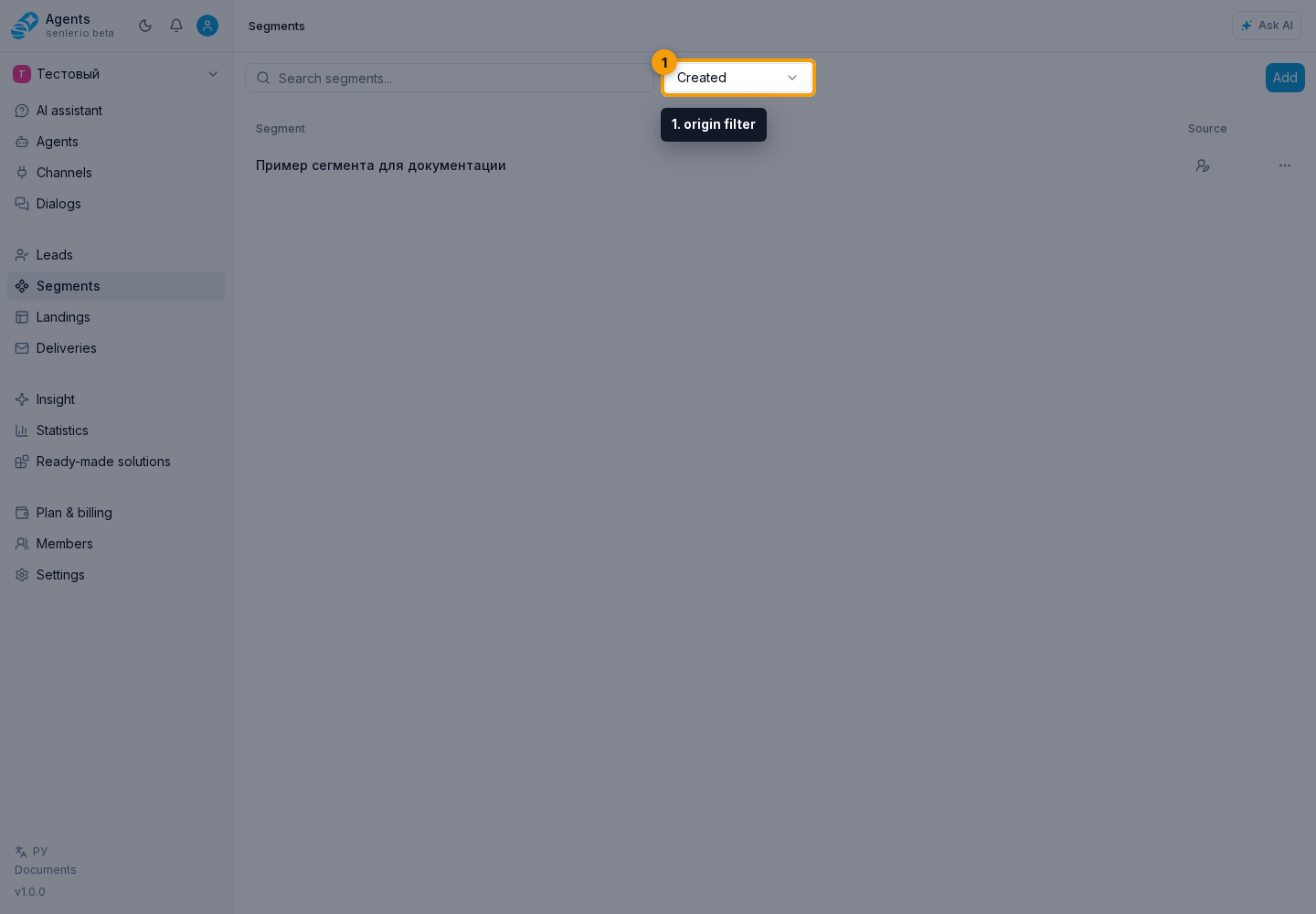
The search field finds a segment by its name or public ID. To narrow the list by origin, open the origin filter next to it.
Choose which segments to show:
- all segments;
- the default manually created segments;
- automatic agent segments.
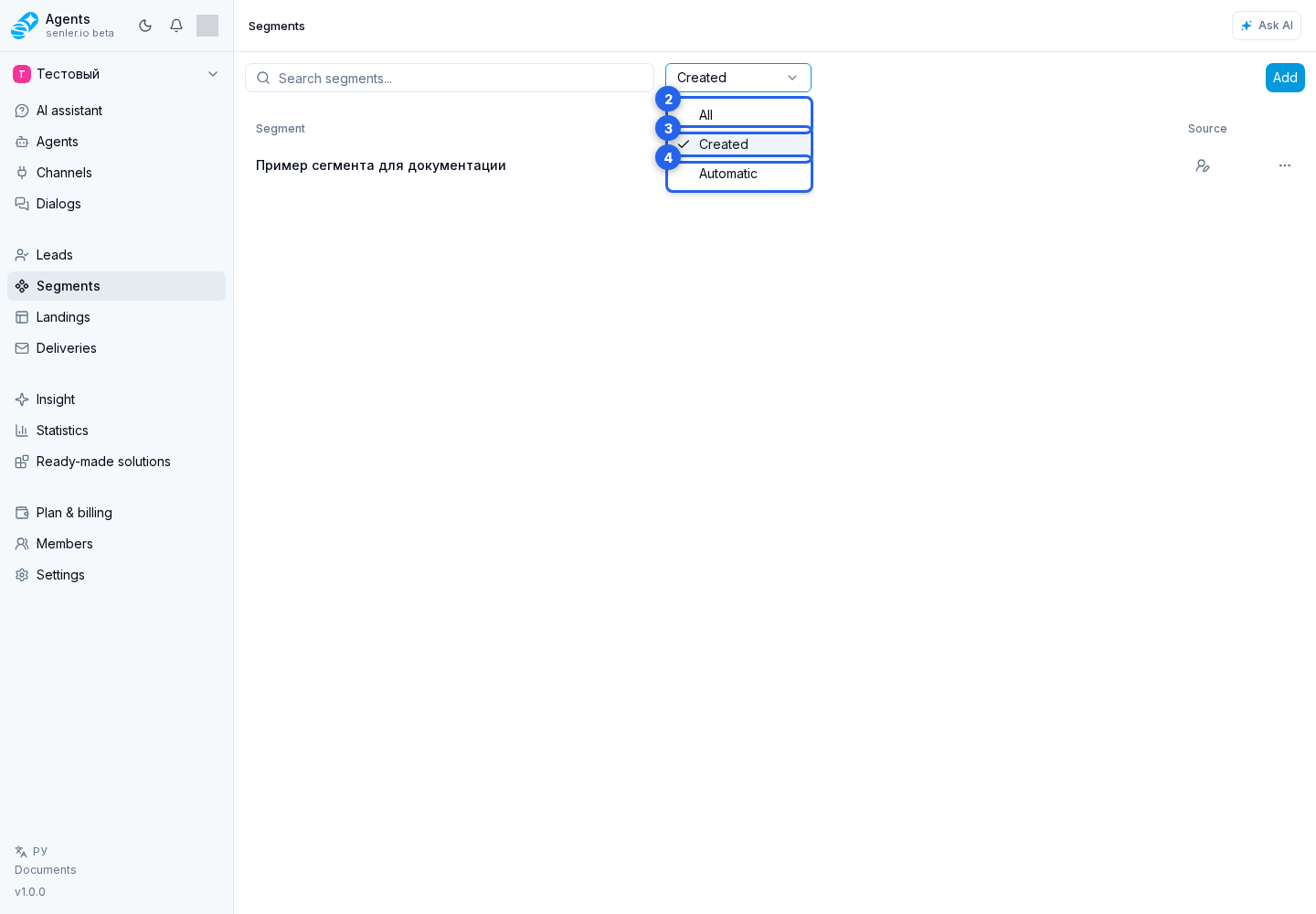
The Source column appears only with the All filter and identifies whether a segment was created manually or linked to an agent. It is hidden with the Created manually and Automatic filters because the source is already defined by the filter. For the second case, see Automatic segments.
Opening and deleting
Select a segment row to open it. Other actions are in the row menu.
The menu lets you open its settings or delete the segment.
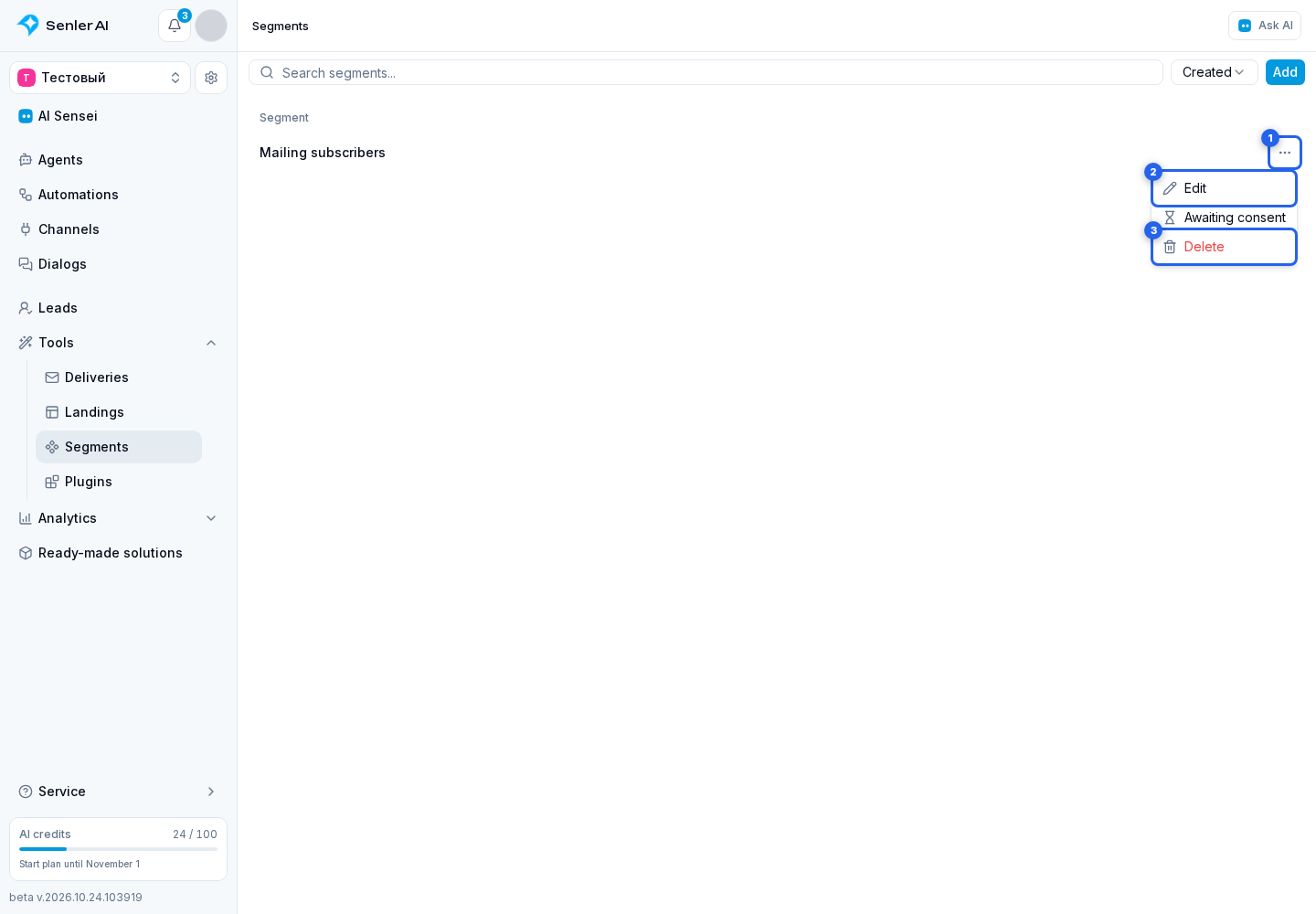
Before deletion, the cabinet asks for confirmation and warns that the action cannot be undone. Deletion is unavailable for automatic and other read-only segments.