
Incoming Message Step
The Incoming message step is available to For dialogs automations and creates a run after a matching message. Add it from the step catalog.
Choose Messages That Start A Run
Select the Incoming message step on the workflow. First use Message sender that starts the step to choose Customer, Operator, Agent, or Any sender. Then select the Which messages should start a run field:
- All incoming messages starts the automation after every matching message;
- Contains keywords starts it only when the message matches a word or phrase from the list.
To start from the Start button or a start link parameter, use the separate step.
For keyword matching, enter a phrase in the Words and phrases field and press Enter to turn it into a tag. You can paste several phrases separated by commas, semicolons, or line breaks, copy the whole list, and remove an individual tag. Up to 100 unique phrases are allowed. The phrase must occur as a distinct sequence rather than as part of a longer word.
Matching is case-insensitive by default. To distinguish “Hello” from “hello”, open the gear in the words field and enable Match case.
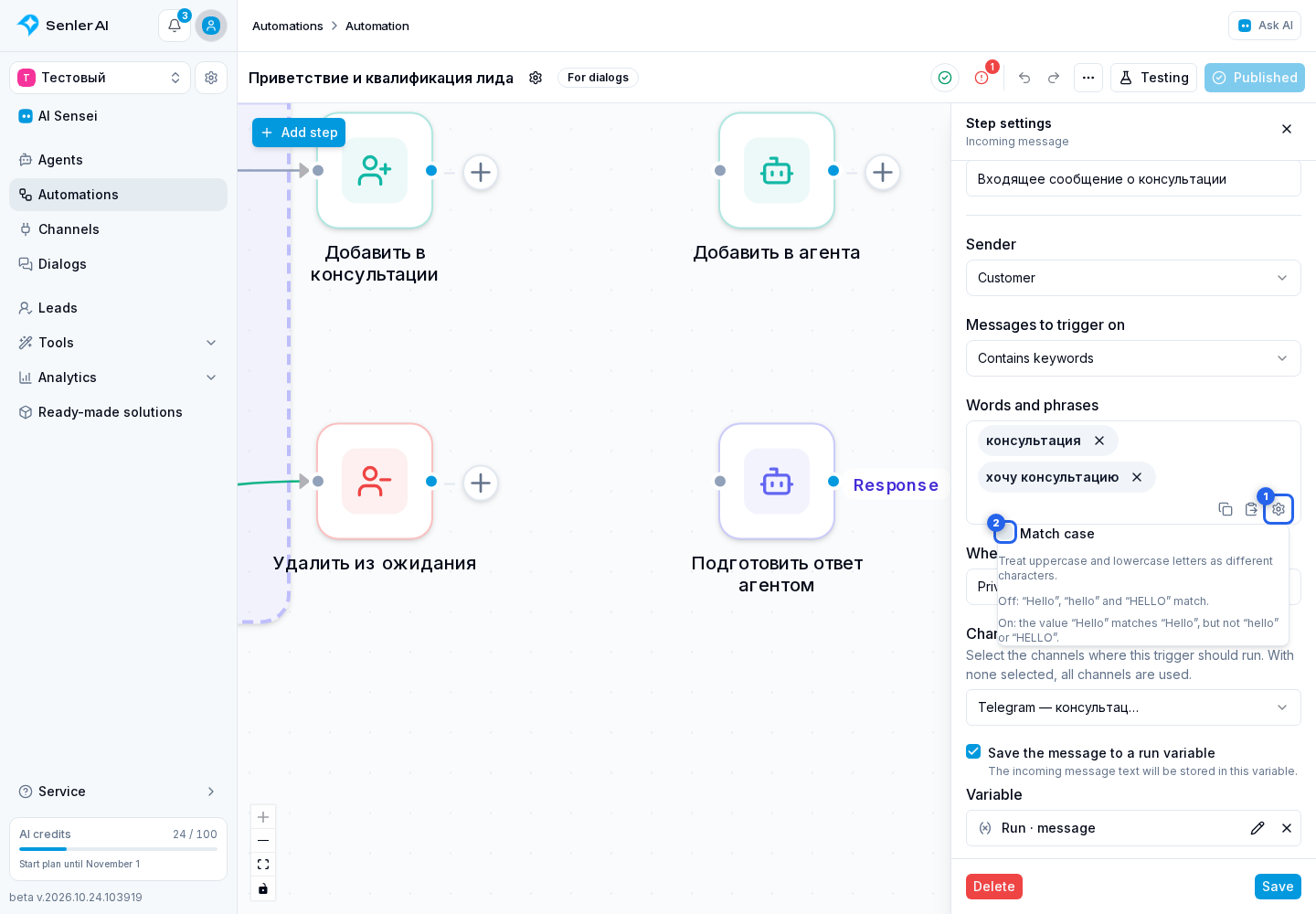
In Where to trigger, choose all dialogs, private dialogs only, or group dialogs only.
In Channels, select up to 50 required channels. If none are selected, the step applies to every project channel. An unavailable, deleted, or other-project channel blocks publication.

In keyword mode, add at least one phrase. The step does not pass validation with an empty list.
Which Messages Count As Operator Replies
Incoming message means a message received by the automation, not only a message from a customer. The step can also react to a team member's reply to a customer. The Operator condition checks the sender, not the message direction.
| Message | Matches the Operator condition |
|---|---|
| A project member or administrator replies from the cabinet | Yes |
| VK supplies a message with an operator author, such as the community administrator's ID | Yes |
| An external sender is marked as a Project operator | Yes |
| A message is saved as the channel, without an operator author or a Project operator mark | No |
| An agent or automation message without a Project operator mark | No |
For a broadcast from an external service, the result depends on the sender supplied by the platform. A message sent as the community without an operator author does not by itself match Operator. A message recognized as an operator reply can match it. The words “broadcast” or “outgoing message” alone do not determine the result.
Before a bulk send, check a message with a test lead: which sender appears in the dialog history and whether the intended automation started. If the agent should be disabled only after an explicit manager command, select Operator and Contains keywords, then enter a phrase that you do not use in broadcasts.
The Project operator mark also applies independently of trigger conditions: it prevents the agent from treating that sender's activity as a customer request. It does not detach the agent from the whole dialog.
Store Text And Attachments
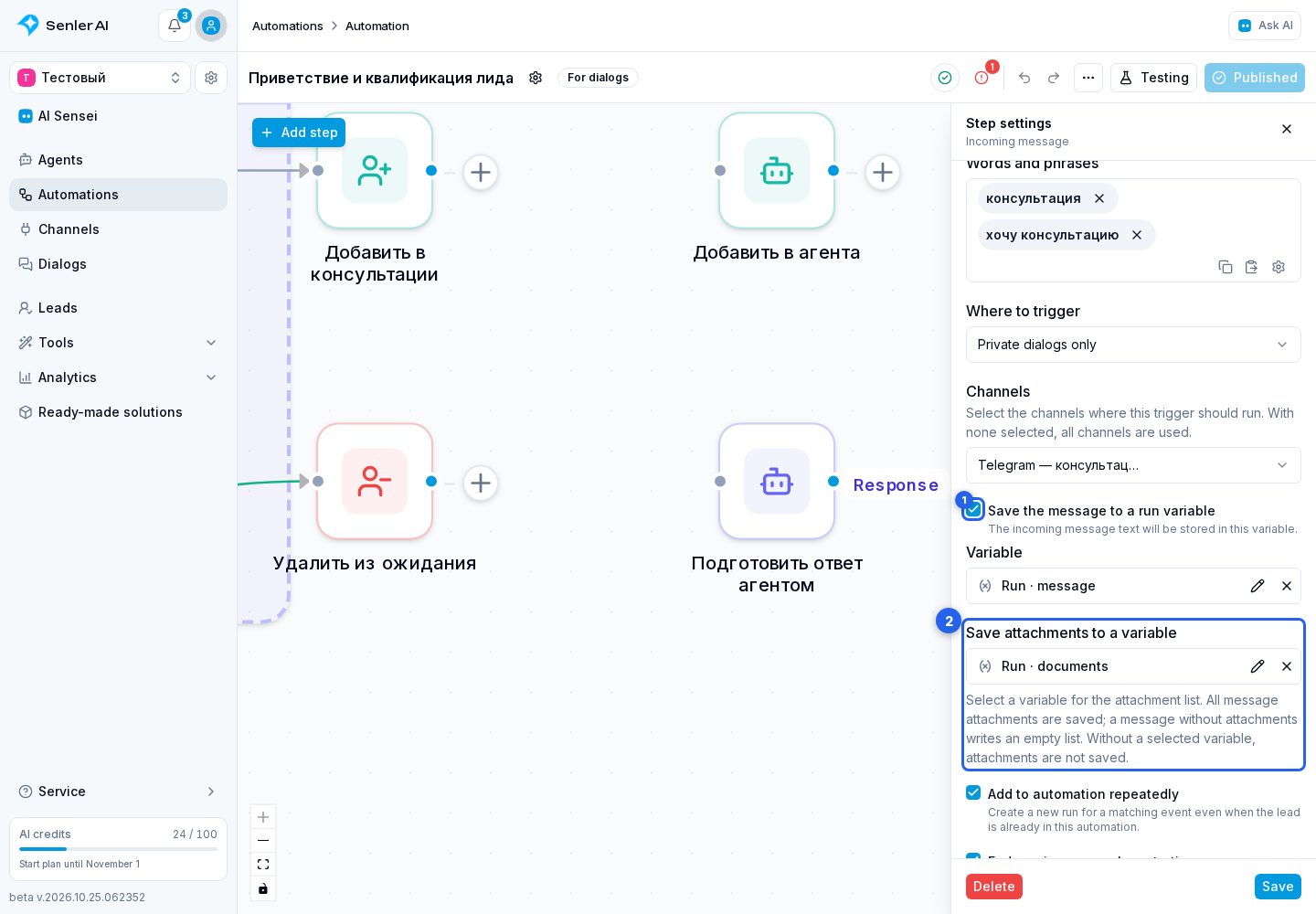
Enable Save message to a run variable, then use the variable field to select a Run, Lead, Dialog, or Project text variable. A Run variable receives the value at the start of the new run; a Lead, Dialog, or Project value is written before the run is created. Following steps can use it in a message or condition, for example.
In Save attachments to a variable, select a separate variable for the attachment list. For Run, use an attachment variable; for Lead, Dialog, or Project, use an array. Saving attachments does not require text storage to be enabled: use either field or both.
The variable receives every attachment from the incoming message; if there are no attachments, it receives an empty list. Following steps can check it with a variable condition or pass it to Run agent.
Configure Repeated Starts
By default, repeated entry is enabled, and the previous active run of this automation for the same lead or dialog is cancelled before a new run starts.

- disable repeated entry when a new message should not create a run while the previous one is active;
- keep repeated entry enabled and disable ending previous runs when several runs may execute in parallel;
- keep both options enabled when a new run should replace the previous one.
Divide Messages Between An Automation And An Agent
If the agent should not reply in parallel to a message accepted by this automation or interrupt it while it processes the dialog, configure working with automations. The rule considers execution, queues, and timers; merely waiting for a button or customer reply does not block the agent. The Incoming message step itself does not disable agent replies.
Start From An Event
For an Event step, use Event that starts the step to choose a reaction being added or removed, a like being added or removed, or a lead being blacklisted. Its complete settings, repeated starts, and testing flow are covered in Event step.
Add A Continuation
A trigger cannot have incoming connections. Connect its output to the next step. If there is no continuation, validation returns a warning: the run will start and finish immediately.