
Application Documentation Materials and Structure
What you can add
On the Documentation page, you can create folders, Markdown pages, and tables, and upload images, TXT, DOCX, PDF, CSV, XLSX, and ZIP archives. Markdown becomes a public page. Other formats remain related materials and searchable fragments but do not receive a separate public URL.
Adding materials
The Russian and English tabs above the table select the working language and the language of a new Markdown page title. They do not hide materials in the other language: both versions remain visible in the common table, and the Language column shows RU, EN, or both labels.
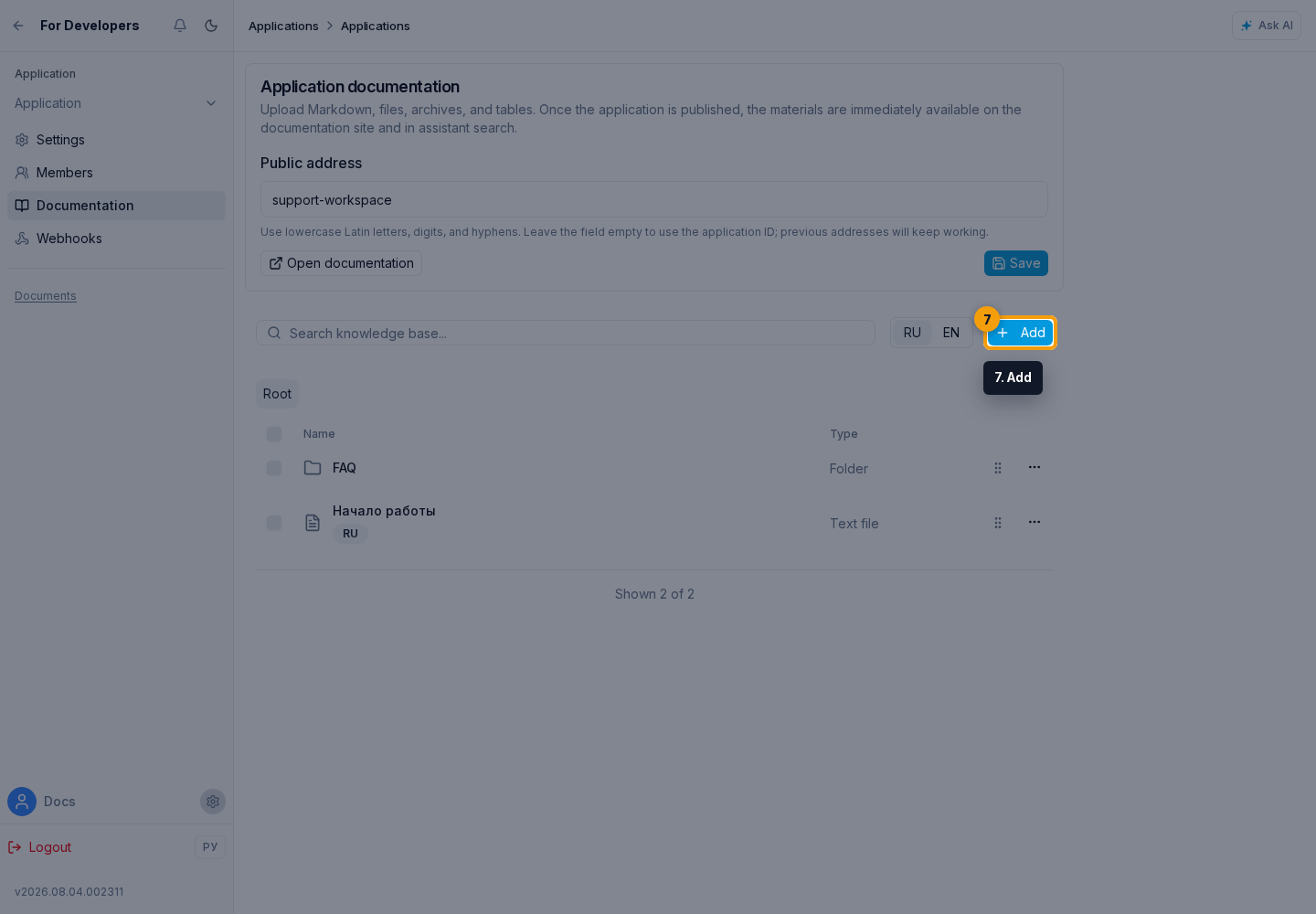
Click Add.
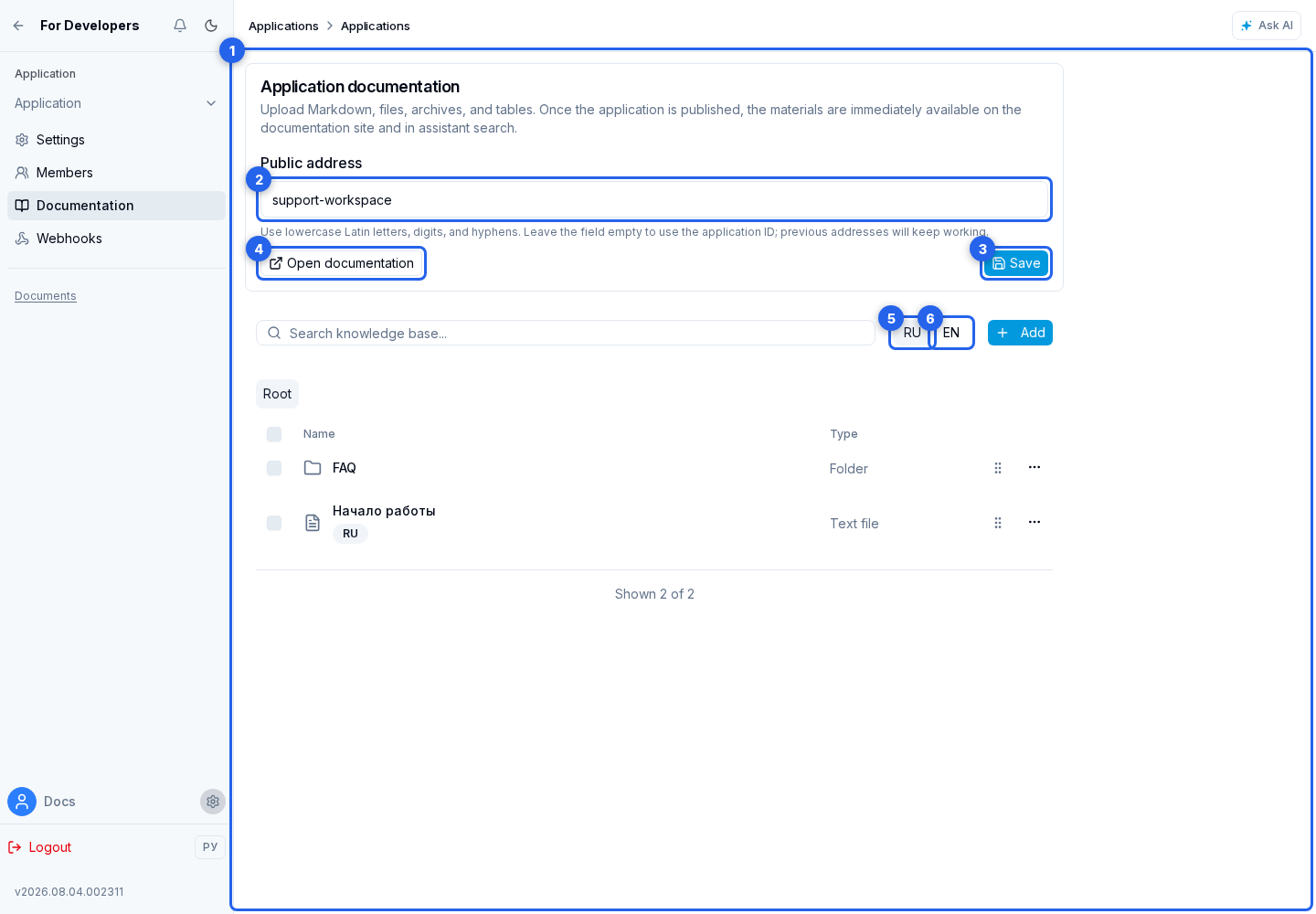
In the window that opens, check the Russian or English tab before creating a file or table or uploading a ZIP. For ZIP, the selected language applies to all new archive materials. Documentation may contain only one language; neither language is mandatory.
Images in Markdown
A Markdown page can display an image uploaded to the documentation by using a relative path. For a page imported from a ZIP, the path is resolved from the folder containing the Markdown file. For example, guides/start.md can refer to images/start.png as ../images/start.png.
An API-created page has no source folder, so its relative paths are resolved from the application documentation root.  finds an uploaded image whose original name is reflink-campaign-create.png. Keep the Markdown path and the uploaded material's original path identical; otherwise, the public page cannot associate the image with the file.
Through the Public API, create a Markdown page with POST /api/apps/{appId}/documentation/files and upload an image with POST /api/apps/{appId}/documentation/files/upload. Request parameters and required permissions are available in the App Documentation API section; Public API and SDK explains token setup.
Image recognition
Recognition is available when the application has a source project: it uses that project's credits, not credits from projects where users installed the application. Without a source project, upload images using Do not recognize and add explanations in Markdown. An estimate alone does not enable recognition or create a billing project.
When uploading an individual file or ZIP, choose an image processing mode:
| Mode | Result |
|---|---|
| Do not recognize | Images are stored without AI descriptions. |
| Estimate first | The cabinet shows the image count and estimated time and cost for each mode without importing files or charging credits. |
| Only without a Markdown description | Images without a related Markdown description are processed; ready descriptions of unchanged files are reused. |
| Only unrecognized | Markdown captions are ignored, but a ready AI description of an image with the same content is reused. |
| Recognize all again | Every image is processed again. |
Select the AI description language separately. The description is stored independently, does not modify Markdown, and enters the search context in the background. If one image is related to several Markdown pages, its ready description is used for every relationship and the image is not recognized repeatedly.
Menu structure and order
In the main materials table, folders and Markdown pages form the public side menu. Drag a row by the handle in the penultimate column; the change is saved immediately within the current folder. The handle appears outside search when the level contains at least two folders or Markdown pages.
Regular documents, images, and tables do not enter the public menu, so they have no handle. A numeric prefix at the start of a folder or page name is hidden from users, but numbers are not needed for ordering.
Open a Markdown page in the table to change its content or translations.

Moving and deleting
Moving a Markdown page into another folder moves both language versions. Deleting the row removes the entire page and all translations. To remove only one translation, open the editor and follow Languages and Translations.