
Channel Settings
The channel settings usually have
In the side menu, open Channels, select a connection in the list, and open the channel settings page.
The connection section contains settings for the selected platform, such as a token and webhook for Telegram or VK. A Website widget channel has a widget settings block here: appearance, chat features, and website installation code.
In VK, Telegram, and MAX settings, you can connect the matching Senler.ru channel and import its leads.
Channel actions are at the bottom of the page: pause, removal, and migration to another project. See the migration guide for the requirements and steps.
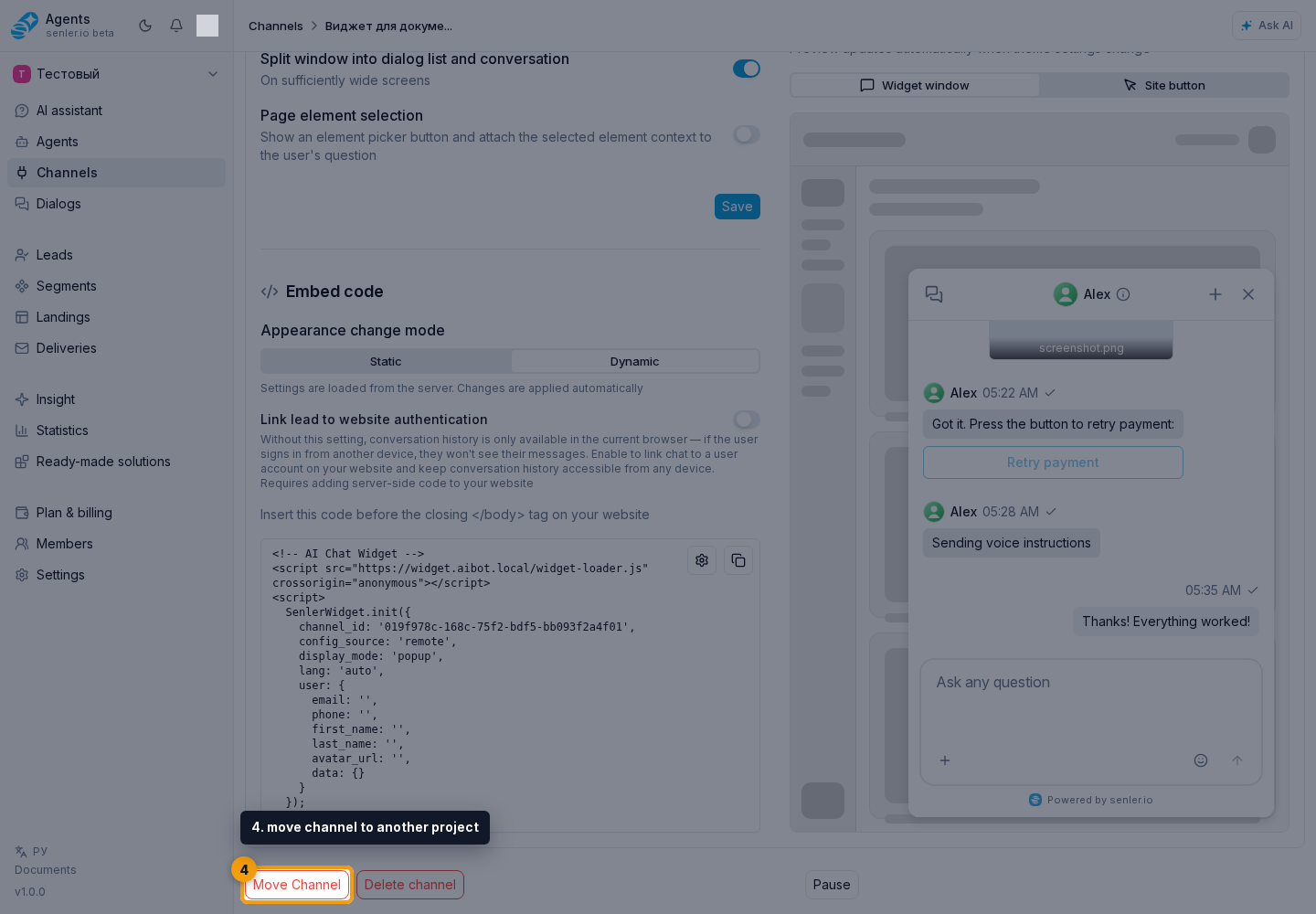
Channel actions
Channel actions change the state of an already connected channel. Before pausing, deleting, or migrating it, check whether there are active dialogs and whether the channel is used in agent assignment rules.
- pause;
- resume;
- delete;
- transfer to another project.
Token and validity check
In channel settings, the token card shows whether the token is linked, whether it is valid, when the last check ran, and the validation error text if the platform rejected access.
For Telegram, VK, MAX, and Discord, you can update the token or run a manual check when the action is available for that connection. If the token is invalid, first check whether it was revoked on the platform, then update the token and run the check again.
For Instagram, Facebook, and WhatsApp, restore access by authorizing the same account, Page, or number again. You do not need to paste a token manually.
Errors and recommendations appear next to the relevant connection: the token, webhook or personal VK account. A green Connected badge on the token card means a working token is available. An invalid spare-token warning can appear alongside that badge: the spare token needs updating, but the connection continues through the valid one. A recommendation to update a valid token's permissions does not mean the channel is disconnected either.
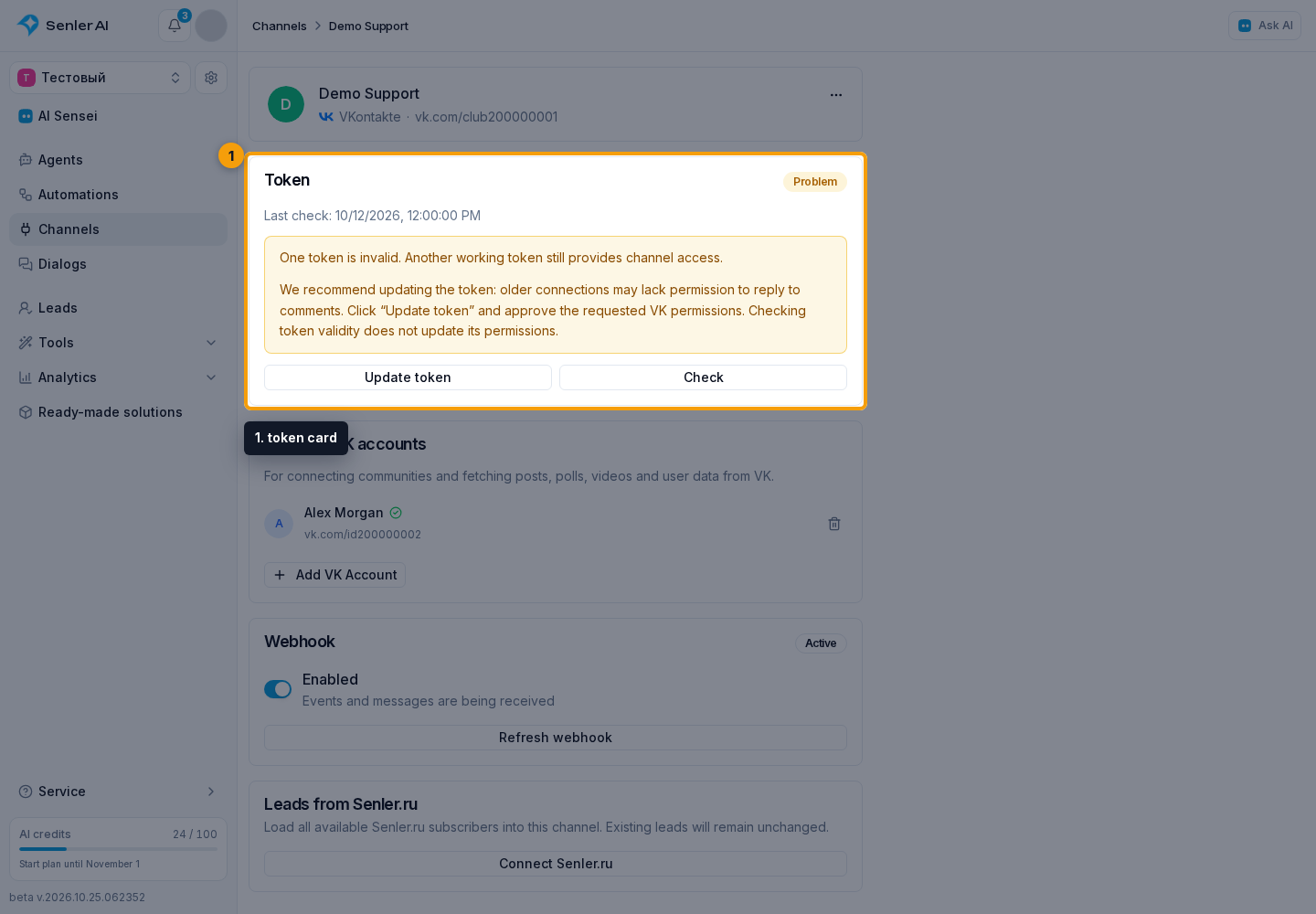
For VK, the community token and personal account authorization serve different purposes. The lack of a working personal account may prevent loading posts, polls, videos or profile data, but does not by itself prove that incoming messages are lost. The warning identifies the unavailable operation. See Personal VK Accounts for restoring personal authorization.
With view-only access, connection status and errors remain visible, but token editing and webhook controls are hidden. Changing them requires permission to manage this channel; personal VK accounts require permission to manage project channels.
If automation messages failed because of the connection, check Unsent automation messages on this page after reconnecting. Select the steps to retry, after reviewing their messages in the dialogs.
Pause
- the channel stops receiving incoming messages and sending replies;
- channel data and settings are preserved;
- the channel can be activated again on the same page.
Removal
- after confirmation, the channel disappears from the project and no longer receives or sends messages;
- project members have no action in the cabinet for restoring a removed channel;
- before confirming, check the channel name and the workflows connected to it.
Webhook
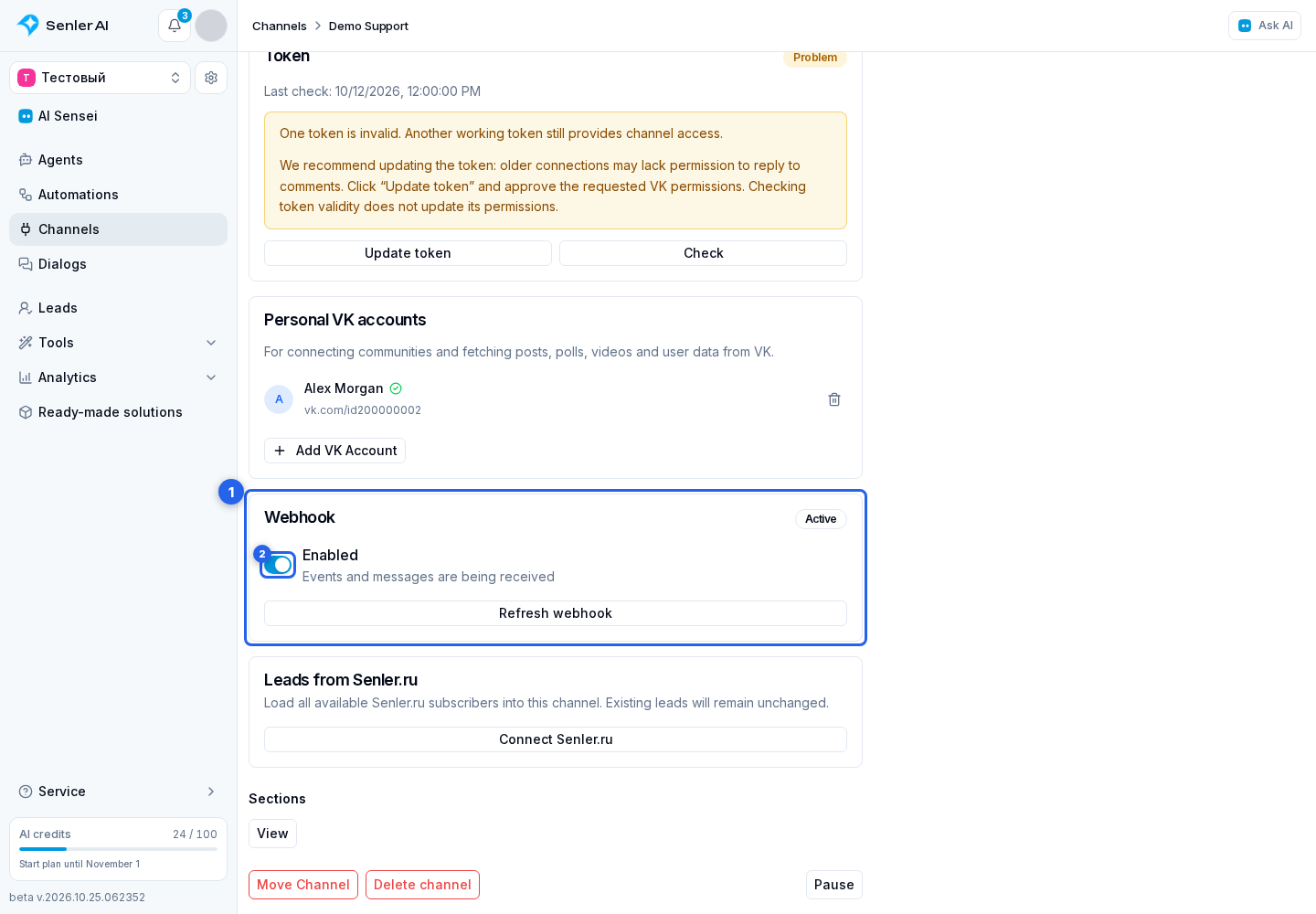
The Webhook card (1) shows the connection status for events sent by the platform to Senler AI.
- The webhook switch (2) enables or disables incoming events and messages.
- When the webhook is disabled, Set up webhook enables the connection. When it is enabled, Refresh webhook repeats the setup.
- Active means the connection is configured. During setup and verification, the current status, progress and remaining time are shown.
- If event delivery fails, the switch can remain enabled. Read the reason on the card: an enabled webhook does not by itself confirm successful delivery.
Synchronization
In the channel list, open the platform menu for the required channel.
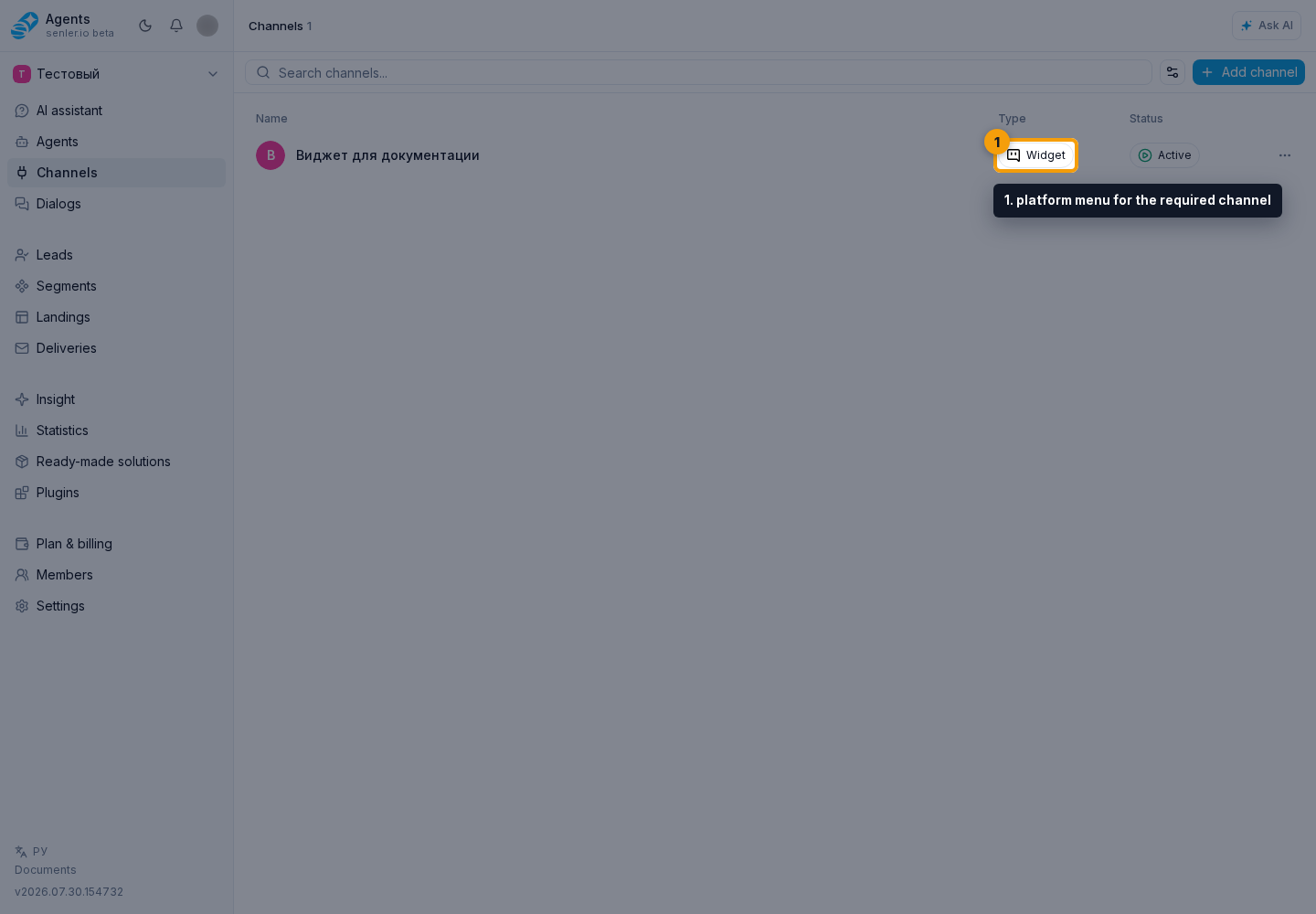
Select Refresh data.
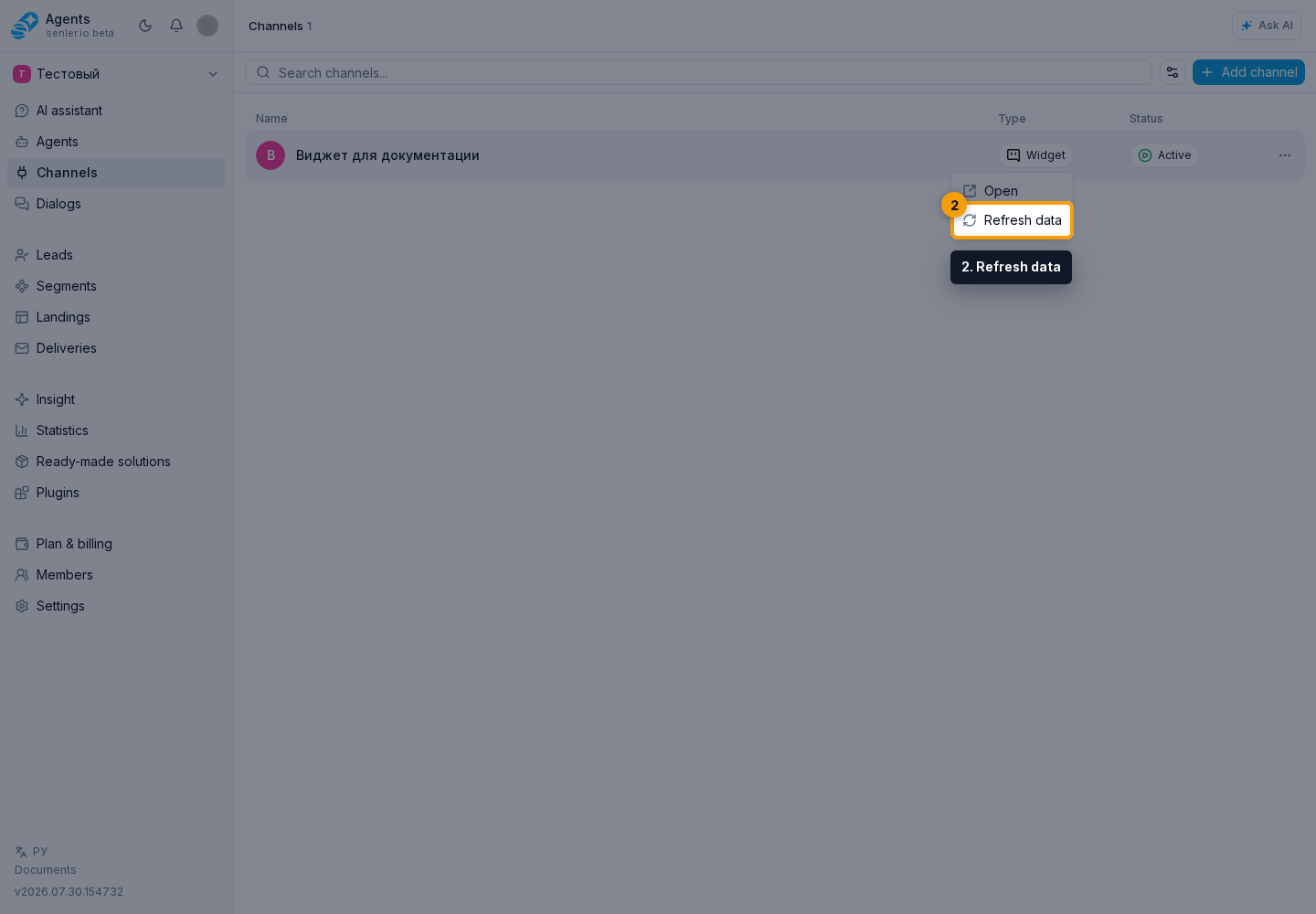
The cabinet compares the channel name, username, avatar, bot ID, and profile URL with the platform when those fields are supported.
The result reports each field separately as updated, unchanged, or failed. A partial error does not roll back successful fields. For example, if the platform returns a new name but the avatar image cannot be downloaded, the name is saved while the previous avatar remains. Fix access or the network error and repeat synchronization. The general background process and its errors also appear in process history.
Channel history
During agent auto-training, channel history status appears at the source selection step. Each channel shows whether history loading is supported, the period covered by saved messages, and the outcome of the previous attempt. If loading failed, the history status tooltip contains the error text.
Choose the loading period before starting. If only part of the history was loaded, messages already retrieved are preserved. Before retrying, check the reported error and the channel's access to the platform.
For an Email channel, incoming email filters determine which new messages reach the cabinet. See the Email guide for their settings.