
Recovering missed replies
If an agent could not reply because the plan was inactive or credits were insufficient, Senler saves that case for manual recovery. You can also resume waiting analytics here. Ordinary model, channel, or tool errors are not included.
Missed replies remain available for 30 days after the error. Payment alone does not start recovery: select the tasks and press the start button.
When the panel appears
Open Settings → Plan and billing. If replies or analytics are waiting, the recovery panel appears at the top.
Below the heading, the panel shows the cause at the time of the error: insufficient credits or an inactive plan. It remains visible after payment. If the exact cause was not saved, the panel shows a general explanation about plan or credit restrictions.
Unanswered dialogs, Answered dialogs, and Analytics tasks appear on separate lines. Dialog rows are omitted when only analytics is waiting.
If the plan is inactive, renew the subscription first. When Senler credits are insufficient, you can buy credits or use your own AI key if the active plan allows it. Each reply needs a key compatible with the agent's model; having any connected key does not guarantee recovery of every task.
Retry missed replies
Choose what to process:
- Check the number of unanswered dialogs. They are included automatically.
- If needed, select Answered dialogs to include conversations where an operator or agent replied after the error. This checkbox is off by default.
- Select Analytics tasks to calculate waiting analytics. This checkbox is on by default; clearing it leaves those tasks waiting.
- Check Total dialogs above the button. It includes unanswered dialogs and, when selected, answered dialogs. Analytics tasks are not included in this number.
- Press the start button: Reply for dialogs, Calculate for analytics, or Resume for both.
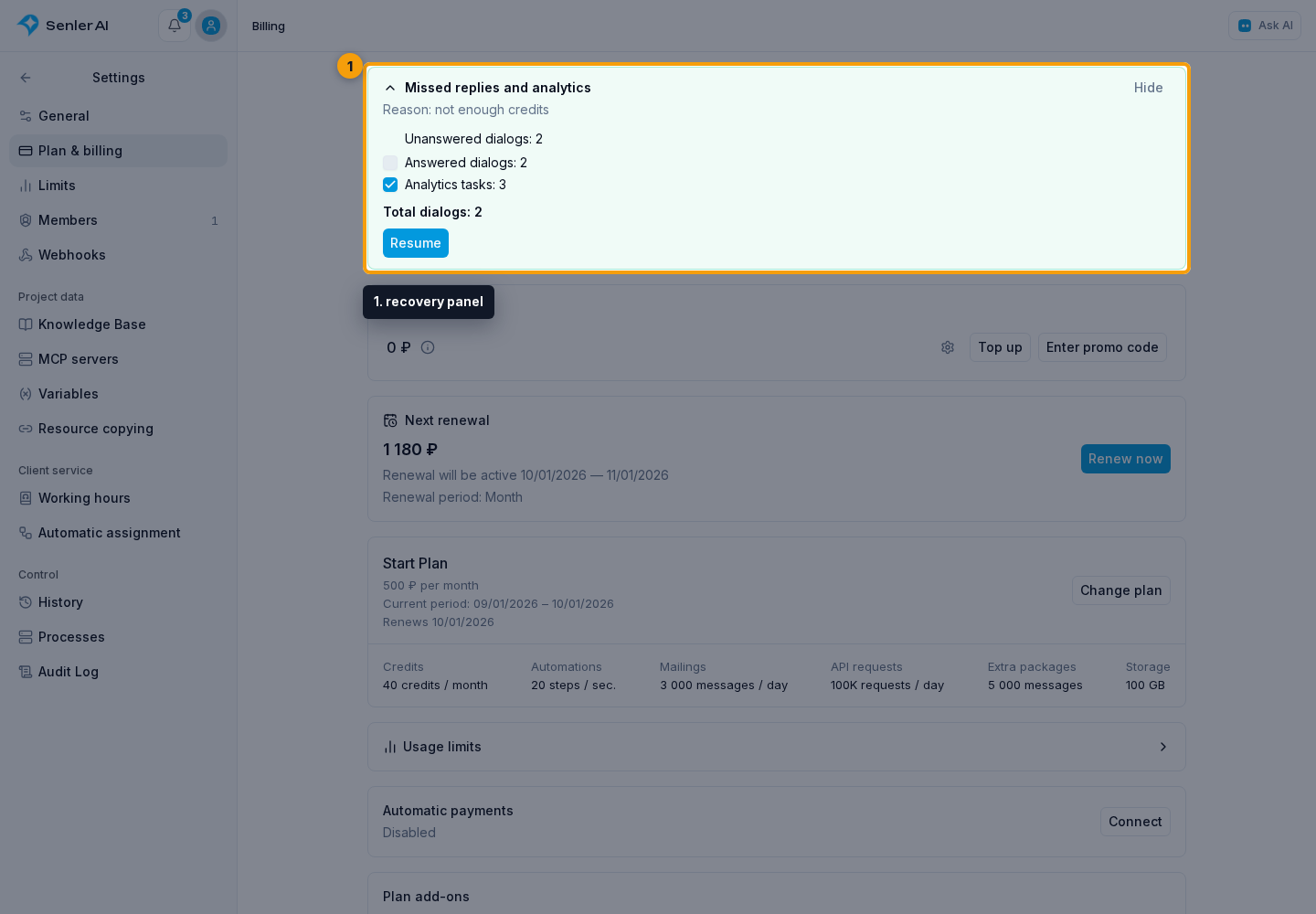
If nothing is selected, the panel asks you to select answered dialogs or analytics. Another launch is unavailable while recovery is running. You can close the page: the analytics selection is saved in the background run.
How replies and analytics are selected
The agent creates one new up-to-date reply in each selected dialog. Multiple missed messages do not produce a separate reply to every message: the agent reads the history and uses the latest relevant case.
Answered dialogs are the part of the missed-reply list where the project side successfully sent a message after the error: an operator, agent, or automation. Selecting the checkbox includes these conversations in recovery. A new operator message during recovery can still cancel the agent reply.
Prepared but unsent text, an operator reply suggestion, and a message with a sending error do not count as replies. The customer does not need to read the message: confirmed sending is enough.
The analytics checkbox controls accumulated tasks. When cleared, they stay in the queue and can be started later. Normal analytics for new replies follows the project settings.
One run processes the selected tasks in small batches. Successfully completed tasks are not repeated.
Retry one reply in a dialog
Open the conversation. The billing error card shows a Retry button when the plan is active, Senler credits or a compatible own key are available for the agent's model, and nobody has replied after the error.
A single retry uses the agent linked to the original error and the current conversation history. The button is hidden if an operator or another agent has already replied after the error.
What happens after starting
Starting recovery means the tasks have been accepted for processing. The agent generates replies normally; timing depends on the model, tools, and channel. Check results in the conversations and progress in the panel.
Generating the text does not complete recovery: the task waits for the message to be sent. If sending fails, the reply is not marked as successfully recovered. Check the reason in message information.
Completed tasks leave the queue. Unselected tasks remain available for the next run. If the plan expires or no payment method remains available for the next task, recovery pauses. A zero Senler credit balance alone does not prevent a reply through a compatible own key; fallback to Senler accounts is unavailable without credits.
Collapse or hide the panel
Select the heading with the arrow to collapse the panel to one line. Select it again to expand it; the checkbox selections are preserved.
Select Hide if the current missed tasks no longer need recovery. Hiding is unavailable during recovery.
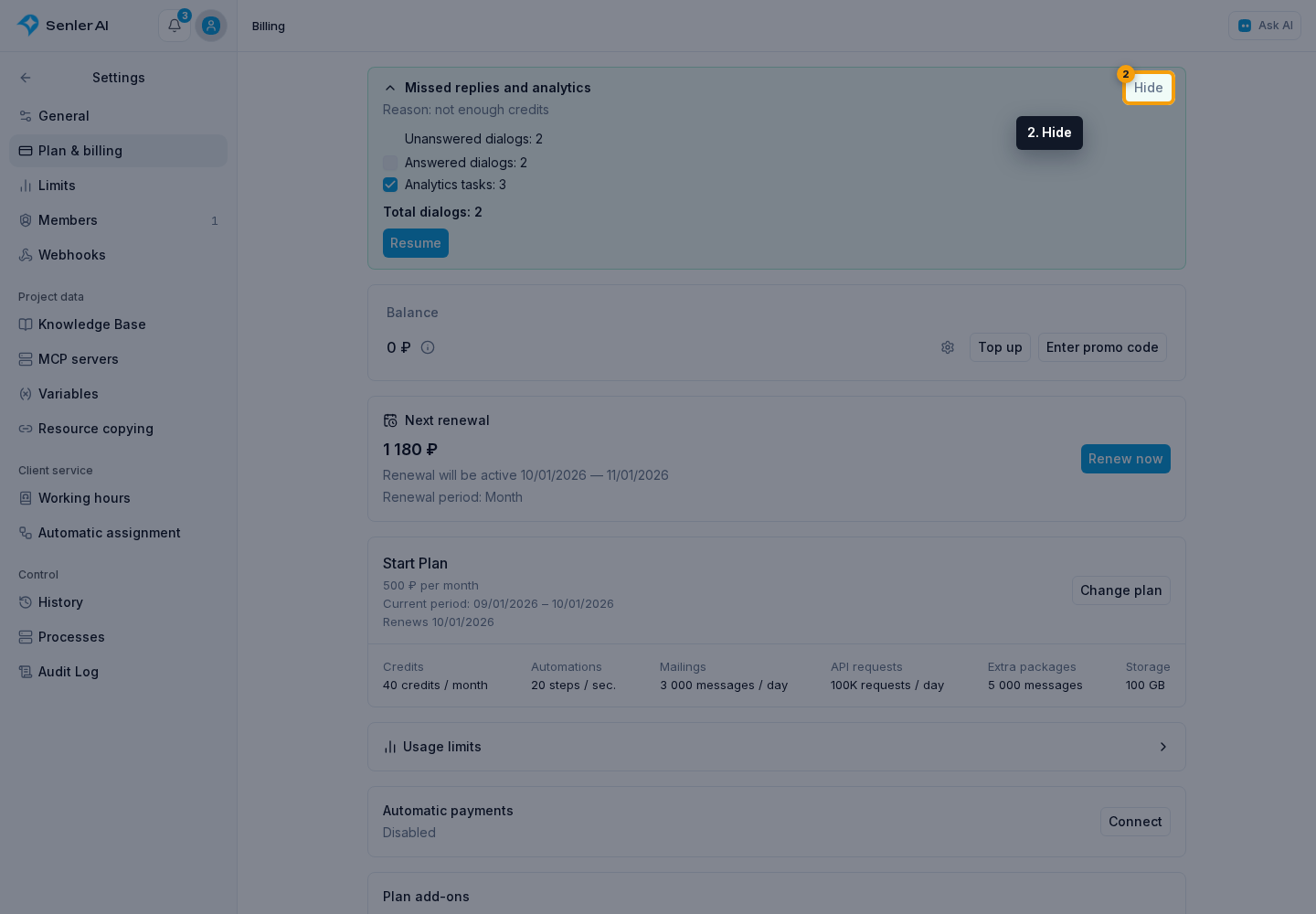
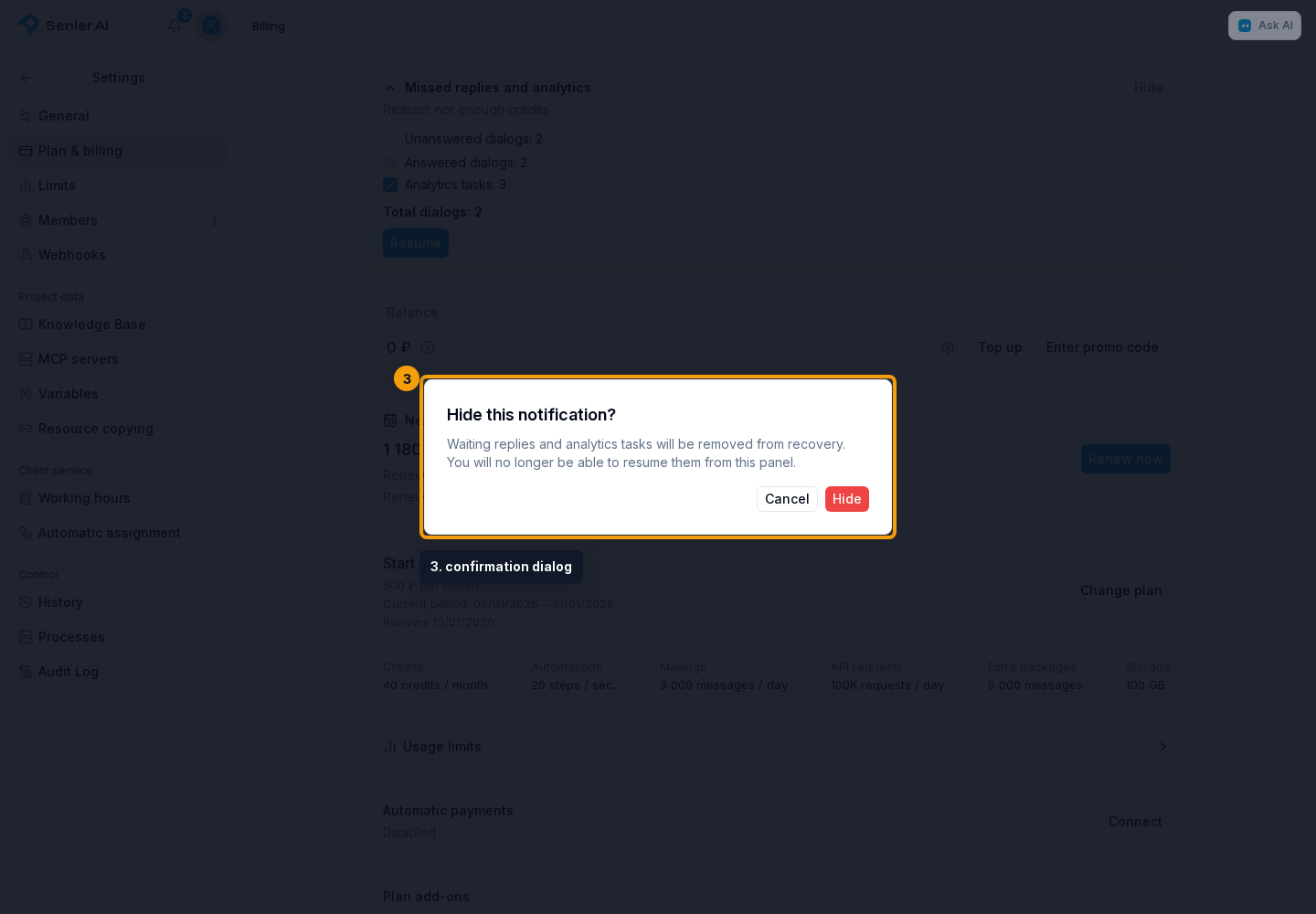
A confirmation dialog opens. Select Cancel to keep the missed tasks, or confirm hiding.
Hiding removes all current waiting items from the recovery queue regardless of the checkboxes. They cannot be restored through this panel. New missed tasks can show the panel again.
If the button is missing
Check that the plan is active, Senler credits or a compatible own key are available, and another run is not in progress. For replies, also check that the error is no more than 30 days old and the case has not already been recovered. A single retry additionally requires no operator or other agent reply after the error.
Viewing the panel requires permission to view billing and dialogs. Buying a plan or credits requires billing management permission; starting recovery requires dialog management permission.