Message Notes
A note saves an operator comment on a specific message: for example, what to clarify with the customer or what you agreed with a colleague. It does not change the message text and is not sent to the customer.
Each message has one shared note, not a separate comment thread. Reading requires permission to view dialogs; editing and deleting require permission to manage dialogs.
Add or Edit a Note
- In the relevant dialog, open the message menu: right-click on a computer or press and hold on a phone. Select Note.
- The panel shows the original message text above the editor. Fill in the Message note field. You can save up to 5000 characters.
- Select Save. Cancel closes the panel without saving your current changes.

You can also attach a note to a message with an attachment. Service events, such as tool calls or status changes, do not have message notes.
Return to a Message with a Note
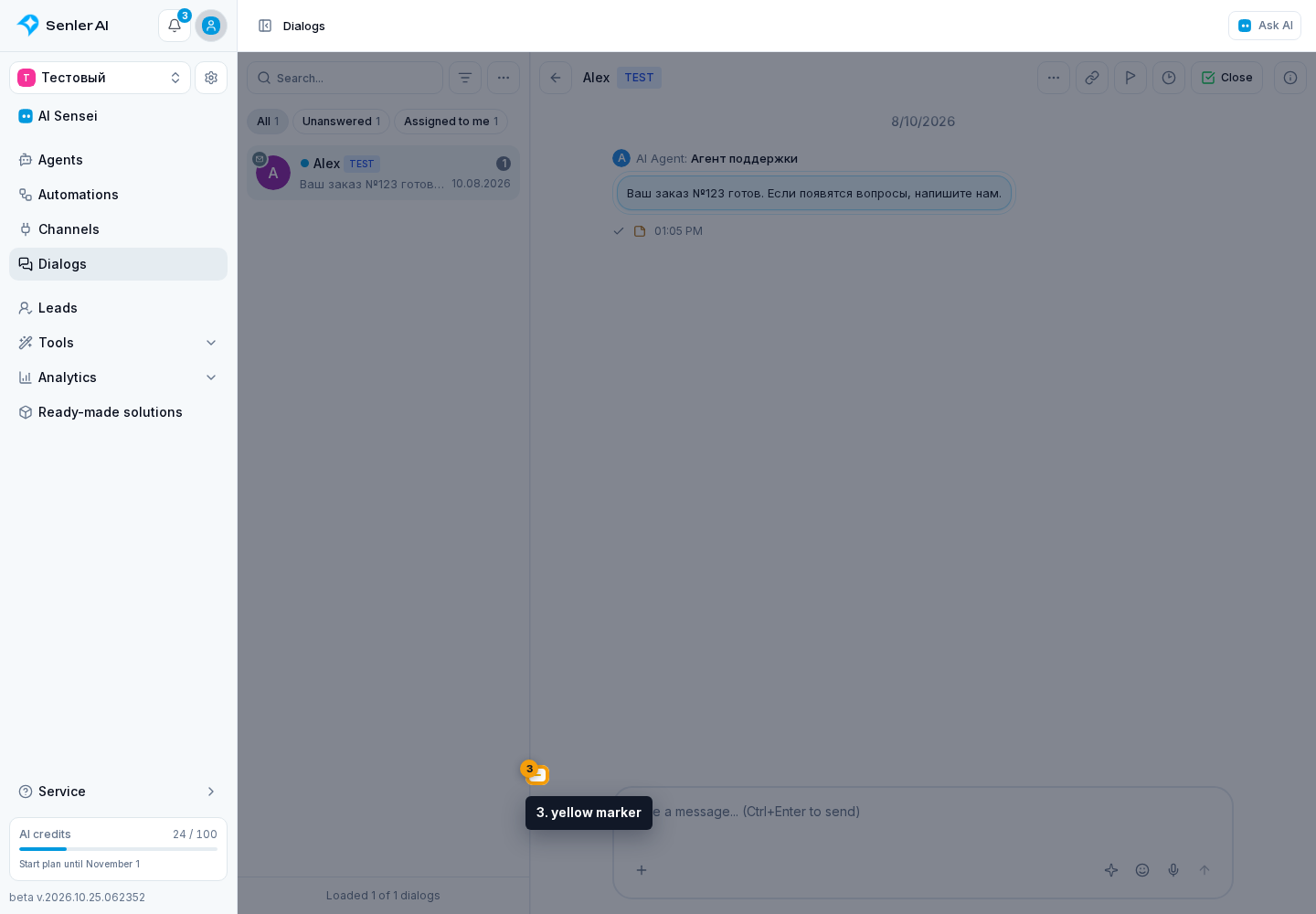
A message with a saved note has a yellow icon. Select the note icon next to the message to read or edit it.
Note markers along the left edge of the history help you find these messages without scrolling through the entire conversation. Select a yellow marker to jump to its message, then open the note. On a computer, the marker may be combined with a timeline point.
To find the conversations themselves, use the Message notes filter: it shows dialogs with or without notes. This filters by the presence of notes, not by their text.
Delete a Note
Open the note, clear the field, and select Save. Only the note is deleted; the message remains in the history. Cancel does not delete the note.
How a Lead Note Differs
A message note refers to one message in a specific conversation. A lead note refers to the lead and opens next to their details. The Message notes filter does not filter dialogs by lead notes.
If a Note Does Not Load
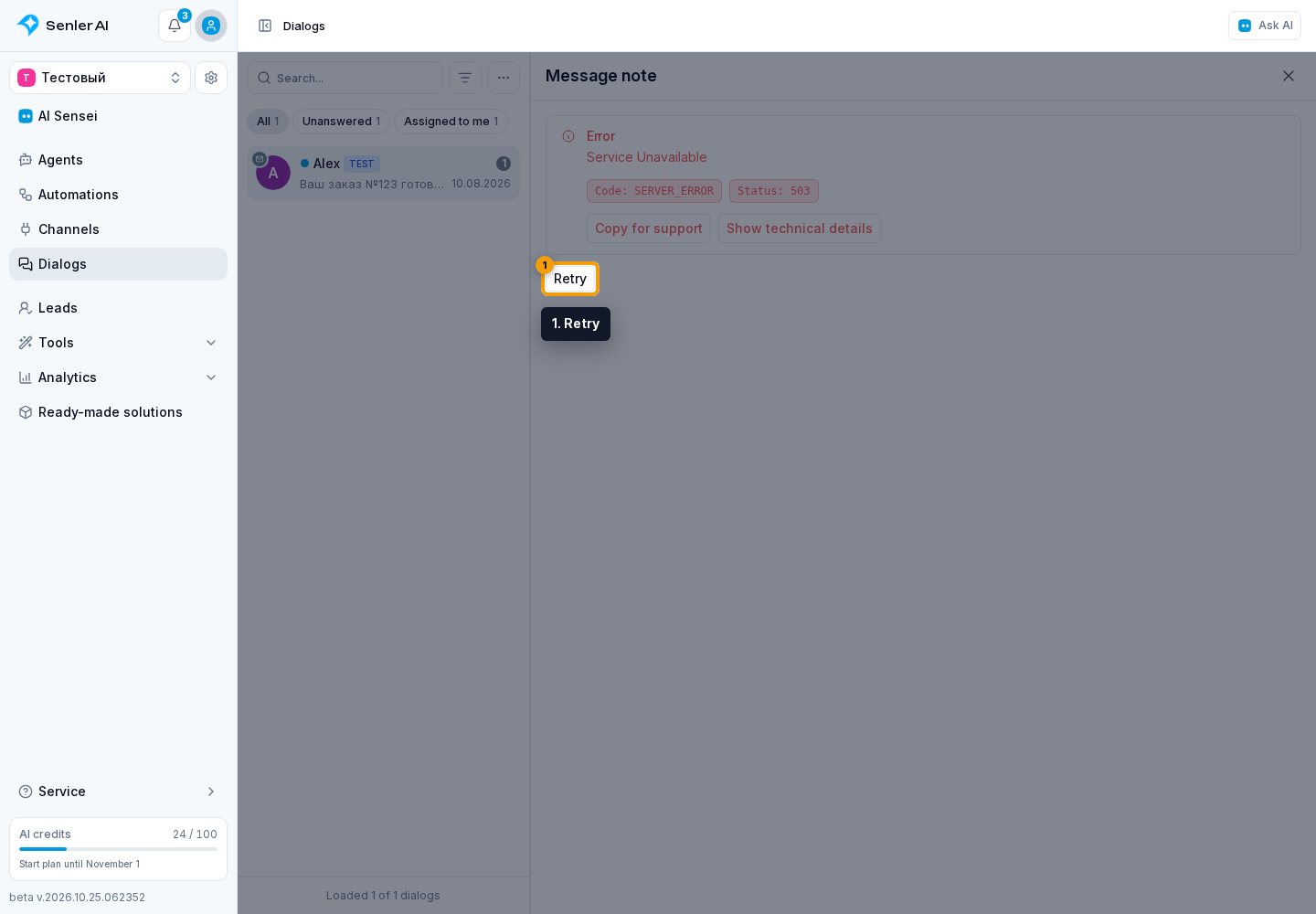
Select Retry in the note panel.
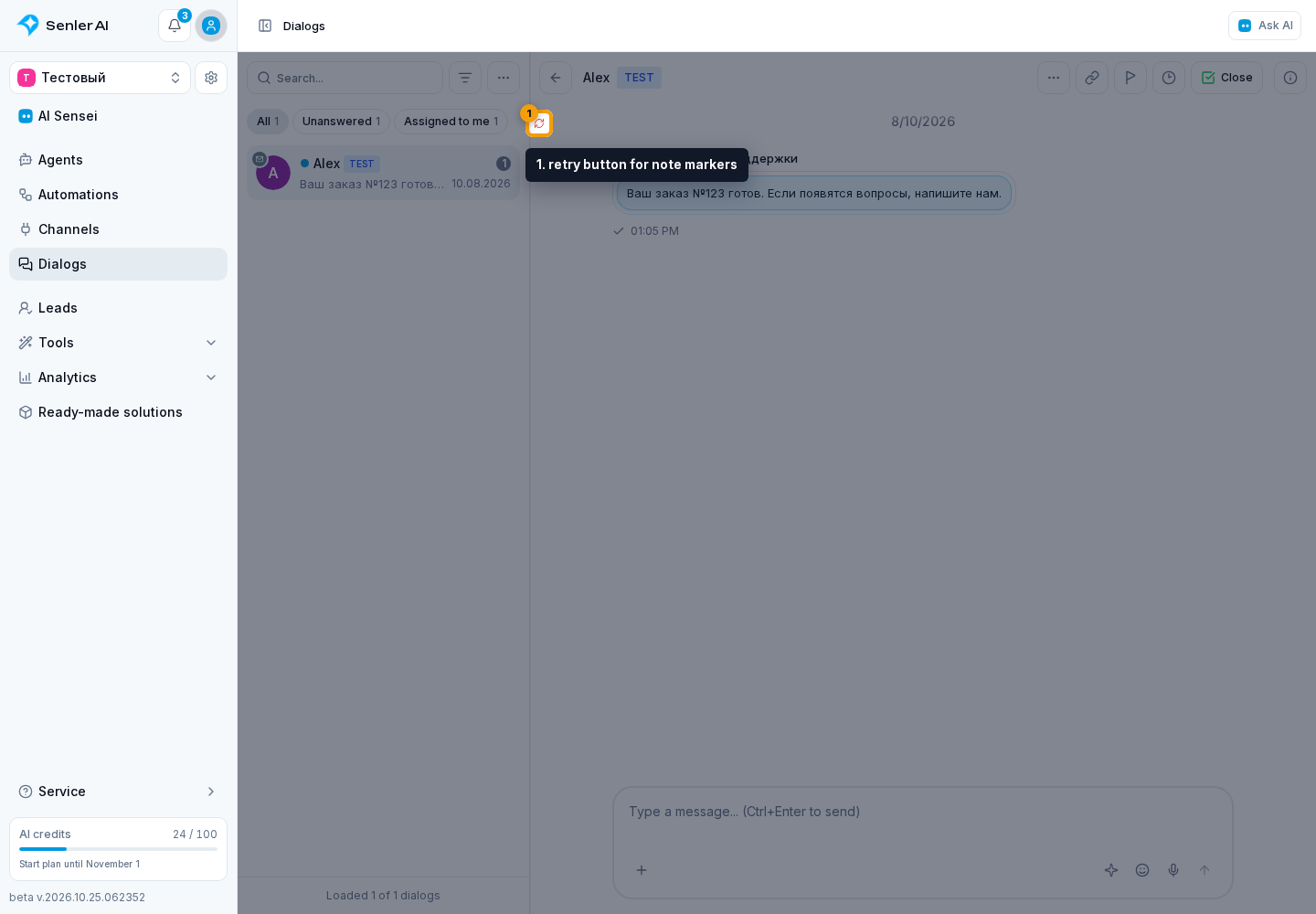
If the history markers did not load, use the retry button for note markers at the left edge of the conversation.