
VK Connection
Summary
Open Channels in the side menu. Above the channel list, select Add channel, then VK. The connection is made through a VK account and the choice of the community.
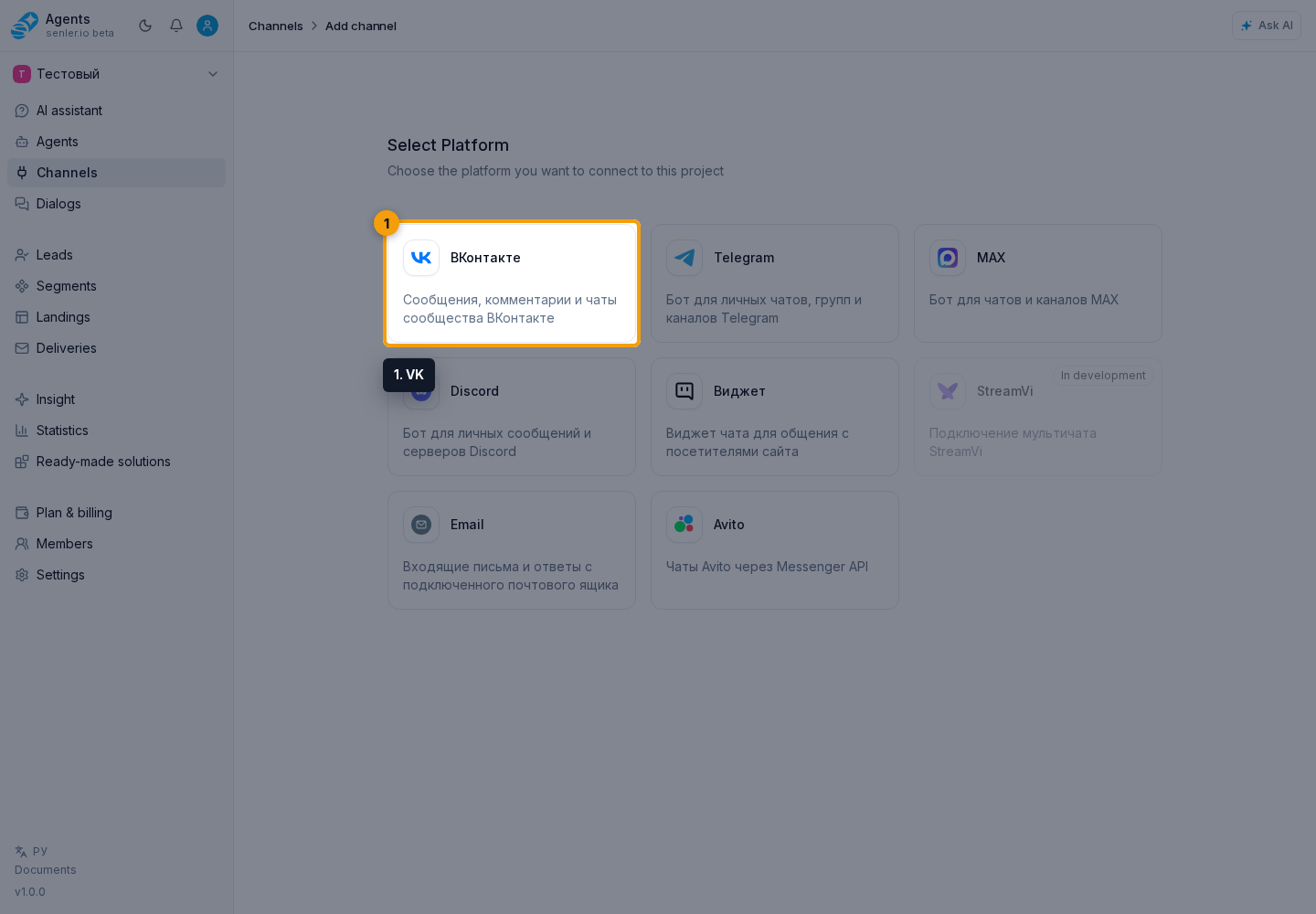
Form functions
- authorization via VK ID;
- OAuth pop-up window;
- VK account selection;
- adding, refreshing, and deleting a VK account with a separate confirmation;
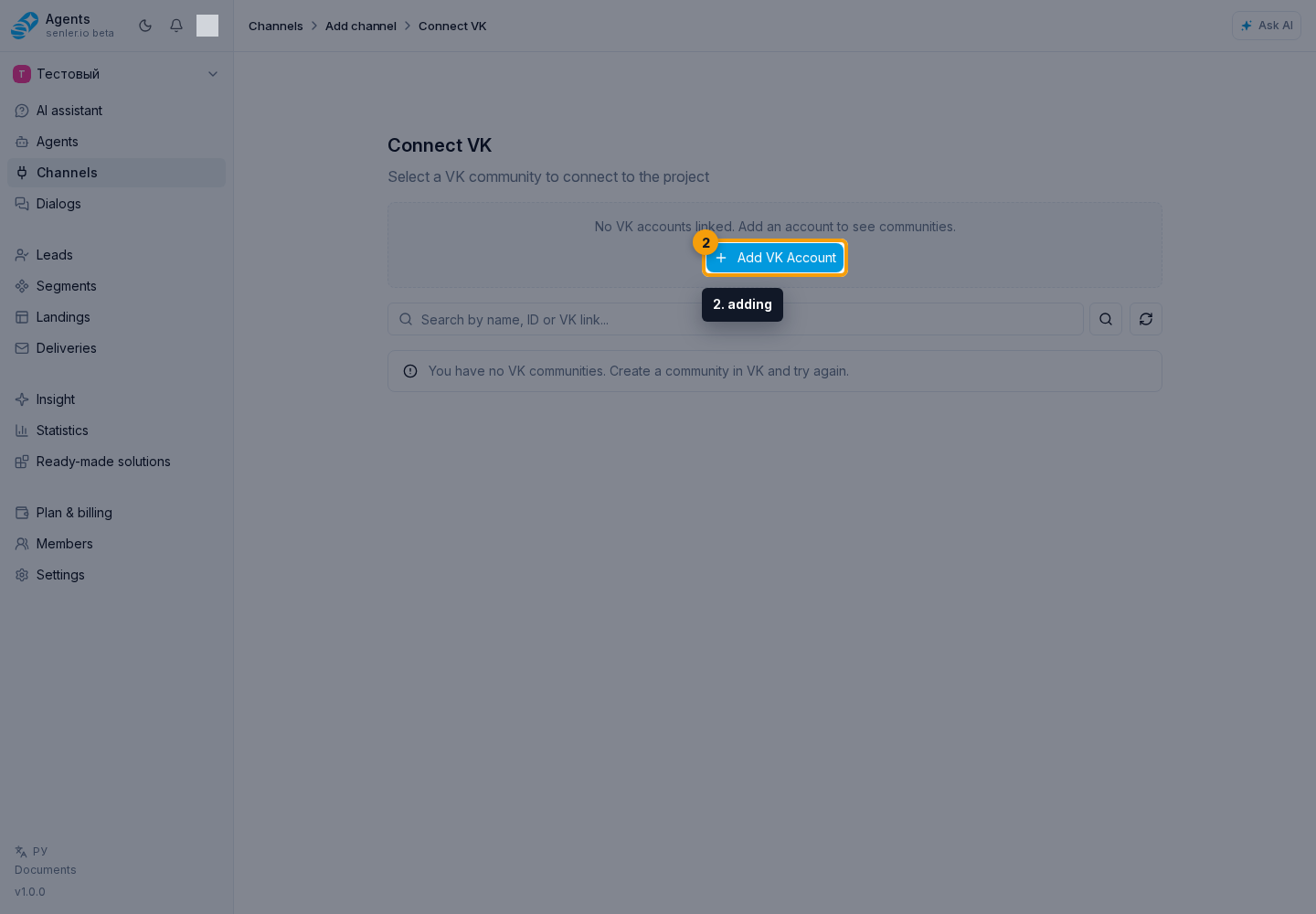
- community search by name, ID, or link and the search action;
- forced list refresh;
- previous and next page;
- opening a community in VK;
- connecting the selected community.
If the list of communities is empty
- check that the user is authorized with the required VK account;
- check that the account has access to communities;
- try updating the list;
- sometimes additional VK authorization is required to access the community API.
After connection
- open VK channel settings;
- check the status of the token;
- check information about the community;
- set up a webhook;
- synchronize data from the platform;
- if necessary, import leads from Senler.ru.
If a token update is recommended
In VK channel settings, the community token card may show a warning that it has no wall comment permissions and the VK connection needs to be refreshed. Such a token may remain valid and work with community messages without allowing replies to wall comments.
- Click Update token on the community token card.
- Approve the requested permissions in the VK window.
- Return to channel settings and check the connection status.
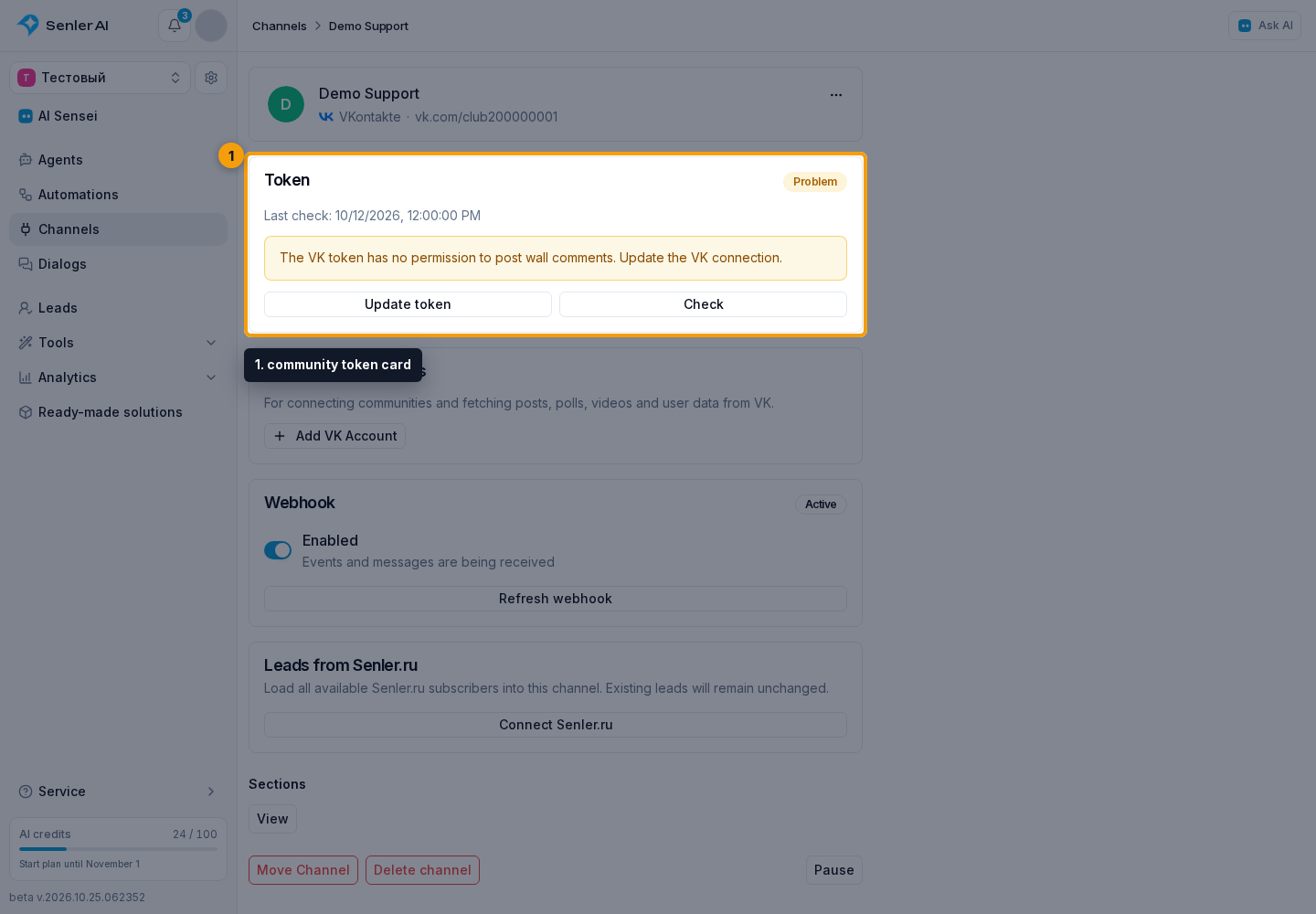
The check button requests token validity and granted permissions but does not add permissions. Renew authorization through VK to grant them. If you only have permission to view channels, contact a member with channel management permission.
Do not confuse this warning with personal VK authorization: renewing a personal account below does not grant wall comment permissions to the community token.
Personal VK Accounts
In connected channel settings, Personal VK accounts appears below the community token. These accounts are used to connect communities and fetch VK posts, polls, videos, and user data. Their authorization is checked separately from the community token.
- If your account's authorization has expired, click Refresh token next to that account and sign in to the same VK account.
- To connect your own account, click Add VK account. It must have access to the required data in VK.
- If the warning concerns another member's account, its owner must renew authorization. Alternatively, connect your own account with the required access.
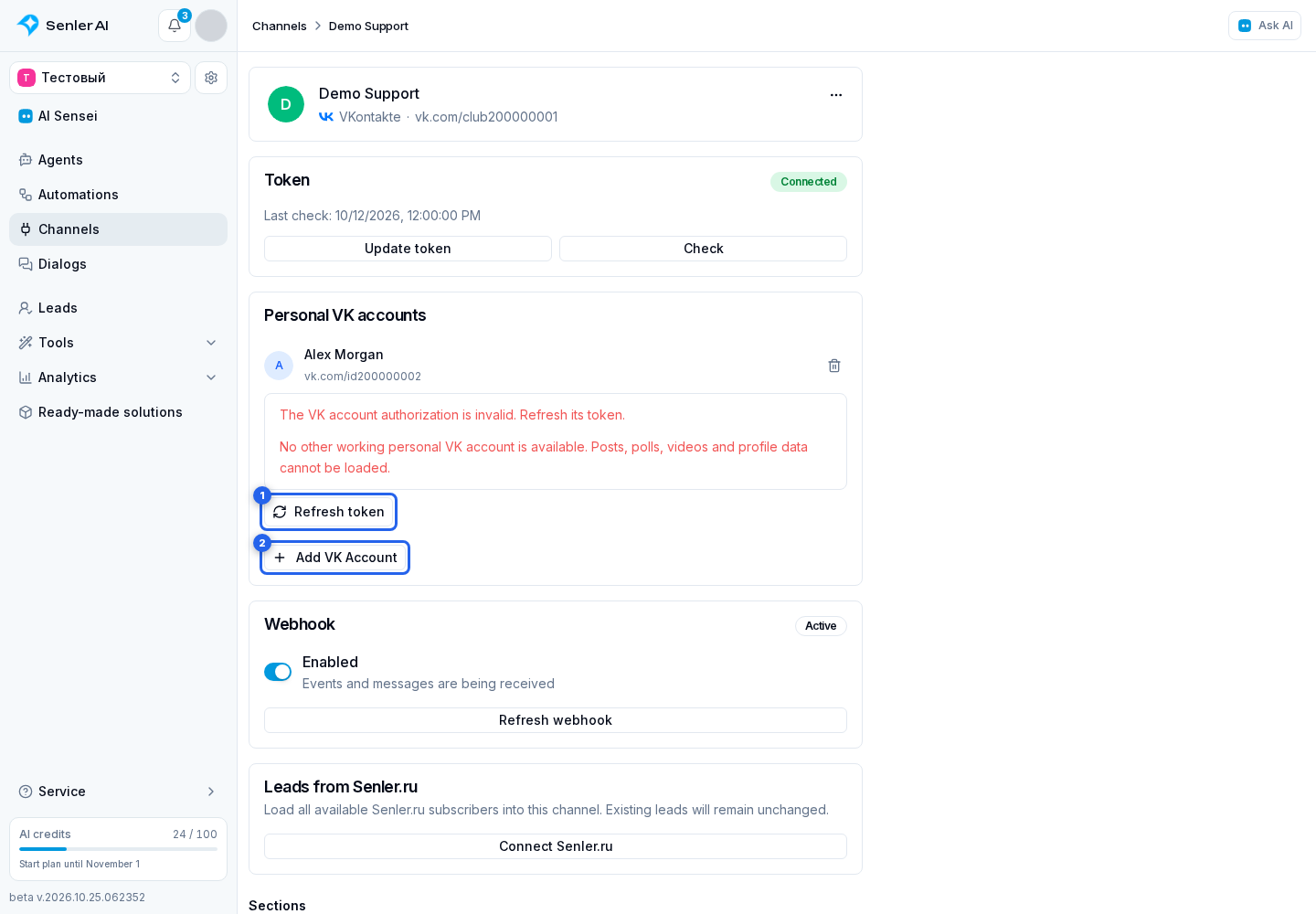
A VK access-denied warning lists unavailable operations. If no other working personal account exists, the listed data cannot be loaded. A valid community token may still receive messages: check its status separately on the token card.
Managing personal accounts requires permission to manage project channels. View-only access shows warnings without editing controls.
Community membership and messaging permission
These are different states. In channel spaces, the VK community tracks lead membership: a confirmed join marks a member, and leaving clears membership. A request to join a closed community does not yet mean membership. The state is updated from received VK events; it is not a complete import of community members.
Private messaging permission changes separately when the user allows or denies messages. Joining a community does not allow the bot to send private messages, and leaving does not deny permission by itself. Senler segment membership is a third, separate setting. In automation or funnel conditions, select the state your scenario needs: space membership, messaging permission, or segment membership.