
MAX Connection
A MAX channel connects a MAX bot to a Senler AI project. After connection, messages from MAX can be processed in dialogs, assigned to an agent, and tracked through project events.
What to prepare
- a created bot or application in the MAX partner platform;
- an access token or bot token;
- permissions to manage the bot;
- the selected Senler AI project where the channel should work.
How to connect
- Open the channel list through the Channels item in the side menu and click Add channel.
- Select MAX.
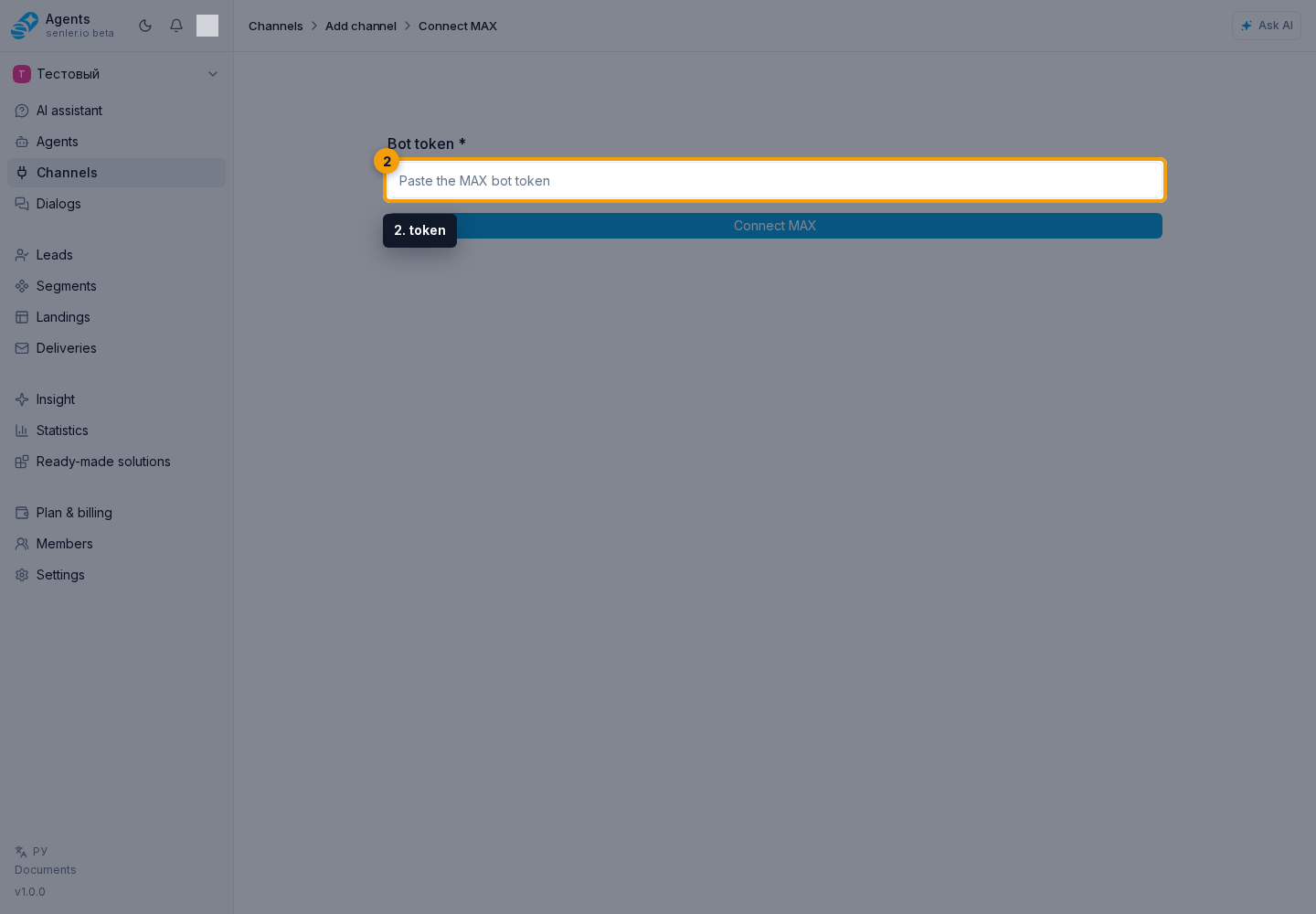
- Paste the token from the MAX partner platform.
- Click "Connect".
- Open channel settings and check bot information.
- Assign an agent and check message receiving.
After connection
- check the channel status;
- check bot information;
- configure the webhook if your scenario requires it;
- synchronize data;
- check a test message in dialogs.
To load your leads from Senler.ru, open channel settings, link the matching Senler.ru channel, and select Import leads.
Posts On Behalf Of A Channel
Posts that MAX sends on behalf of a channel without an individual author are saved in that channel's dialog. Such a post does not create a separate user lead. Text formatting and attachments provided by the platform are stored with the message.
Operator notifications and client contacts
To send a request to a manager, use the Message step with a selected recipient. Connect the bot as a channel and make sure the required private or group dialog is available for selection. The built-in send uses MAX channel settings: no separate HTTP request or token in the automation is needed.
To let the manager open the client's contact, attach a lead contact to the message. A MAX user's contact arrives in MAX as a card; a VK client is sent as a VK link. If no public link is available, the message includes a link to the lead's cabinet profile, which requires project access.
You can send a MAX contact with text, files, and buttons in one step: the recipient first receives the text, files, and buttons, followed by a separate contact card. With no text or files, the card can include one button. There is no need to create a separate step for the card.
An agent can also send these messages when its recipients and contact permission are configured.
Use system lead data to insert the name and other details into text. lead_data.external_user_id identifies the client on their original platform; it is not a universal MAX contact ID.
If MAX does not connect
- check the token;
- check that the bot has been created and is accessible;
- check your rights in the MAX partner platform;
- check the error text in your account.