
Loop Step
Choose A Loop Mode
Select the Loop step on the workflow to open its settings.
The step has two outputs:
- Loop leads to the repeated branch, which must return to the same Loop step;
- Done continues the workflow after the limit is reached.
The Loop mode field offers two options:
- Repeat a fixed number of times;
- Iterate over array items.
In the first mode, enter an integer from 1 to 10,000 in Maximum iterations.

Iterate Over Array Items
In Array to iterate, select a Run, Lead, Dialog, or Project variable. Lead and Dialog are unavailable in a Background automation. If the array is nested inside an object, select the pencil and enter its path.
Then define two run variables:
- Current item receives the value on the current iteration; its default name is
item; - Item number receives a number starting at 1; its default name is
item_number.

These variable names must differ. If the source array is also stored in Run, do not reuse its name for the current item or number.
The array is read once when the run enters the loop for the first time. Changing the source variable later does not change the current iteration. The array can contain no more than 10,000 items. An empty array takes the Done branch immediately.
In both modes, Loop must be connected and its branch must return to this same step; otherwise, the workflow does not pass validation. Connect Done to the continuation. Leaving it unconnected produces a warning, and the run ends after its final iteration.
Create A Backward Connection With A Controlled Loop
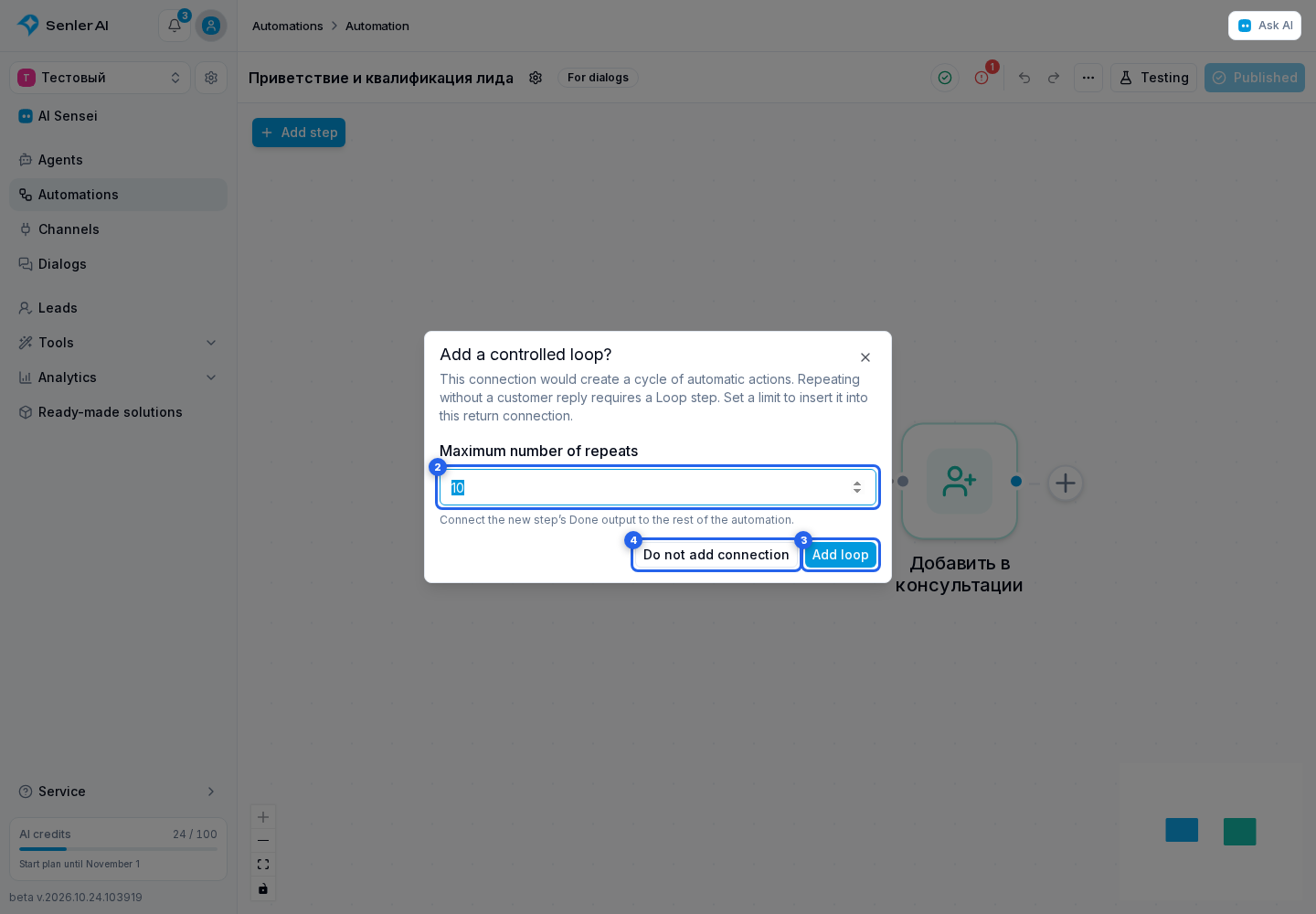
To repeat a selection after a customer reply, connect the button or reply branch directly to an earlier question. The next pass starts only after a new reply. If a connection would create an automatic cycle without waiting for the customer and without a limit, the editor opens the Add controlled loop dialog.
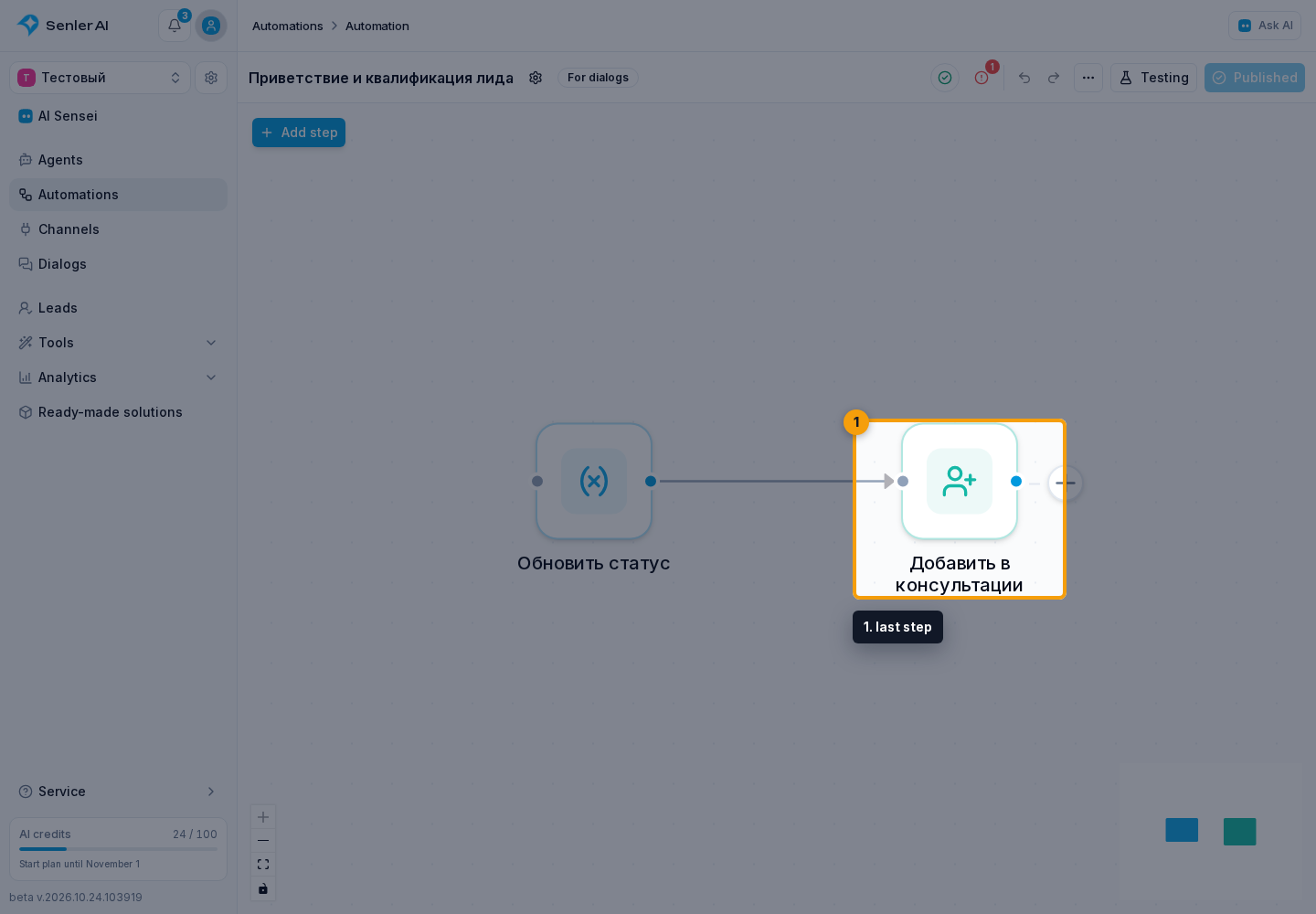
To close such a branch, connect the output of its last step to the input of the step where the repetition should start.
Enter the maximum number of repetitions. Select Add loop to insert a Loop step into the backward connection. Then connect its Done output to the rest of the workflow. Do not add connection leaves the workflow without that connection.
The limit applies to one loop within the workflow. If several automations start one another through messages or segments, add a condition that stops the entire chain.