
Avito Listings
When a customer opens a listing on Avito and messages the seller, Senler links the new dialog to that listing. The basic details returned by Avito become available during response preparation: listing ID, title, link, price, and other card fields.
The Avito API methods available to the integration do not provide the full listing text, detailed terms, or the original gallery. Avito may also return only a small thumbnail instead of the source photos. When detailed answers about the product or service are required, add the missing information manually to the Knowledge Base.
Senler obtains the listing ID from Avito automatically. When adding the description to the Knowledge Base, enter the same ID in the document or table. The matching ID lets Senler find the description for the correct listing. The title, link, and price do not need to be copied because they already come from Avito.
Before You Start
Connect the Avito channel and create an agent or select an existing one.
How matching works
- A customer opens a listing on Avito and messages the seller.
- The listing ID, title, link, and other available details are passed to the dialog.
- The agent searches the connected Knowledge Base for a material with the same listing ID.
- After an exact match, the agent uses the detailed description, terms, and photos from that material.
The current dialog context takes priority for the price, status, and title. The Knowledge Base supplements it with a detailed description and other information that is missing from the dialog.
Data added automatically
For a dialog linked to a listing, Senler requests the available data through the Avito API. The user does not need to copy the entire listing card into the Knowledge Base manually.
| Data | What happens automatically |
|---|---|
| Avito listing ID | Passed to the agent and used for matching. Repeat the same ID in the Knowledge Base material as the matching key. |
| Title and link | Passed to the dialog context when Avito returns them. Repeating the title in the document title makes the material easier for a person to find. |
| Price | Passed in the form available through the Avito API. |
| City or region, address, category | Added automatically when the relevant fields are available for the listing. |
| Status and publication dates | Added when extended listing data is available. |
| Images | Senler saves only the images that were actually returned. Avito may provide one small thumbnail and report the total photo count separately. |
The available fields can vary between listings. If Avito does not return a field, Senler does not fill it in. Refreshing the space may add available extended details, but it does not create the full listing text or an unavailable gallery.
Prepare the missing information
Add only the missing information that matters for answers about the particular listing:
- Avito listing ID;
- full description;
- what is included in the price or offer;
- detailed characteristics that are missing from the dialog card;
- service or sale terms, restrictions, delivery, payment, and warranties;
- answers to frequent questions;
- original photos and explanations for them when the agent must use images;
- the date when the information was last confirmed.
The listing ID is repeated in the Knowledge Base not because the agent did not receive it, but to link the dialog to the correct material. Do not substitute the internal space or dialog ID.
The title, link, current price, address, category, and status do not need to be duplicated in the text. Add them manually only as fallback information when a particular field was not returned by Avito or needs a more detailed explanation.
Choose a Storage Format
- Separate documents: for detailed descriptions, photos, and answers to questions about each listing.
- Catalog table: for a large catalog with consistent fields and regular updates.
If you are unsure, start with documents. You can switch to a table as the catalog grows.
Add listings to the Knowledge Base
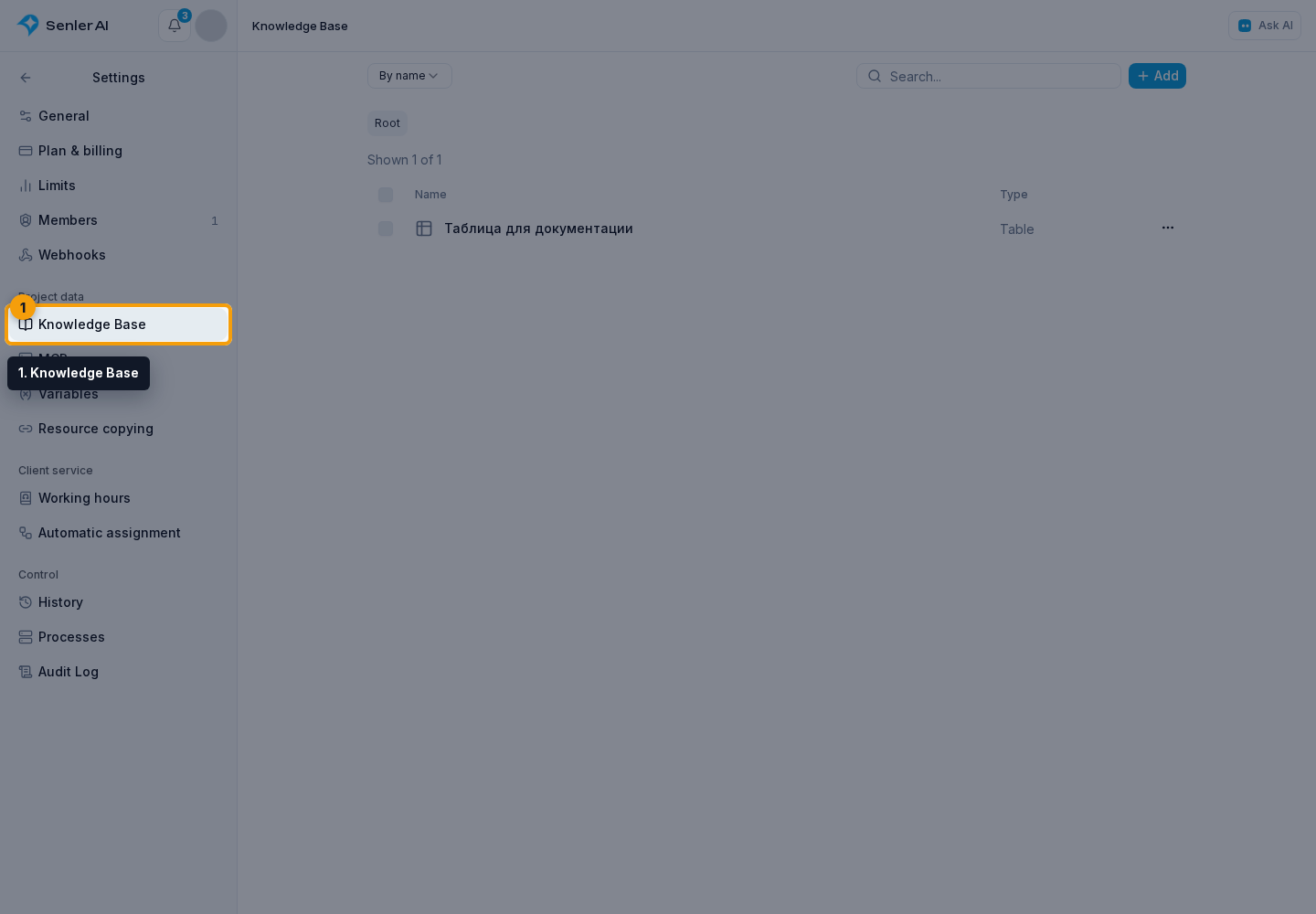
- Select the Settings gear button to the right of the project name, then open Knowledge Base in the Project data group.
- Create an “Avito listings” folder.
- Add listing documents or a catalog table to it.
Connect materials to the agent
- In the side menu, open Agents and select an agent in the list.
- In the agent form, open the Tools tab.
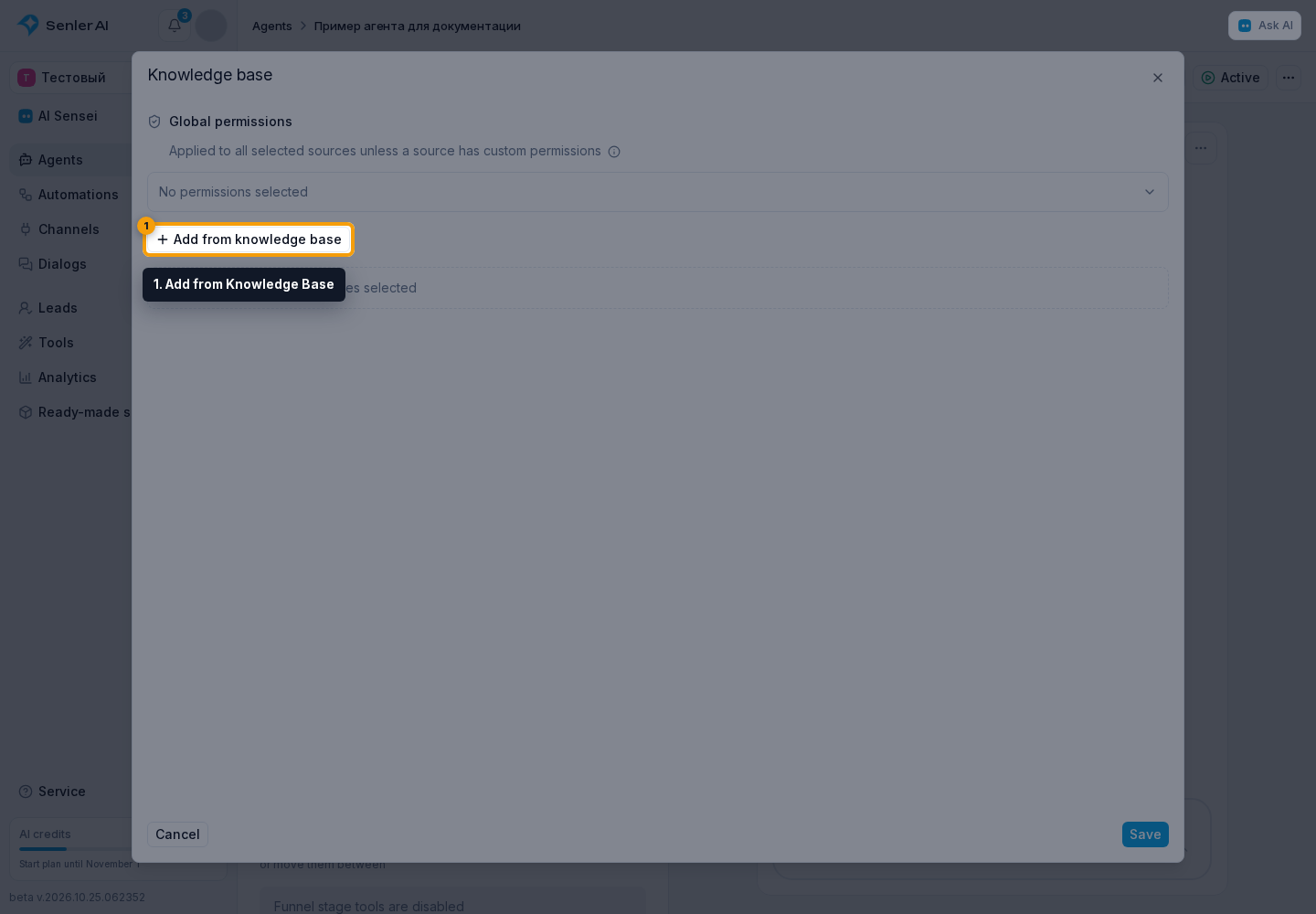
- In the Knowledge Base block, select Configure → Add from Knowledge Base.
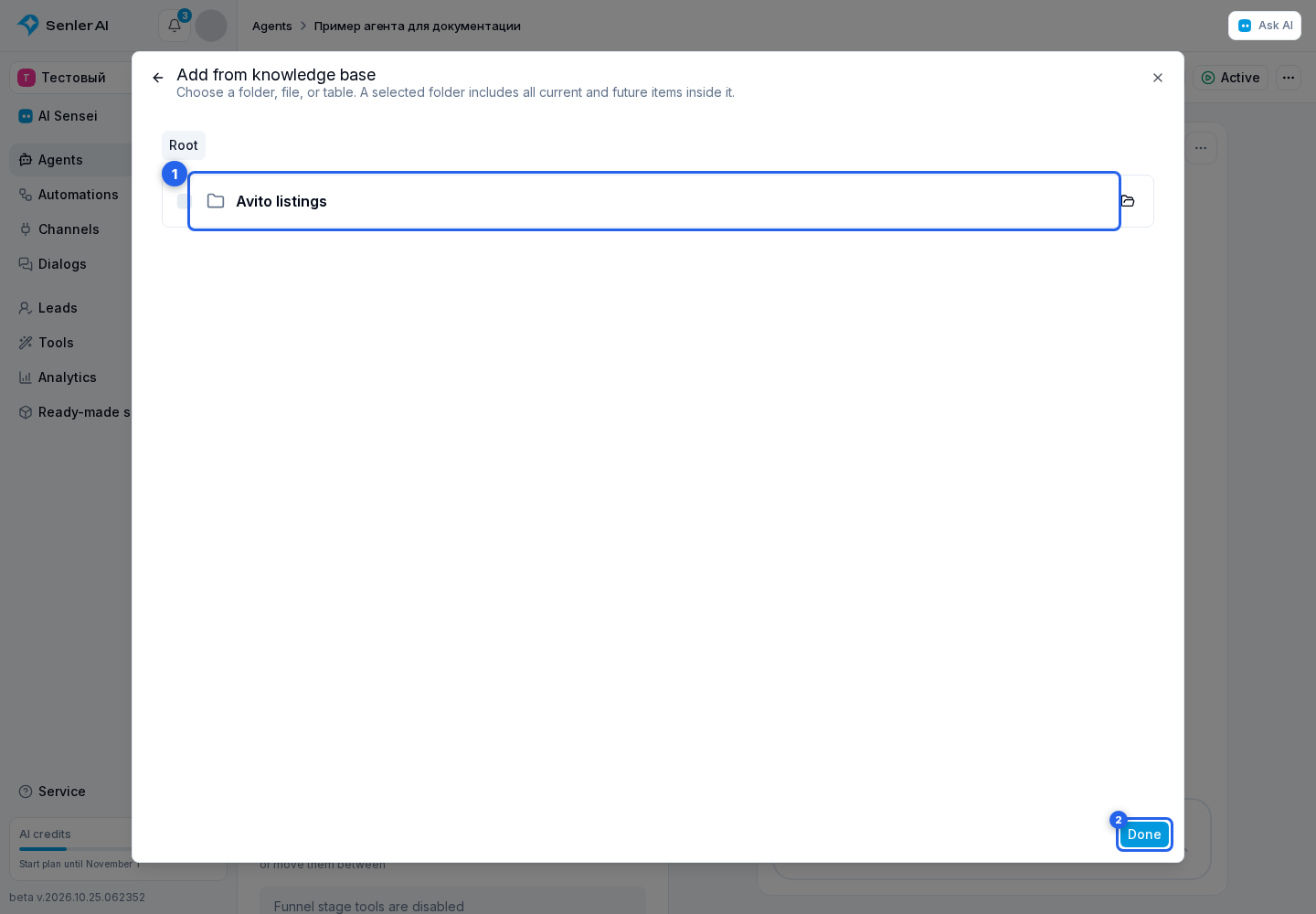
- Select the Avito listings folder, then select Done.
- Keep the data retrieval permission enabled. Edit permissions are not needed when the agent only answers customers.
- Select Save and publish the new agent version.
When the entire “Avito listings” folder is connected to the agent, new materials added inside it also become available.
Add the agent instruction
On the Settings tab, add this block to the agent instructions. Do not change the tool names in the block.
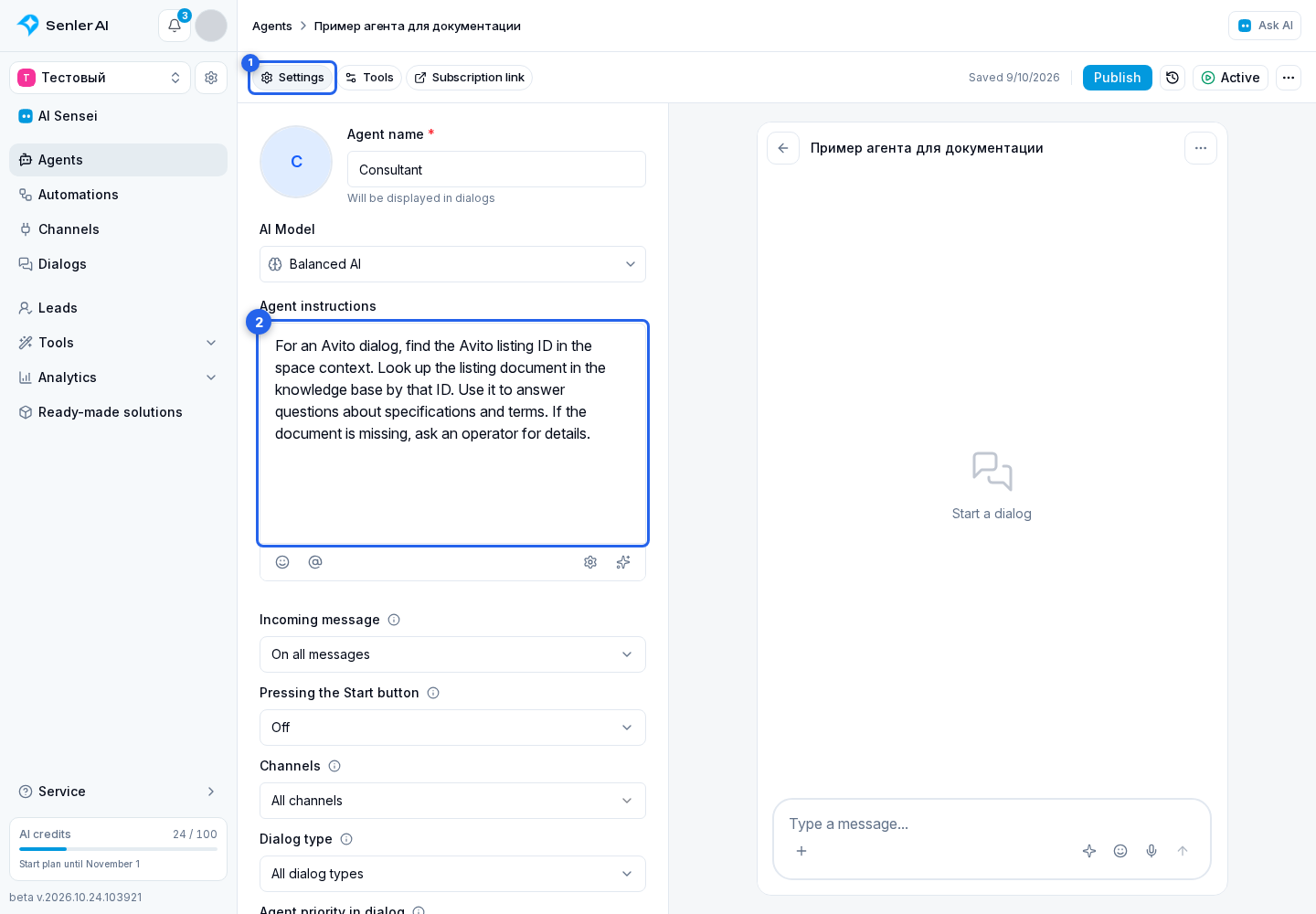
When working with an Avito dialog:

1. Find the “Avito listing ID” line in the space context.
   Use this ID, not the internal space or dialog ID.
2. If the “Avito listings” table is connected, call query_table_rows
   and find the row where avito_item_id exactly equals the listing ID.
3. If listings are stored as documents, call search_knowledge_base
   with the query “Avito <listing ID>”, then read the matching document
   using get_knowledge_file.
4. Before answering, verify that the ID in the material exactly matches
   the listing ID from the current dialog.
5. Do not combine information from different listings. If the ID is not found,
   search by the exact listing title only as a fallback.
6. Use the current price, status, and title from the dialog context when they
   differ from the saved material. Use the Knowledge Base for descriptions and terms.
7. Use photo details only from connected images, their captions, or AI descriptions.
   Do not infer anything that is not present in the materials.
8. If no exact listing is found, do not invent an answer. Explain that detailed
   information for this listing is not available yet.
Test and update the data
- Wait until the Knowledge Base finishes processing the documents and images.
- Open agent testing or a real Avito dialog linked to a known listing.
- Ask about a detail that appears only in the full description, for example: “What is included in the price?”
- Verify that the agent used the material with the same ID and did not take data from a similar listing.
- Change one test detail, save the material, and repeat the test after the index is refreshed.
When the description, terms, or photos change, update the corresponding document or table row and the current-as-of date.
If the agent cannot find a listing
Check the following in order:
- the dialog context contains the Avito listing ID;
- the same ID without spaces appears in the document title and body or in the
avito_item_idcolumn; - the folder, document, or table is active and connected to the agent;
- the agent has permission to retrieve data;
- the new agent version is saved and published;
- text processing and image AI descriptions are complete;
- one document or row does not contain information from another listing.
If the exact ID is missing from the context, searching by title and link remains a less reliable fallback.