
Discord Connection
A Discord channel connects a Discord bot to a Senler AI project. Handle server messages and private requests in dialogs, replying yourself or assigning an agent.
What to prepare
- an application and bot in Discord Developer Portal;
- a Discord bot token;
- a Discord server where the bot is added;
- bot permissions to read and send messages in the required channels.
How to connect
- Open the section through the Channels item in the side menu and click Add channel.
- Select Discord.
- Enter the channel name in Senler AI.
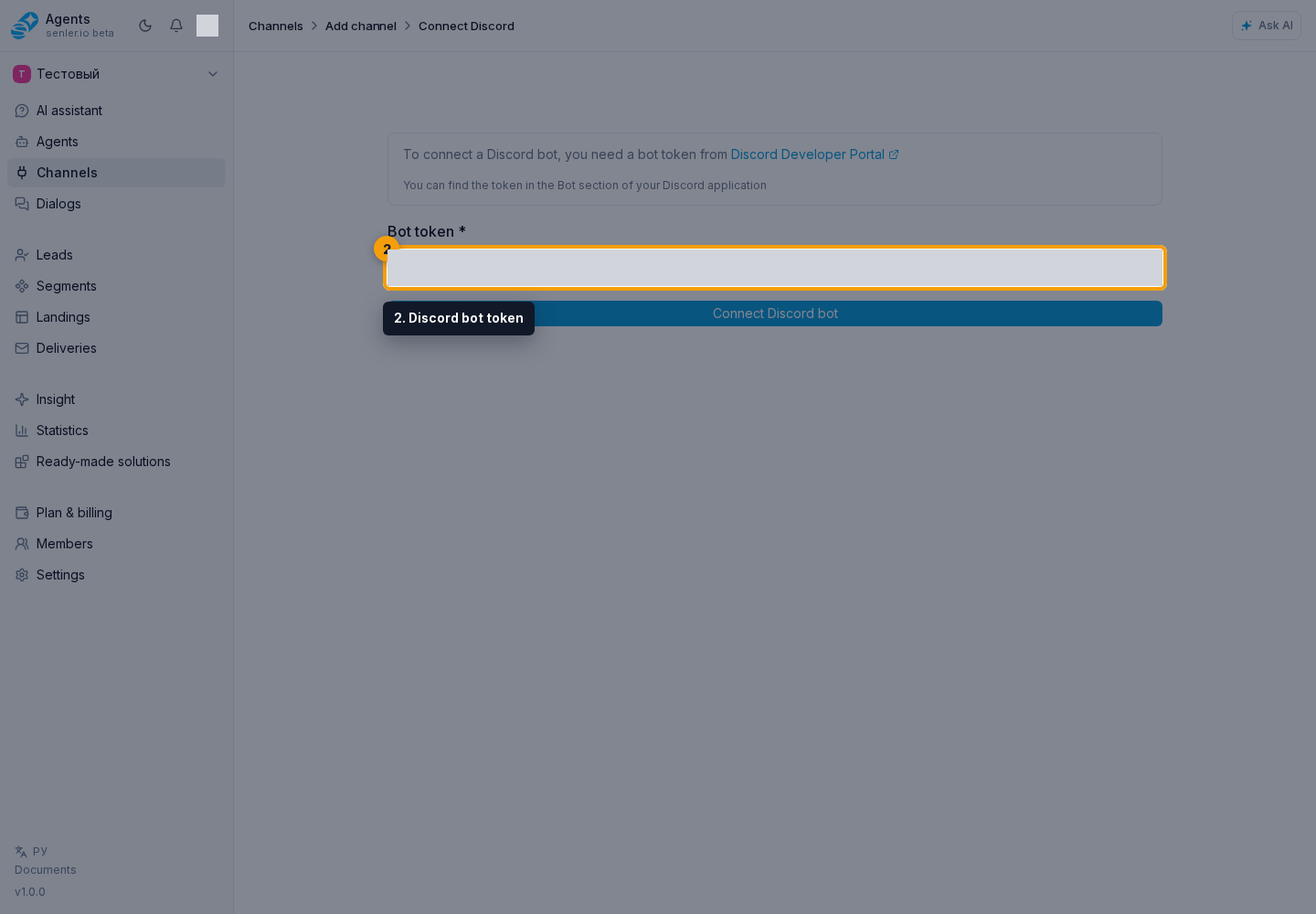
- Paste the Discord bot token from Discord Developer Portal.
- Click "Connect".
- Check bot information and channel status.
After connection
Open channel settings and check the bot details and connection status. To handle server messages, the bot must be added to that server.
If an agent should handle messages, configure its auto-start for this channel.
Direct Messages
To message a Discord lead privately, create a dialog and select that lead. Senler opens the bot's direct message conversation with the user. If the dialog already exists, it is reused. The message goes to the user privately, not to a shared server channel.
An automation can message a selected lead. For an agent, allow messages to other recipients. In both cases, select a lead for a private message, or a specific server dialog to send a message there.
If the bot does not see messages
- check that the bot has been added to the server;
- check the bot permissions to read channels and send messages;
- check that the token was not regenerated after connection;
- check the status of the channel and agent.
Return to your connected bots through the channel list.