
Authorization
The Authorization section contains your Senler AI sign-in methods and applications that you allowed to act on your behalf. A sign-in method is an external account used to confirm your identity in the service.
Opening the page
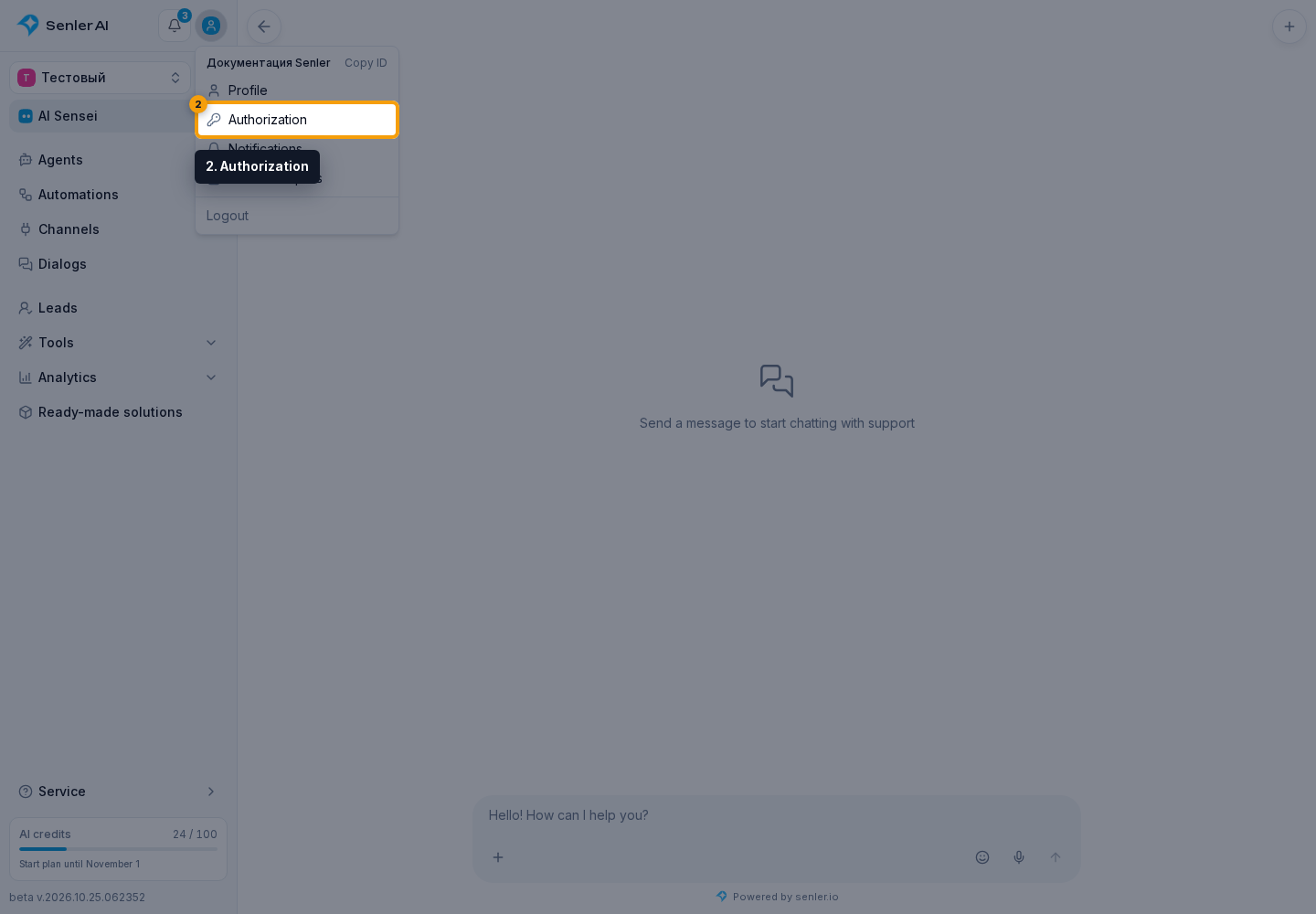
Select the profile icon and choose Authorization. Sign-in methods appear at the top of the page, with connected applications below them.
Managing sign-in methods
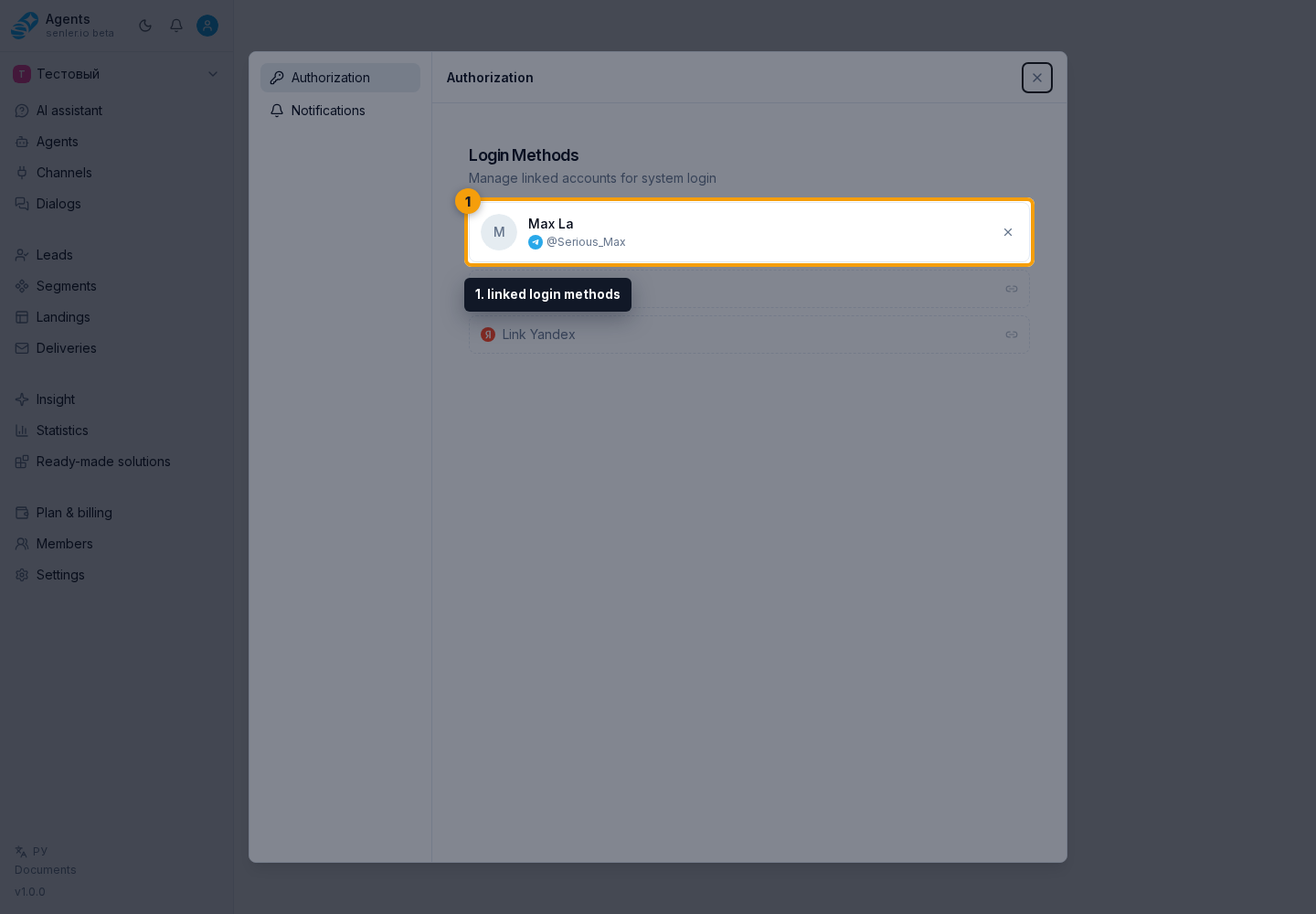
The block shows linked login methods. Below them, you can link a new method, while an unnecessary entry has a control to unlink a login method.
Linking a new method
- Select Link next to the required service.
- In the window that opens, sign in to the selected external account and confirm its connection to Senler AI.
- Return to the cabinet and review the linking result.
- Confirm that the new method appears in the list.
Enter the password only on the selected service's page. Never share passwords, tokens, or one-time codes with support or in work chats.
Safely disconnecting an old method
First, confirm that another working sign-in method is linked to the account. Then select unlink next to the old entry and confirm the action.
The only sign-in method cannot be disconnected: the cabinet shows an explanation. This prevents accidental loss of account access.
Connected applications
The lower part of the section lists applications that have your personal OAuth access. See Connected applications to learn how to review permissions, disconnect one client, or revoke access completely.
When linking does not work
- Check whether the browser blocked the authorization pop-up.
- Confirm that the correct external account is open, rather than another profile in a neighboring tab.
- If the service says the account is already in use, first determine which Senler AI profile it is linked to.
- Refresh the page and try again. If the error remains, record its text, the selected service, and the attempt time without including passwords or confirmation codes.