
Landing draft and publication
Autosave
Block changes are saved automatically. The header indicator shows the current state: saving, saved draft, published version, conflict, or error.
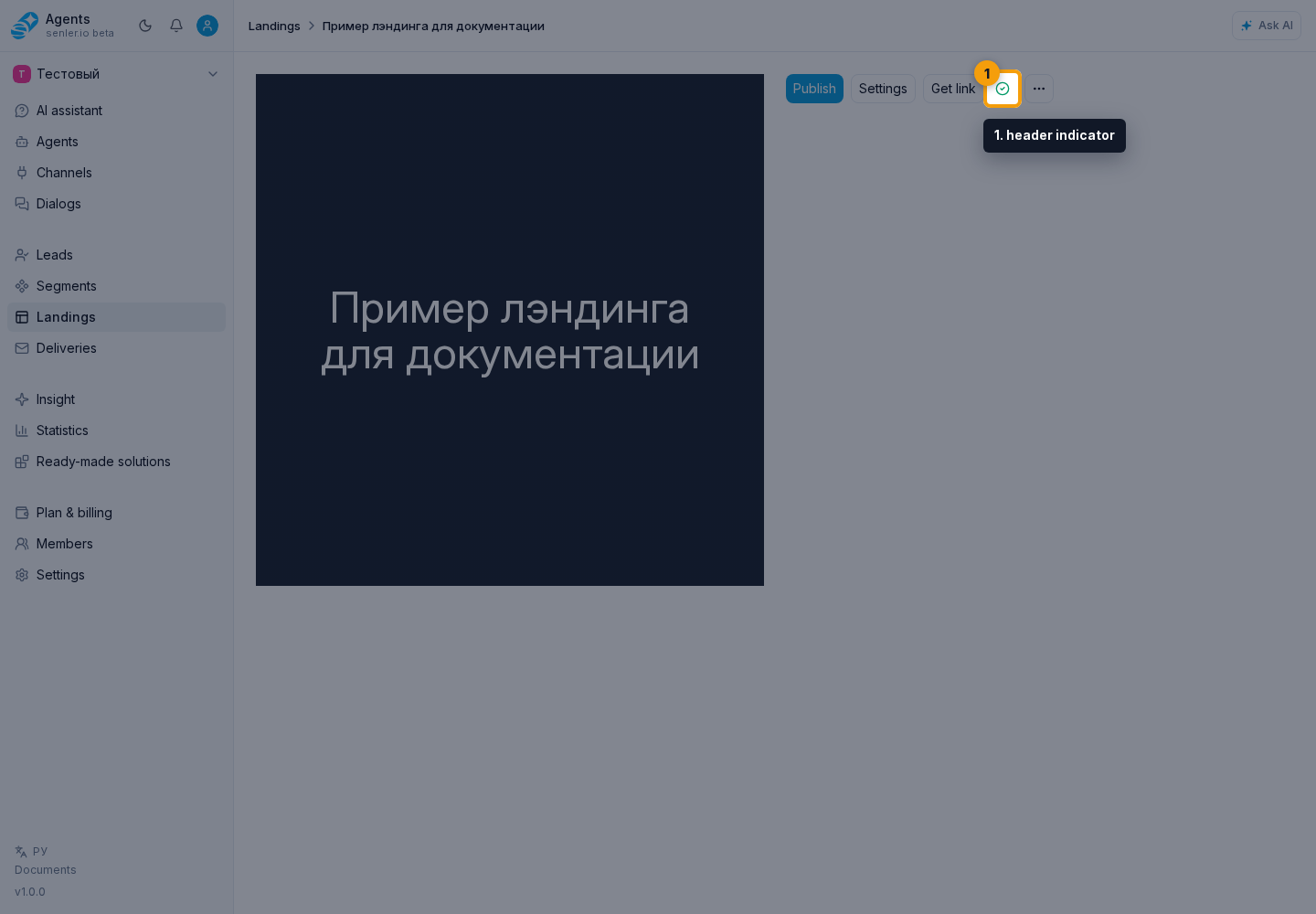
Complete button setup means that the selected action is missing a label, segment, channels, or valid link. Open that button's settings, complete the required fields, and select Apply. Autosave then continues.
Closing or reloading a tab with unsaved changes prompts a browser confirmation. Wait for the saved-draft state before closing: local edits are not yet necessarily available to other project members.
Collaborative editing
The collaborative editing indicator shows people with the landing open and recent automated changes. An agent action shows its name and AI badge; applications, API calls, and system actions show their source.
When another member opens a specific block's settings, their avatar appears on the block. Select it to see the name and explanation. If you can access project members, an Open member link is also available. The avatar reports presence but does not lock the block.
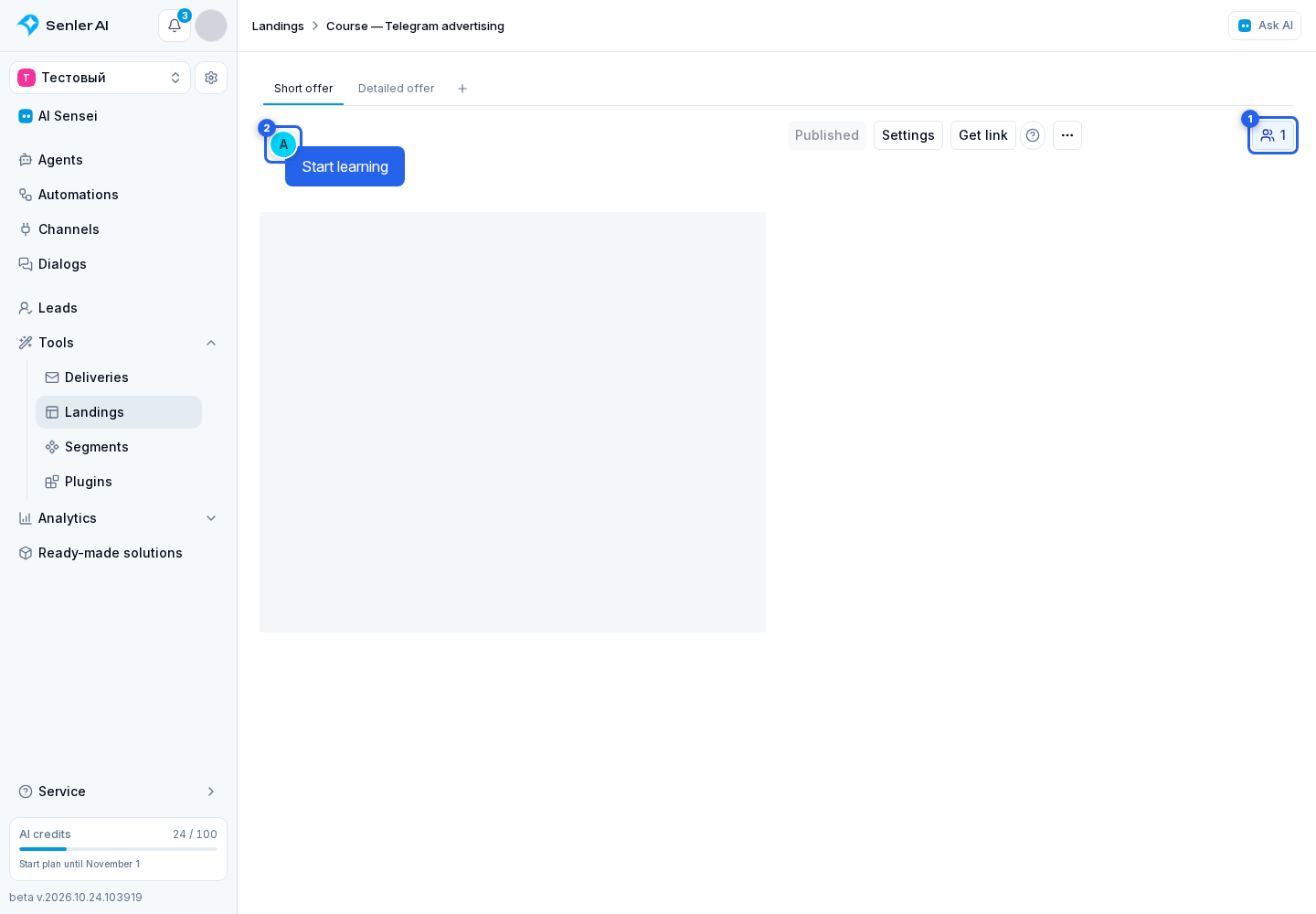
Changes to different blocks are merged automatically.
Edit conflict
If two editors change the same block or block order, autosave stops while local changes remain on screen. Open the indicator and compare your version with the server version:
- Keep mine saves the local version of conflicting blocks and order;
- Accept server replaces only conflicting parts with the server version;
- independent changes from both versions remain.
If another member deletes the page variant you were editing, the indicator offers to accept the deletion or copy your blocks to another existing variant. This preserves local edits without automatically restoring the deleted page.
The available recovery action depends on the reason. Retry saving after a lost connection. Use a full data refresh only when you are ready to replace unsaved local edits with the server version.
Publication and history
An autosaved draft is not yet visible to visitors. Select Publish to make the current version public. Visitors continue seeing the previous publication until this succeeds.
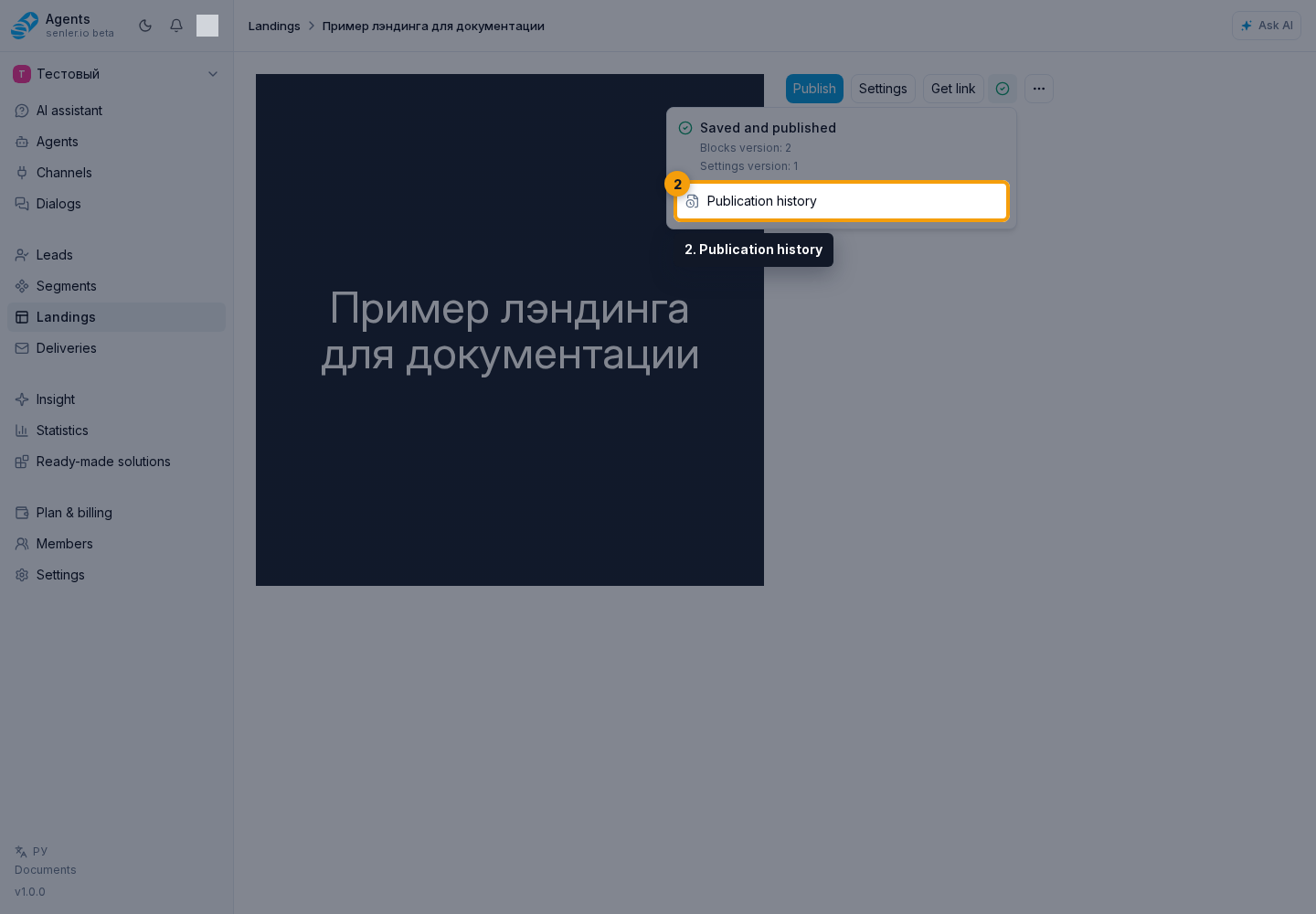
Open the header indicator to see the Publication issues list. The number on the indicator shows the issue count. Red indicates errors that must be fixed; yellow indicates warnings that allow publication. Validation updates after autosave. Unsaved changes are not yet considered checked.
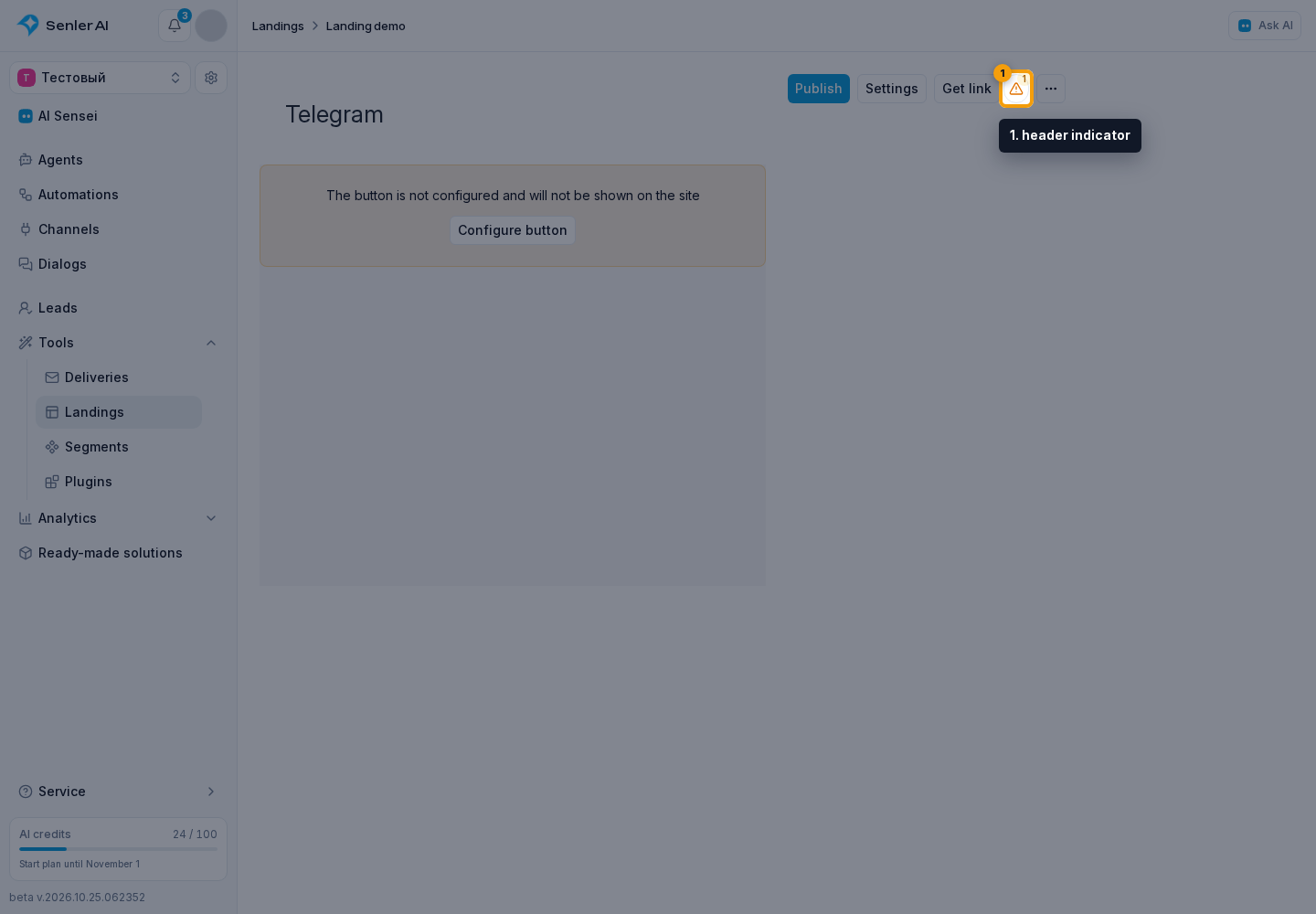
Select a block error or warning to open its settings and go to the relevant field or list item. Each message includes the block number and type, and the item number when it refers to a card.
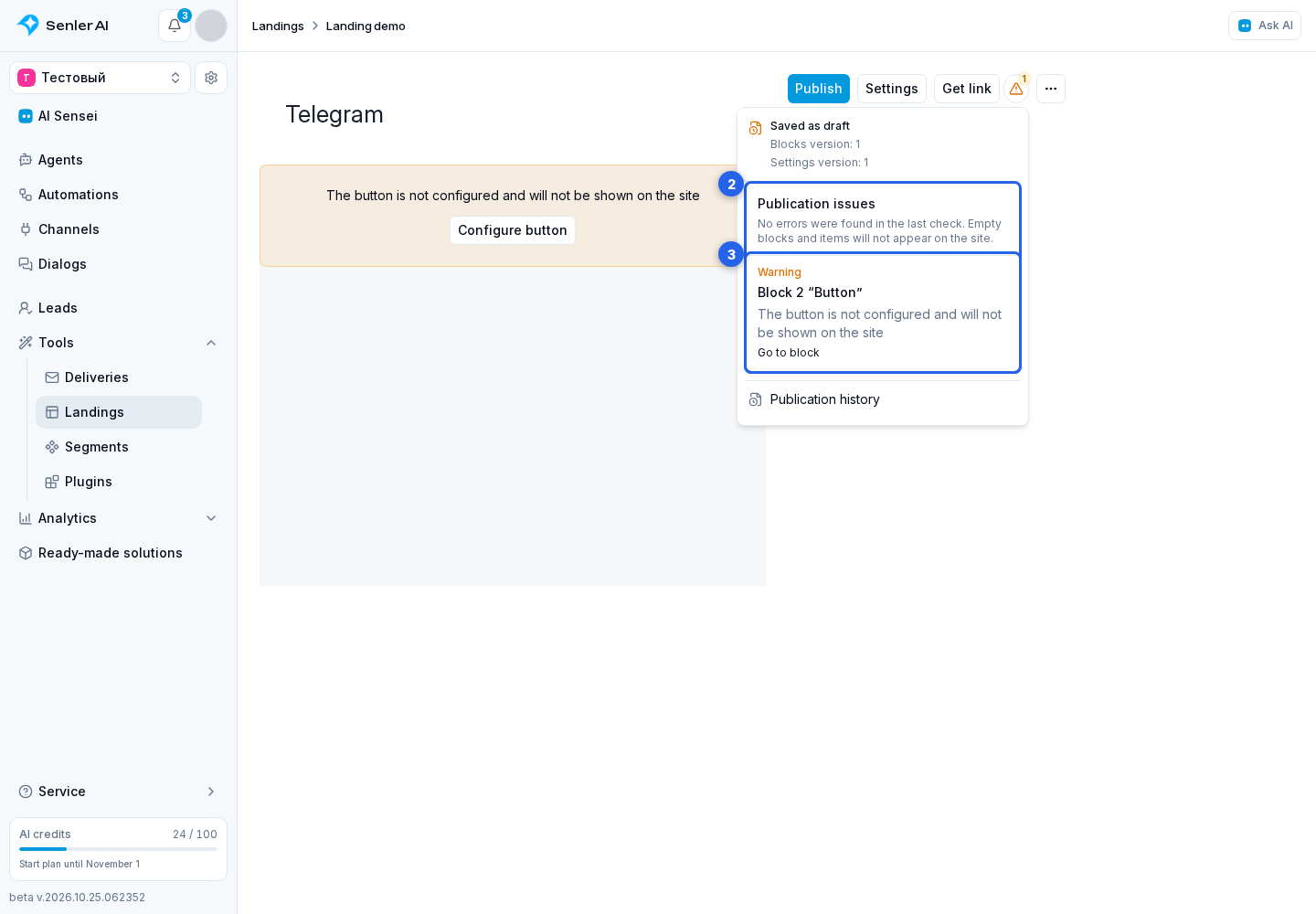
Unconfigured buttons, empty text blocks, images without files, videos without links, and empty cards are not shown to visitors. A list without any populated cards is also omitted. These placeholders remain in the draft and publication history; you do not need to delete them to publish. Warnings do not require an extra confirmation.
Publication requires at least one visible block that remains on the site after empty placeholders are omitted. Invalid links or dates, button action errors, and unavailable segments or channels must be fixed. Attempting to publish with these errors opens the issue list.
Background checks update the hints without disabling the publish button. If a check is unavailable, retry it or try publishing the landing: the server checks the saved data again during publication. After the draft changes, the previous result does not confirm that the new version is ready.
After publication is rejected, the errors from the server response are shown. A newer check of the saved draft updates the icon, count, and current issue list. The reason for the previous rejection remains in a separate message and is not added to the count. If the new check fails, the reason for the rejection is preserved. A check with no errors does not publish the landing by itself — retry publication. After the draft changes, the previous rejection is also labeled as belonging to an earlier attempt.
Selecting a current issue opens the corresponding block and list item, when specified. Button action errors open the action settings directly.
Publication history lets you make an earlier version the active publication, pin an important version, or unpin it. Returning to an earlier publication does not replace the current draft.
If publication fails for a technical reason, the cabinet shows the cause. Retry submits the same draft again.
An agent subscription page has no separate publish button; its changes take effect when the agent is published. If a landing error prevents publication, the cabinet opens its editor and issue list.