
Start Step and Manual Run
Start is the entry point for explicitly starting a graph. It does not react to incoming messages or segment membership: use separate triggers for those events. The step is available in For dialogs and Background automations.
Add the Start step
Select Start in the step catalog, then open the step on the graph. The step settings open.
A For dialogs automation receives the lead, dialog, and channel from the startup method when they are provided. A Background automation can work without that context. When another automation starts it, the available lead, dialog, channel, and source message are also passed to the new run.
The Finish previous runs when a new one starts switch controls what happens to an active run of this automation for the same lead or dialog. When enabled, the previous run is cancelled before a new one is created. When disabled, both runs continue in parallel. Starts without a shared lead or dialog are treated as separate runs.
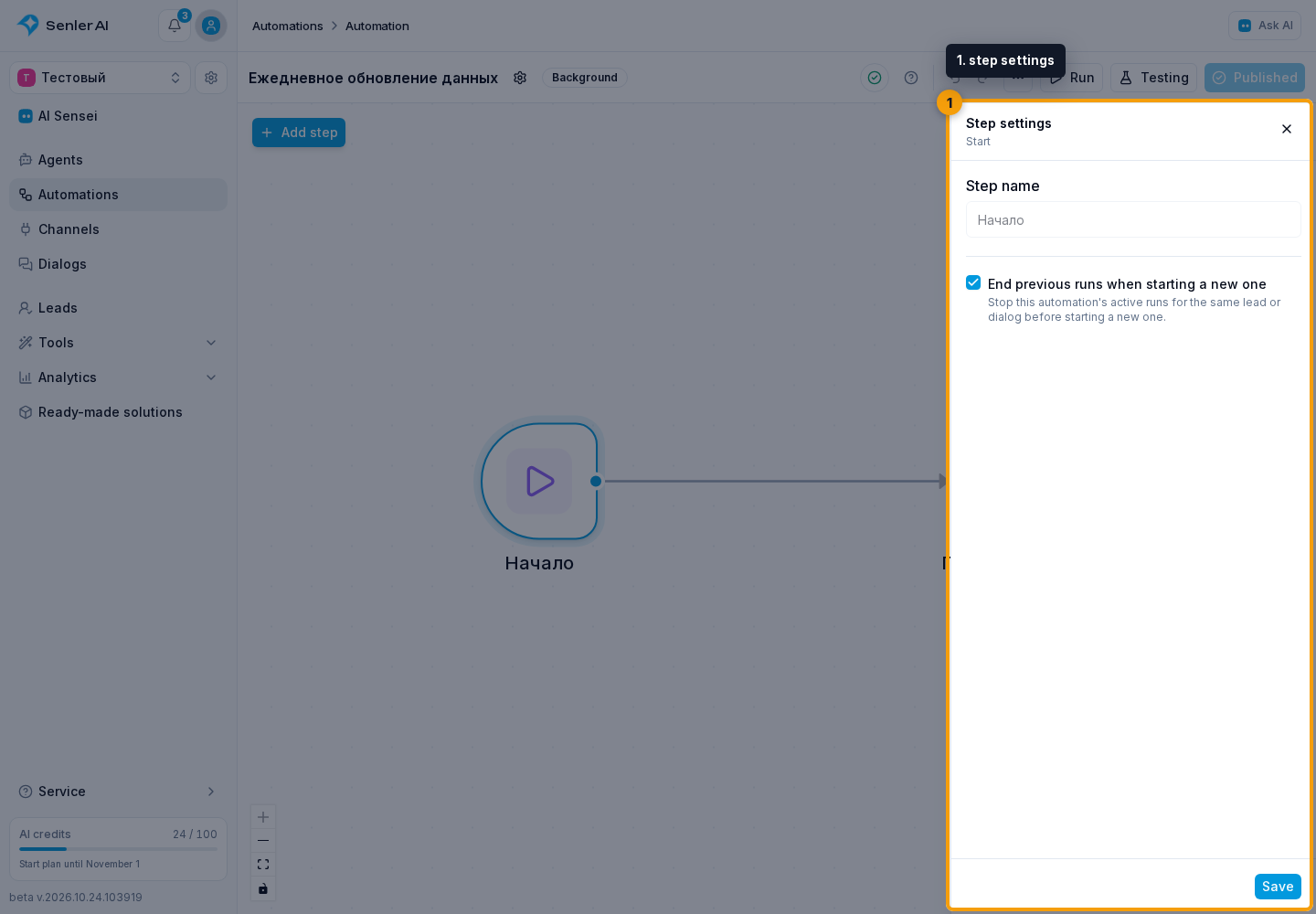
Connect the output to the first action. A trigger cannot have incoming edges, and without a following step the run ends immediately after it starts.
Test the draft
Select Testing to test the current draft. For a For dialogs automation, select a test dialog, an existing dialog, or a lead. A test dialog offers Test with AI and Manual testing. For an existing dialog, lead, or background automation, select Run from step. A background automation does not request dialog or lead context. If a Message step needs a recipient, select it in that step's settings.
A test run is intended to check unpublished changes, but the actions inside it may be real: messages are sent, tables are changed, and external applications are called.
Start a published background automation
A production manual run is available only for a Background automation. The automation must have a published version, a Start step, and accept new runs. You also need permission to manage automations.
You can open the run dialog in either place:
- In the automation list, open a Background automation's menu and select Run.
- Alternatively, open the editor and select Run in the top bar.

The production run dialog opens. If no initial data is required, you can proceed directly to starting the run.
This action always starts the published version. Unsaved or unpublished draft changes are not included in the run.
Pass initial variables
If the graph needs initial data, select Add variable. In each row:

- Select a run variable. You can search the list or create a new name.
- Select the value type: string, number, Yes / no, JSON, or the empty
nullvalue. - Enter the value. For JSON, enter a valid object, array, or other JSON value.
You can pass up to 100 variables. Names must be unique, have no surrounding spaces or dot, and must not start with $ or use reserved system names. Remove an unnecessary row with its trash button. The values become variables of the new run and are available to following steps as {{run.name}}.
Select Run. After creating the run, Senler opens the Runs dialog where you can monitor its progress.

Understand the two run buttons
- Testing opens draft testing without publication.
- Run creates a regular production run of the published Background automation and can accept initial variables.
If Run is unavailable, check the automation type, published version, whether it accepts new runs, and your permissions. A For dialogs automation must be started with lead or dialog context, for example from the lead list or with the Add to automation step.