
Members
The Members section lists everyone who can access the project. Use it to review each person's role and channel access, invite an employee, or open an existing member's settings.
How the section is organized
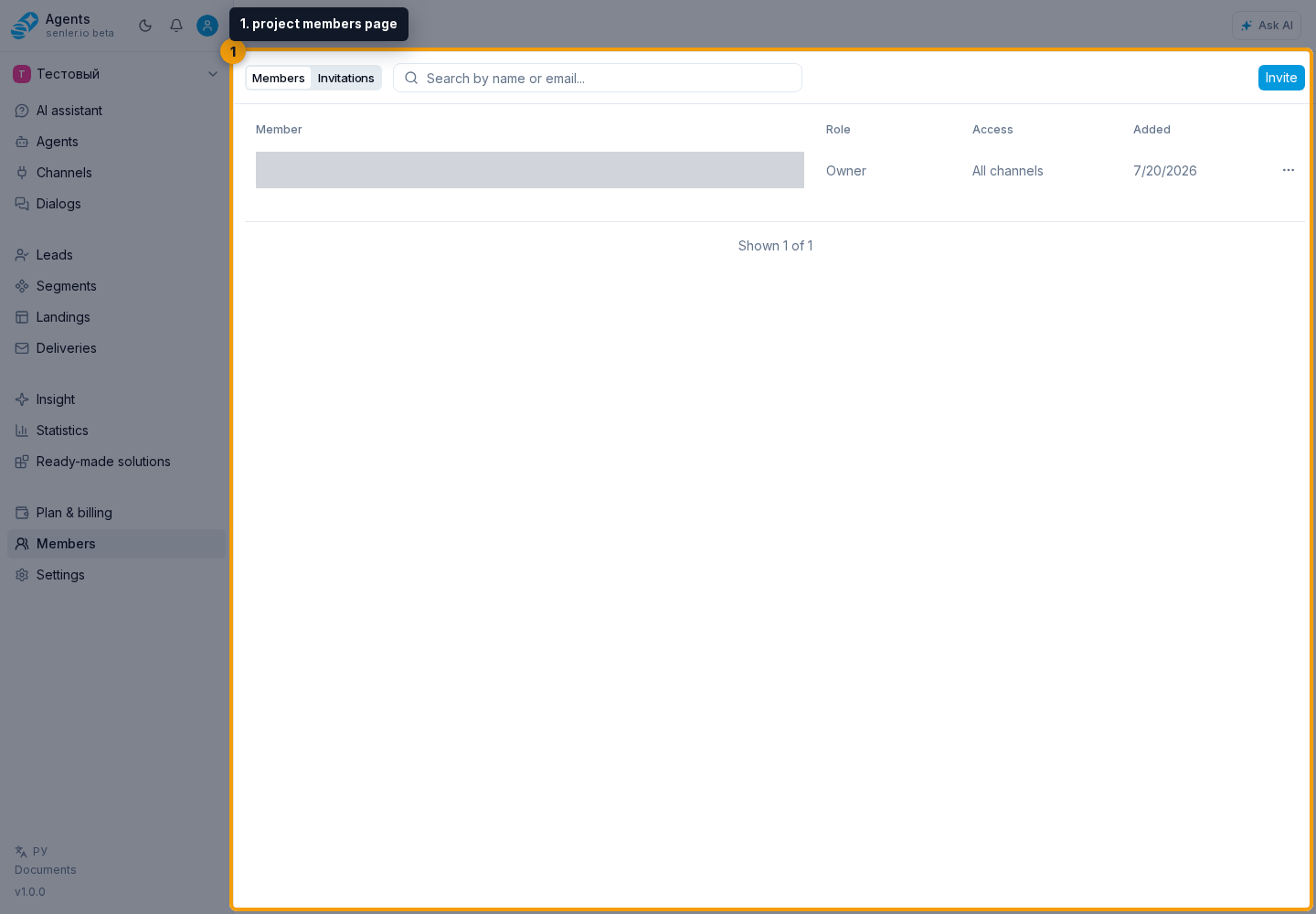
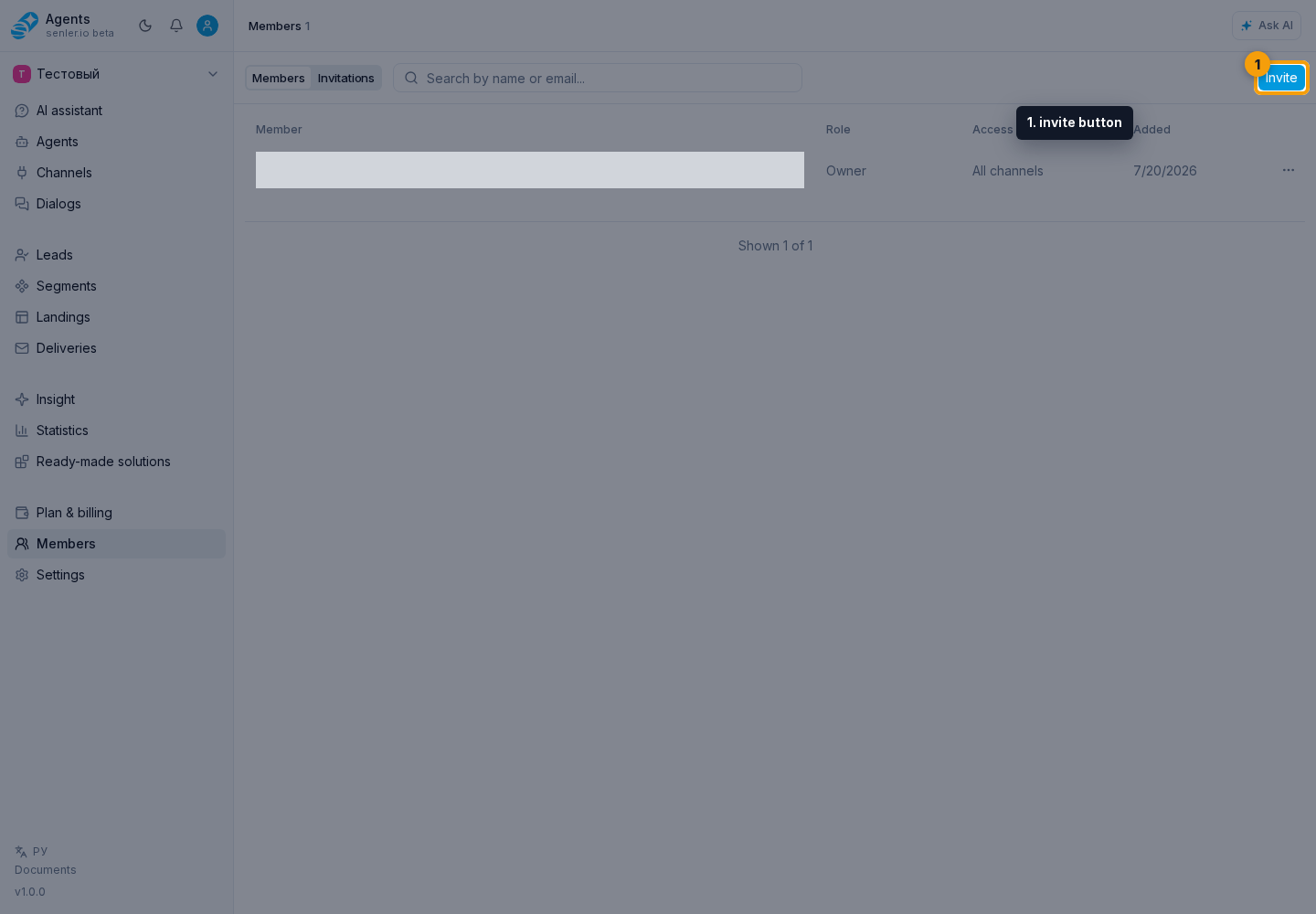
Select the Settings gear button to the right of the project name, then select Members. The members page has two tabs: Members shows the current team, while Invitations shows sent access requests. The invite button is on the right.
What you can do
- Invite a member — select a person by ID or email, assign an initial role, and review the invitation status;
- Configure role and access — choose the general permission level, allow all or selected channels, and optionally assign a support operator;
- remove a member when they no longer need access and no schedule assignments block removal.
Reading the member list
On the Members tab, use search by name or email. The table shows each person's role, access to all channels or the number of available channels, and the date they were added. Select a member row to open their settings.
Active members appear first. Inactive members are grouped separately below, so they are not mixed with the current team.
Project roles
| Role | Suitable use |
|---|---|
| Owner | Full project management, including deletion. A project has one owner. |
| Administrator | Project management without permission to delete the project itself. |
| Member | Work with project resources without managing members or core project settings. |
| Viewer | View project resources without making changes. |
When you select a role, Senler applies a prepared set of permissions for project sections and actions. The member form does not require you to enable management of agents, deliveries, automations, and other resources separately. Channel access is configured independently and determines which channels, dialogs, and leads the person can work with. See Member roles and access for details.
Adding a member
Select the invite button.
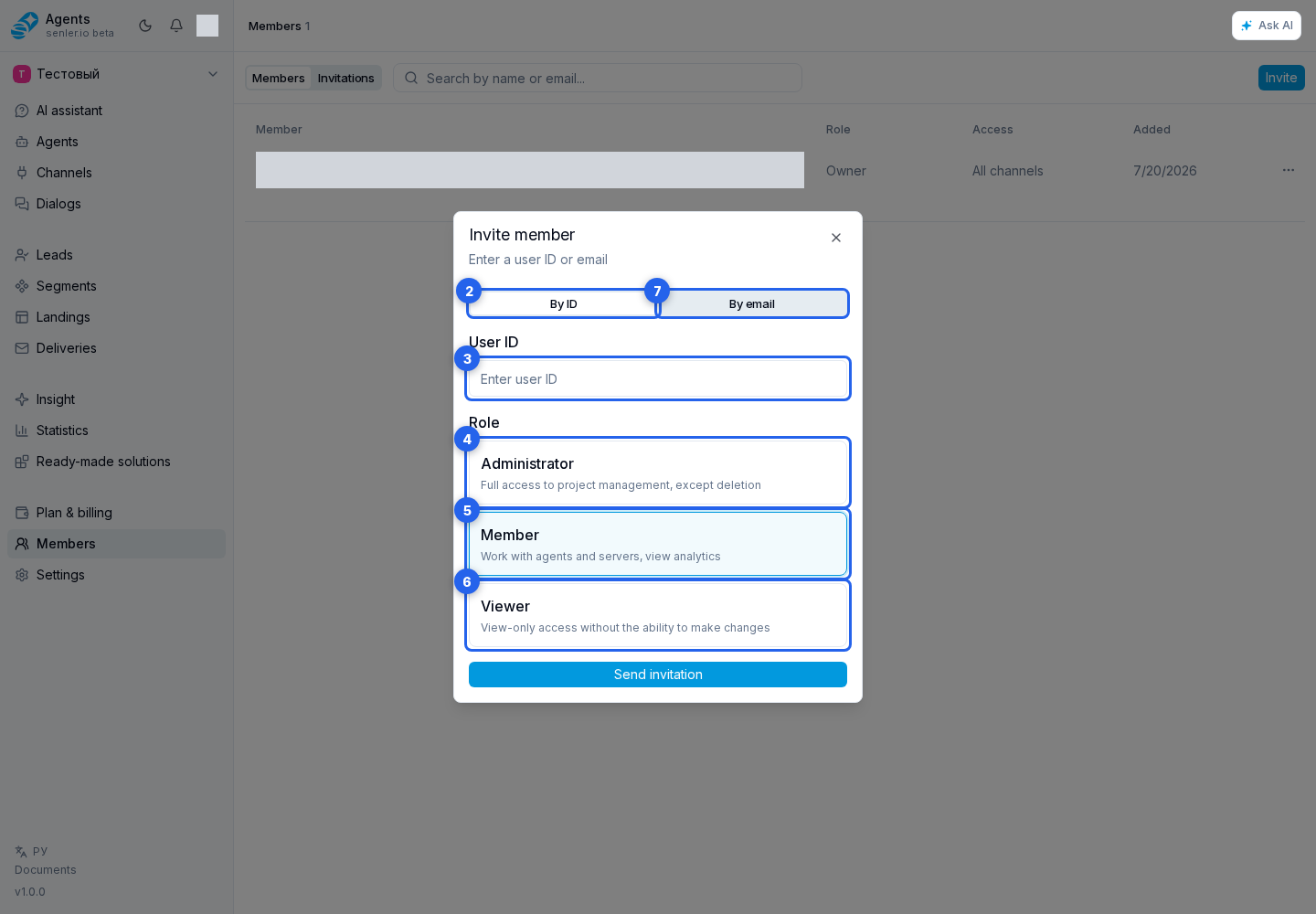
- Choose the user ID method.
- Complete the User ID field: the invited person copies their Senler AI ID from the profile menu. Where to find the ID.
- Assign the initial role: Admin, Member, or Viewer.
If the ID is unknown, use invitation by email instead of ID.
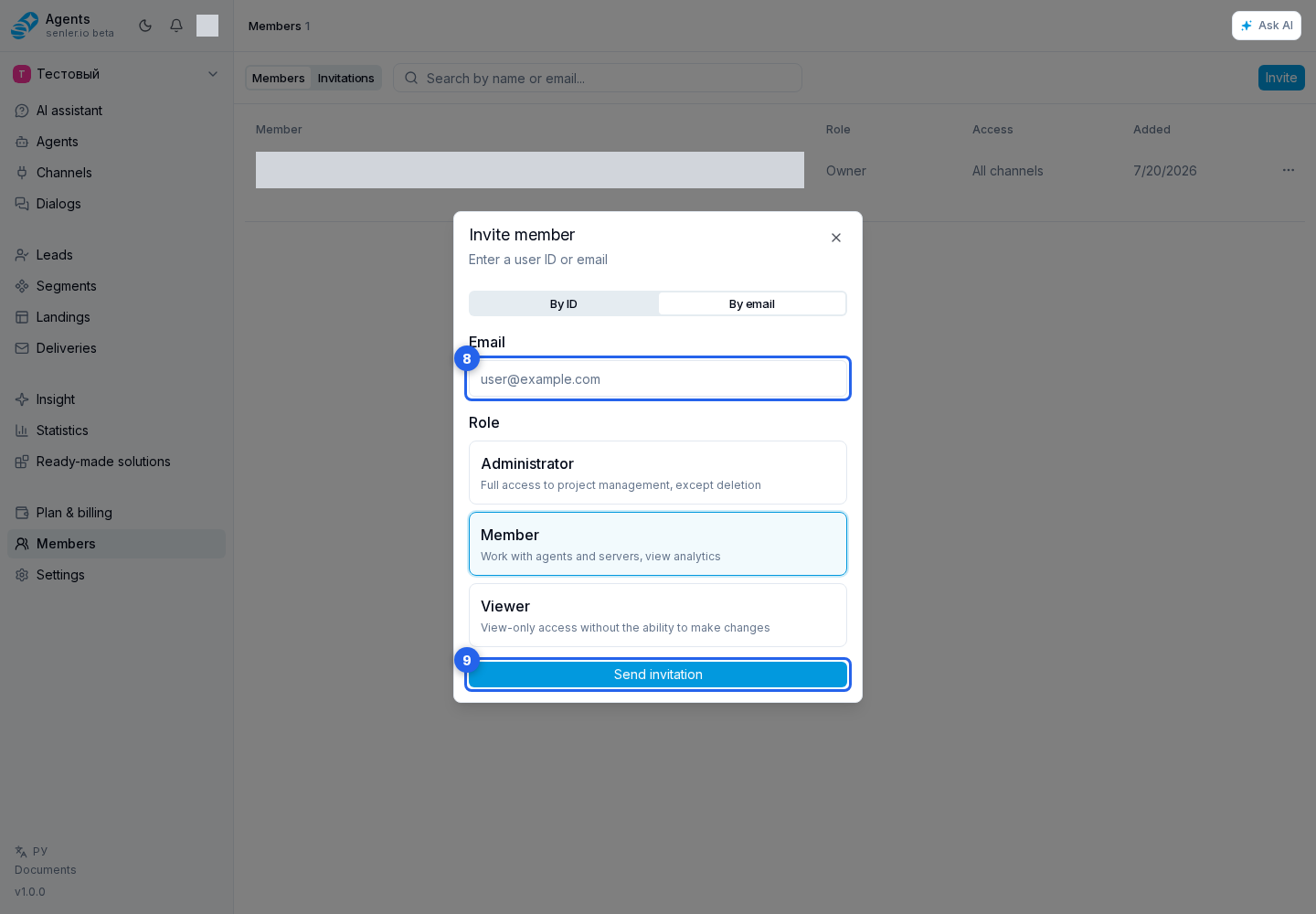
For an email invitation, complete the email field.
Select Send invitation.
Details about the link, statuses, and accepting an invitation are available under Invitations.
When the Invite button is missing
The button is available only to a user who can manage access. If it is missing, contact the project owner or an administrator to send the invitation or grant you the required permission. Refresh the page after access changes.