
Creating and selecting a project
Creating the first project
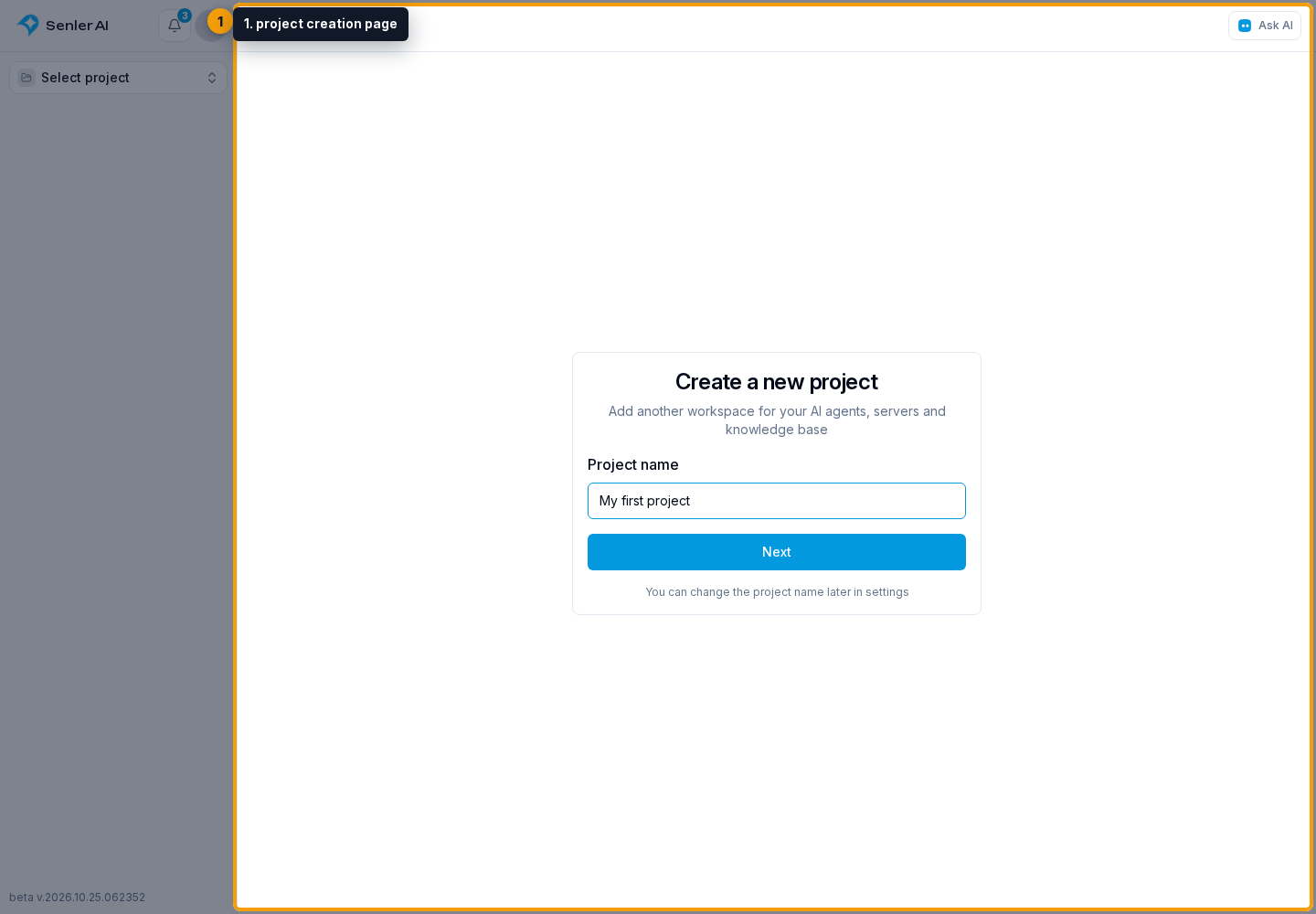
If the account has no projects yet, the cabinet opens the project creation page in first-run mode.
- In Project name, keep “My first project” or enter your own name.
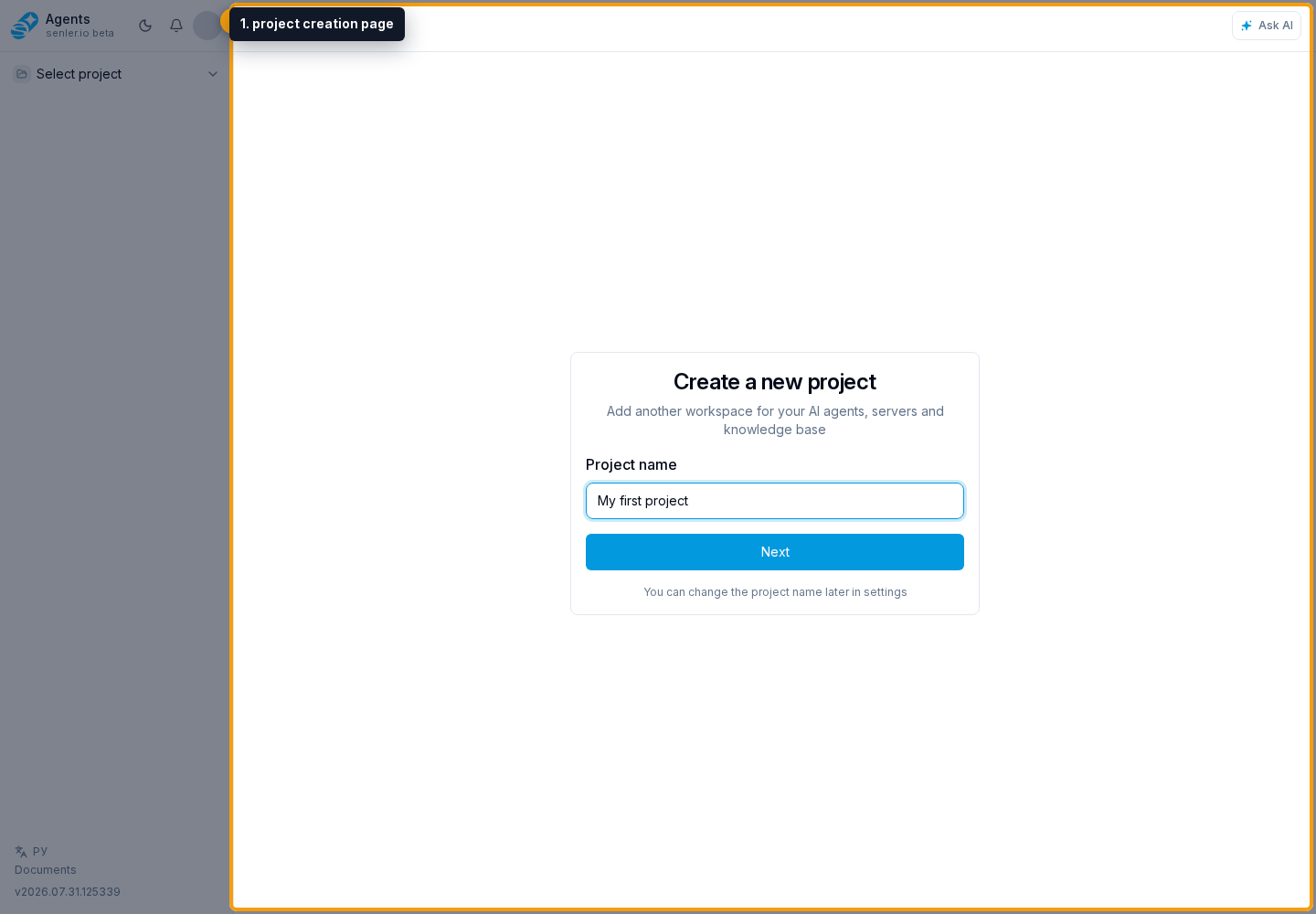
- Click Next or press Enter.
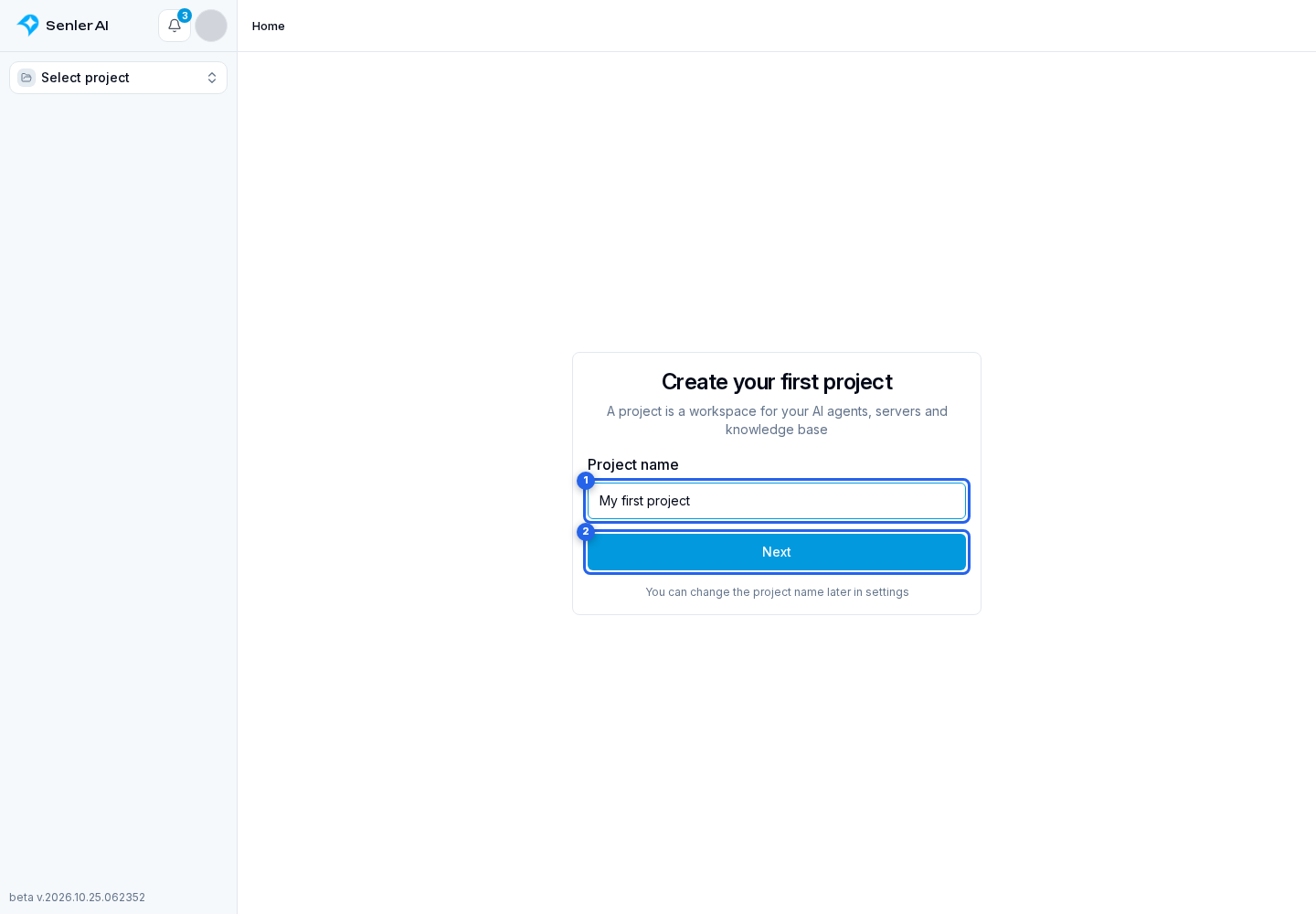
The new project opens. You become its owner and can invite your team.
You can change the name later in the general project settings.
Project menu
Open the current project menu at the top of the sidebar.
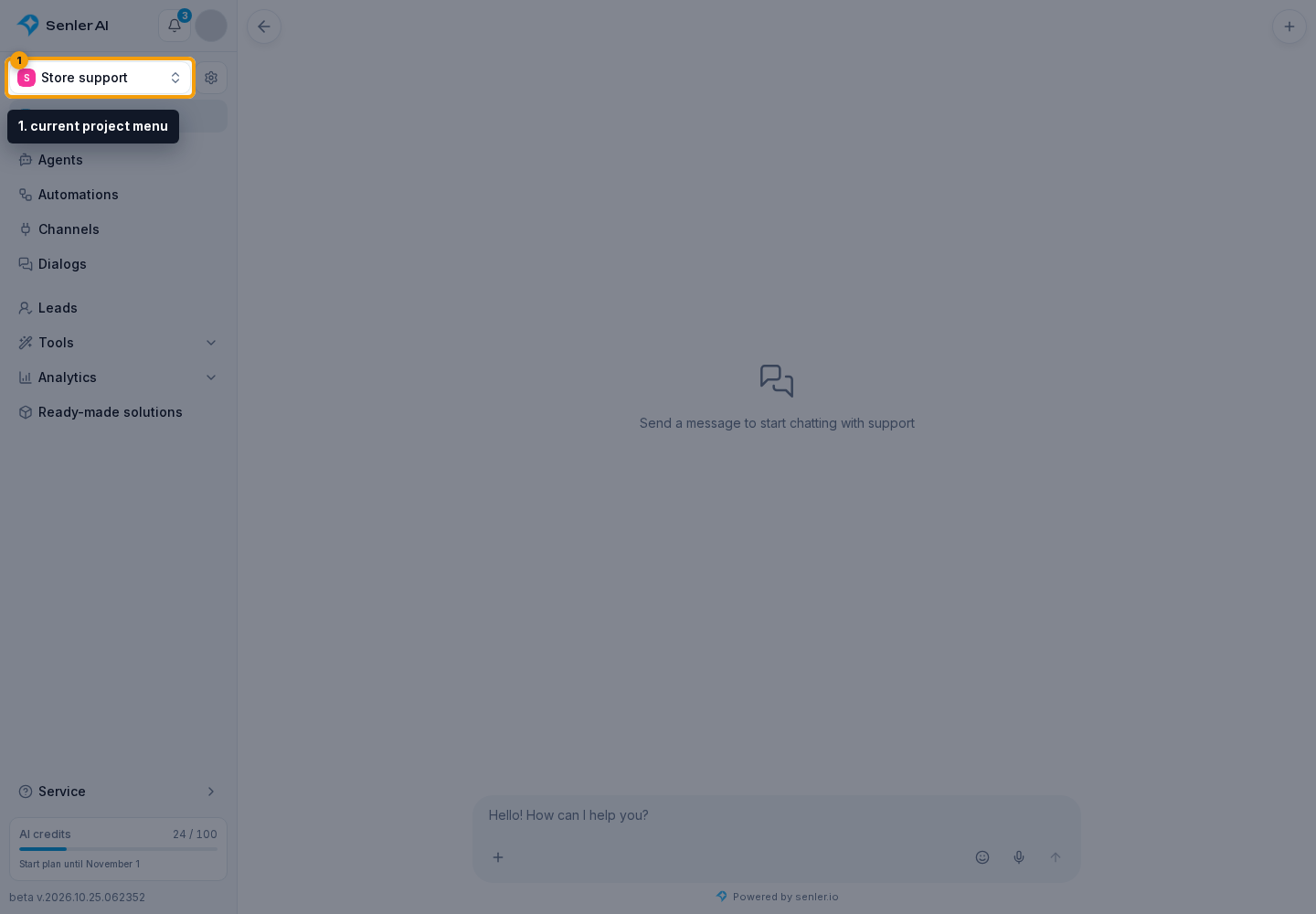
In the open menu:
- Project ID copies the current project's identifier. The ID value itself is not displayed in the menu.
- Click the plus button to create an additional project.
- Project search finds an accessible project by name.
- A project name in the list switches the cabinet to that project.
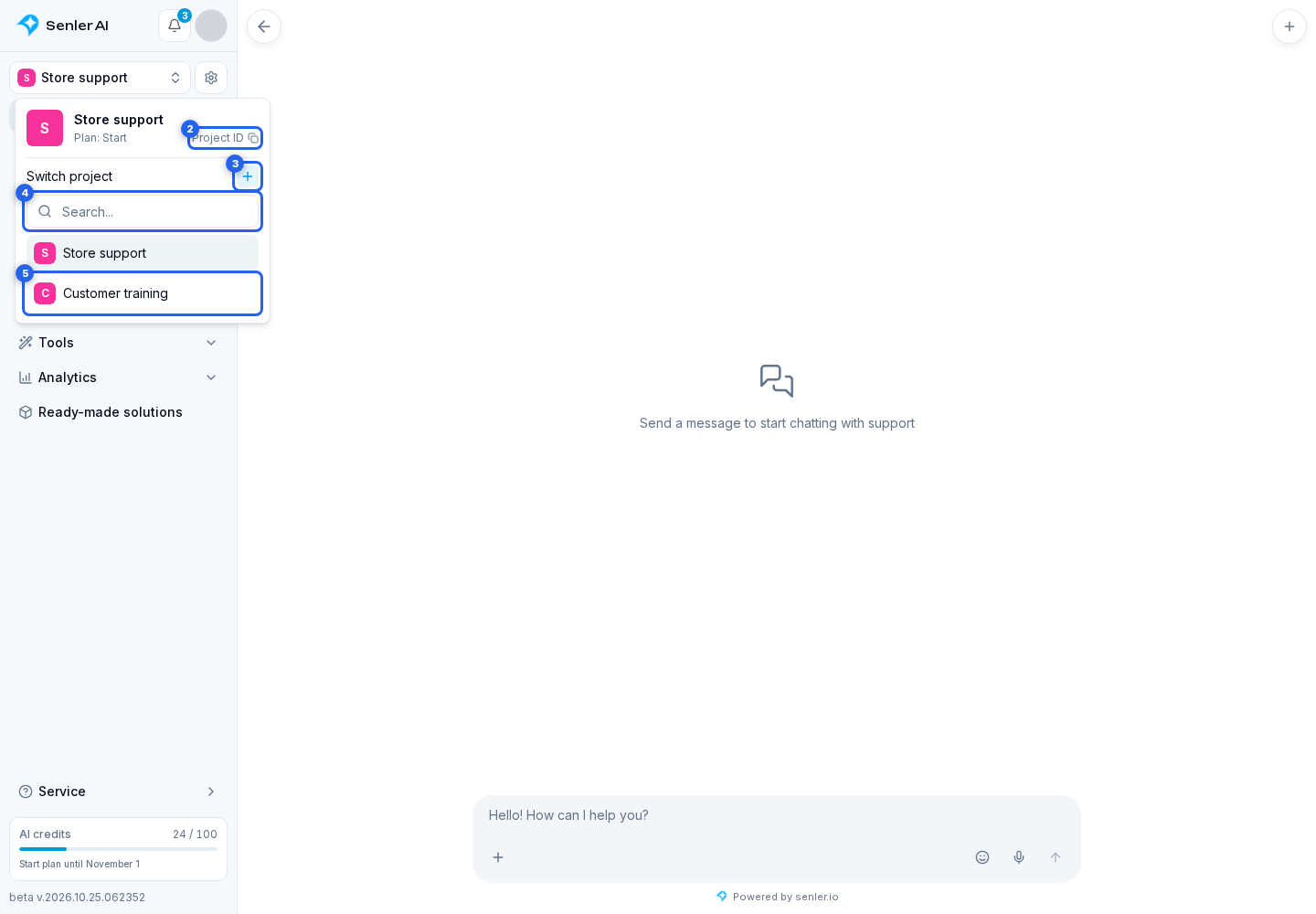
Search checks all accessible projects, not just the rows already displayed. The button to load more projects is at the bottom of the list.
The cabinet keeps the section when you switch. For example, switching from an individual agent's settings opens the other project's agent list, not the previous agent.
Creating an additional project
Click the plus in the project menu.
On the creation page:
- Enter the new project name.
- Click Next.
The cabinet opens the new project. To reuse existing agents and other resources, use copying between projects.
Project settings
The gear button beside the project name opens Settings. You can change the name and avatar, add your team, and configure plan and billing.
Before changing an agent, channel, knowledge base, or settings, always check the current project name in the sidebar.