
Public page and landing launch settings
Launch options
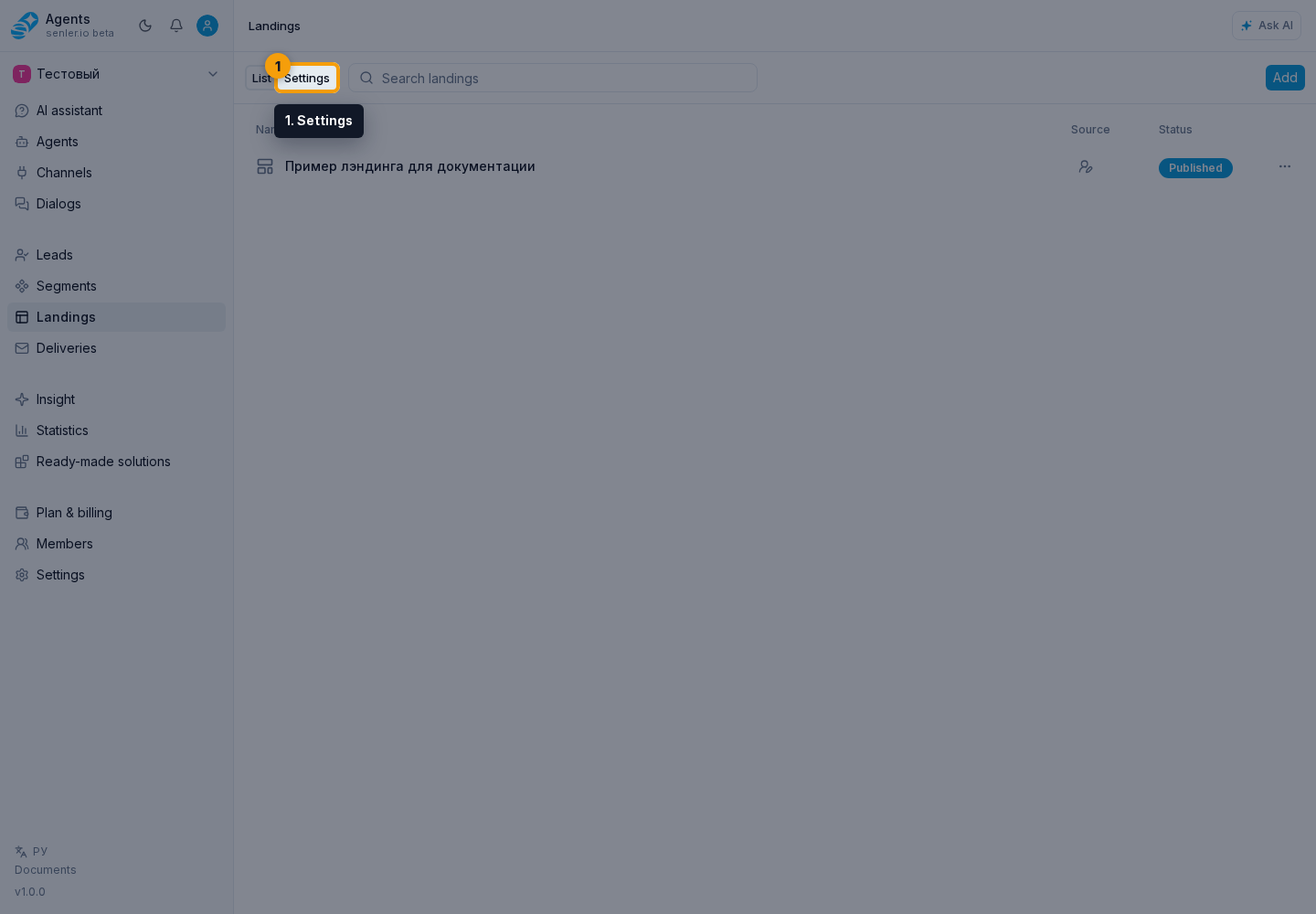
In Landings, open Settings. This page contains the project's public web page and ways to open landings inside connected platforms:
- public project page;
- Telegram menu button;
- Telegram Mini App;
- MAX Mini App;
- VK App.
Shared catalog
Instead of one landing, you can open a catalog: a plain list, an icon list, or a banner grid. It includes published landings with List visibility enabled in page settings.
The catalog contents are shared across the entire project. When several channels open the catalog, they show the same set of landings. You cannot include a page in one channel's catalog and exclude it from another. You can still choose the catalog display mode separately for each channel.
If different audiences need different offers, use custom collections: separate landings with links to the pages you choose.
Custom landing collection
Create a landing that helps visitors choose an offer. You control its content and appearance: for example, show Product catalog and Special offers to customers, and Partnership terms and Training to partners.
Choose a suitable layout:
- Text — a compact list of links with explanations.
- Button — a separate navigation button for each offer.
- Advantages — tiles with headings, descriptions, and optional images.
- Products — offer cards that can also include a category and price.
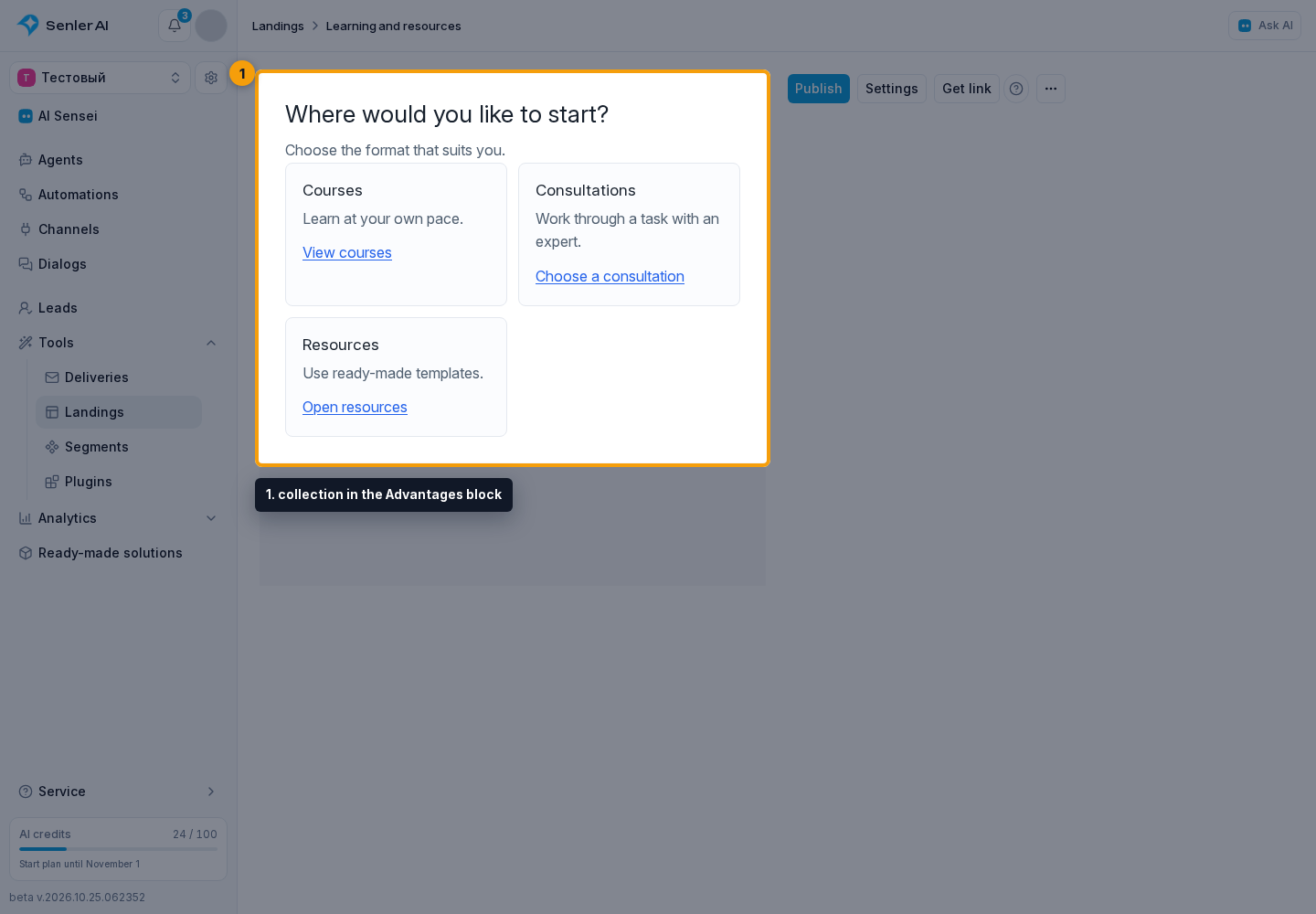
In this example, a collection in the Advantages block contains three tiles: Courses, Consultations, and Resources. Each description is followed by a link to the corresponding landing.
To prepare a page like this:
- Create a landing for the collection.
- Add blocks and enter the offer names and descriptions.
- In button settings, select Open landing and the destination page in the project.
- For Text blocks or card descriptions, copy links to published landings and insert them into the text.
- Publish the collection.
- Configure the desired channel to open this landing instead of the catalog through the Telegram menu button, MAX Mini App, or VK App. You can also select the collection for the public project web page.
Visitors first see your collection, then choose an offer. An Open landing button preserves the current tab or Mini App and lets them go back. A regular link opens in a new tab. In Advantages and Products cards, visitors click the text link, not the entire tile.
For another channel, create a different collection and select it in that channel's launch settings. You add the collection links yourself: new project landings do not appear in it automatically.
Public project web page
On the Settings tab, select Public project page. The project has its own web address, which you can copy or open in a new tab. This address belongs to the whole project and is not tied to a specific channel.
Choose what the project address opens:
- landing list — published page names without images;
- icon list — names with square icons;
- banner grid — large cards with banners;
- one landing — the selected page opens immediately without a catalog.
For the last mode, choose a published landing. Icons, banners, and page visibility in the catalog are configured in landing settings. Select Save to apply the option.

Analytics and counters
To track public web page visits, open Analytics and counters on the same Settings tab. Connecting Metrica, Google Analytics, advertising pixels, and Tag Manager is covered in the dedicated guide.
Telegram menu button
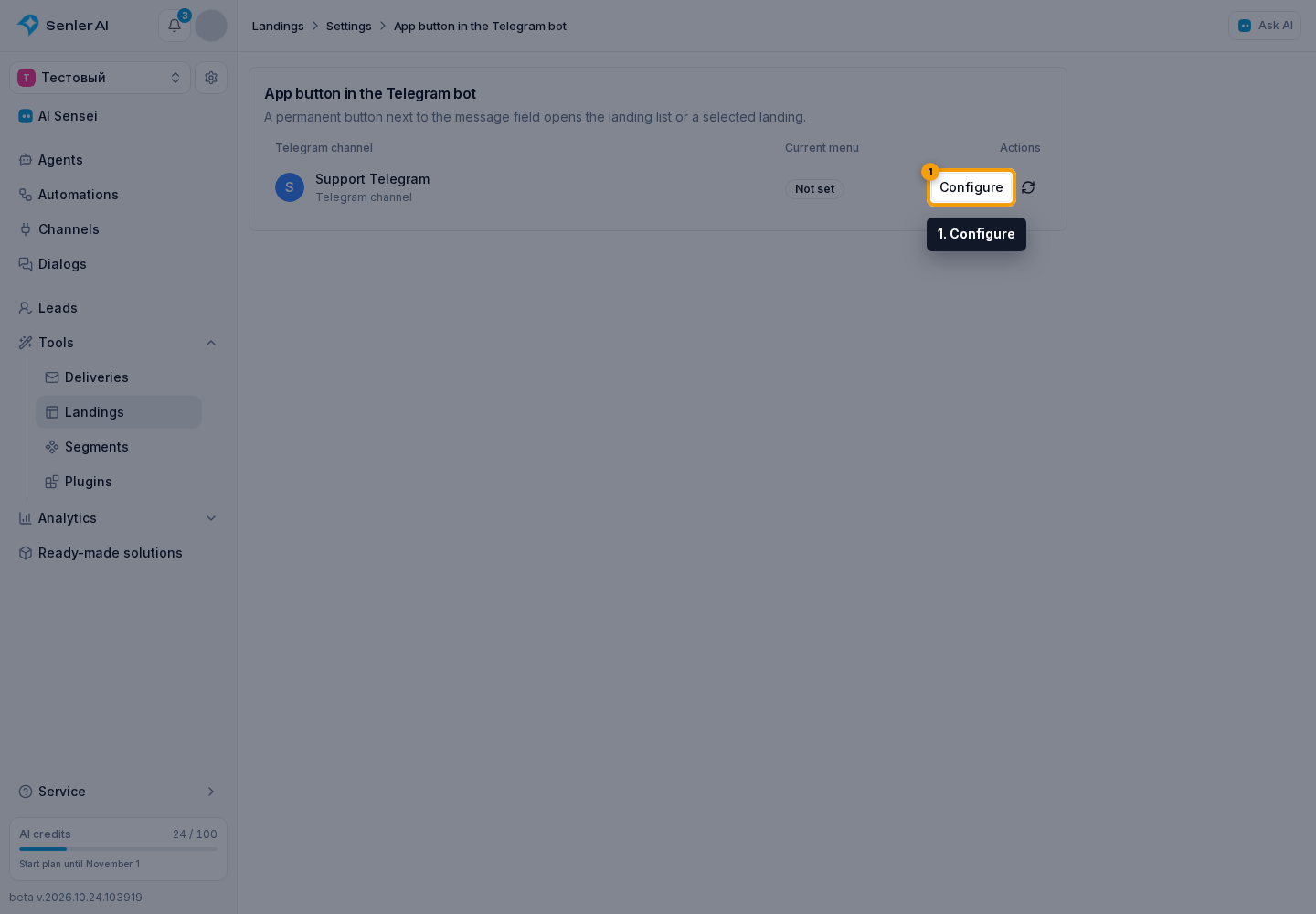
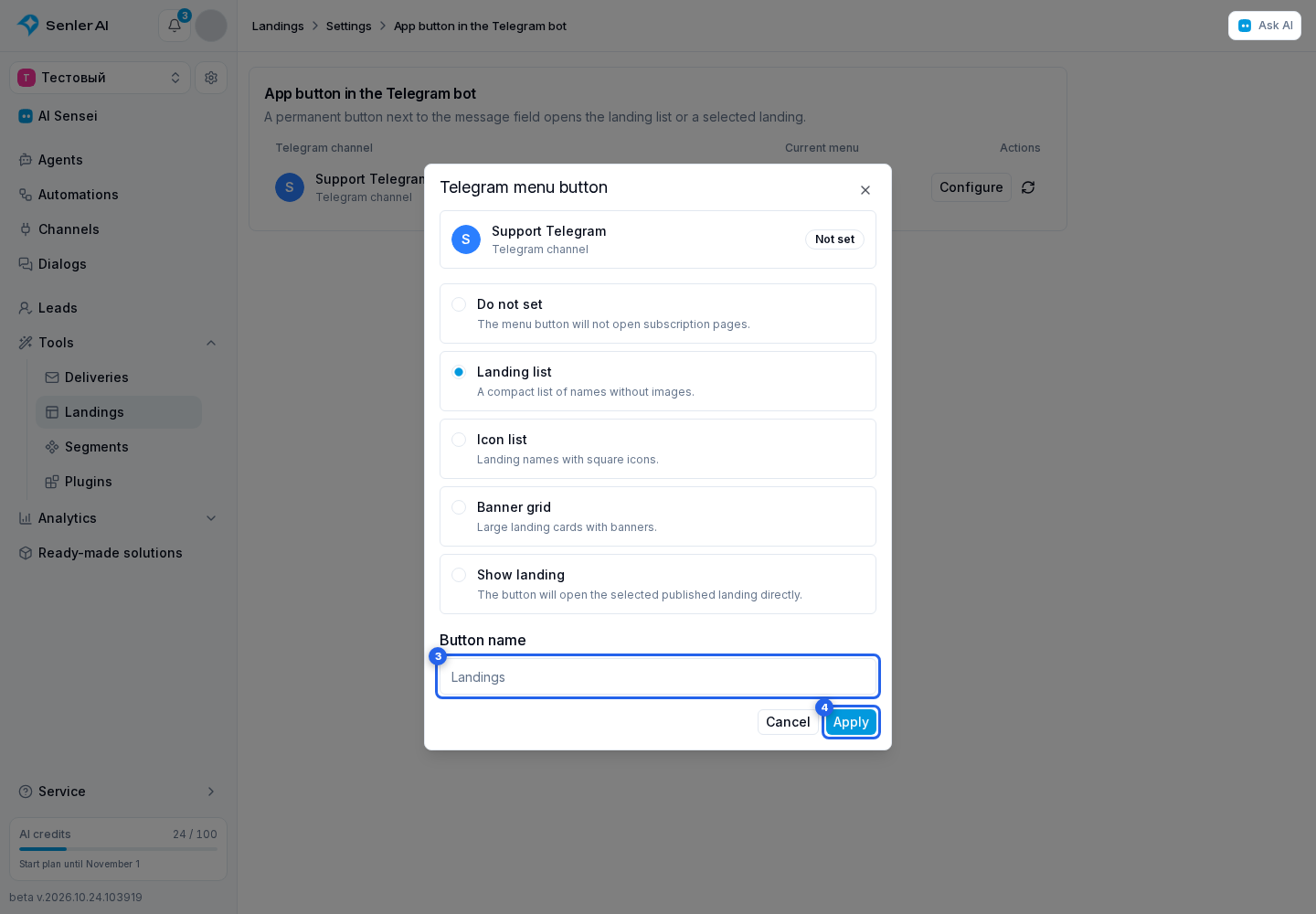
Find the Telegram channel and, if needed, check the current state. Click Configure in its row.
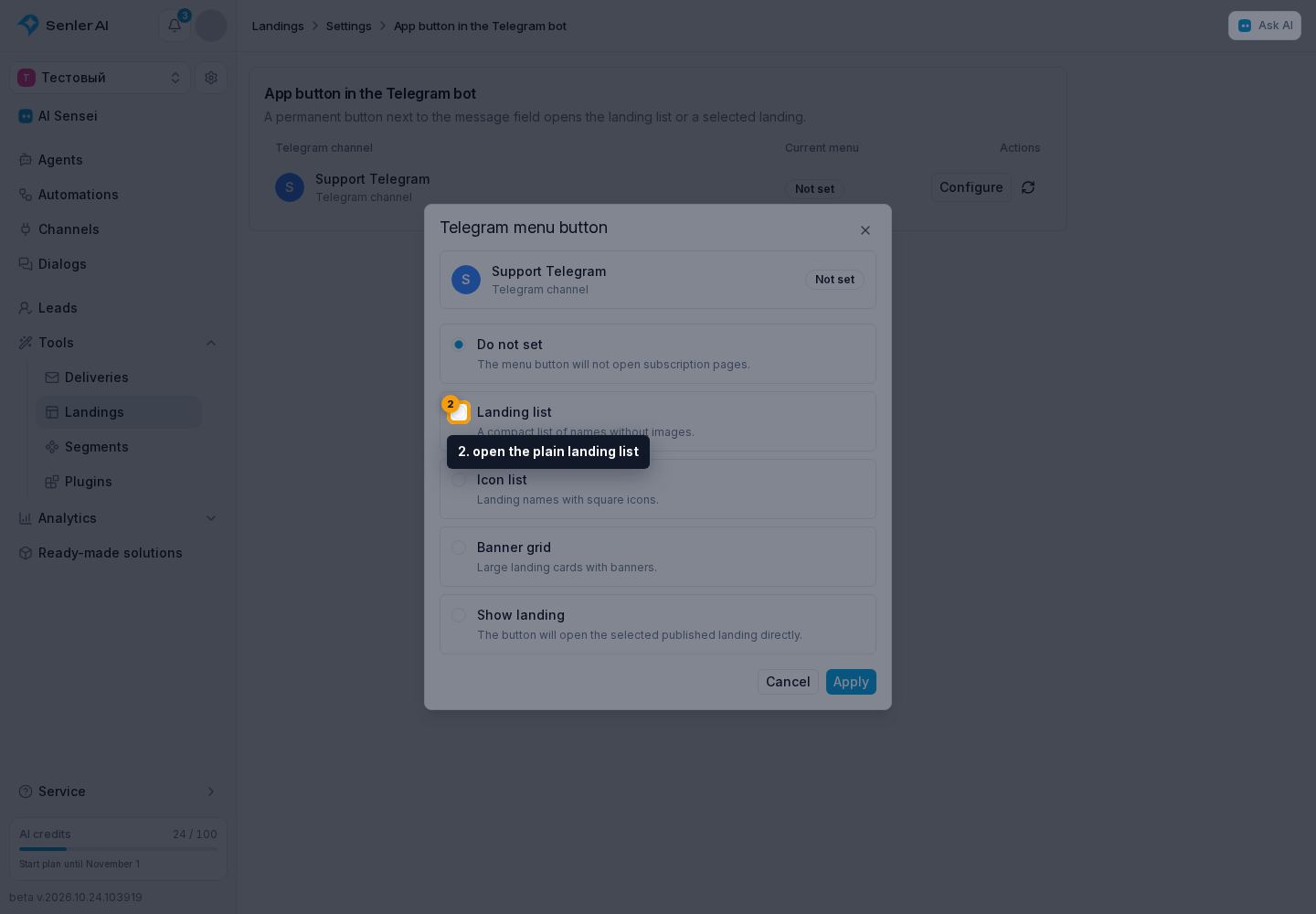
The dialog offers five modes:
- no button;
- open the plain landing list;
- open the list with icons;
- open the banner grid;
- open one landing.
For the One Landing mode, select a page. In every mode that shows a button, enter its text.
Click Apply to save the selected mode.
Telegram Mini App
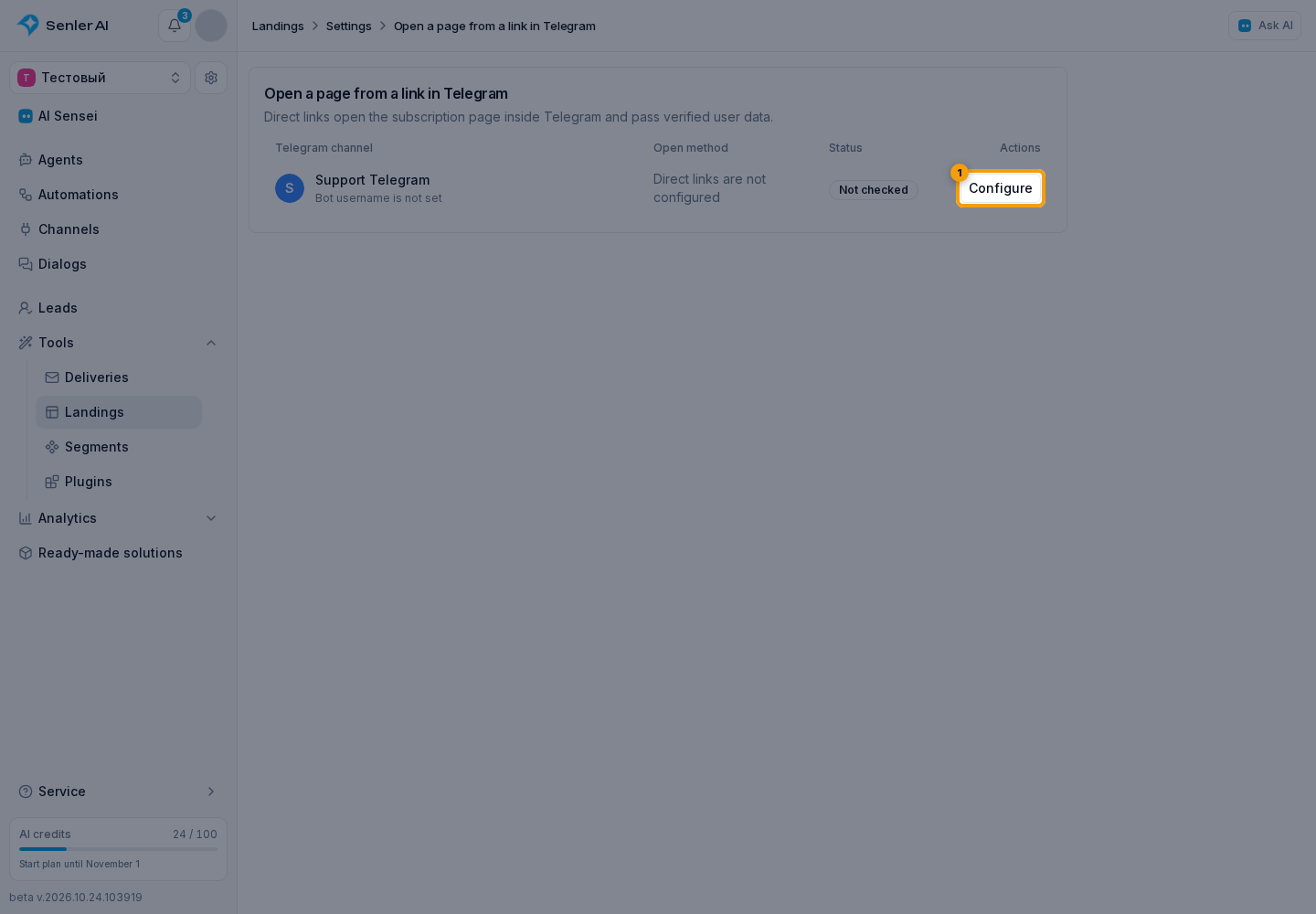
For a Telegram channel, open Mini App settings.
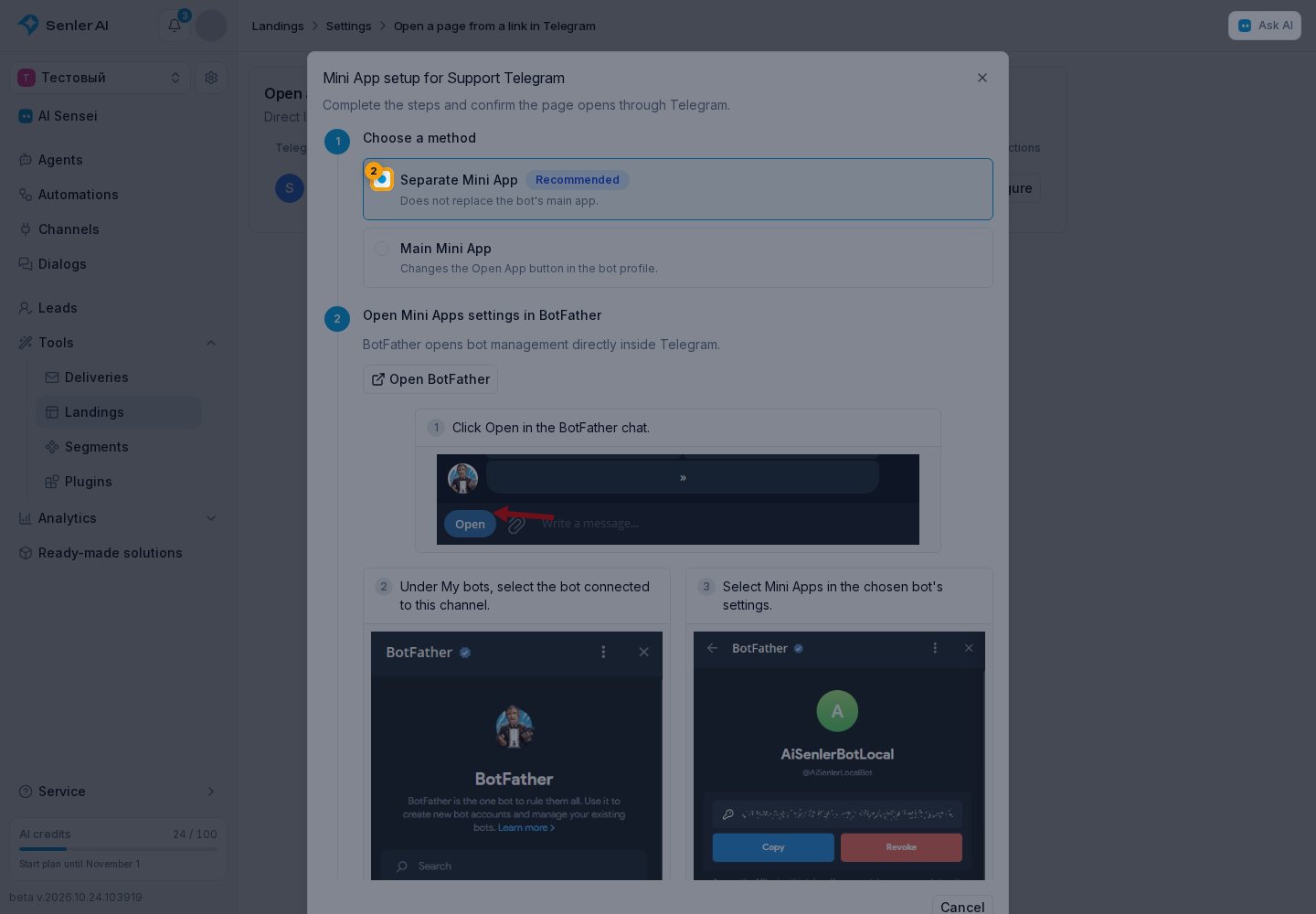
Choose the main app or a separate short-name app.
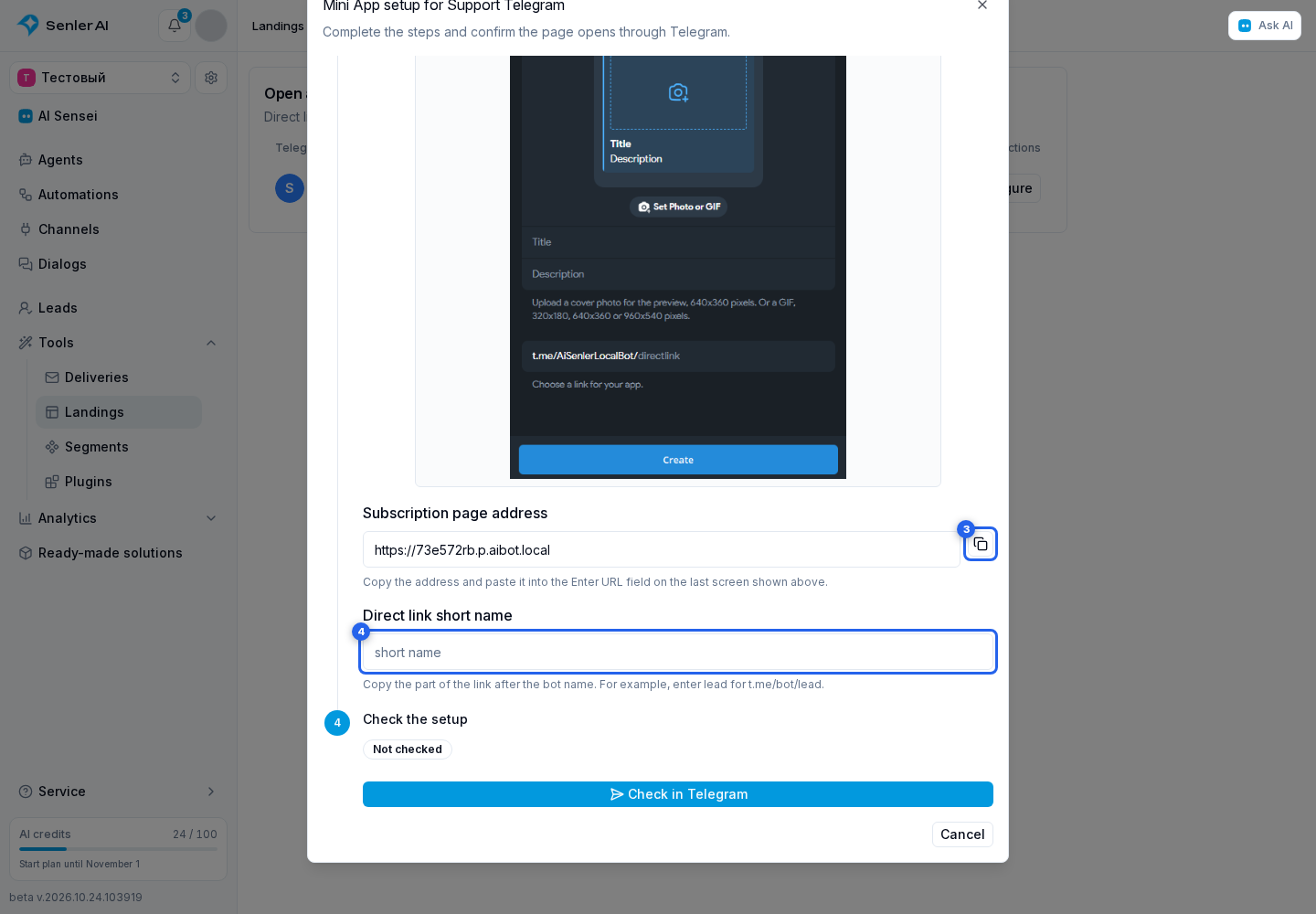
Copy the page URL for BotFather. A separate app also requires its short name. Complete setup through verification in Telegram.
MAX Mini App
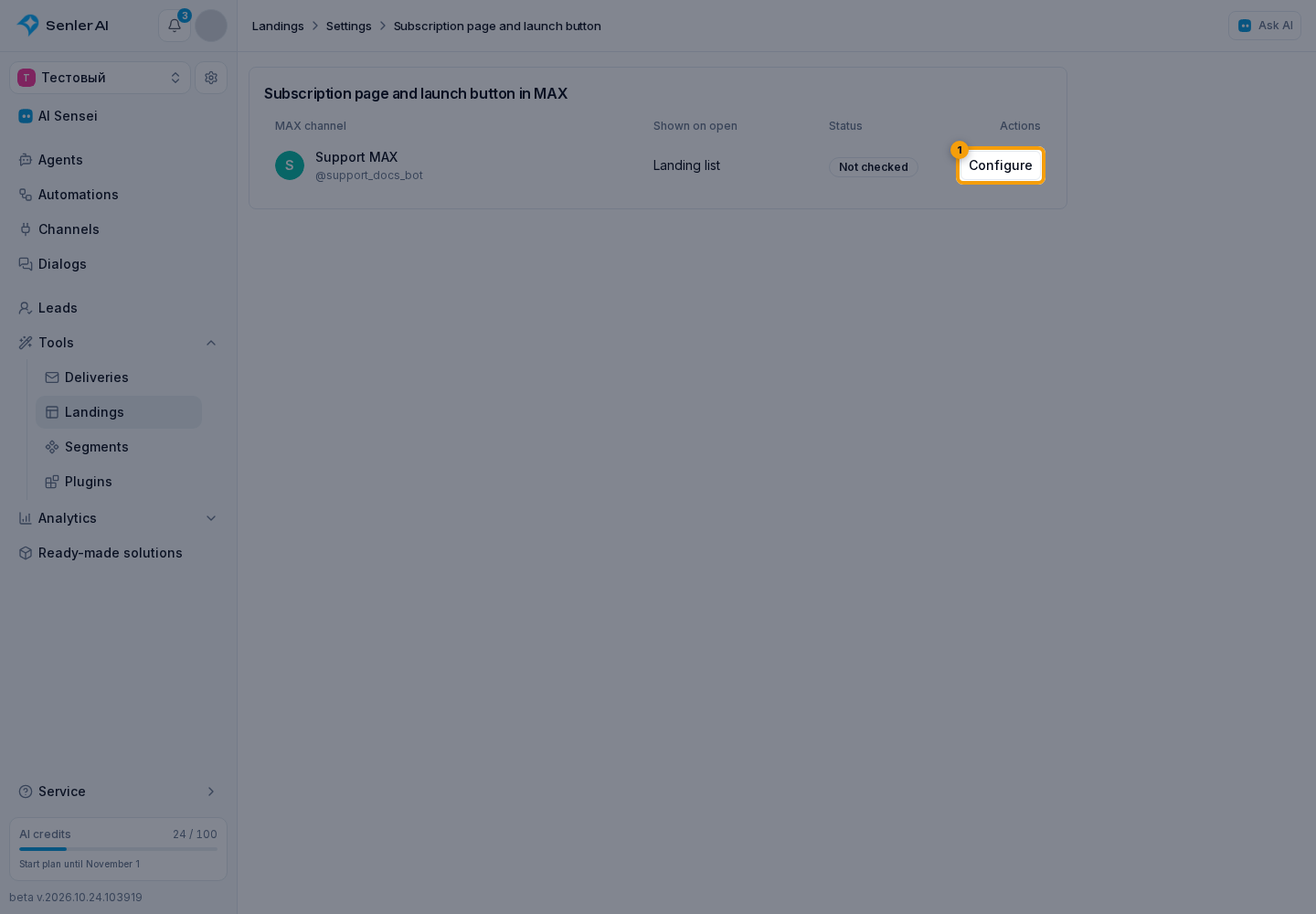
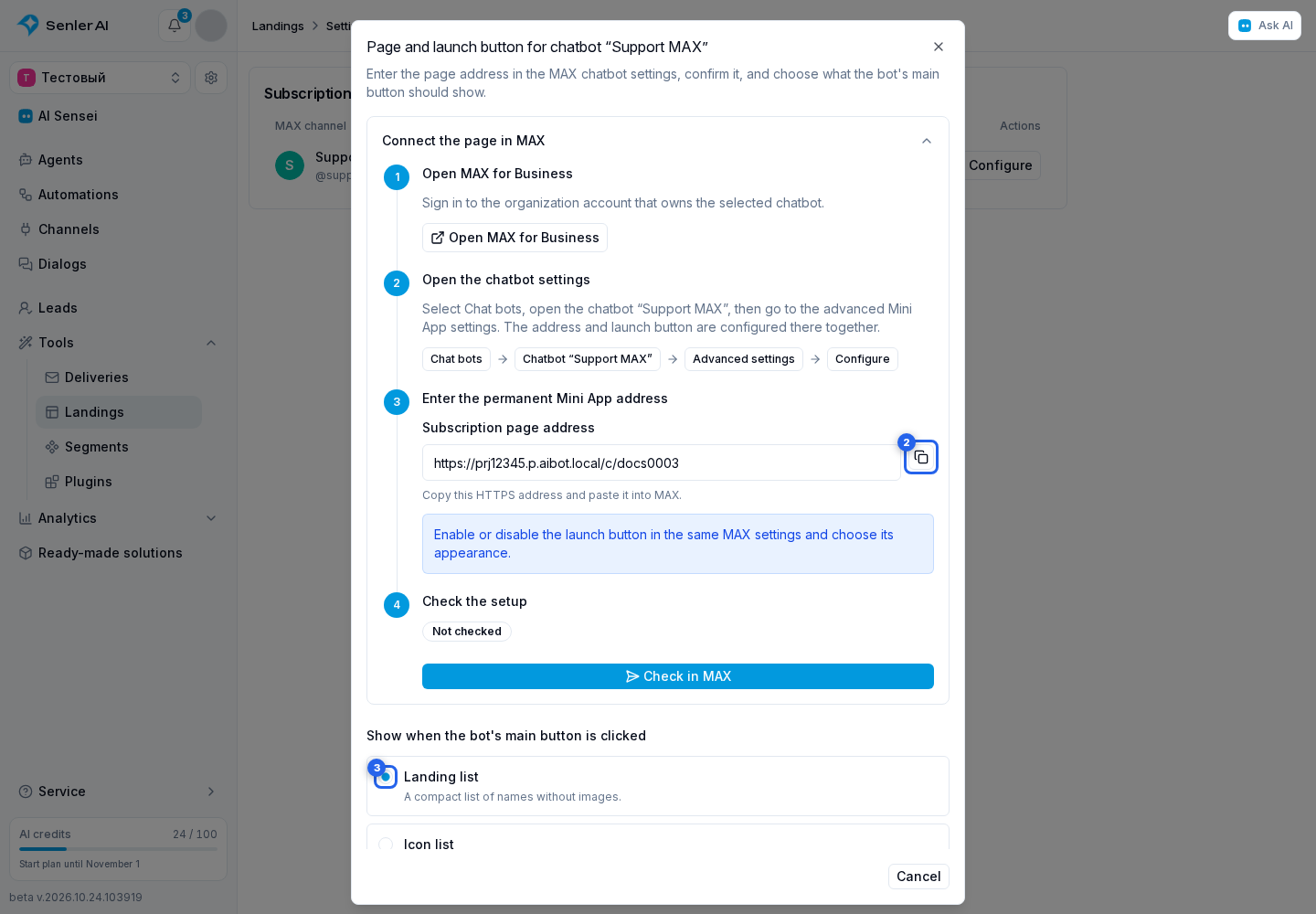
Under MAX Mini App, select Configure. In the opened dialog, you can open MAX for Business, view the page URL, copy it, and verify the setup.
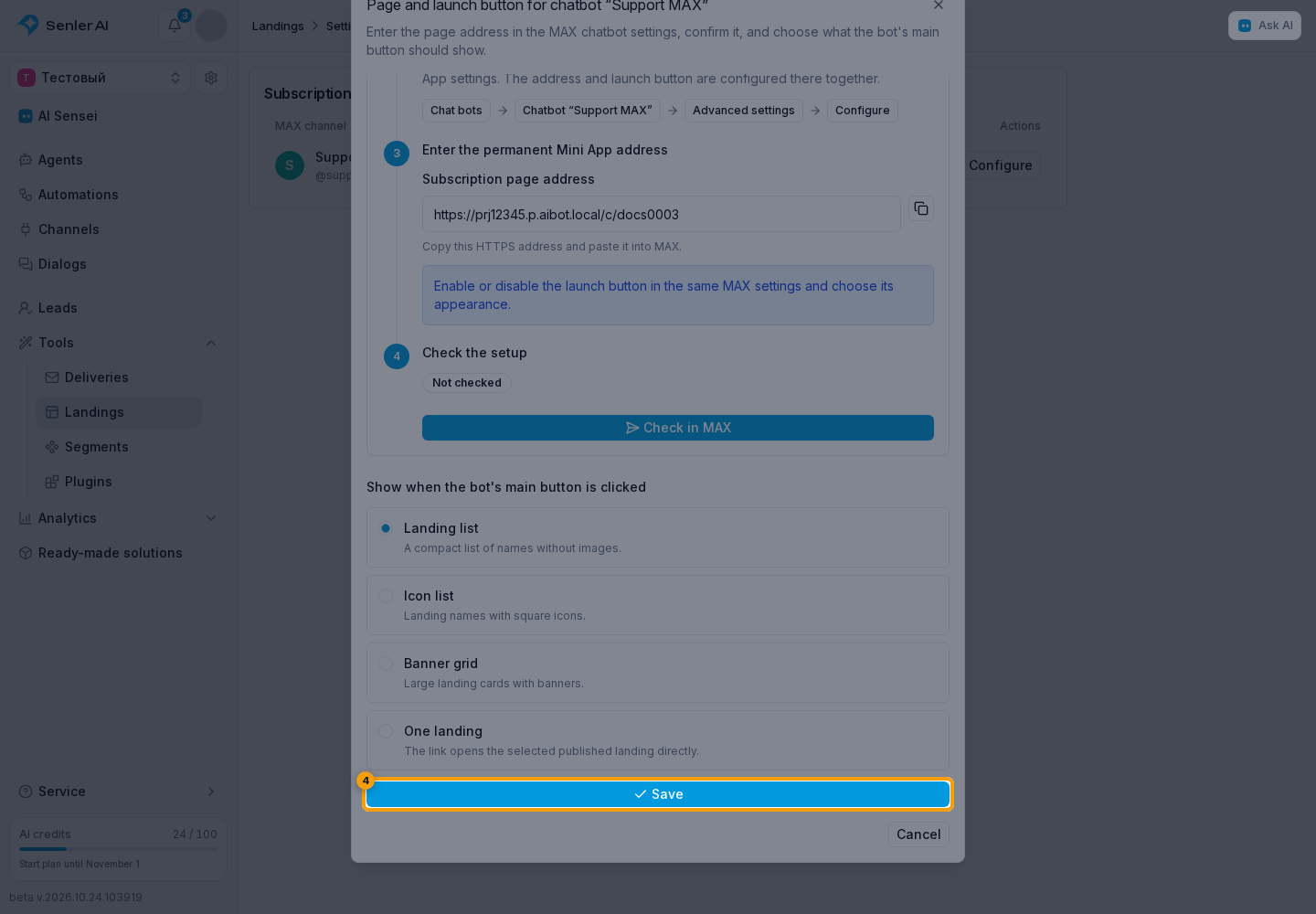
The target can be the plain landing list, the list with icons, the banner grid, or one landing. For the last option, select the page.
Click Save to apply the selected target. Cancel closes the dialog without saving the target.
VK App
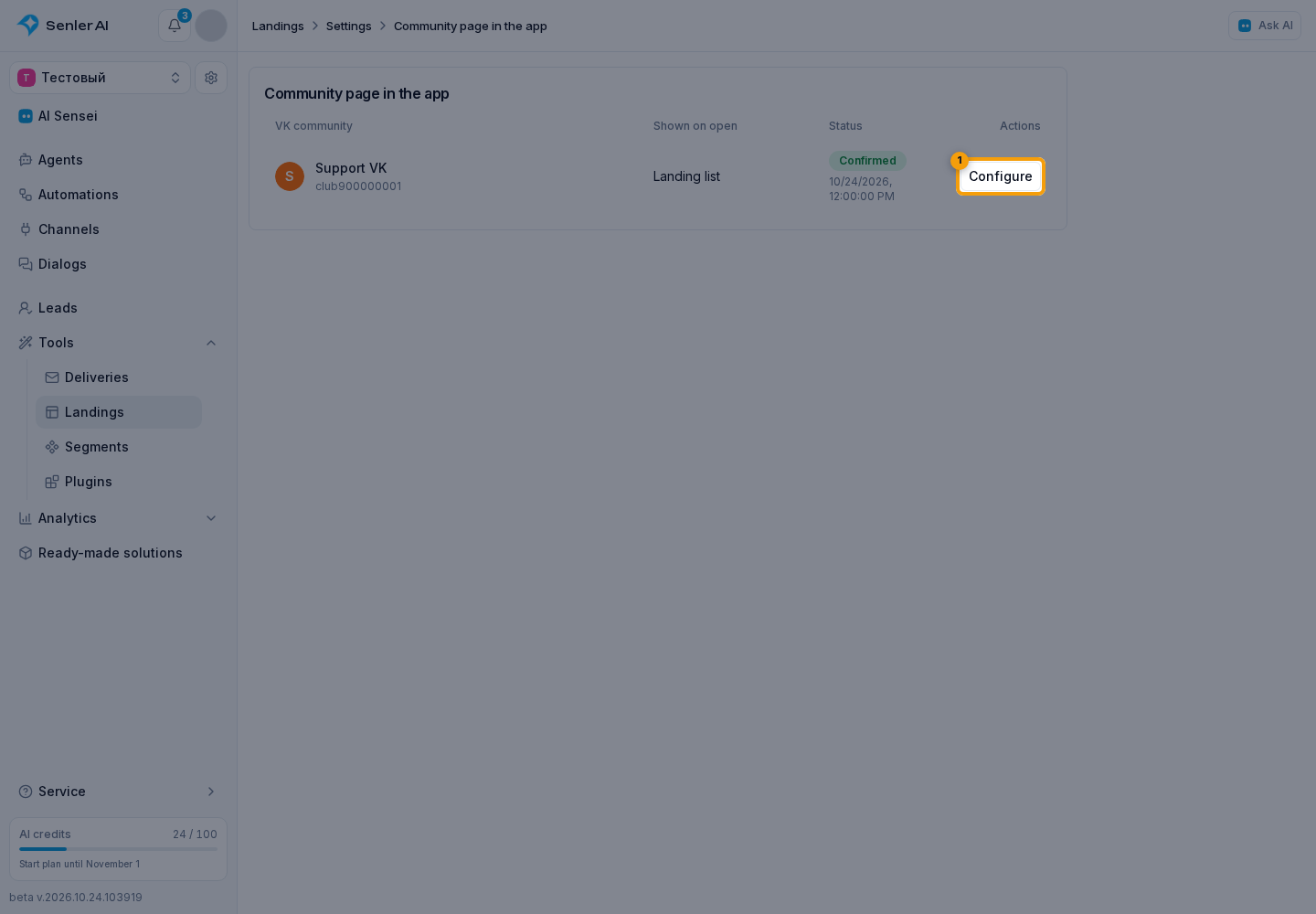
Under VK App, choose a VK channel and select Configure. In the opened dialog, you can open the VK application.
The target can be the plain landing list, the list with icons, the banner grid, or one landing. For the last option, select the page.
Click Save to apply the selected target.
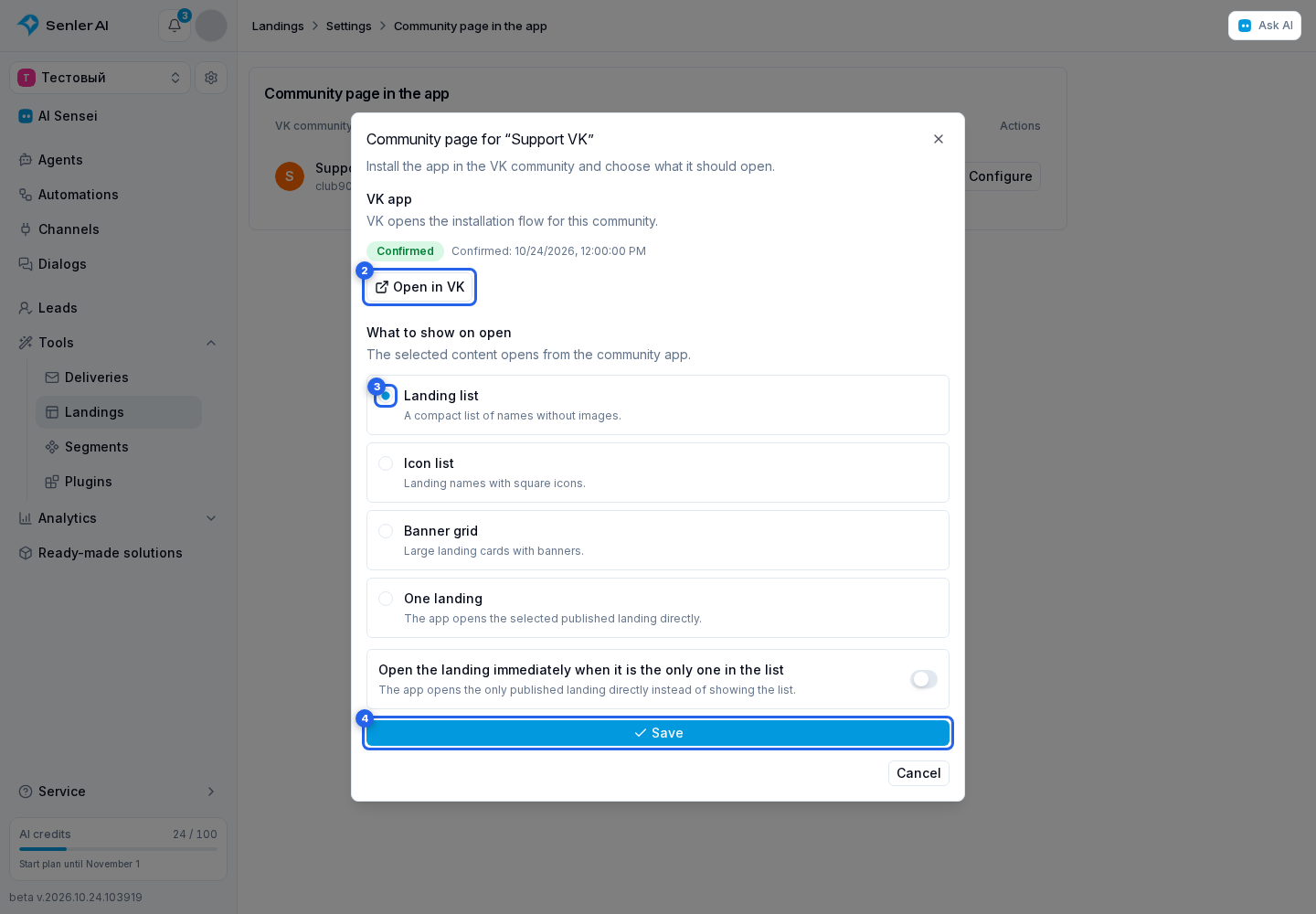
For the plain list, you can enable Open the landing immediately when it is the only one in the list. When exactly one landing is published, VK App opens it without showing the list first. With no published landings or more than one, the ordinary list remains. This setting does not apply to the icon list, banner grid, or a preselected landing.
Cancel closes the dialog without saving the target. If VK App is opened from a community that is not connected to Senler yet, the page shows setup steps and a link to the dashboard. Connect that same community as a VK channel, then reopen the application from the community.