
Variable Condition Step
The Variable condition step compares a value and directs the run through the Yes or No branch.
Choose A Scope And Variable
Select the Variable condition step on the workflow and open the Variable field. The variable selection dialog opens. Choose a tab:
- Process: the value exists only inside one run;
- Project: a shared project value visible to all its runs.
- Lead: the value is stored for the current lead and is available to later runs;
- Dialog: the value is stored in the current conversation and persists for later runs in it;
A background automation has no current lead or dialog, so the Check Variable step offers only Run and Project. The Message step can use the recipient's data separately: this does not assign a lead or dialog to the other steps in the run.
In the dialog, you can search by name or description.
Click Select next to the desired variable. The dialog closes, and the step field shows its scope and name.
The create variable action behaves differently by scope. For a project, lead, or dialog, it opens the corresponding full form and requires permission to create those variables.

For the current run, it opens a small dialog: enter a name and select Create. Cancel closes the dialog without selecting anything.

Creating a run-variable name does not add a separate entity to project settings. The name becomes available in the workflow and receives a value only when the corresponding step executes.
Reference A Field Inside A Variable
If a variable contains an object or array, you can read or change an individual field. Select the pencil to the right of the variable picker. Enter the variable name and path separated by dots, for example:
run.customer.name: thenamefield inside thecustomerobject;run.customers.0.name: thenamefield of the first item in thecustomersarray;{{run.customers.0.name}}: the same reference in template format;customer.name: a path within the currently selected scope.
The first path segment can be run, lead, dialog, or project. Use project for a project variable, for example {{project.settings.currency}}. Press Enter or select the check mark to apply the path; Escape or the cross cancels the edit.
To write by path, the root value must already be an object or array, and every intermediate field and array index must exist. The step does not create the complete nested structure automatically. In a condition, an invalid or missing path is treated as an unset value; a step that must read or write that value ends with an error.
Use Results From Other Steps
Some steps write their result to a selected variable. Run agent can store text, an attachment array, a button block, or the full JSON response. Message can store the lead's next reply text and attachments or the data of a selected dynamic button.
Result fields can use Run, Lead, Dialog, or Project. Background automations normally offer Run and Project. The exception is a Message step using the recipient's data: replies and clicked buttons can be saved to the selected recipient's variables. The picker button displays the scope and name together. A run variable lasts only for that run, while lead, dialog, and project values remain after it finishes.
The editor shows only compatible variables. A string therefore does not appear in an attachment field, a button array does not appear in a clicked-button field, and the full response requires an object or JSON variable. If the expected name is missing, check the scope, result type, and the step that should populate it. You can create a compatible variable from the same picker.
Configure A Variable Condition
For a run variable, select its type first. A lead, dialog, or project variable type comes from its definition. Then select an operator:
- Exists and Does not exist check whether a value is present and do not show a comparison field;
- Equals and Does not equal compare against the entered value;
- Greater than, Greater than or equal, Less than, and Less than or equal are intended for numeric comparison;
- Contains searches for a fragment in a string or an item in an array.
- Before and After compare dates.
- Arrays also support attachment checks: presence, type, and file format.
The interface shows only operators compatible with the selected type. For a comparison, fill in the Value field: enter a literal or insert a compatible variable. Equals and Does not equal can also compare against an empty value.
When several data representations are valid for the comparison, a Value type field appears. Select the actual type of the right-hand value. When only one type is allowed, the cabinet applies it automatically and does not show this field.

Connect Yes and No to the appropriate continuations. If one branch is left unconnected, validation shows a warning and a run that chooses it ends at this step.
Check Attachments
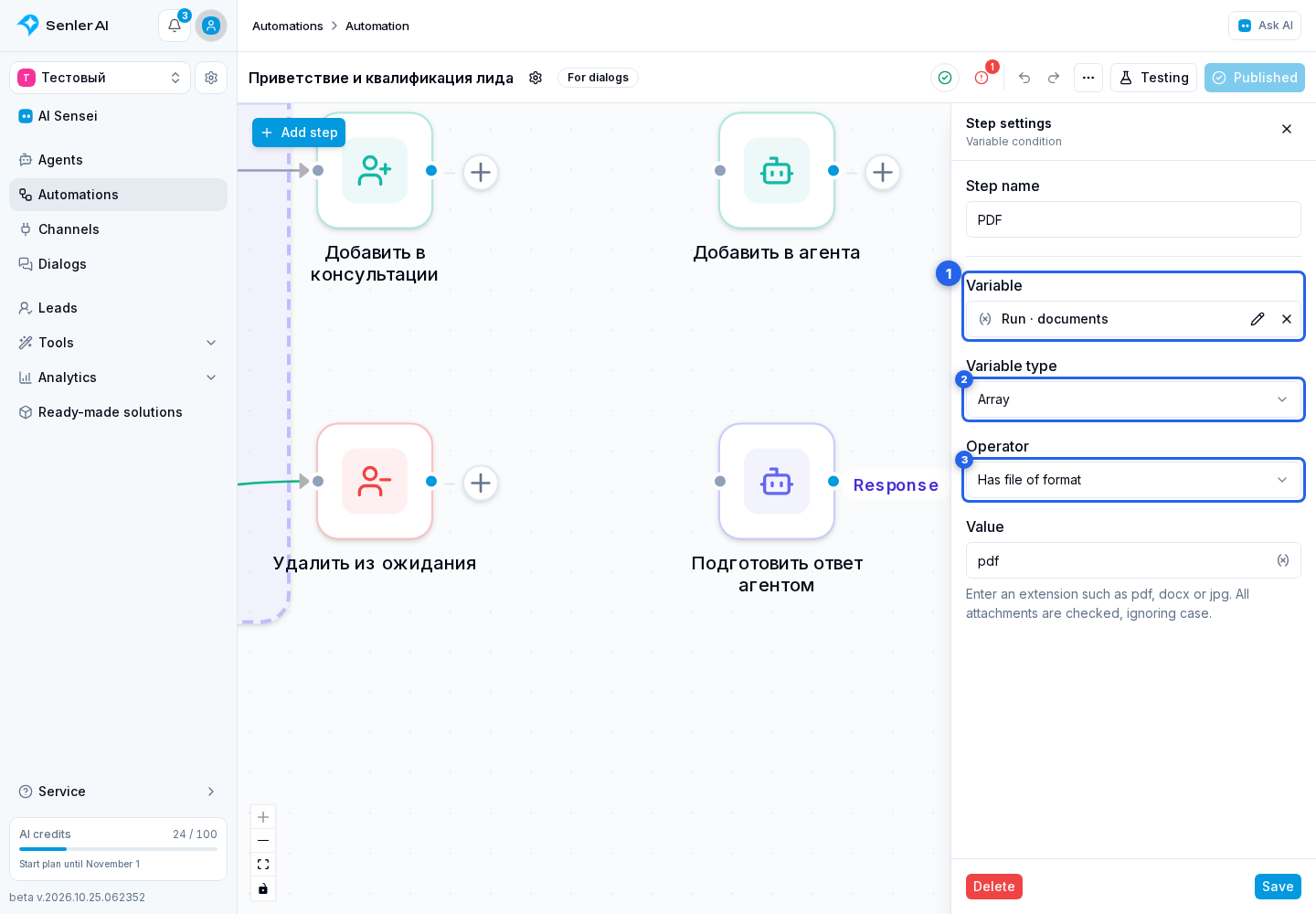
First save attachments from an incoming message or a lead reply to a variable. In Variable condition, select it in the Variable field. For a Run variable, set the type to Array.
Choose what to check from the operator list:
- Has attachments means the list contains at least one attachment. No attachments means it contains none. No comparison value is needed.
- Has attachment of type: in the Value field, choose an image, video, voice message, audio, document, sticker, contact, location, or link. One attachment of that type is enough.
- Has file of format: enter an extension such as
pdf,docx, orjpgin the same field. One matching file is enough, even if the message contains other attachments.
For example, select Has file of format for run.documents and enter pdf. Yes matches a file named Contract.PDF; No matches a text-only reply or files in other formats. Matching ignores case, and a leading dot is optional. The check uses the last filename extension: contract.pdf.exe is not a PDF. When the name has no extension, the check may use the file type supplied by the channel. This checks file metadata, not the file's contents.
Exists checks whether the variable itself is present, not whether it contains attachments: a saved empty list still counts as a value. Use Has attachments to check whether the lead sent an attachment.
What Is Validated Before Execution
The scope, name, operator, and comparison value when required must be filled in. For project, lead, and dialog variables, publication also verifies that a definition with that name exists in the current project. A run variable is collected from the workflow itself and does not require a separate definition.