
Agent Knowledge Base
How to link sources
In the side menu, open Agents, then select the required agent in the list. This opens the agent settings form.
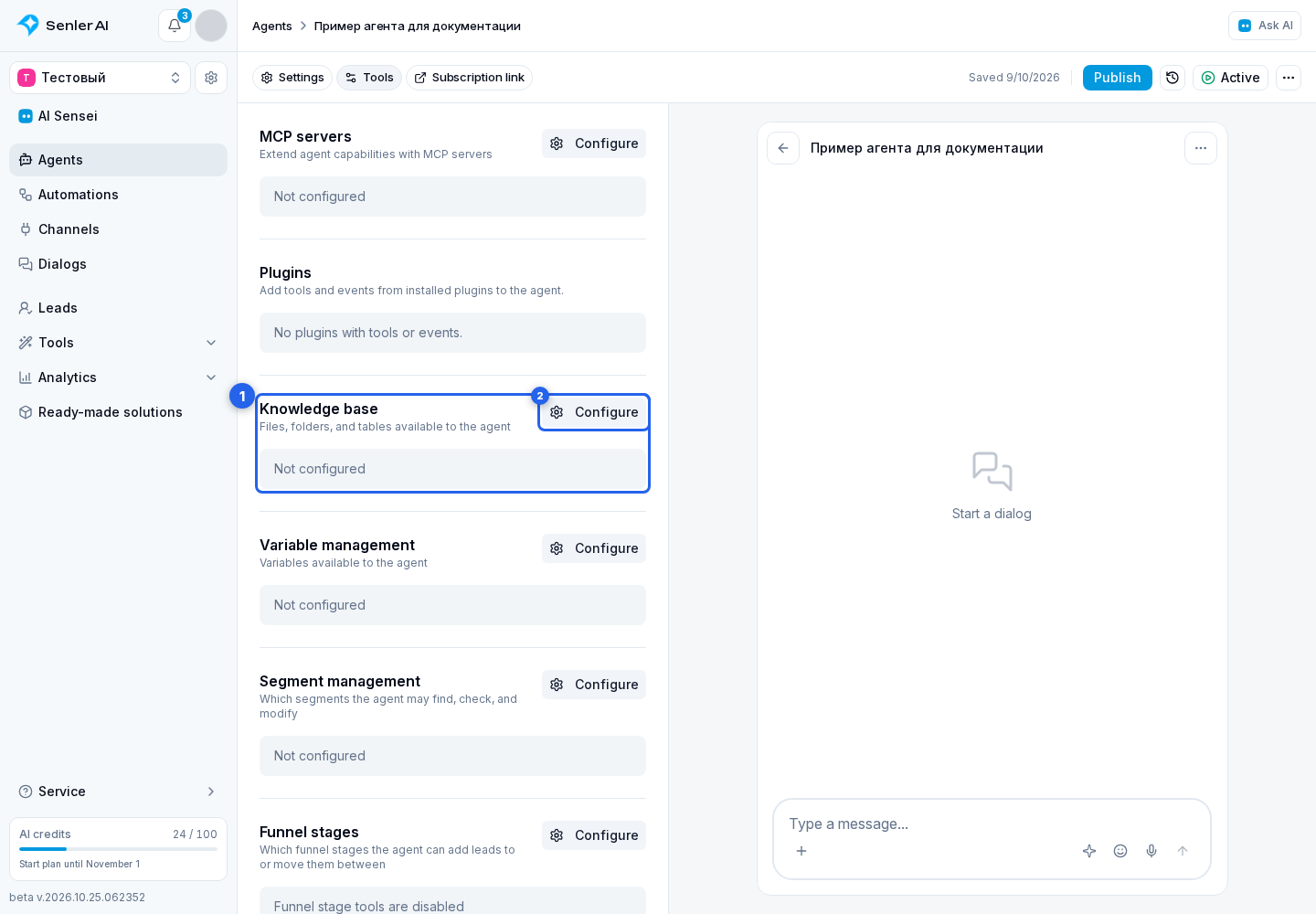
- In the agent form, open the Tools tab.
- In the Knowledge Base block, select Configure.
- Select Add from knowledge base.
- Select a folder, file, or table.
- Select Done to return to the list of selected sources.
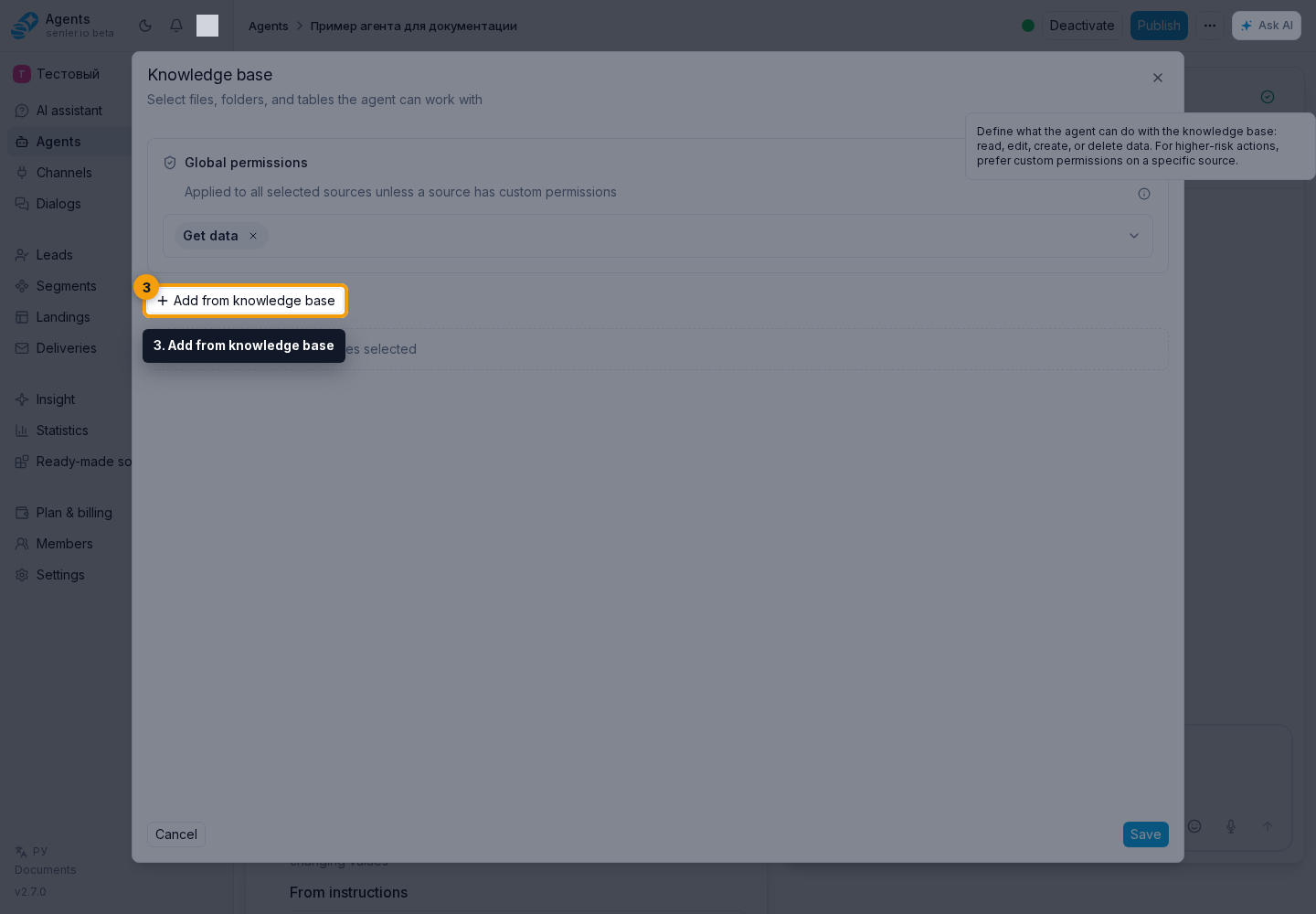
If a folder is selected, the agent will see all current and future items within that folder.
Create and edit the materials themselves on the knowledge base page. In the agent form, select sources and configure read or edit access in Knowledge Base Permissions.
For a selected source, you can open its parent folder or remove it from the agent. Changes take effect after clicking Save.
Sources linked from the instructions
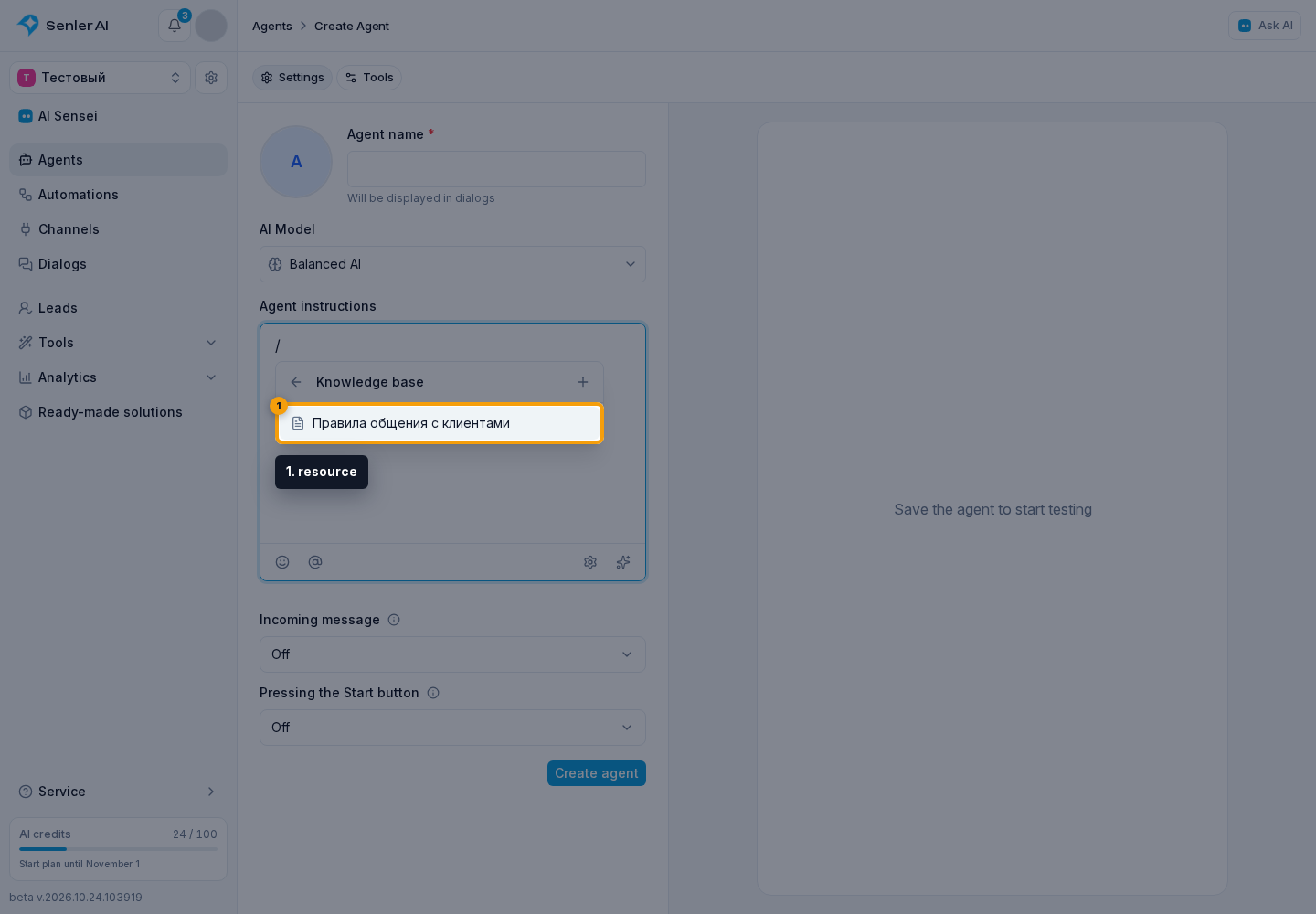
A material can be connected directly from the agent instructions. Select the @ button or type / or @, choose Knowledge base in the unified catalog, and then select the required resource. You can open folders and create a suitable text file from the same section.
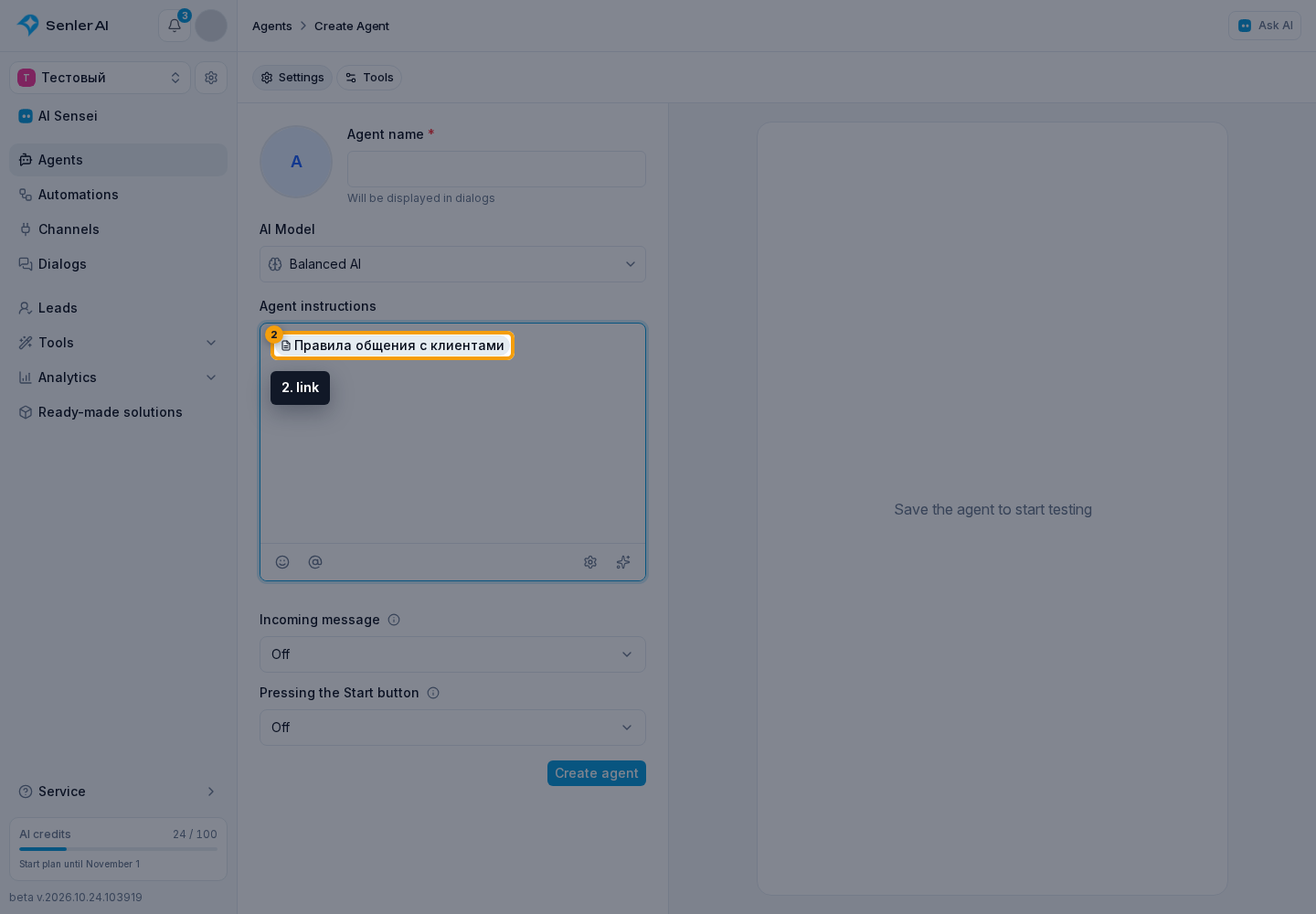
The selected material appears in the instructions as a link and is automatically added to the sources. It is marked Used in the instruction in the source list. Removing that source opens a separate warning that its instruction link will be removed as well.
When replacing or removing sources, also check the plain instruction text: an old filename and rules that depend on it may remain after its link is removed. For example, after replacing VK payment materials with materials for MAX, update any remaining rule that says “use Payment.md and send the VK link.” Change only the affected passages. An agent making these changes through MCP can use the current text already in context and should reread the final instructions once after all agreed edits. Changing permissions alone or adding a source without replacing existing sources does not require that reread.
Clicking the link opens the material. Here you can check its content and the agent's permissions. If the resource was deleted, disabled, or is inaccessible, the link shows that state; select an available material or fix access before publishing.
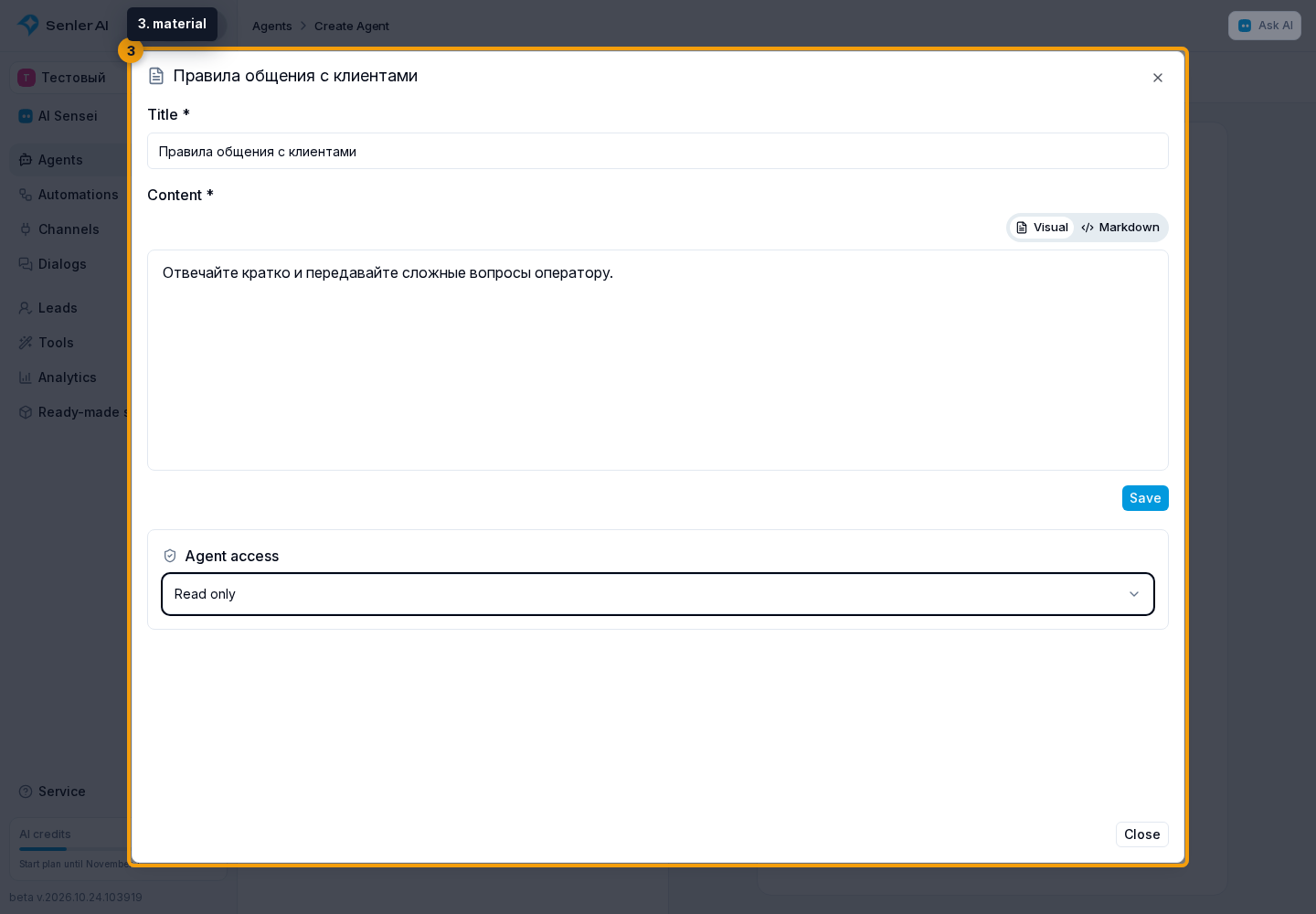
See Knowledge base materials in instructions for the complete sequence.
Describe The Table Write Rule To The Agent
Table permissions do not determine whether the agent should keep one row per lead or append every request separately. This is a business rule and must be stated explicitly in the instructions.
If one current row is required, name the exact key, such as lead_id, and require the agent to update or create a record only by that key. The agent must not guess a physical row number or carry one over from another search result. If several rows match, it must stop without writing and report the duplicates.
If each request or event must be retained separately, specify that a new row is created for each new independent request or event. An update to the current request or a retry of its write must not create a new row. Describe how to distinguish a new request from a continuation and which key identifies the record; the lead ID is insufficient when a lead can have several requests. Test a new request, an update, and repeated processing with safe test data.
Diagnostics
If the agent does not use the knowledge base:
- Make sure that the file, folder or table is selected in the "Knowledge Base" block.
- Check that the resource is active.
- If you need a file inside a folder, make sure the correct folder or file is selected.
- If the source is selected but the agent cannot read or edit it, check Knowledge Base Permissions.