
Image block
Purpose
Image displays one wide illustration without separate text or a button. Use it for a diagram, product interface, outcome photo, or a visual transition between sections.
Appearance on the landing
In the Image preview, the file uses the block width while preserving its proportions.

The Title field does not create a caption above or below the image. It becomes the alt alternative description used by screen readers and when the browser cannot display the file.
Settings
Hover over the image and select the Image edit icon. The Image settings panel opens.

- Title — briefly describe the meaning of the image rather than its visual styling, for example, “Online course workspace.”
- Desktop image — the file for screens wider than 760 pixels.
- Mobile image — the file for screens up to 760 pixels wide.

You can upload different PNG, JPEG, or WebP files for the two versions. If only one field is filled, the available file is used on every device. After a successful upload, the field shows a preview and Remove image.
Preparation and proportions
Choosing a file opens Prepare image. For a regular illustration, the entire image is selected initially. You can keep the original, choose another area, or set the crop proportions: original, free, 1:1, 16:9, or 9:16. The width and height fields set the output file dimensions in pixels and change together to preserve the selected area's proportions. Reset changes restores the initial selection and dimensions.
The file is sent only after you select Confirm and upload. Cancel keeps the previous image. If the selection and dimensions are unchanged, the original file is uploaded without recompression.
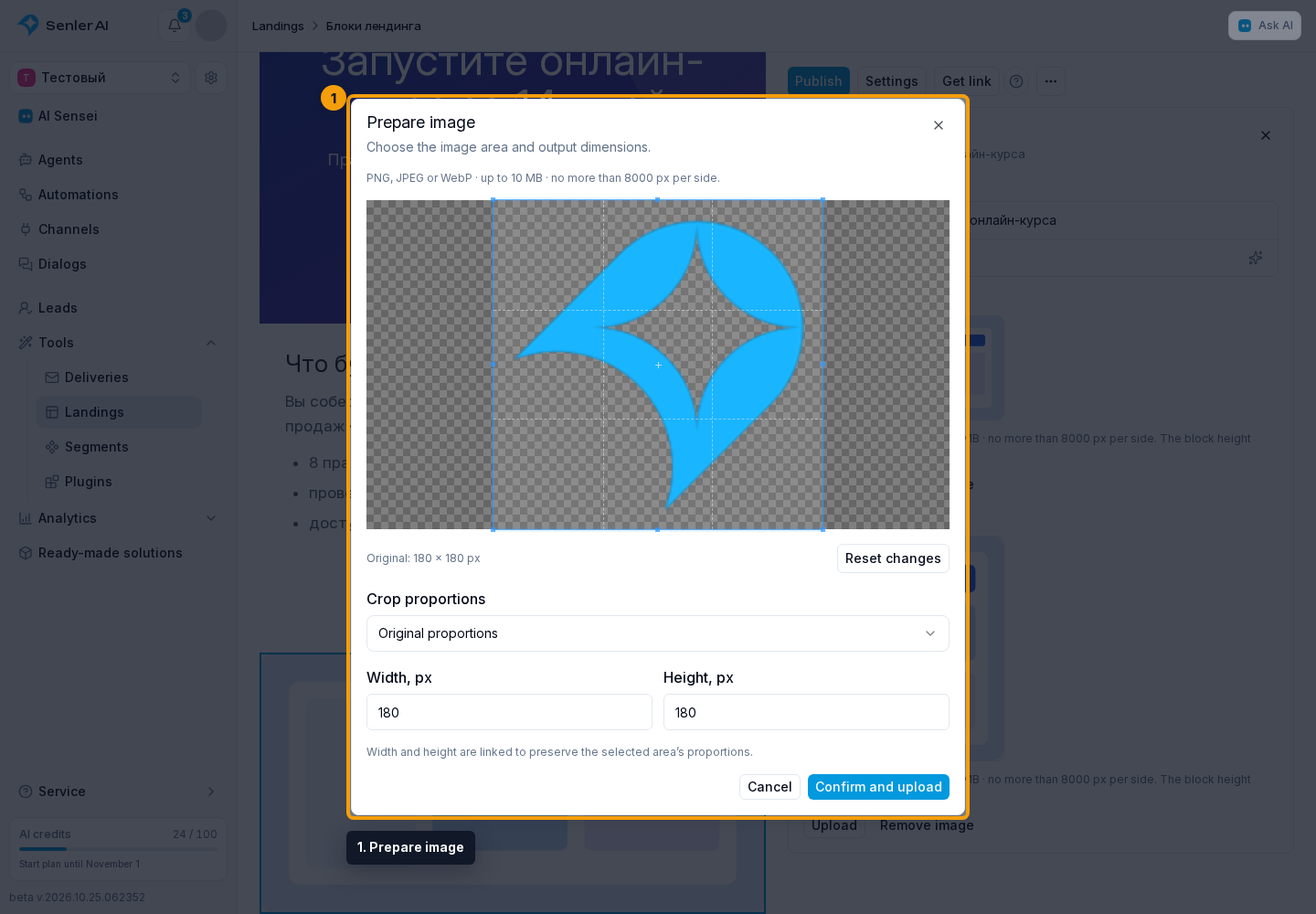
On the landing, the image fills the block width and its height follows its proportions. Only the area you excluded during preparation is cropped. Tall images make the block taller. Product and feature cards follow the same principle. Review photos use a square selection with a circle showing the visible avatar area. Catalog icons use 1:1 proportions, and catalog banners use 16:9.
Reducing both file dimensions proportionally lowers its resolution. The image height on the page stays the same: it depends on the block width and the image proportions.
Empty fields and limits
When both files are missing, after autosave the editor shows the warning “No image uploaded. This block will not be shown on the site.” Preview and the published page omit the whole block. An empty title does not prevent the image from appearing: the landing name is used for alt.
Each file must be no larger than 10 MB or 8,000 pixels in width or height.