
Agents Overview
Agents
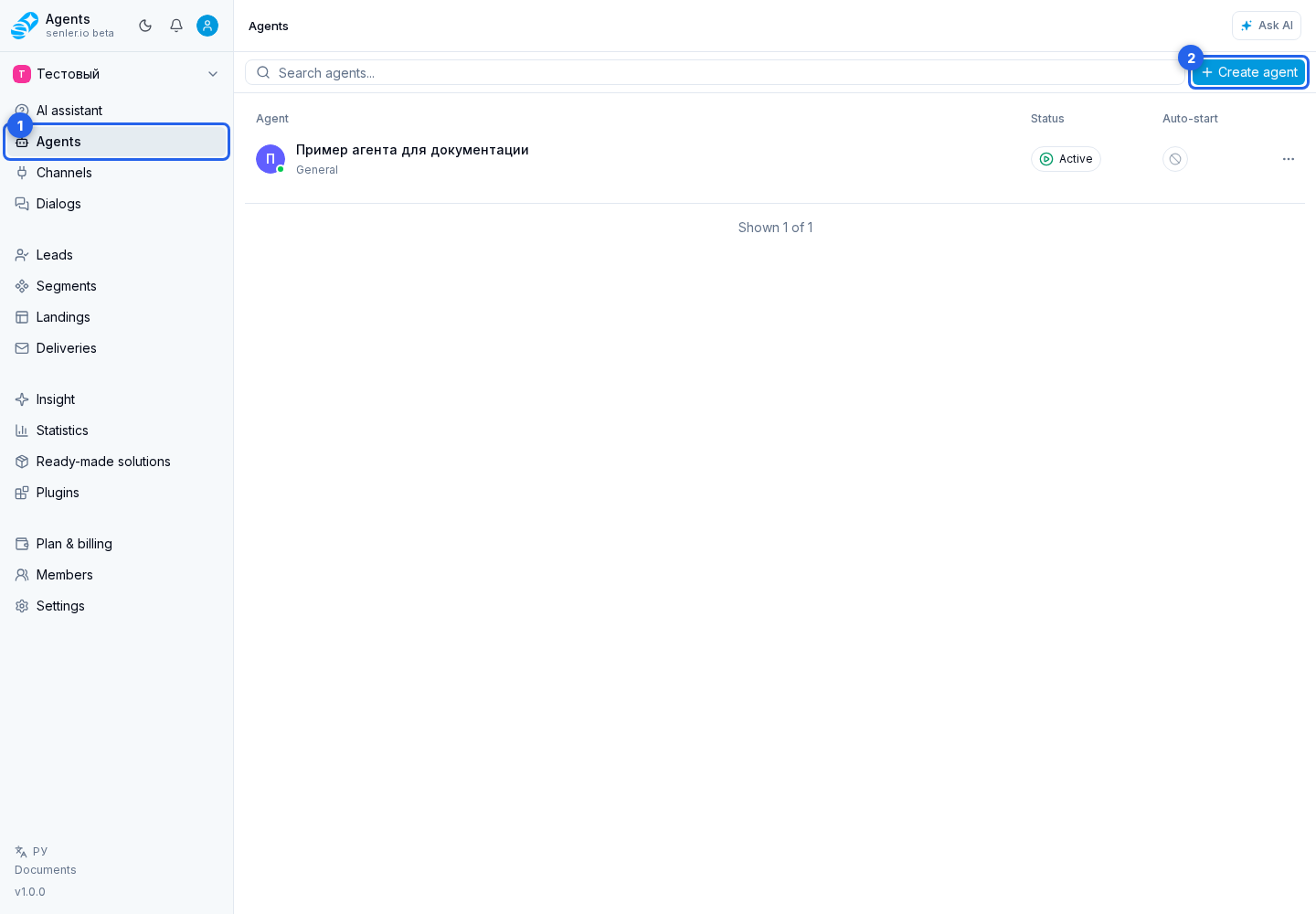
In the project menu, open the Agents section. An agent is a customizable AI employee. It can respond to customers, use external tools, collect metrics, recognize voice and images, generate content, work with variables, and assist operators.
List of agents
- the list shows project agents;
- search works by name, instructions, type, status, and keywords;
- each agent card shows its main details and state;
- Create agent opens the creation method chooser;
- selecting an existing agent opens its form for viewing or editing.
If there are many agents, scroll the list to load more automatically. Search covers all project agents, not just those already displayed.
Agent types
- Sales - sales, qualification, funnel, readiness to buy, objections, competitors.
- Support - support, problem solving, request complexity, need for escalation.
- Notifications - mailings, news, reactions, engagement, risk of unsubscription.
- Assistant - personal assistant, tasks, reminders, schedule.
- Education - learning, progress, understanding of the material, risk of churn.
- Surveys - feedback, NPS, CSAT, response quality.
- General - universal agent.
If the agent type is unclear
- for sales, select Sales;
- for support, select Support;
- for mailings and notifications, select Notifications;
- for personal tasks, choose Assistant;
- for training, choose Education;
- for surveys and research, select Surveys;
- if the scenario is mixed or not yet defined, choose General.
Agent from a ready-made solution
An agent added by an installed ready-made solution is managed by that solution. Its form shows a notice with the application name and access mode. When the author allows settings visibility, the fields are read-only; otherwise, the settings content is hidden.
To get an updated configuration for this agent, upgrade the installed solution on the Ready-made solutions page. Create a separate regular agent only when you need an independent configuration that will no longer update together with the application.