
Agent Metrics
Summary
Metrics let the agent extract data from conversations. Event metrics evaluate individual messages and the agent's result, while discussion categories help AI group dialogs by topic in the Insight summary.
In agent form
Choose Agents in the left menu, find the agent in the list, and open its settings.
On the Tools tab, the Metrics block controls data collection and the model used to evaluate it.
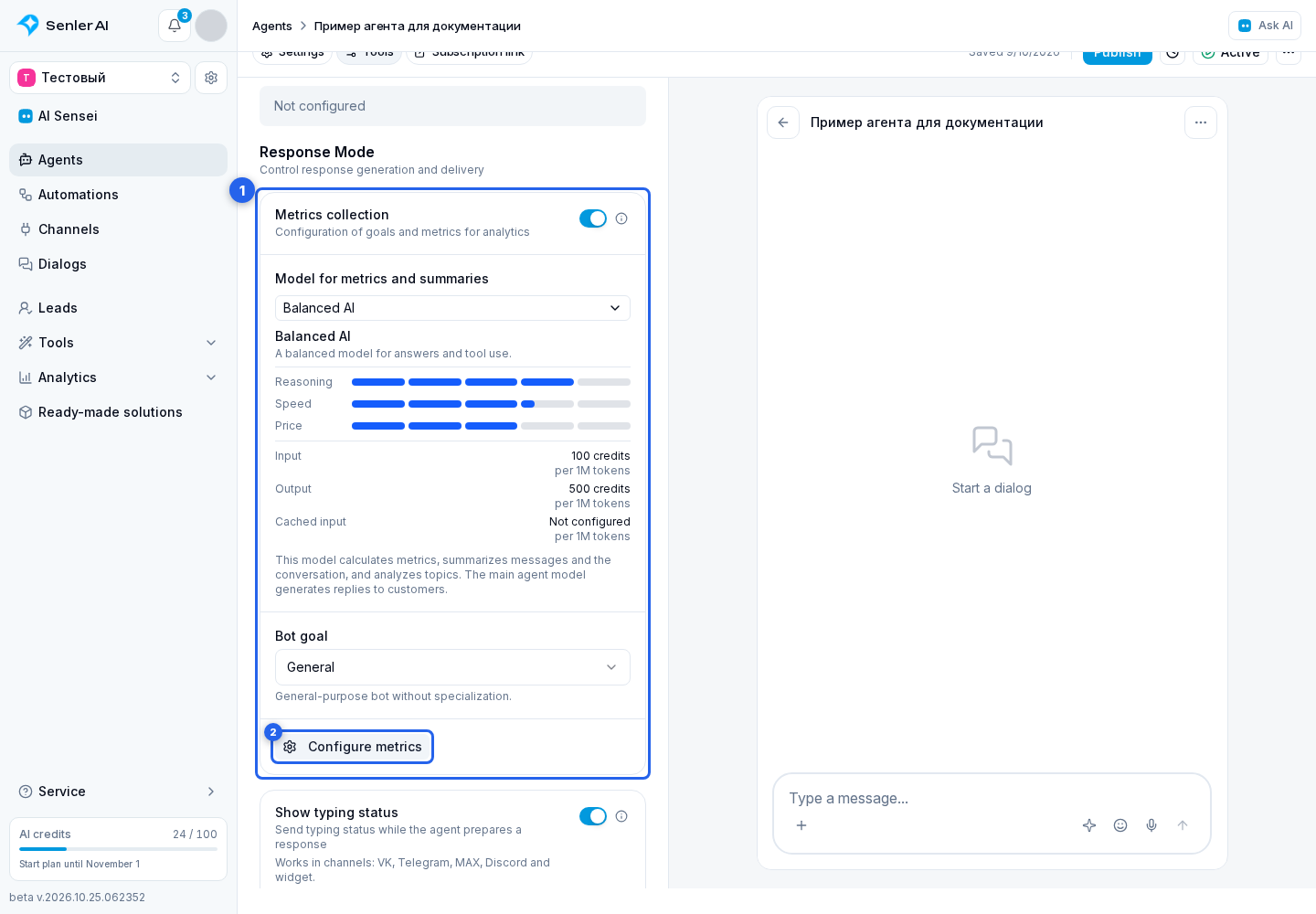
- metrics collection is enabled;
- the evaluation goal is selected;
- events and discussions are configured separately.
The Model for metrics and summaries field selects the model for calculating metrics, summarizing messages and dialogs, and analyzing topics. The agent's primary model still prepares customer replies. This lets you choose models for conversation and analytics separately.
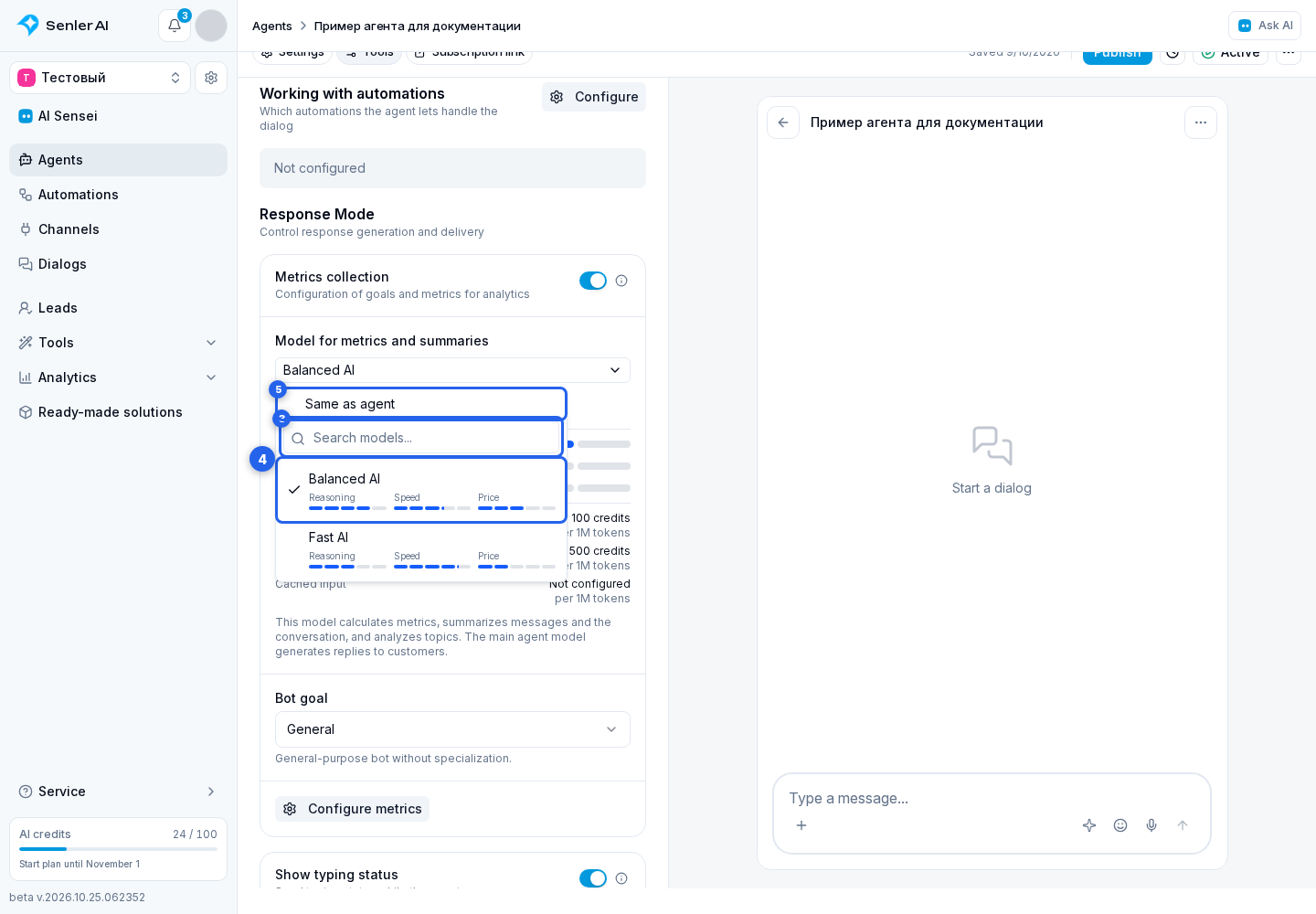
Open the model selector, find a model using search, and select an option. Hover over an option to see its model card. Same as agent uses the primary model for analytics too. Selecting a model does not enable disabled metrics or summarization: configure those settings separately below.
Events and discussions
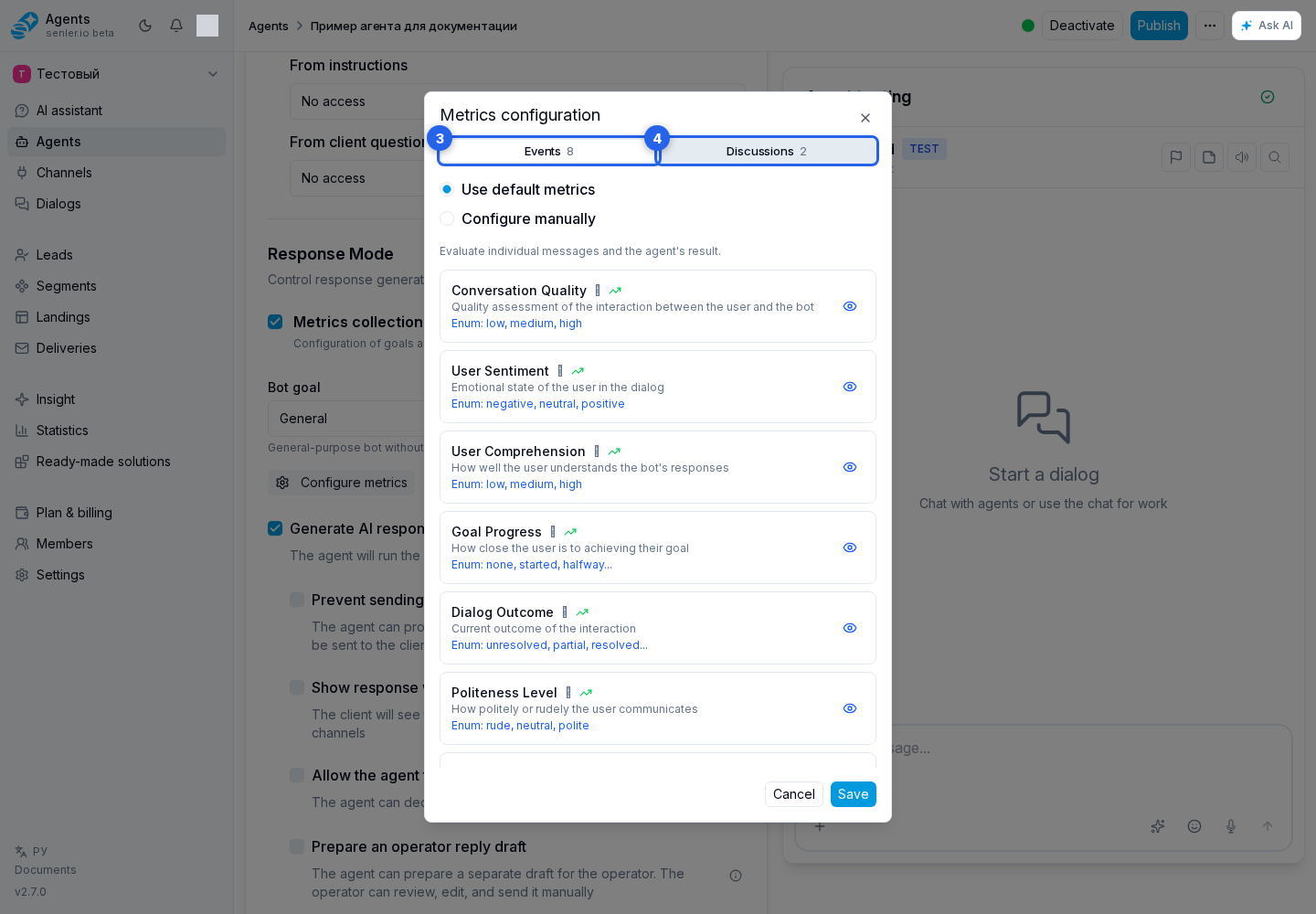
Click Configure metrics. The opened window has two tabs:
The Events tab contains values stored on messages and used in regular analytics, such as conversation outcome, sentiment, or goal completion.
The Discussions tab contains categories that AI uses to group dialog topics in the summary. They do not replace event metrics: one group answers "what happened in the message," while the other answers "what was the conversation about."
Here a discussion means a meaningful segment of a dialog, such as a support request, consultation, or sale. One segment can contain several distinct topics. The primary category and additional attributes are stored separately for each detected topic and updated when the conversation returns to it. A single dialog can therefore produce several discussion-metric observations; these are not duplicate messages.
Modes
The mode is selected independently for events and discussions:
- Use default metrics provides a ready-made set for the agent type;
- Configure manually uses a set selected by the user.
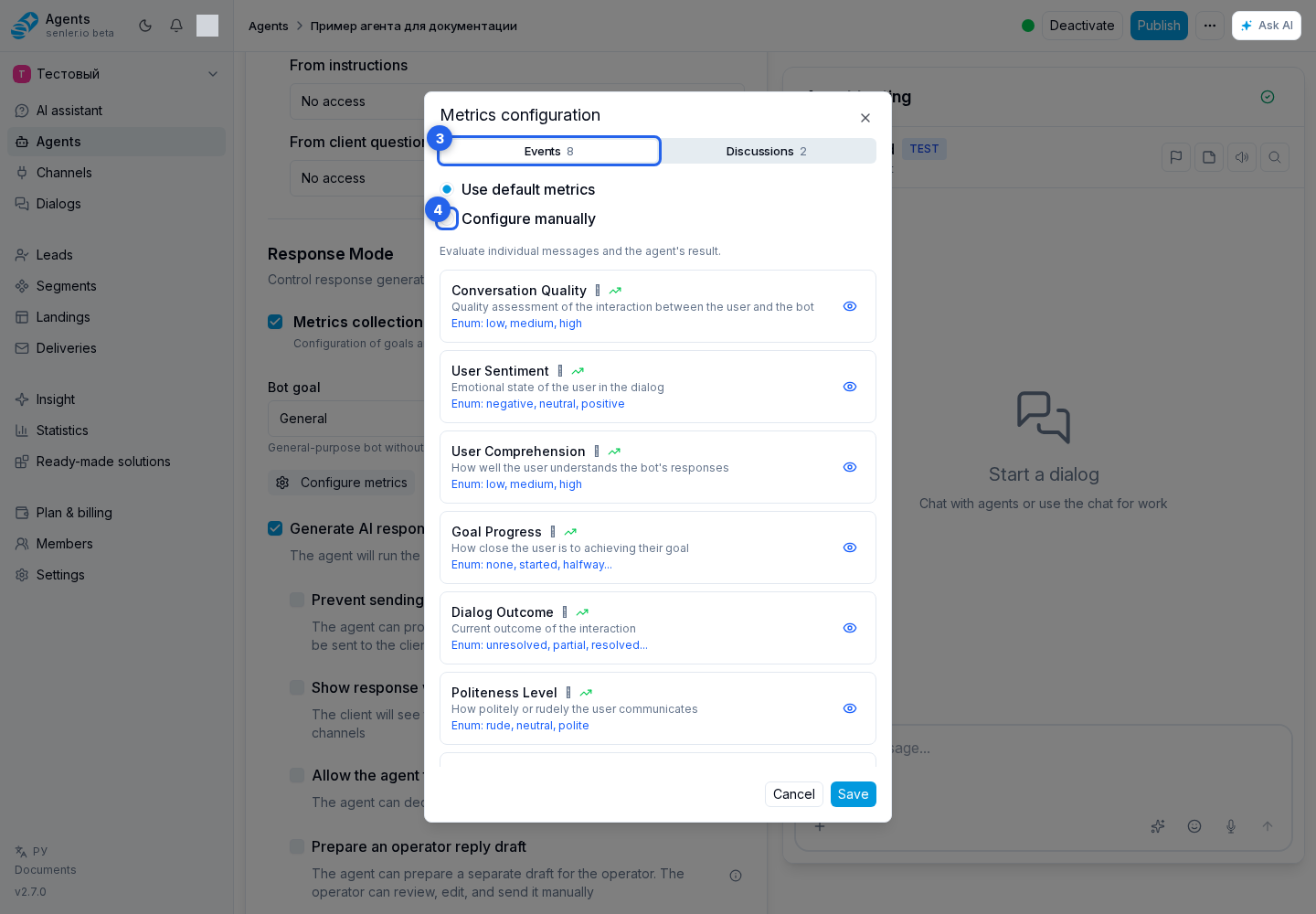
For example, you can keep default event metrics and configure custom discussion categories. The first time a group is switched to manual mode, the cabinet copies that group's default set so you can adjust it instead of rebuilding it.
Selecting metrics
On the required tab, enable manual mode and click Add metric. In the list, use search and show all, only built-in, or only custom metrics. Choose the required metrics and click Add (N), where N is the number of selected metrics.
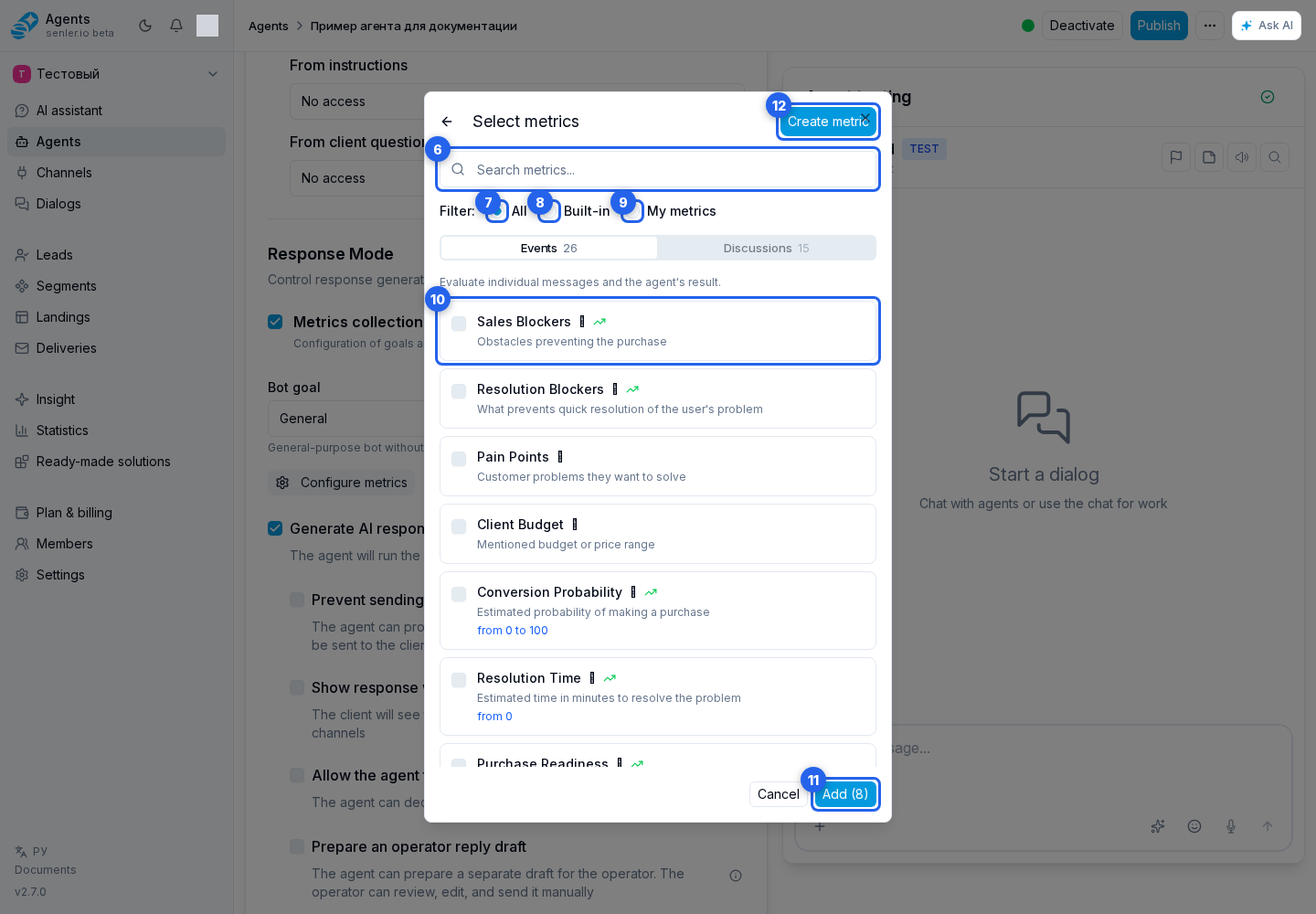
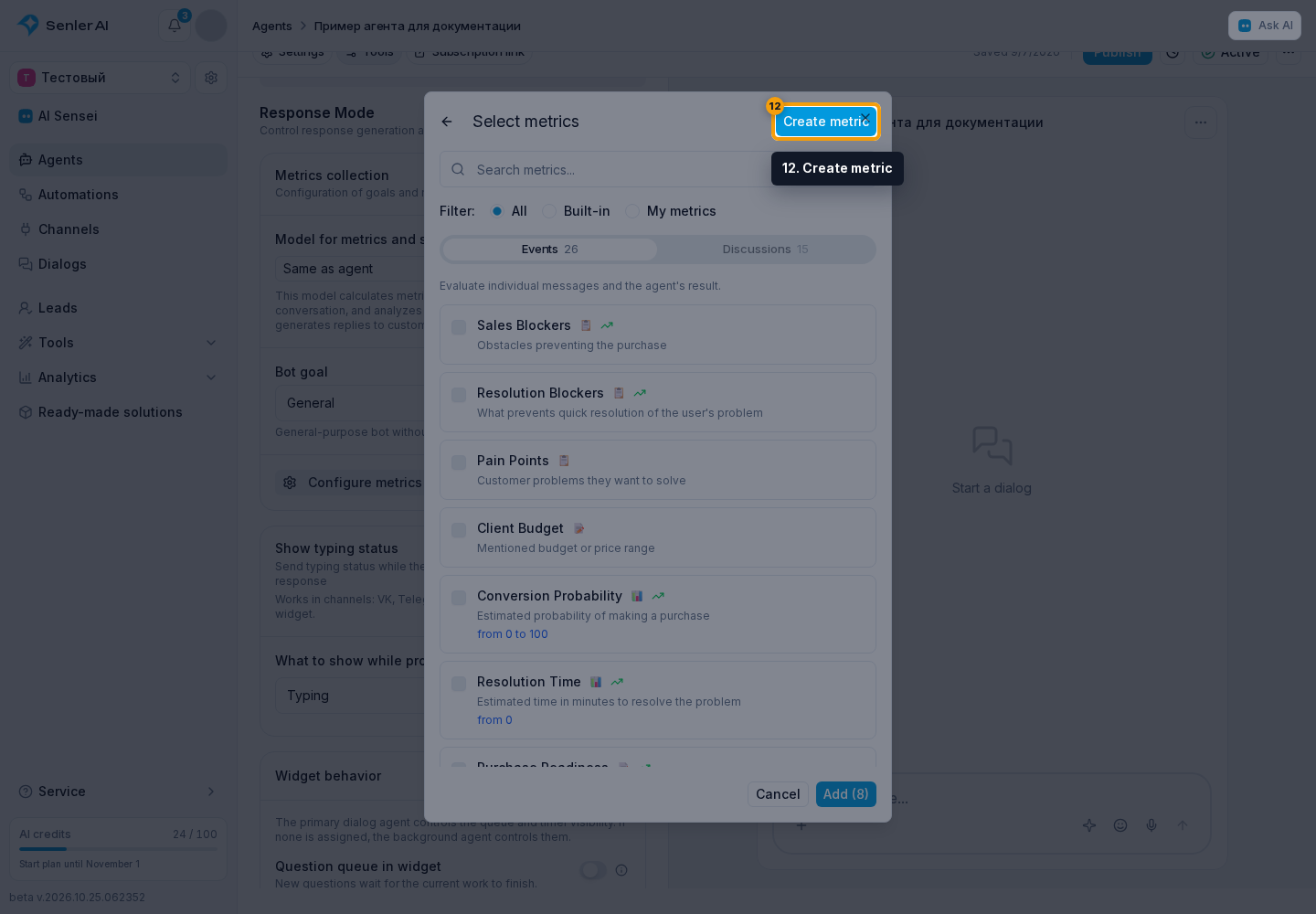
If no suitable metric exists, use Create metric. Define its measurement method, value type, and extraction rules, then click Save. Select the created metric in the list.
You can view, edit, or remove a metric from the agent. Finish with Save, then publish the agent.
An agent's effective set can contain no more than 20 metrics in total across events and discussions. This limit includes both default and manually selected metrics. The effective set can contain no more than six additional discussion attributes and only one primary discussion category. If the set does not save, remove extra manual metrics or switch the required section to manual mode and build a shorter set.
Draft and publishing
- the standard or custom metrics selection is saved in the agent draft;
- event and discussion modes are saved independently;
- real dialogs use the published metric settings;
- publish the agent after changing metrics;
- draft rollback returns both modes and selected lists to the published version.