
Agent Testing
Summary
In the side menu, open Agents and select an agent in the list. On a computer, the test chat is on the right of the settings form. On a phone, open Testing using the triangle button above the form.
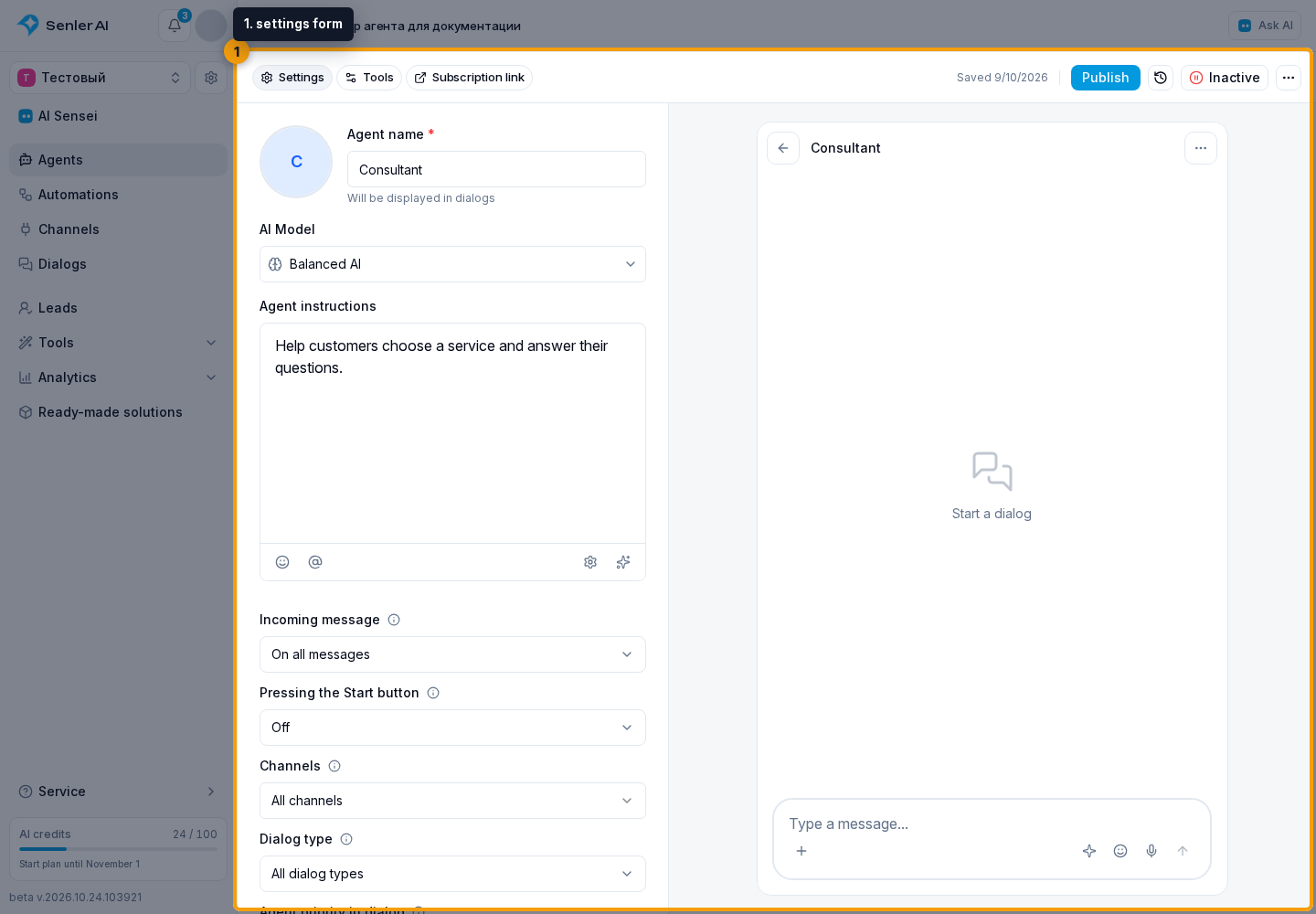
Check answers before publication and after changing instructions, the model, knowledge base, MCP servers, variables, or allowed functions. The test chat uses the saved draft; you do not need to publish it for testing. If the agent has not been created yet, first finish manual creation.
How the test window works
For an automatic check, use AI test dialogs: AI plays the customer and evaluates the conversation. That guide explains test settings and actions the test does not perform.
The agent testing panel opens directly in the agent form, so there is no need to switch to a separate section.
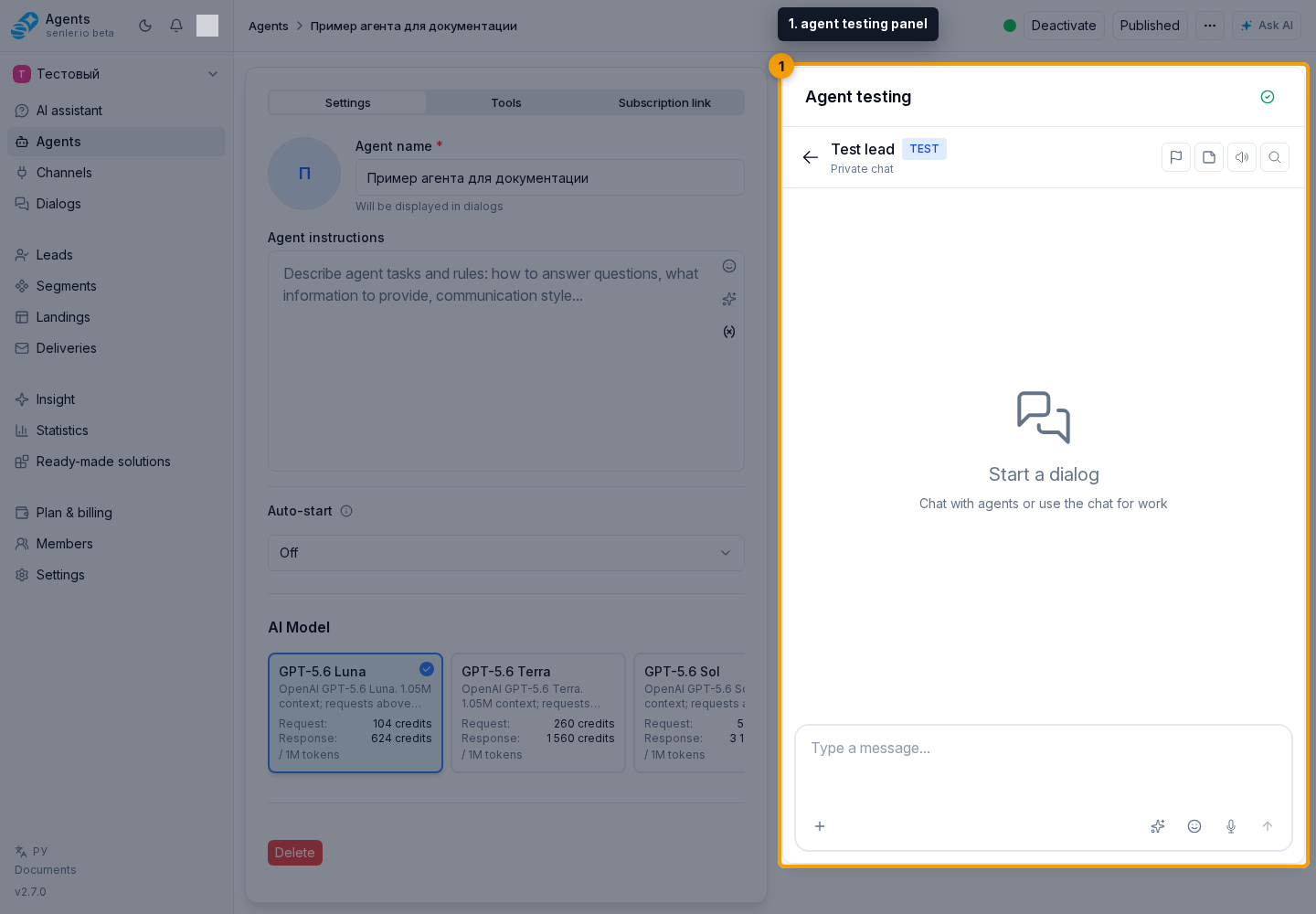
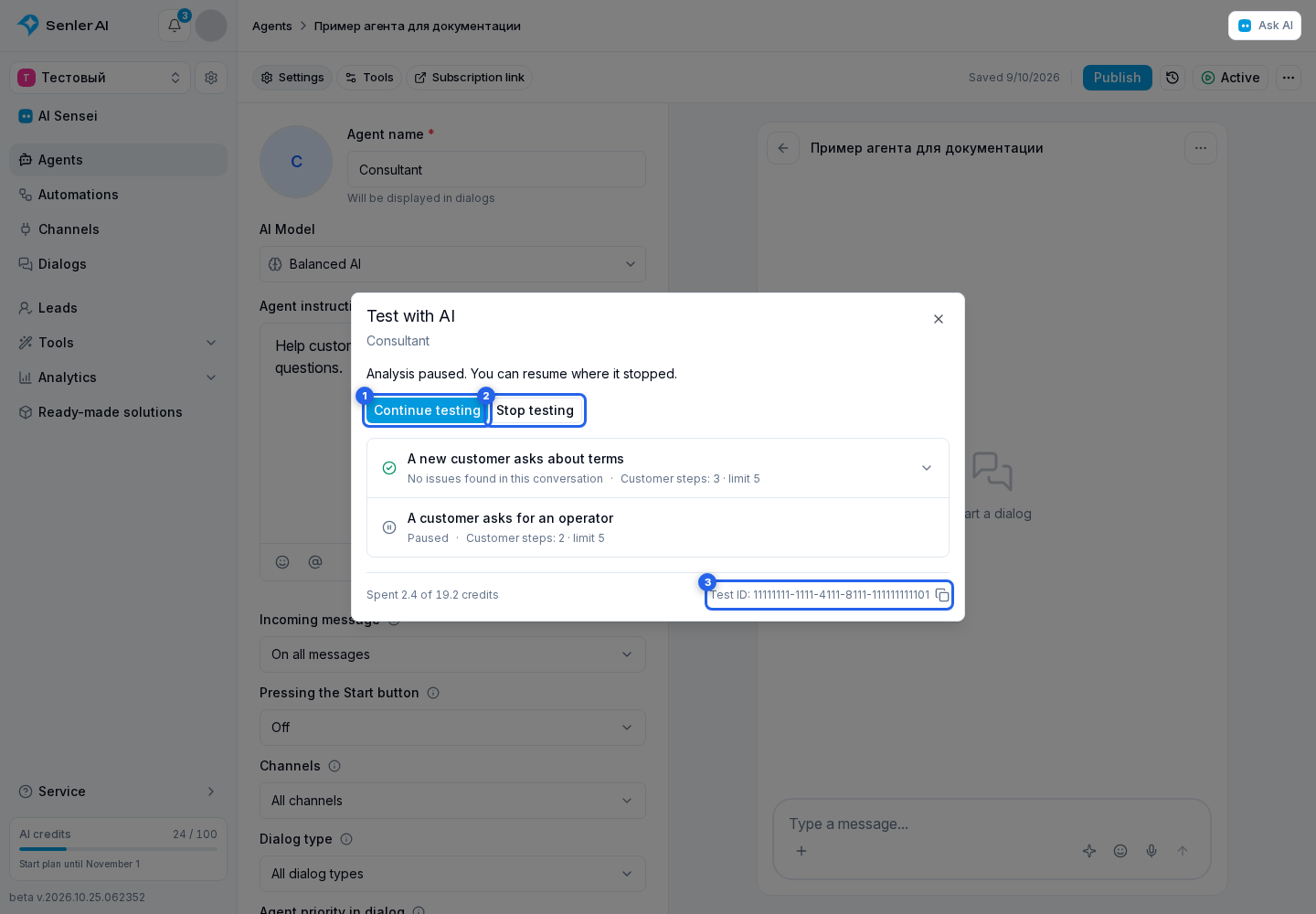
The AI testing button in the test chat header opens the test setup window. Preparation and any save error are shown inside this window. Set the number of conversation variants, the depth of each variant, and a spending limit. After launch, the window stays open and shows progress and results. Pause lets you resume the same test later. Continue testing resumes it immediately with the same settings and spending limit. If the limit is reached, select Increase limit and enter the amount available for continuing. The model, variant count, and conversation depth stay the same. Stop testing ends the test and preserves available results; select New test to try again. Closing the window does not stop the test. Use View test in the panel to reopen it.
The embedded chat automatically shows the variant currently being tested. Until that variant finishes, including while paused, you can only view the conversation. After it finishes, you can send messages and press buttons. If you manually select another dialog or return to the list, automatic switching stops until you start a new test. The test itself continues running.
The Test ID appears beside spending at the bottom of the window. Select it to copy the ID and share it with support. The ID remains available while the report loads and if loading fails.
If a variant created during auto-training is being tested, the test window opens that exact variant. Media from the test dialog opens over the cabinet: images in the viewer and videos in the player.
If an automation assigns or runs another agent in this test dialog, that agent uses its own saved draft, not the first agent's variant. If no draft exists, published settings are used. Knowledge sources and allowed capabilities also come from the version being tested.
An inactive agent can be tested without activating it for customers. Stopping the agent does not interrupt its test replies or timers; deleting the agent also ends its work in test dialogs.
In edit mode, the agent form saves the draft automatically. The indicator in the form header shows whether changes are saving, saved, or have failed. Its tooltip shows the last saved time.
Until a test dialog has been created or selected, the chat title shows the name of the agent being tested. The panel list belongs to the agent the test was created for. The dialog stays in that list even if the tested agent is unassigned, another agent is assigned, or the conversation is handed over to an operator. Dialogs created during automation testing are not included, even if this agent is assigned to them. Open those dialogs from the corresponding automation's test view.
After Operator Handoff
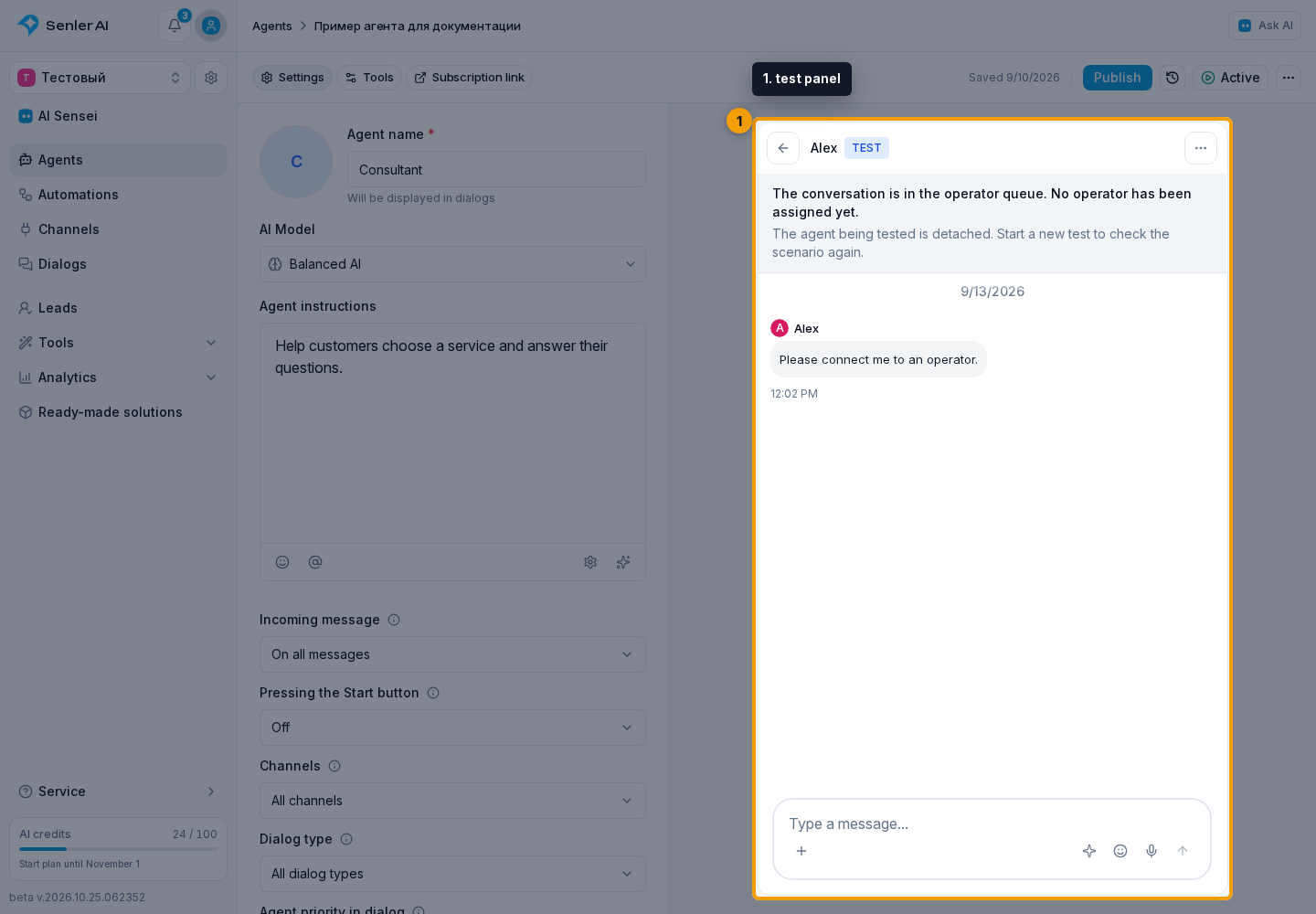
In an active test chat, the test panel shows the result of operator handoff: the conversation is waiting in the queue or an operator is assigned. Entering the queue does not by itself mean a team member has accepted the dialog.
If the tested agent is unassigned from the dialog, an additional message appears: “The agent being tested is detached. Start a new test to check the scenario again.” Create a new test to check its replies from the beginning. The previous conversation remains available in the test dialog list.
Test the agent before publication
- Open the required agent's test chat as described above.
- Wait for successful draft autosave in the form header.
- Send a request that resembles a real customer question.
- Check the answer text, knowledge base materials used, tool calls, and variable substitution.
- Repeat the check for important edge cases: an incomplete question, missing data, and a request that should be handed to an operator.
- Return to the settings, fix the issues you found, and wait for the draft to save again.
- When the result is satisfactory, publish the agent. Real dialogs start using the changes only after publication.
A response test does not check whether the agent will be assigned to a website visitor or a user in another channel. Check Autostart, channels, and activity separately before launch.
In a test response, check not only the final text but also the sources: which knowledge was found, whether tools were called, whether the agent asked for unnecessary secrets, and whether it claimed an action that did not actually complete.
Voice messages in the test chat
You can record and send a voice message in the test chat. Select the microphone button in the message field and allow the browser to access your microphone. Recording audio and the agent understanding it are two separate stages.
Recording does not start
If recording does not start after you select the microphone, check the browser's microphone permission. If the chat shows a recording error, follow its message. The agent's speech recognition setting does not control the browser's permission to record audio.
The voice message was sent, but the agent does not understand it
If the audio already appears in the test chat, open the agent's Tools and check speech recognition and the recognition model. Wait for the draft to save, then send a new short voice message. You do not need to publish the agent to check it in the test chat.
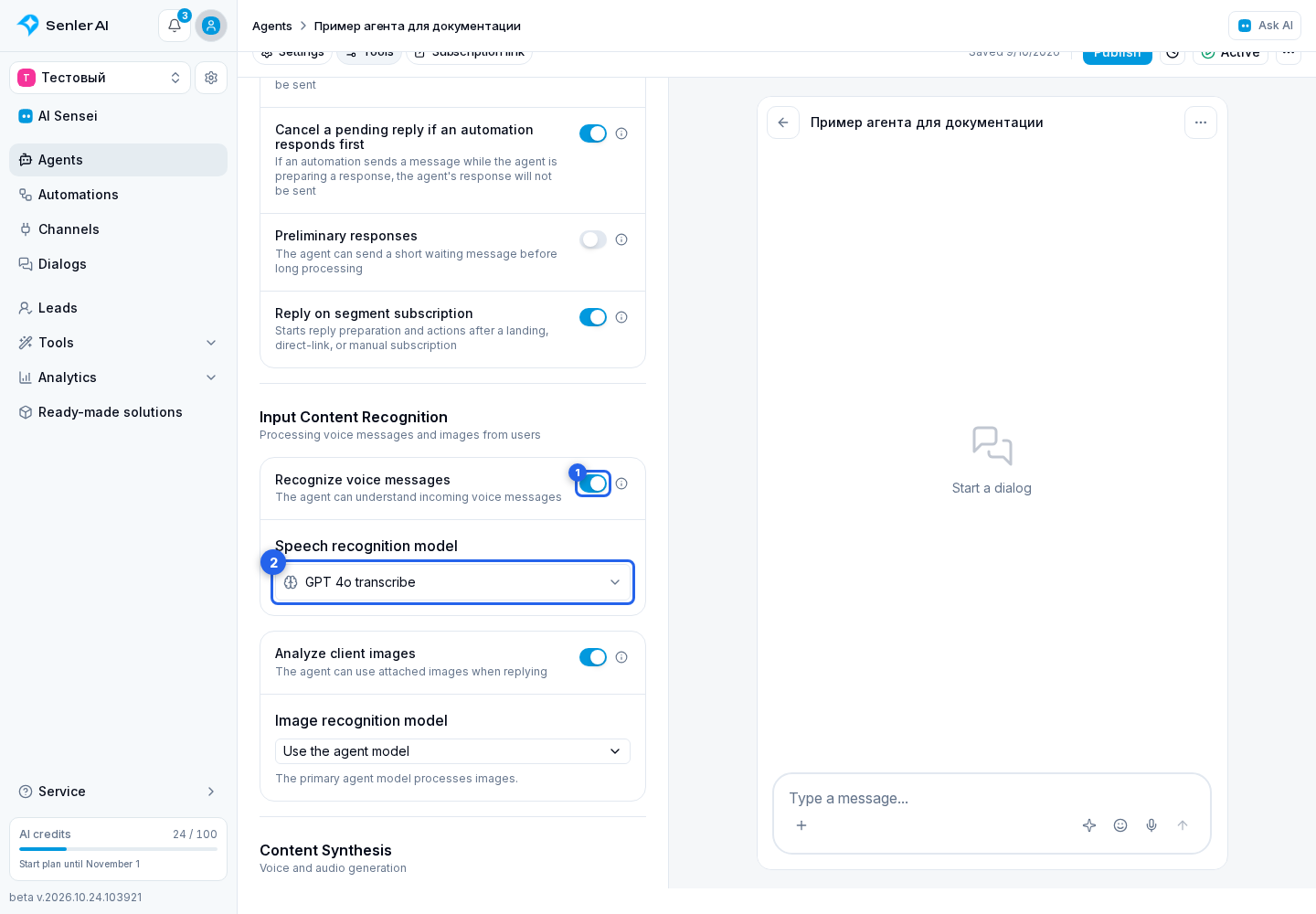
If recognition is already enabled and a model is selected, check the attachment processing result and error message in the test history. Audio appearing in the chat does not by itself confirm successful recognition. See Agent tools for details.
If the test does not run
- check the draft autosave indicator and last saved time;
- check that the testing panel has loaded;
- check the selected model;
- if an error above the form says MCP servers, sets, or metrics failed to load, select Retry and wait for the data;
- check MCP servers if the answer depends on the tools;
- check your balance and available functions.