
Spam and Email Link Protection
How to mark an email as spam
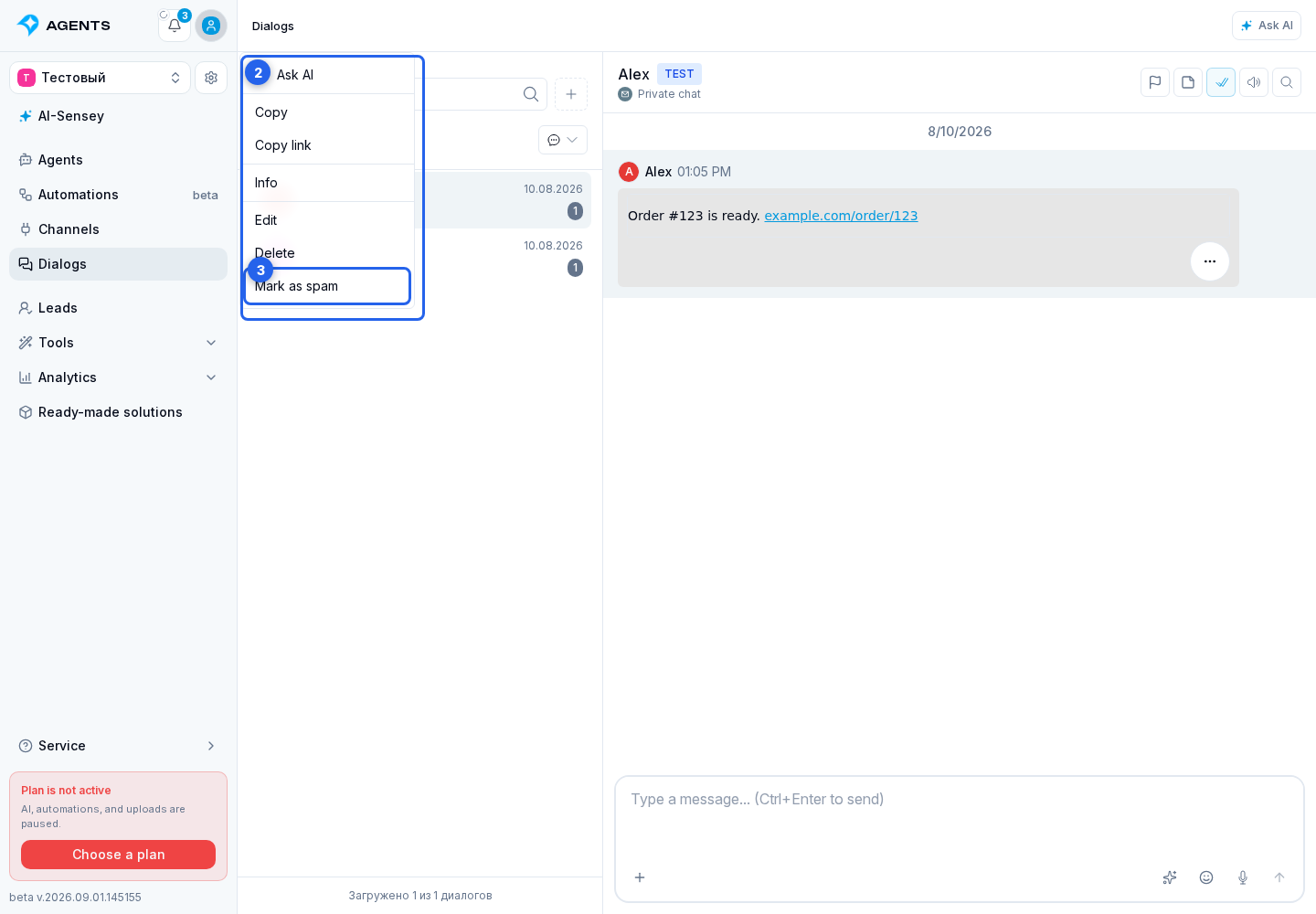
- Open Dialogs in the project side menu and select an email conversation.
- For the incoming email, open the context menu: on a computer, right-click the message; on a phone or tablet, press and hold it.
- Select Mark as spam.
This action is available only for an incoming email while the conversation is not yet marked as spam. There is no separate confirmation: the selected email is marked as spam in the connected mailbox, Senler saves this decision for the sender, and the conversation receives the spam mark.
What changes in the conversation
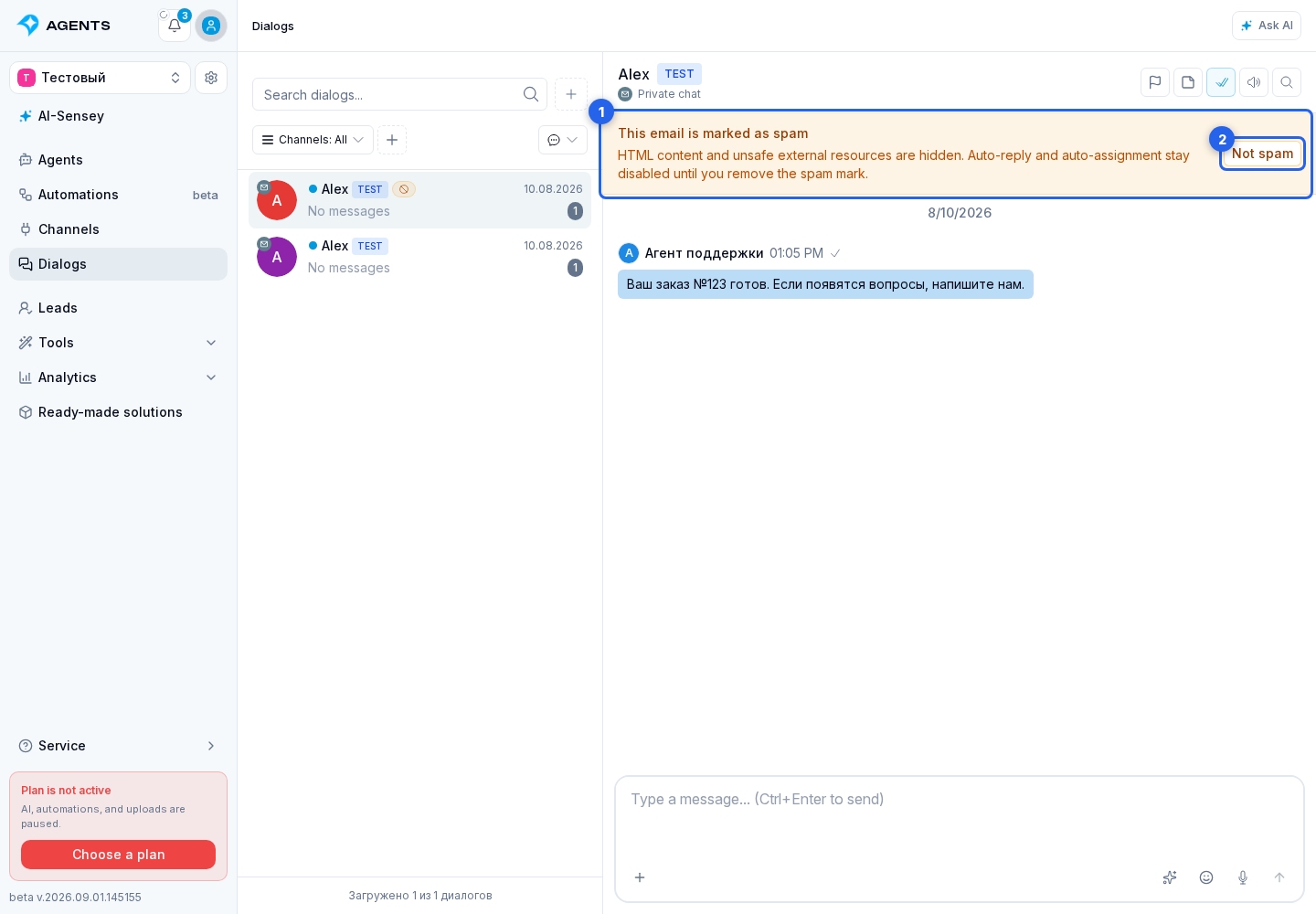
A This email is marked as spam warning appears above the history. The cabinet hides the email's HTML content. If the email has a safe text preview, it remains visible; otherwise, a message states that no safe preview is available.
While the mark is active, auto-reply and auto-assignment are disabled for the conversation. To remove the mark and restore normal handling, click Not spam in the warning.
How to open a link from an email
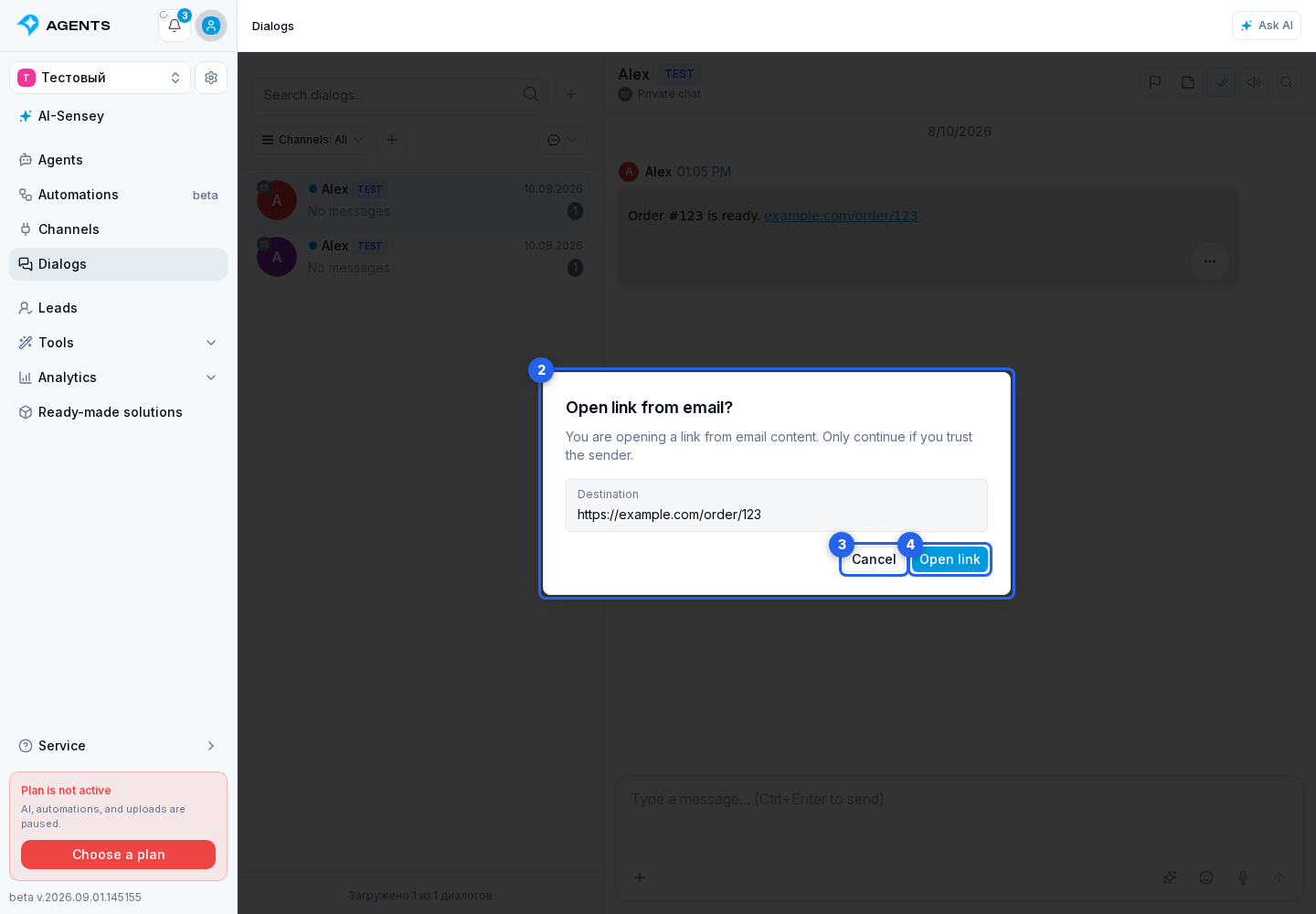
Click a link in the email's HTML content. Before leaving the conversation, a confirmation window shows the destination address. Check the address and open it only if you trust the sender.
Select Cancel to stay in the conversation, or Open link to go to the displayed address. The cabinet allows absolute https:// and mailto: links; links with other addresses or protocols are blocked.
How to find conversations marked as spam
Above the conversation list, add the Spam filter, select Only spam or Without spam, and click Apply. For more information about adding and removing filters, see List, Search, Channels, and Filters.