
Start
Prepare the message, check the recipients, and send a test if needed. Then choose when to start mass sending.
Starting Immediately
Open the delivery and select Start.
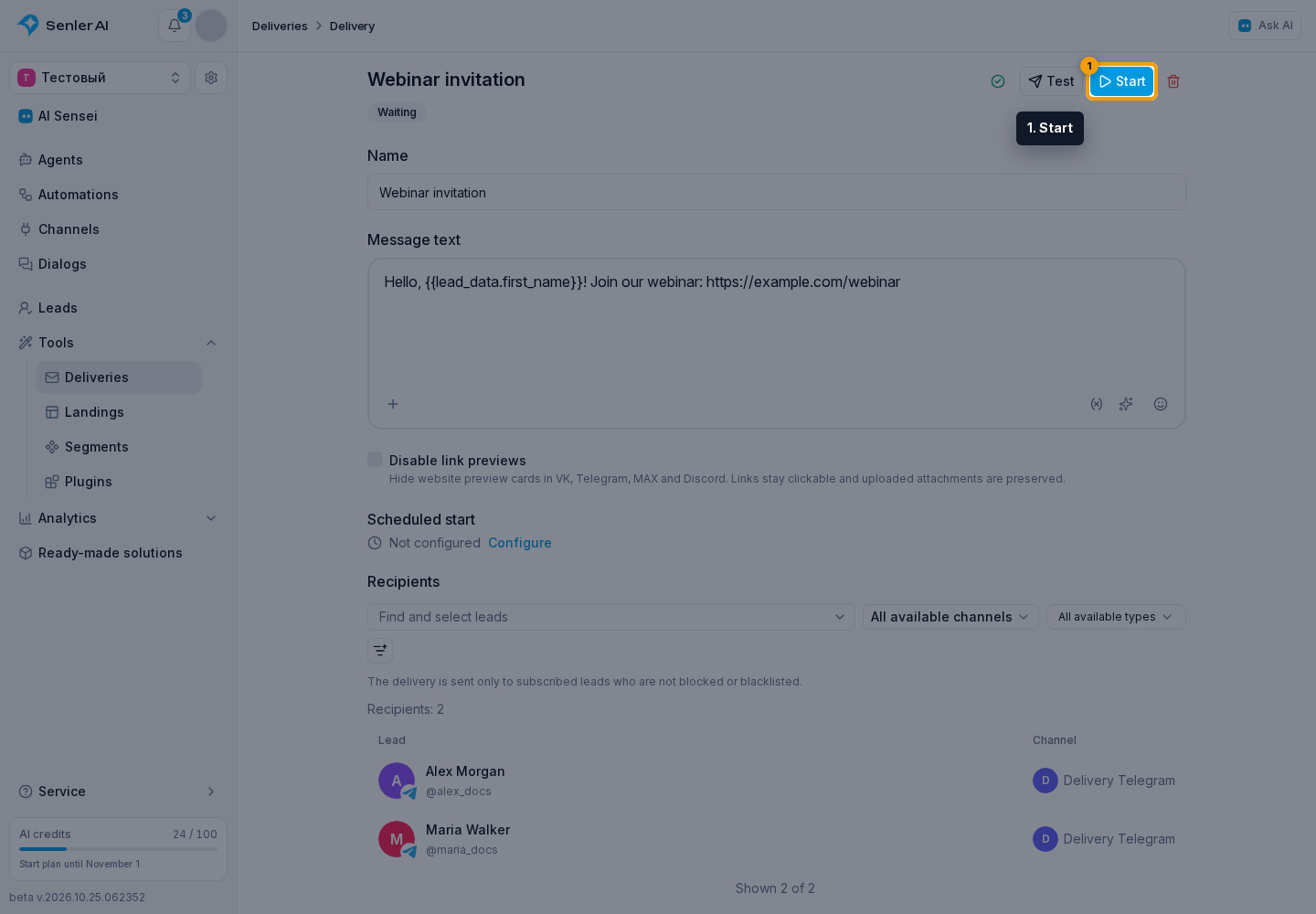
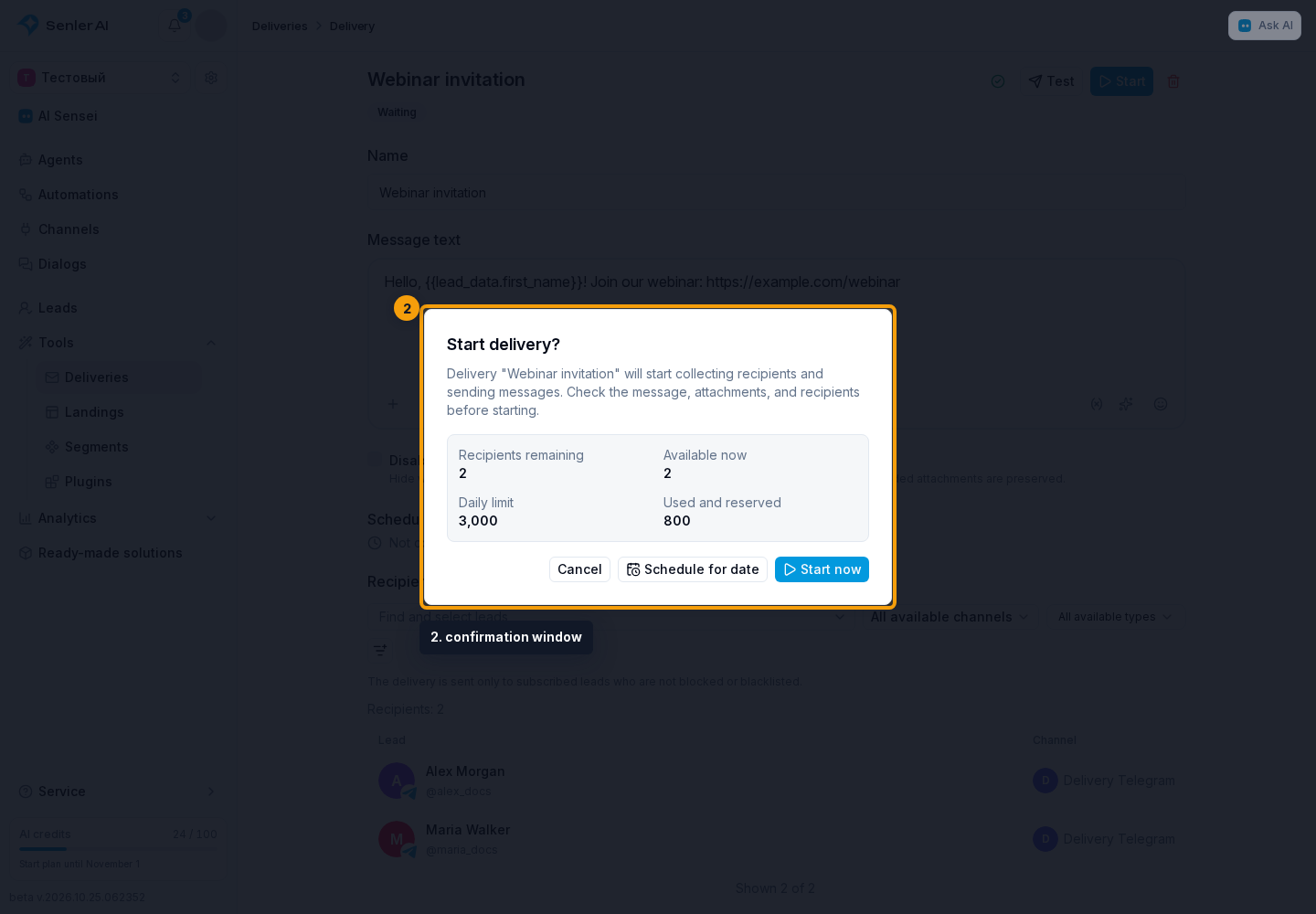
In the confirmation window, check the recipient count and "Available now". This includes the remaining daily allowance and purchased one-time message reserve.
Select Start now. If you cannot send to everyone now, the button reads "Send up to N": the available portion will be sent, and the rest will wait for continuation.
The progress window opens after starting. You can close it: sending continues. Check results in the delivery itself, and the background task in Settings → Processes.
Scheduled Start
In the confirmation window, select Schedule on a date.

Set a future start date and time.
Select Save.

The delivery stays on the "Waiting" tab with the "Scheduled" status. You can change the message and filters before sending begins. Recipients are determined when sending starts, not when you choose the date.
To change the date, select "Configure" under "Scheduled start". To cancel the schedule, open this window and select Remove. The delivery returns to "Waiting".
Continuing After A Pause
When both the daily allowance and the one-time reserve run out, the delivery gets the "Paused: daily limit" status and stays on the "Processing" tab. Sending does not resume automatically when the allowance resets.
Wait for the daily allowance to reset at 00:00 Moscow time, increase the available message count in plans, or buy a one-time reserve.
Open the paused delivery and select Continue sending.
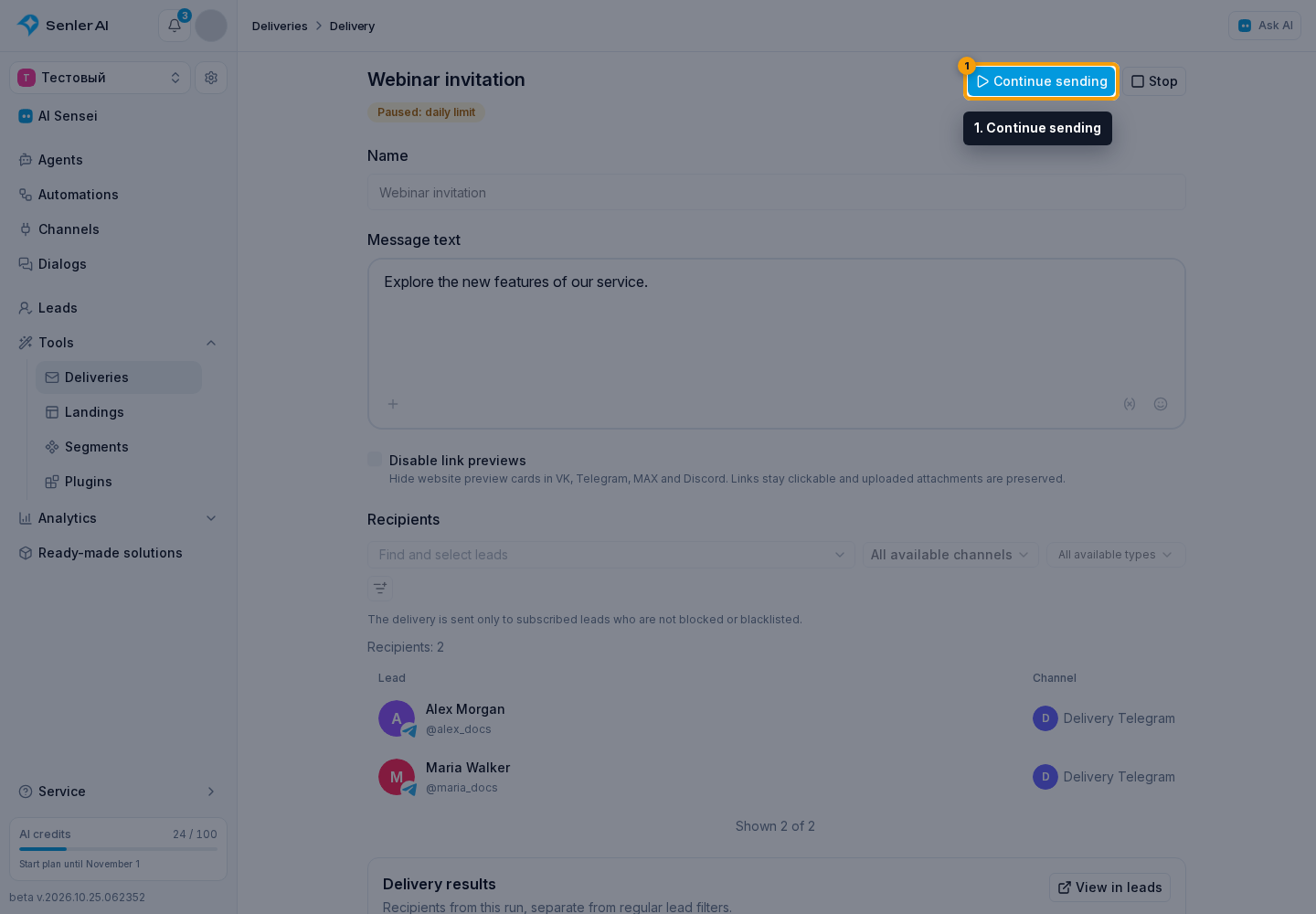
Check the remaining recipients and confirm with "Continue: up to N".
Continuation uses the audience of the same run. Already processed recipients do not receive the message again, and new recipients are not added. The text and filters cannot be changed.
Do not confuse a quota pause with Stop: continuation is unavailable after a manual stop.
Before Sending
Wait for autosave and attachment uploads to finish. The first start, testing, and scheduling require non-empty text and supported channels. Sending and testing require an active project plan.
After completion, failure, or a manual stop, create a copy for a new delivery.
If an Agent Should Handle Replies
A delivery does not assign an agent to its recipients. If the agent should answer clients afterwards, check assignment and autostart, and publication and agent activity. If the scenario includes an automation, check agent and automation cooperation. Those articles describe the relevant settings.