
MCP Servers for Agents
Summary
MCP servers connect external tools to an agent: CRM, knowledge base, API, or another service. An agent can use individually selected servers or a shared set whose contents change for every connected agent at once.
Connect MCP to an agent only when the tool is actually needed in answers or actions. The broader the toolset, the more important it is to clearly describe in the agent instruction when tools may be called and which data must not be sent outside.
The agent can reread the saved result of its own call in the current dialog: find a relevant fragment or read a large response in parts. This does not require executing the action again, such as creating another order. Reading a saved result shows the previous call's outcome, not the external service's current state. Checking the current state requires a separate read tool.
Choose A Connection Mode
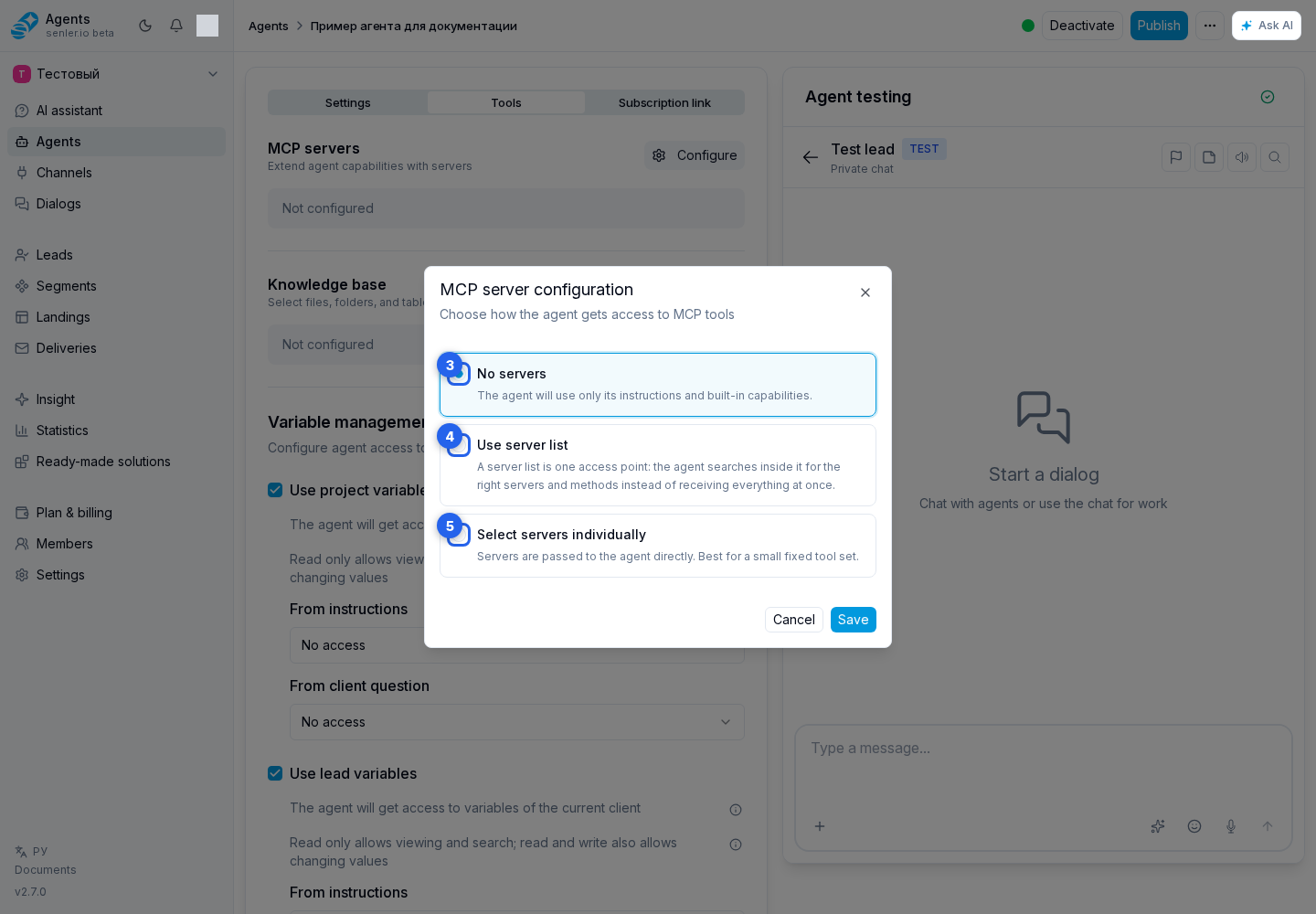
Open Agents in the side menu and select an agent from the list. In the agent form, open MCP settings and choose one of four modes:
- No MCP servers gives the agent no MCP tools;
- Directly through the AI provider lets the provider call selected servers itself. The server must be publicly reachable over HTTPS;
- Selected servers through Senler lets Senler call the specific servers selected for this agent;
- Server set through Senler connects a shared set. Use it when several agents need the same tool collection.
A custom server using lead JWT authorization always runs through Senler, including when Directly through the AI provider is selected. This refreshes the signature automatically before each call. The agent’s other servers keep the selected mode.
Not every AI model supports all four options. Modes through Senler require the selected model to call standard tools. Directly through the AI provider additionally requires the model and its active provider connection to support native MCP and tool catalog loading. No MCP servers is available with every model.
When you select another model, the cabinet compares its capabilities with the current MCP mode. If the mode is unsupported, a Change the MCP mode? dialog shows the current and replacement options. Change model and mode applies both changes, while Cancel model change keeps the previous settings.
If the model cannot connect directly through the AI provider but can use tools through Senler, the cabinet offers Selected servers through Senler. If the model does not support that option either, the replacement is No MCP servers. You also cannot save an incompatible combination after changing the settings manually.
Select Servers Or A Set
- Select Add server in either individual-server mode.
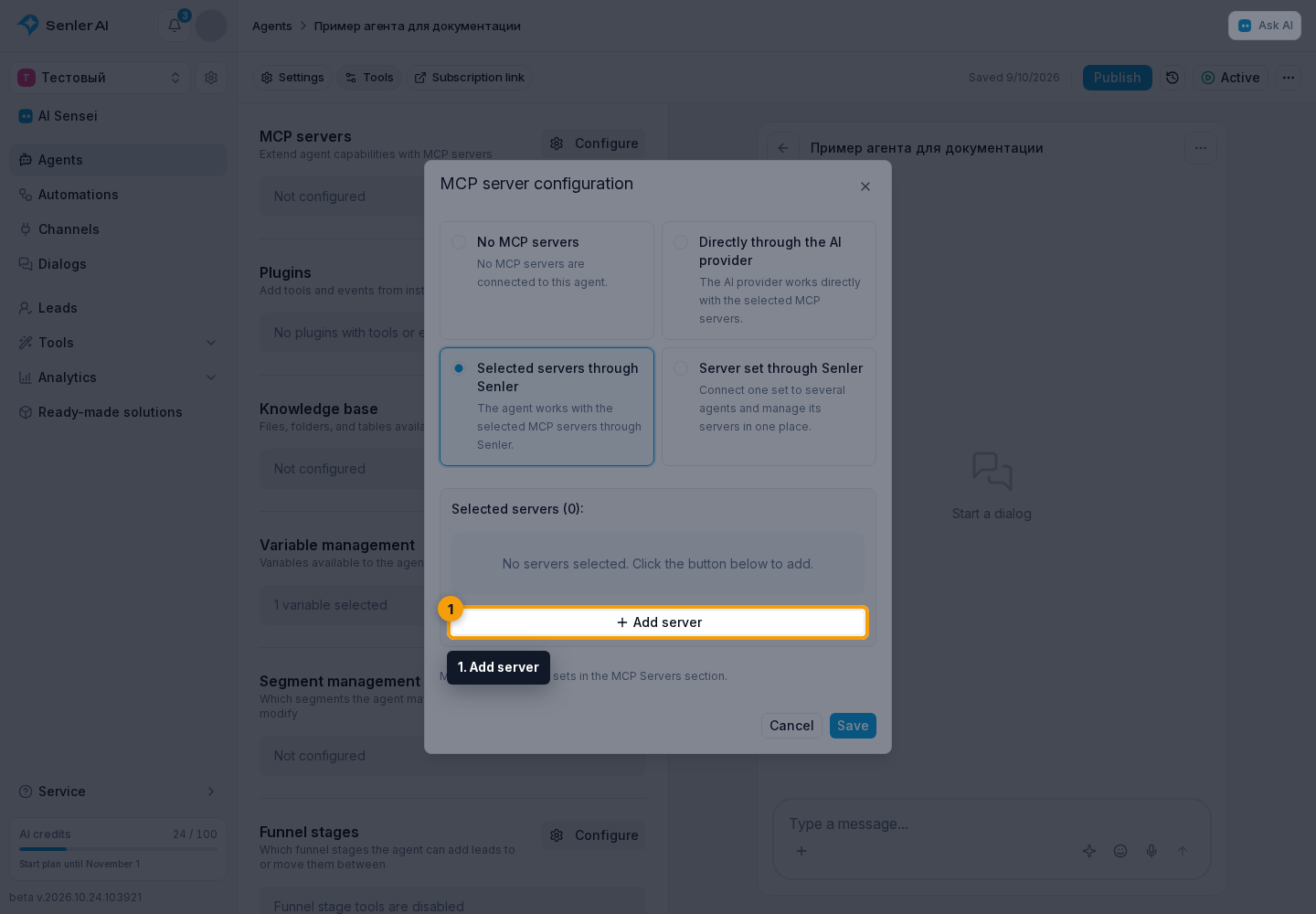
- Use search and select the required servers.
- Select Apply.
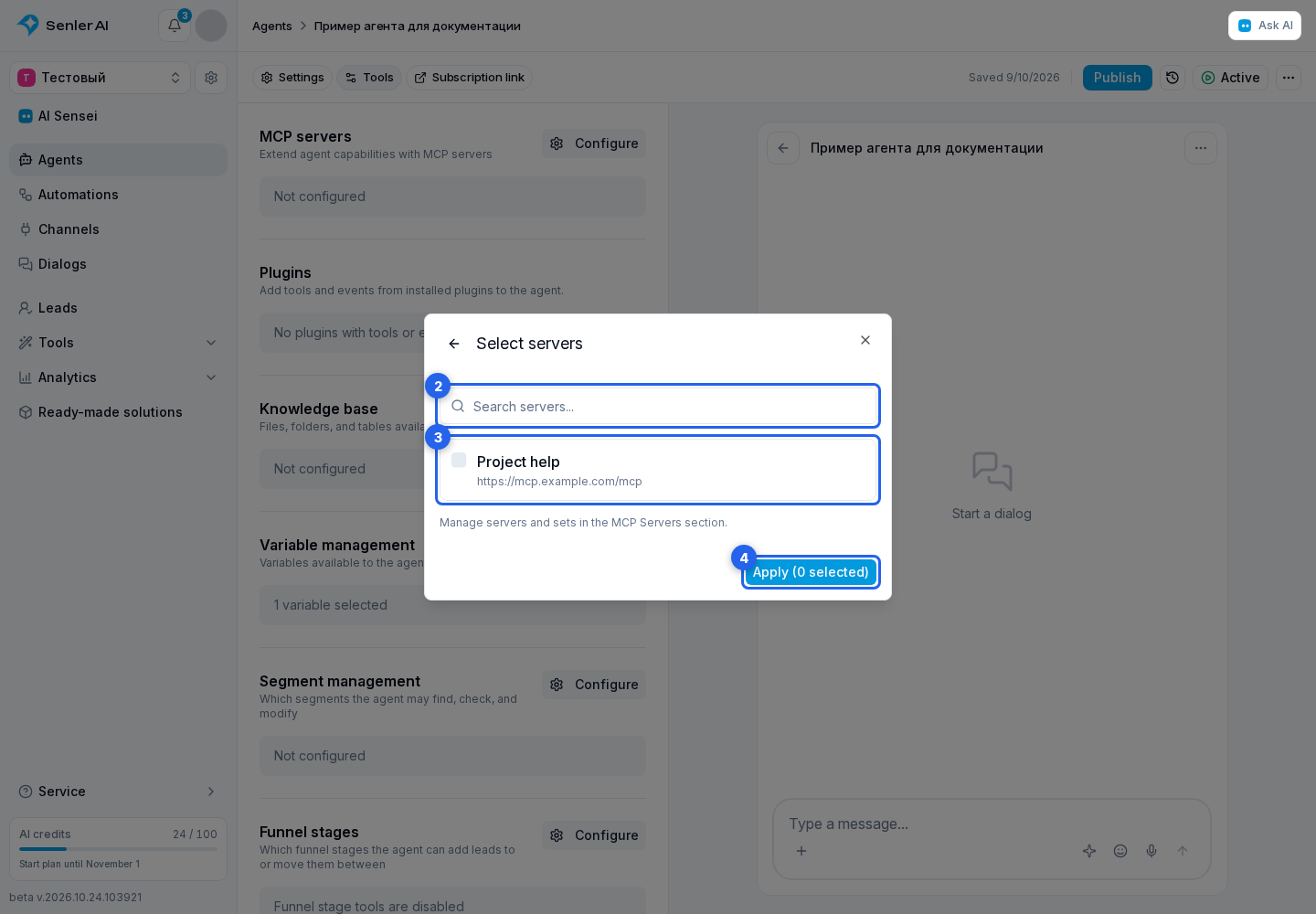
You can remove a selected server from the agent.
You can also select a server or a specific tool through @ in the instructions.
In server set mode, choose an existing set. Next to the field, you can create a set or edit the selected set. Sets are also available in MCP server settings.
Confirm with Save, save the agent draft, test the tool, and publish a new version. Changes to the mode, selected servers, or selected set reach live dialogs after the agent is published.
Editing the contents of a connected set updates every agent that uses that set. Those agents do not need to be published again.
Reference a tool in the instructions
- Open the agent instructions and select
@. - In the reference catalog, choose MCP servers, then the server you need.
- Select a specific tool or Reference to server when the rule concerns the server as a whole.
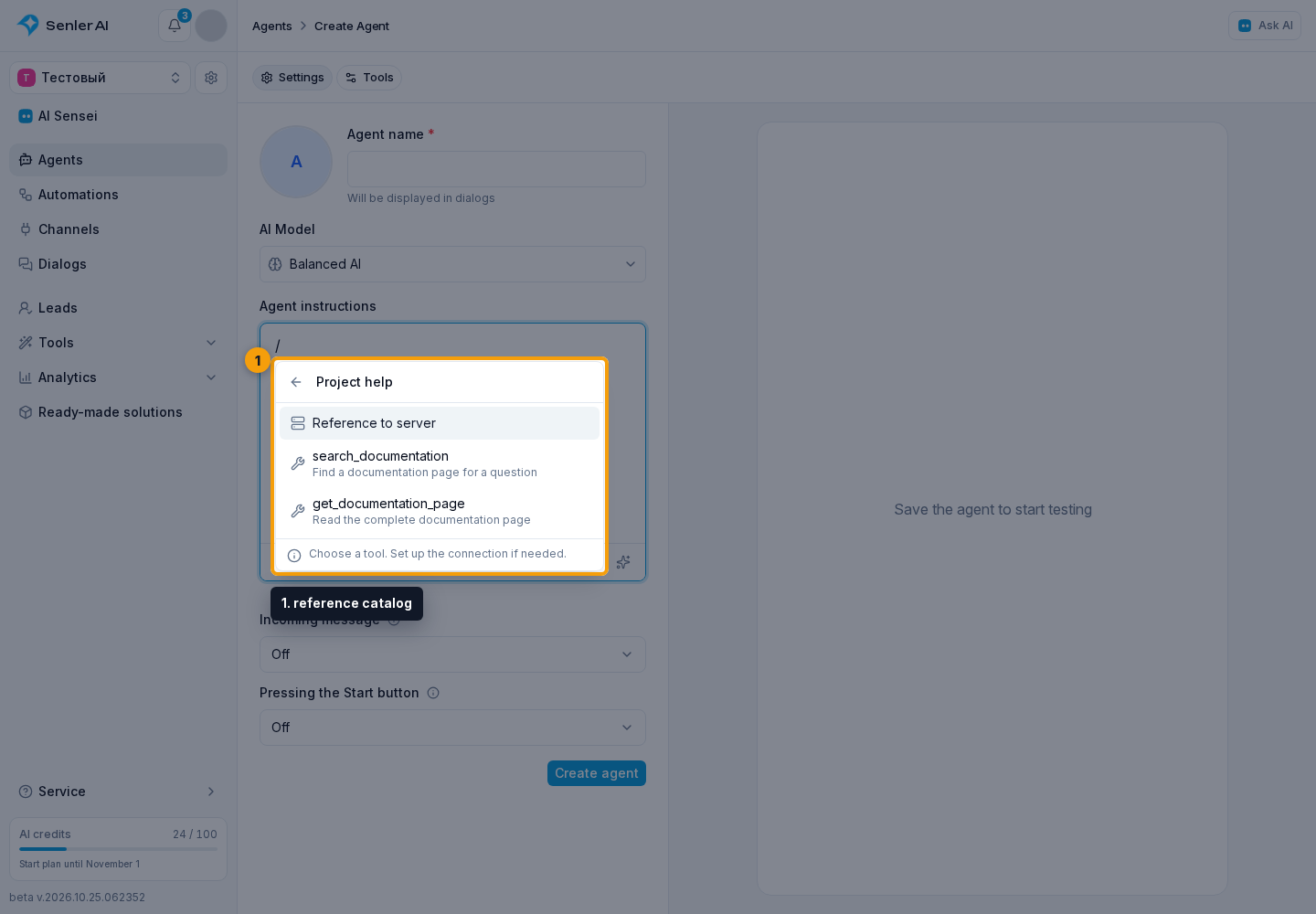
If the server is not connected to the agent, MCP settings open. Choose a compatible mode and server, then save: the reference appears in the instructions. Opening the catalog does not execute tools.
Describe the task next to the tag: for example, "Before answering about an order, check its status using", then select the order-status tool. The tag identifies the tool; it neither runs it nor restricts the connection to that tool alone.
A custom server with Per-lead authorization exposes its tool list in an authorized lead's context, not in the agent editor. Insert Reference to server and test it in a dialog after authorization. A ready-made connection may provide a public tool list without visitor authorization.
If the server is disabled, disconnected from the agent, or the tool is no longer available, the tag shows the reason. Fix the connection or select a current tool, then test and publish the agent.
If servers or sets do not load
In the MCP dialog, an error refers to specific data: the connection catalog, the selected set, or an individual selected server. Click Retry next to the message to reload that data. A catalog error does not remove already selected connections.
Save is unavailable while the selected set is loading or when the selected set or a selected server has a loading error. Retry loading; you can remove an unneeded server that has an error. A catalog error alone does not block saving a successfully loaded selection.
If the tool is not used
- check whether the MCP server is selected in the agent settings;
- for provider-direct mode, check that the server address is publicly reachable over HTTPS;
- if a set is connected, check its current contents;
- check whether the selected model supports the current MCP mode; otherwise confirm the proposed mode change or choose another model;
- check if a new version of the agent has been published;
- check if the agent is active;
- check MCP authorization and access permissions;
- check “History” for tool start, completion, and error events.