
Cover block
Purpose
The Cover is the large first section of a landing. Use it to name the offer, explain its main value, and give the visitor a primary action.
A new standalone landing starts with one Cover. You can move it, although the first screen is usually kept at the top of the page.
Appearance on the landing
In the Cover preview, the title and text appear over a darkened background. A configured button appears below the text.

On the published page:
- the title uses the largest text style;
- the description supports formatting and links;
- the uploaded image fills the block width and keeps its proportions without cropping;
- the button performs its configured action: subscribing to a segment or opening a page.
If the text and button need more height than the image, the block grows to fit them. The entire image remains visible, so solid-color space may appear above and below it.
Settings
Hover over the Cover and select the Cover edit icon. The Cover settings panel opens.

The following fields are available:
- Title — the main text on the first screen. Variables can be inserted into it.
- Text — an explanation below the title. This is a formatted field with paragraphs, lists, links, and other editor elements.
- Desktop image — the background for screens wider than 760 pixels.

- Mobile image — the background for screens up to 760 pixels wide. If only one version is uploaded, the available file is used on every device.
- Background overlay — the dark layer opacity over the image from 0 to 100%. The default is 40%.
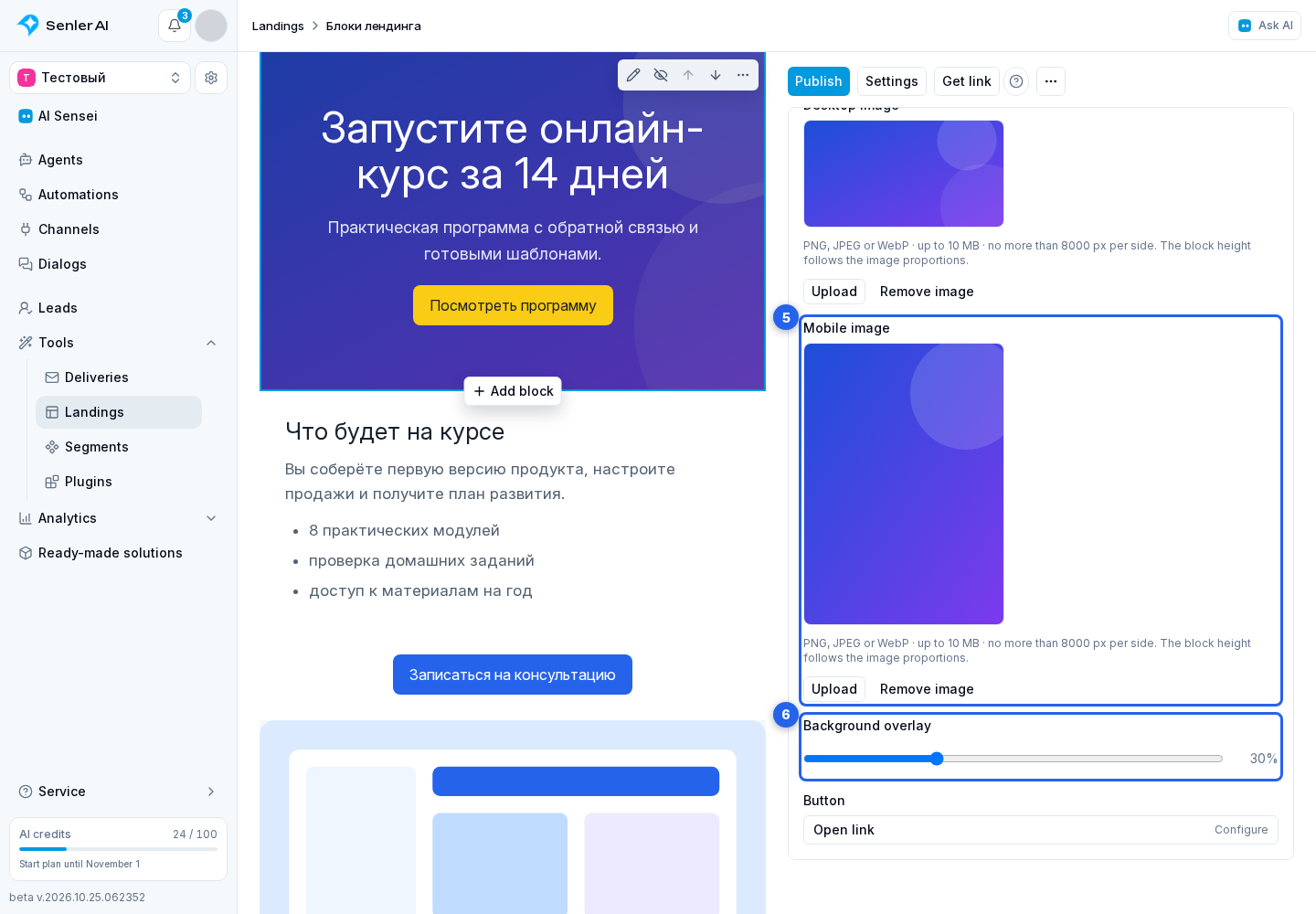
- Button — opens a separate action dialog. Keep No button, subscribe the visitor to a segment, or open a URL.
Actions, subscription channels, and contact collection are covered in Button and subscription.
Empty fields and limits
When the title is empty, the Cover uses the landing name. Empty text and an unconfigured optional button are simply omitted. Without an image, the dark solid background remains, so the Cover is still visible.
The general limits apply to each background image: PNG, JPEG, or WebP, up to 10 MB and no more than 8,000 pixels on either side.