
Automations
An automation performs a sequence of steps that you prepare in advance. You specify which event starts the workflow, what to check, and which actions to perform next.
For example, a lead sends “price” → the automation checks the lead's data → sends the appropriate reply → adds the lead to a segment → continues after a specified wait. Each execution appears in the interface as a separate run.
Open a project and select Automations in the side menu. The project automation list opens.
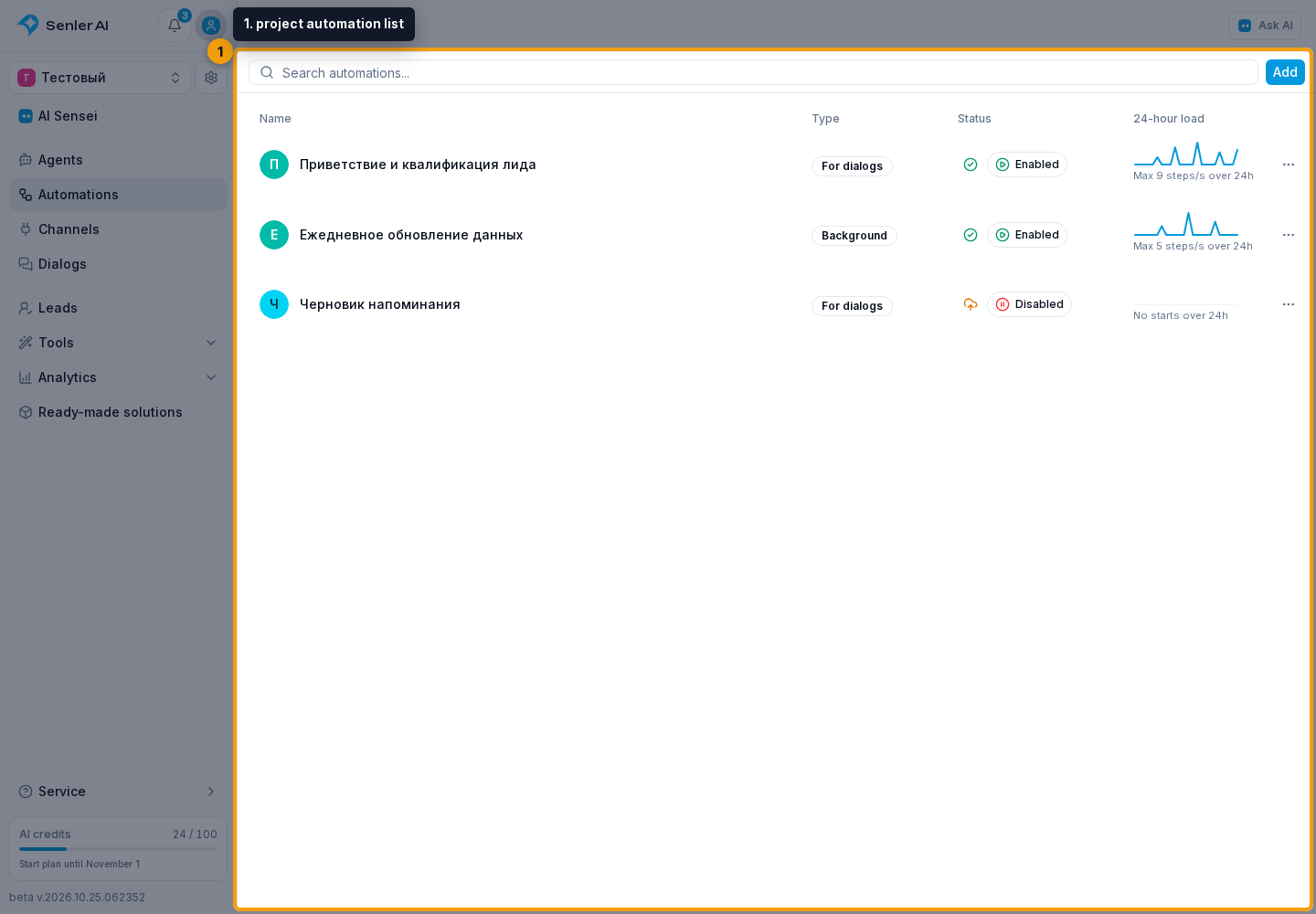
Configure Your First Automation
Use the sections in this order:
- Create an automation and choose its type: dialogs and leads, or background.
- Build the workflow in the editor: add steps and connect them.
- Open Automation Steps, choose the required triggers, conditions, actions, and control steps, and configure their fields.
- Perform a test run.
- Publish the tested draft.
- Monitor runs, their steps, and errors.
- To assess speed and tariff delays, open the automation load chart.
The name, description, icon, and sender name are changed in automation settings.
What Draft, Version, And Run Mean
- A draft is the workflow you are currently editing. Saved changes do not yet affect regular starts.
- A published version is the ready workflow that Senler AI uses to start new runs.
- A run is one execution of the published workflow for a specific event. Several runs can proceed at the same time and be on different steps.
After another publication, new runs use the new version. If changes affect steps that may contain already-started runs, the editor asks where those runs should continue. This is covered in Publication.
Two Automation Types
Choose For dialogs when the automation should react to messages or work with the current lead. This type offers keyword and entered-segment triggers as well as segment actions.
Choose Background when the workflow should be started manually and is not tied to a specific lead or dialog. Actions that require a current lead are unavailable, but you can still specify a message recipient explicitly.
The type is selected during creation and cannot be changed in the edit form.