
Move Channel
Summary
Channel transfer moves the channel to another project. All leads are always transferred, while you choose the history depth before starting.
Use transfer when a channel must be managed in another project: for example, after splitting teams, moving a client, or changing account structure.
Steps
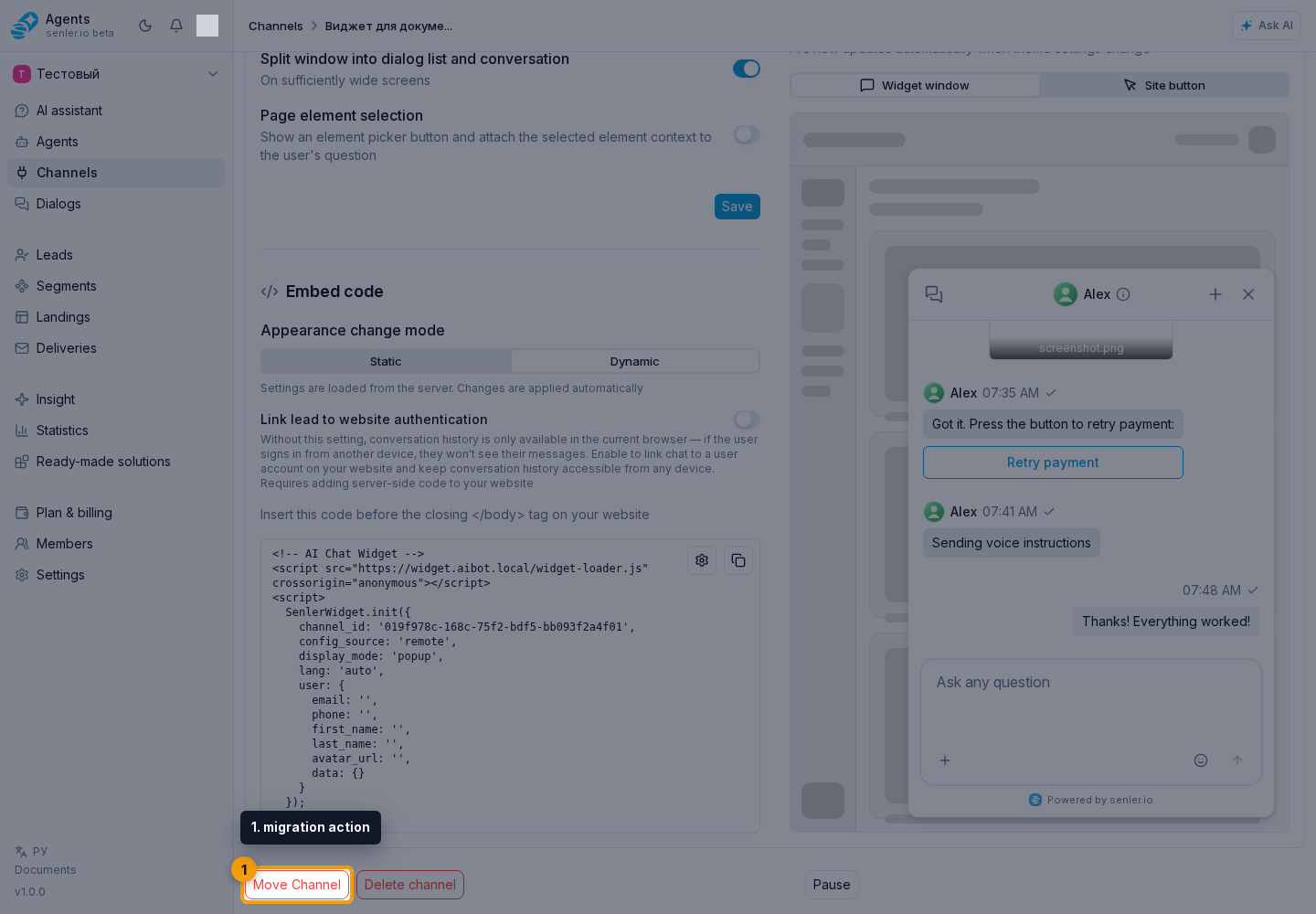
- Open Channels in the side menu, select a channel from the list, then in its settings click Move Channel.
- In the transfer wizard, find a project through search and choose the target project. The current project is not shown in the list. Starting the transfer requires permission to delete the channel in the source project and manage channels in the target project.
- Wait for the estimate of leads, dialogs, events, and approximate transfer time.
- Choose the amount of history to transfer.
- Click Next and check the channel, target project, and estimate again.
- Click Start Migration. The channel is unavailable for messages during the transfer, and the wizard does not provide a way to cancel it.
History options
- do not transfer;
- within 1 month;
- within 6 months;
- for 1 year;
- within 2 years;
- the whole history.
Transfer status
The transfer status is visible in the source and target channel settings. While the operation is active, the cabinet shows waiting, preparation, or transfer; after processing starts, it also shows the percentage and processed item count. On an error, it reports that the system will retry.
In the channel list, a migration badge may appear next to the channel. For the source channel it shows that the channel is being migrated; for the target channel it shows that the channel is waiting for data or receiving the transfer. On the settings page, a migration banner appears instead of the normal interface.
While transfer is running, the normal channel settings are replaced by the transfer status and messaging is unavailable. If the channel is needed sooner, use fast finish on the target channel.
Finish Now
The "Finish now" action makes the channel available in the target project sooner and transfers the remaining history in a separate backfill. This is useful when continuing work with the channel quickly is more important than waiting for the full transfer of old dialogs.
The Finish now button is available only on the target channel and only while migration is active. After clicking it, the cabinet shows that migration will finish after the current step completes safely. Until then, the channel may remain temporarily unavailable.
Backfill remaining history
The target channel settings show a history backfill block if you selected a limited history depth or finished the transfer early. It lets you transfer older or remaining data. If all history was transferred without fast finish, no backfill is needed.
The block is collapsed initially: click Show to see the number of leads, dialogs, and events to check or backfill, the approximate time, and how long the source remains available.
If the estimate is available, click Backfill history. After the start, the banner changes to "History backfill is running": the new channel keeps working, and old history appears as the background operation completes.
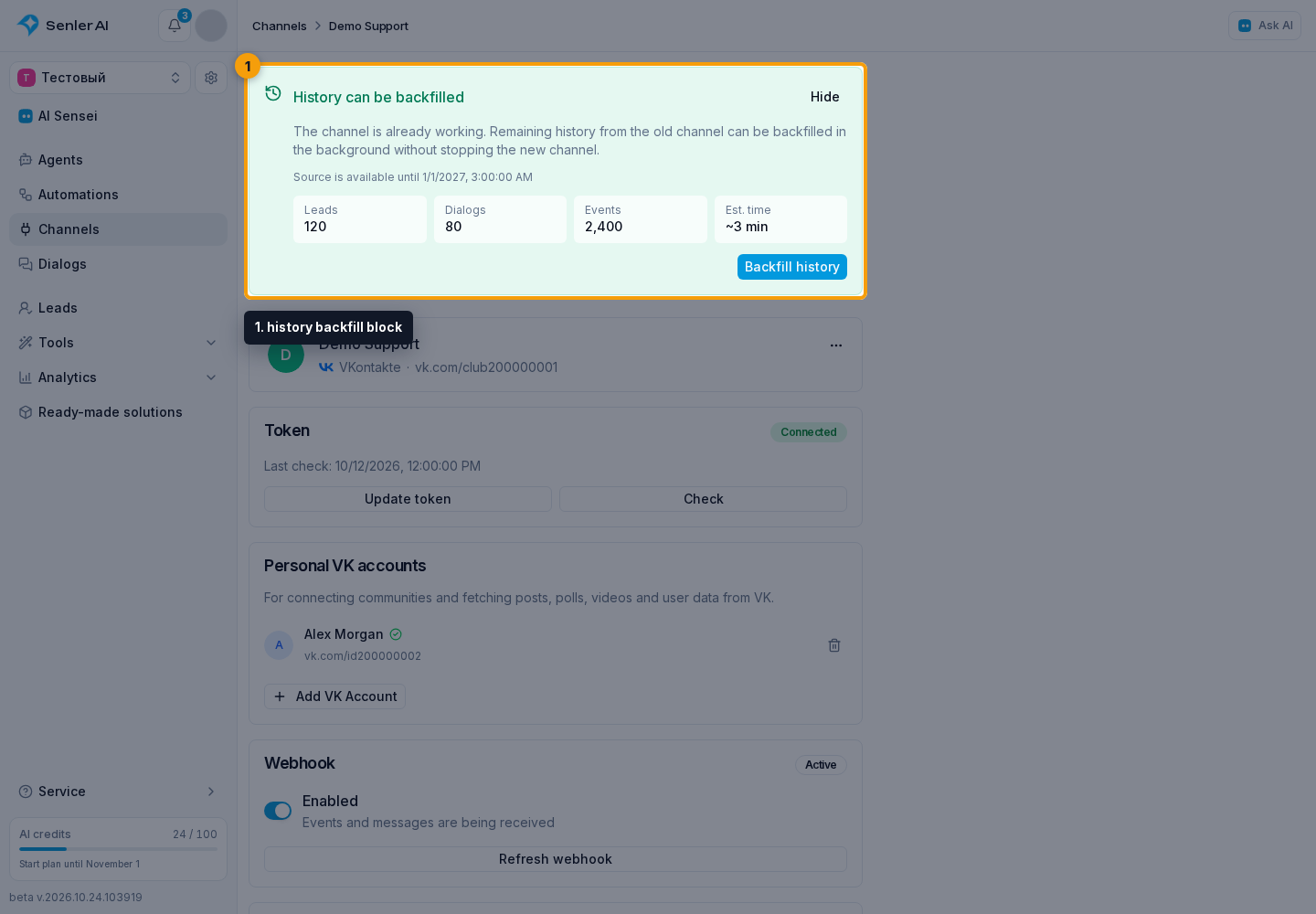
You can track the backfill in project background processes. Start it before the date shown in the block, while the source data remains available.
What to configure after transfer
The connection token is transferred with the channel. For Telegram, VK, and MAX, the system registers the webhook again automatically. For other channel types, check the connection state in the target channel settings.
Links to entities in the source project are not transferred. Assign the required channel agents and applications again. Migrated dialogs also have their assigned agents and operator, applications, tags, priority, and deferred reply state reset because those settings belong to the source project.
Warning
- migration may take time;
- the channel is unavailable for messages during transfer;
- fast finish may leave part of the old history for backfill;
After completion, check the connection, configure the required links again, and make sure the selected history is available in the target project.