
Automation Publication
Work on the draft in the editor and test it before publication.
Validate The Workflow
Open the editor's validation indicator and click Check diagram. This checks the draft without starting a run or publishing it. The test-run and publication actions also validate the current draft first.
The indicator distinguishes a workflow that has not been checked, a successful check, and a check made stale by later changes. An empty issue list alone does not mean validation has run. Changes to steps, connections, or channel types require another check; simply moving steps does not invalidate the result.
The list separates workflow errors and warnings from production run errors. Select a workflow issue to go to the related step. If another editor changes the workflow during validation, check it again.
Open runs requiring attention leads to runs with unresolved errors. There you can retry a failed step or mark an error as resolved. An error in an earlier run does not replace validation of the current draft.
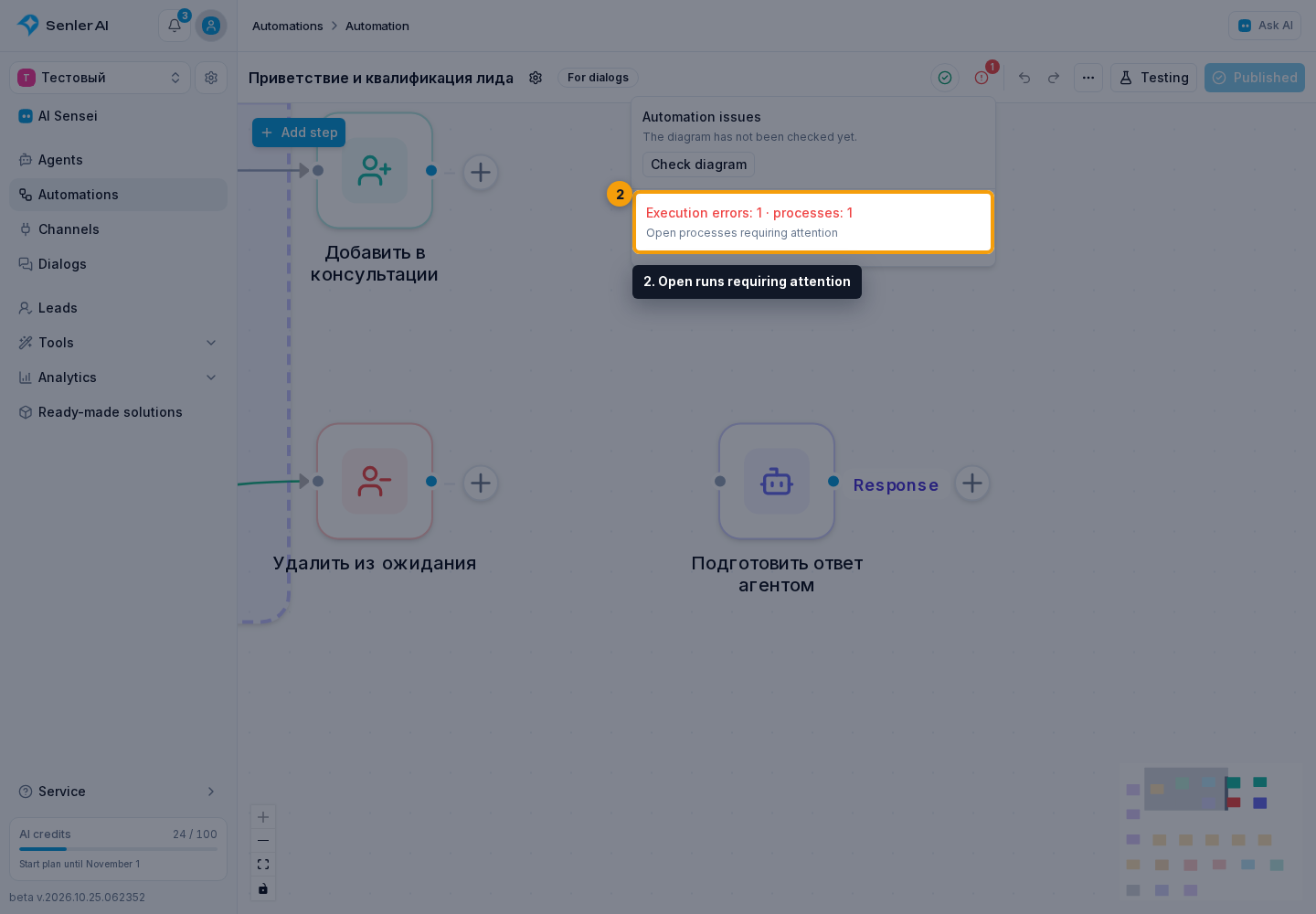
Blocking problems include:
- no trigger;
- a trigger or action that is not supported by the automation type;
- missing required fields;
- a condition without Yes and No branches;
- a loop without Loop and Done branches or without a return path;
- a regular unlimited cycle;
- a reference to a missing segment, channel, persistent variable, or recipient from another project.
Warnings do not block execution. These include a trigger with no continuation, an unreachable step, an empty keyword list, or no segment selected in a trigger.
For a blocking problem, the Workflow is not ready dialog opens. Select an issue linked to a step to open that step, fix it, and repeat the action. Close closes the list without fixing it.
Publish A Version
Select Publish. After successful validation, a new immutable version is created. Regular new runs start using it, while the draft remains the workspace for later changes.

Publication requires permission to manage automations. It also allows starting automations and managing their runs. The button is also unavailable while the workflow has no steps.
Map Changed Steps
If you removed a step or changed its type after the previous publication, the active-run migration dialog appears. It prevents already-started runs from stopping on a step that no longer exists. For each old step, choose a safe step in the new version from which the run can continue.
A mapping is required for every removed or incompatible step from the previous version, even if no run with that step is currently visible. Select Publish and migrate after every row is filled in. Cancel stops publication and preserves the draft.
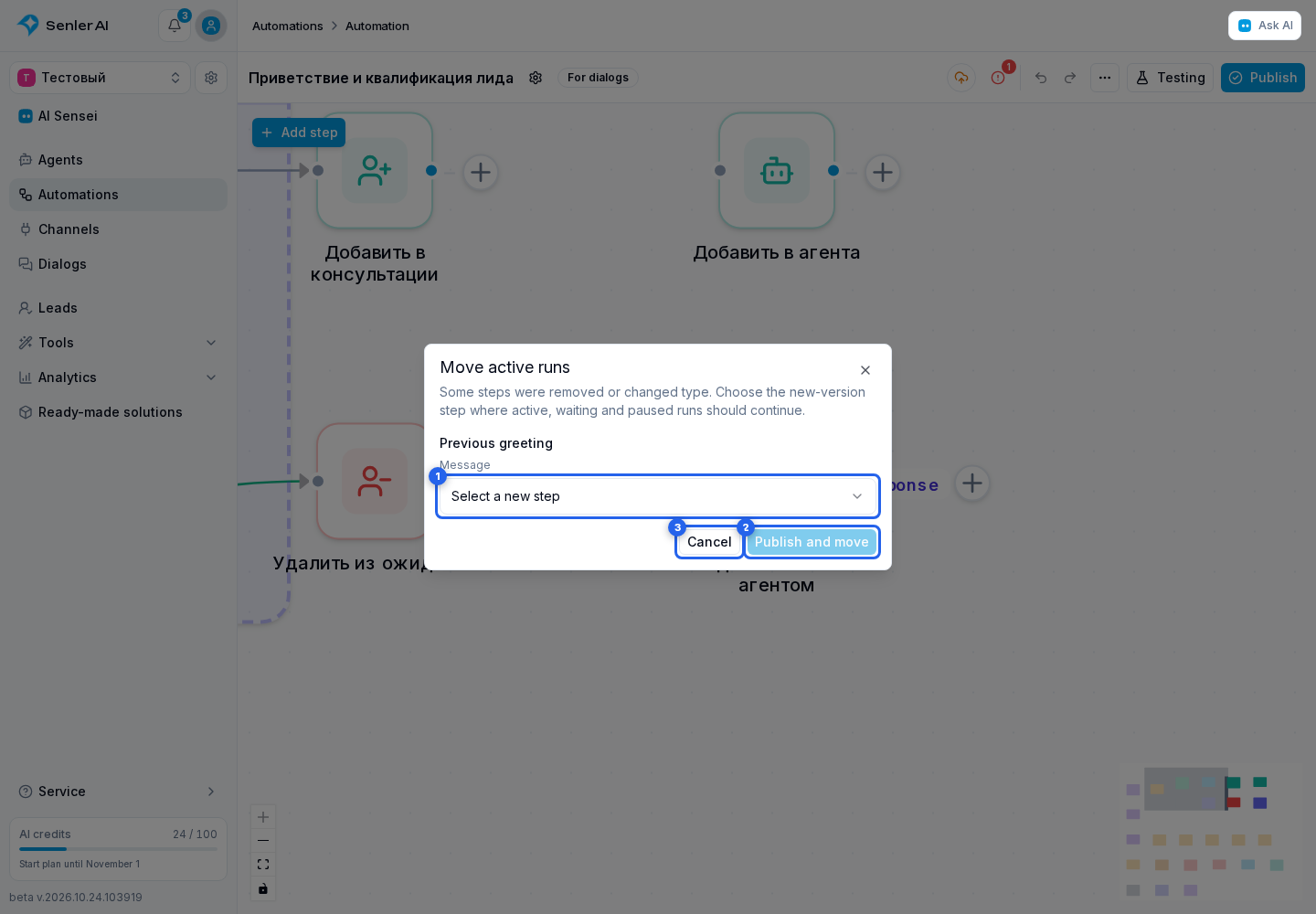
Do not map steps only because their names look similar. The new step must be a logically safe continuation for a run that has already started.