
Member roles and access
Member settings define both the person's role and the channels they can work with. These restrictions are useful when several teams share one project.
Opening member settings
Select the Settings gear button to the right of the project name and choose Members. On the team page, open the Members tab and select the required person's row. You can also open the three-dot menu in their row and select Edit.
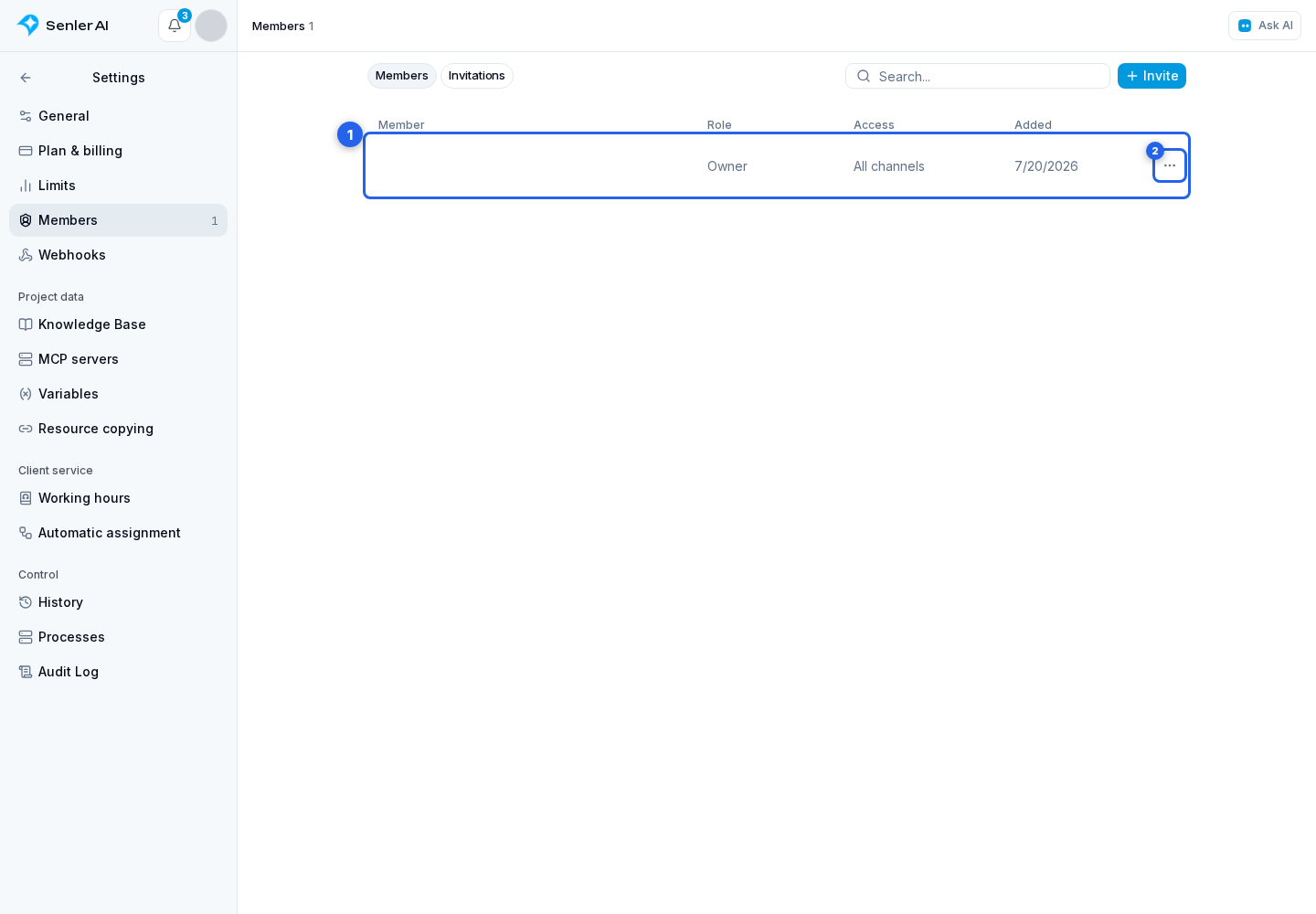
This opens the member editing form with their name, ID, and current status.
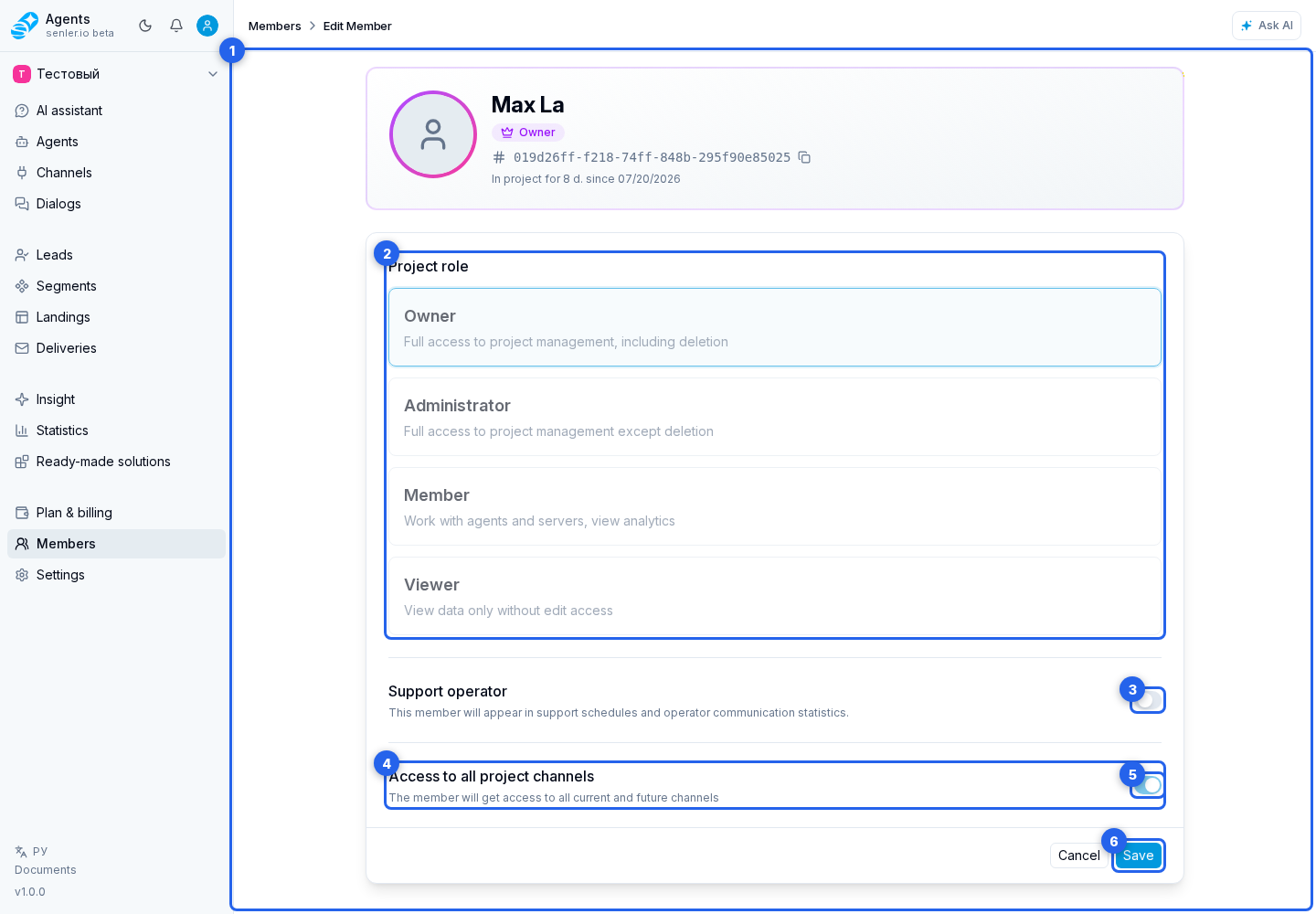
Changing settings
- Select the project role that matches the person's responsibilities.
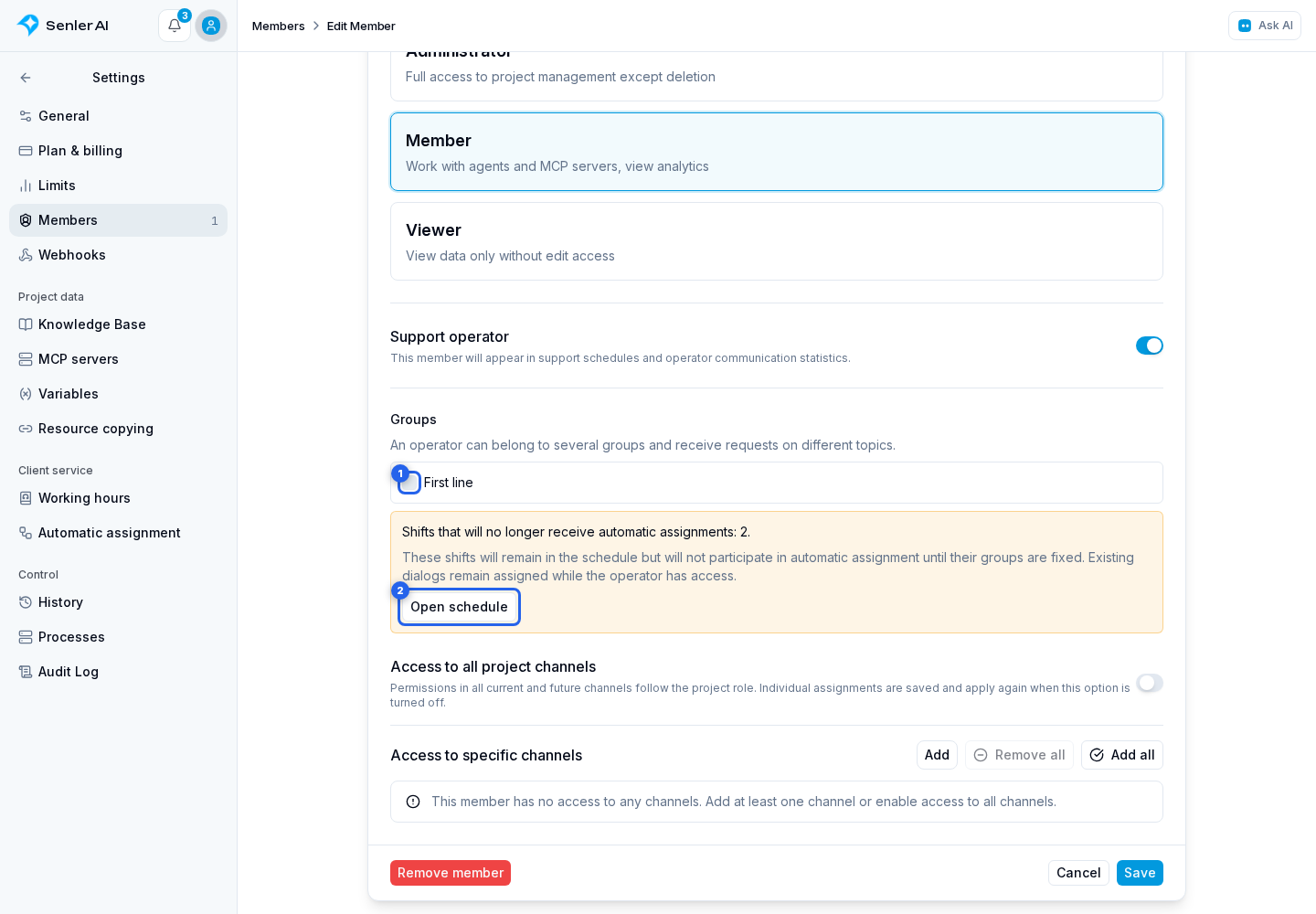
- When needed, enable the support operator flag and select their groups. Create groups in automatic operator assignment. You can select several groups. The schedule allows requests from all memberships or only the groups selected for a particular shift.
- In Channel restrictions, keep access to all current and future channels, or disable the switch and configure individual channels.
- Review the changes and select Save.
If removing memberships leaves current or future shifts with manually selected groups without any available groups, the form shows a warning and an Open schedule button. You can still save the changes. Correct those shift restrictions to resume automatic assignment.
When you have view permission only, the form opens without save and remove actions. In this case, changes must be made by the owner or an administrator with access-management permission.
Project role and channel access
The project role applies a prepared permission set, from full management for the owner to view-only access for a viewer. When you change the role and save the form, permissions for project sections and actions are updated automatically. This form has no separate switches for agents, deliveries, automations, or other resources.
Channel restrictions answer a different question: which particular channels, dialogs, leads, and related settings the person can access.
With access to all channels, permissions within them follow the project role. With access to selected channels, each channel uses its assigned role. For example, a project viewer can be allowed to manage dialogs and leads in one channel while retaining view-only access in another. A channel role does not grant permission to change general project settings, manage members, or delete channels without the corresponding project permission.
If an operator loses permission to manage a channel's dialogs, the system removes their assignments from that channel's open and snoozed dialogs. The dialog group and snooze time are preserved; further assignment follows the automatic operator assignment settings. Assignment history in closed dialogs is preserved.
Funnel access
In funnels, a member's role determines the available actions:
- Viewing funnels and counts requires analytics view permission.
- Creating, configuring and deleting funnels, stages, sources and marker catalogs requires analytics management permission.
- Opening leads and transition history requires lead view permission; the list is limited to channels accessible to the member.
- Opening details for application sources requires lead view permission and access to all project channels. Saving matches from this report also requires analytics management permission.
- Moving leads and changing their markers requires lead management permission for the accessible channels. Analytics management is not required for these actions; it is needed to change the funnel itself.
These capabilities are included in the selected role's permissions. To change a member's access, select an appropriate role in their settings.
All or selected channels
Access to all project channels also applies to channels created later. Saved roles for individual channels do not apply in this mode; they take effect again when the switch is disabled.
When the switch is disabled, the cabinet shows the saved list of individual channels. Add channels explicitly and select a role for each. Selecting every current channel keeps a fixed list: new channels are not added automatically. Removing the last channel leaves the list empty and does not enable access to all channels.
Do not leave the list empty: a member without access to at least one channel cannot see related dialogs, leads, or settings. The cabinet shows a warning before saving.
Support operator
Enable this flag when the person should be added to the support schedule and their replies should be included in operator communication statistics.
The flag cannot be disabled while the member has a current or future assignment. For the same reason, that member cannot be removed from the project. First open Support settings, remove future assignments from the schedule calendar, or move them to another operator.
Past assignments do not prevent disabling the flag. Replies sent while the person was an operator remain in statistics for past periods.
Removing a member
The Remove member button completely revokes the person's access to all project resources.
You cannot remove the project owner, yourself through this form, or an operator with current or future assignments. Before confirming, check who should take over the member's active tasks, dialogs, and shifts.