
Automation Runs
Open The Runs Dialog
- On the Automations page, select the three dots in the required automation row.

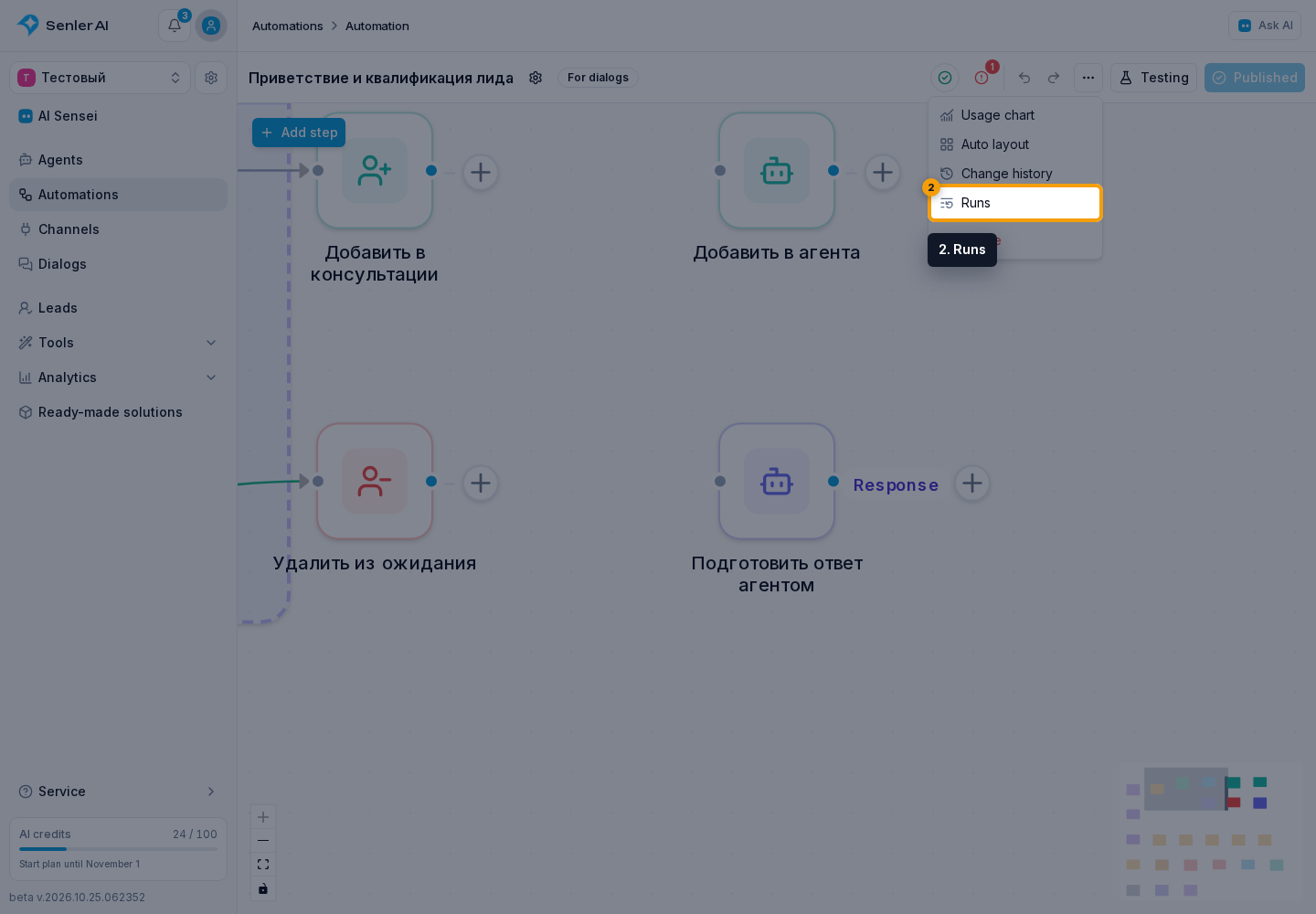
- Select Runs in the menu.

In the Runs dialog:
- The left side contains the selected automation's runs, grouped by day.
- Each run shows the dialog and its channel, start time, status, and short run number. If the run has no dialog, Without dialog appears instead of a name. Test runs have a Test label.
- The add filter button helps find the required run.
The first run is selected automatically. Select another row to review a different run. If the automation has not run yet, the list is replaced by the No runs yet message. New runs and status changes appear automatically while the dialog is open.

Filter The List
The filter block can combine several conditions:
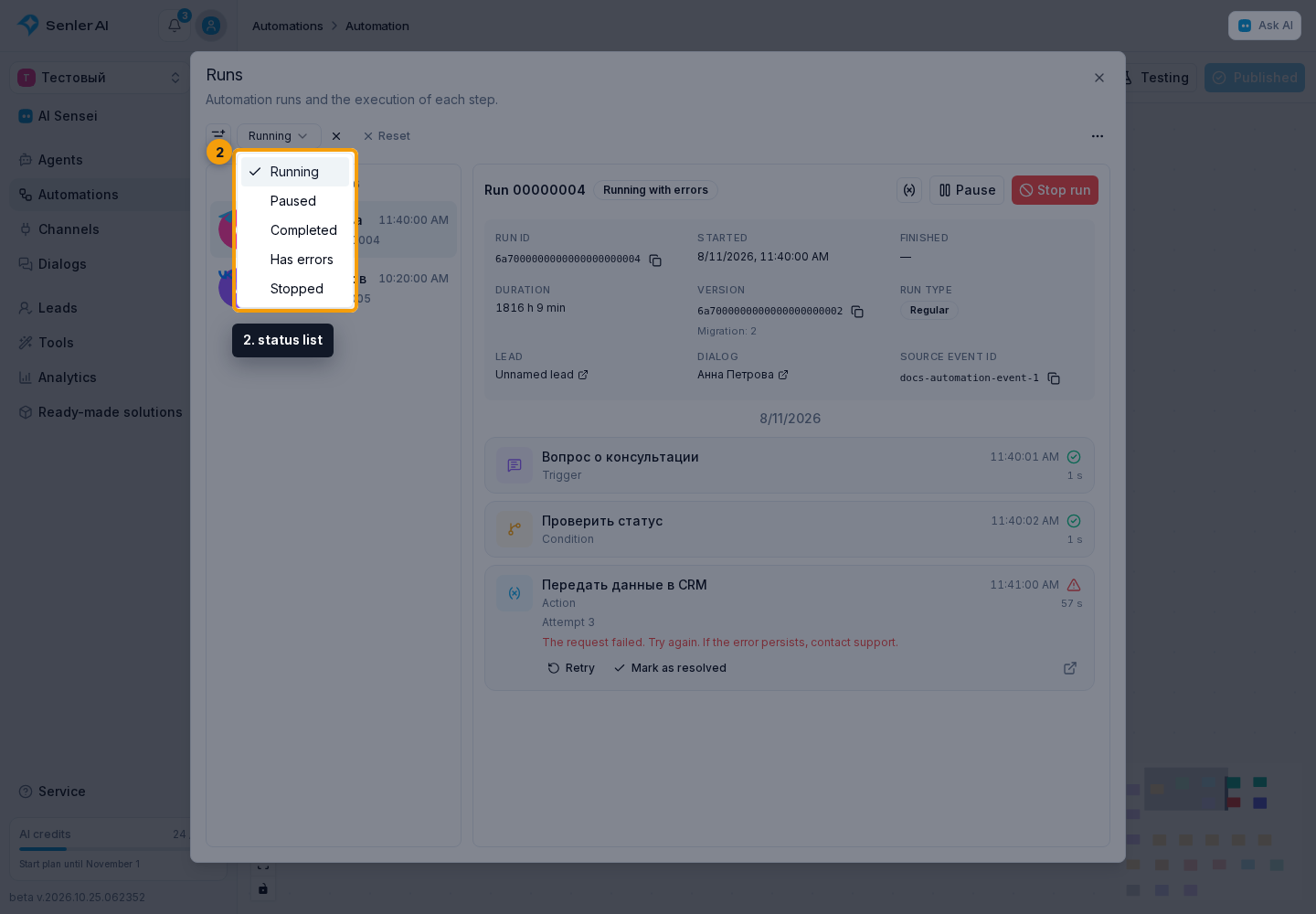
- status: Running, Paused, Completed, Has errors, or Stopped;
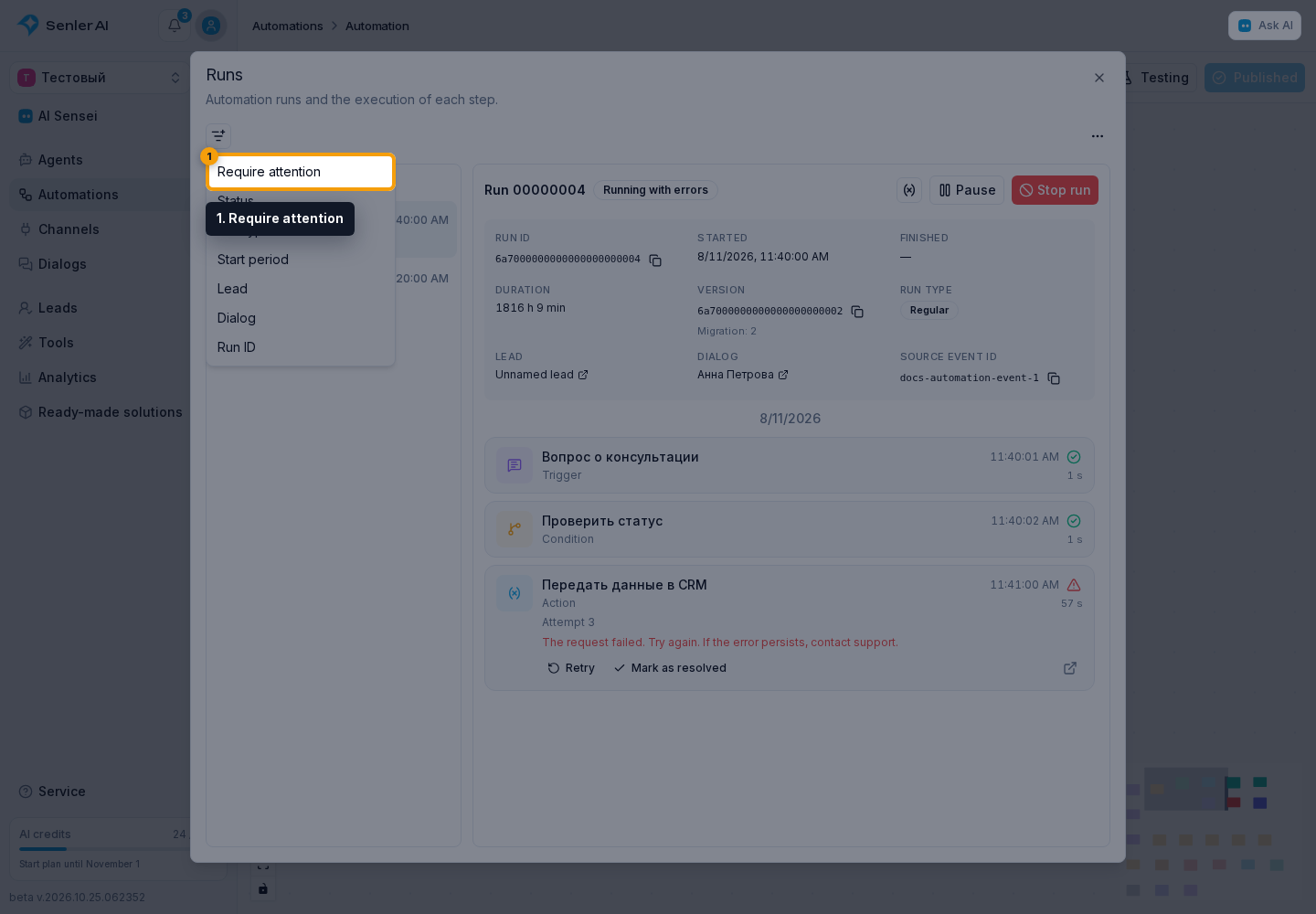
- Require attention: runs with unresolved errors. These are production runs by default; to check test runs, also select that run type;
- run type: Regular or Test;
- start period;
- a lead: use search and select the required row;
- a dialog: use search and select the required row;
- a full run ID. Paste all 24 characters into the ID field: the run loads directly even if it is not among the latest runs.
The cross next to a filter removes only that condition. Reset clears all conditions.
After adding the Status filter, click it and choose a value from the status list.
To find unresolved errors, select Require attention from the add-filter menu.
Review A Run And Its Steps
If the automation editor is already open, select More actions, then select Runs. This opens the same dialog.
The selected run header shows its short number and current status. The summary may also contain the full ID with a copy button, start and finish times, duration, current and original workflow versions, migration count, run type, links to the lead and dialog, and the source event ID. Only data available for that run is shown.
The variable icon opens this run's current variables, showing each {{run.name}} template and its stored value. Internal execution data is not included in this list.
The timeline below groups completed and current steps by day. A step shows its name, time, state, and execution duration when available. Repeated attempts show their number. Even if a step is later deleted from the automation, its name normally remains in the history. If the name is unavailable, the step's number appears instead.
The same timeline shows which button the user clicked, which branch was selected, and where the run continued. Conditions show whether they were met; replies show which response continued execution. A branch without a next step is also visible in the history.
While a run is active or paused, new steps appear at the bottom of the list. If you scroll up, the list stays at the selected position and does not interrupt your reading. After the run finishes, the most recent events appear first.
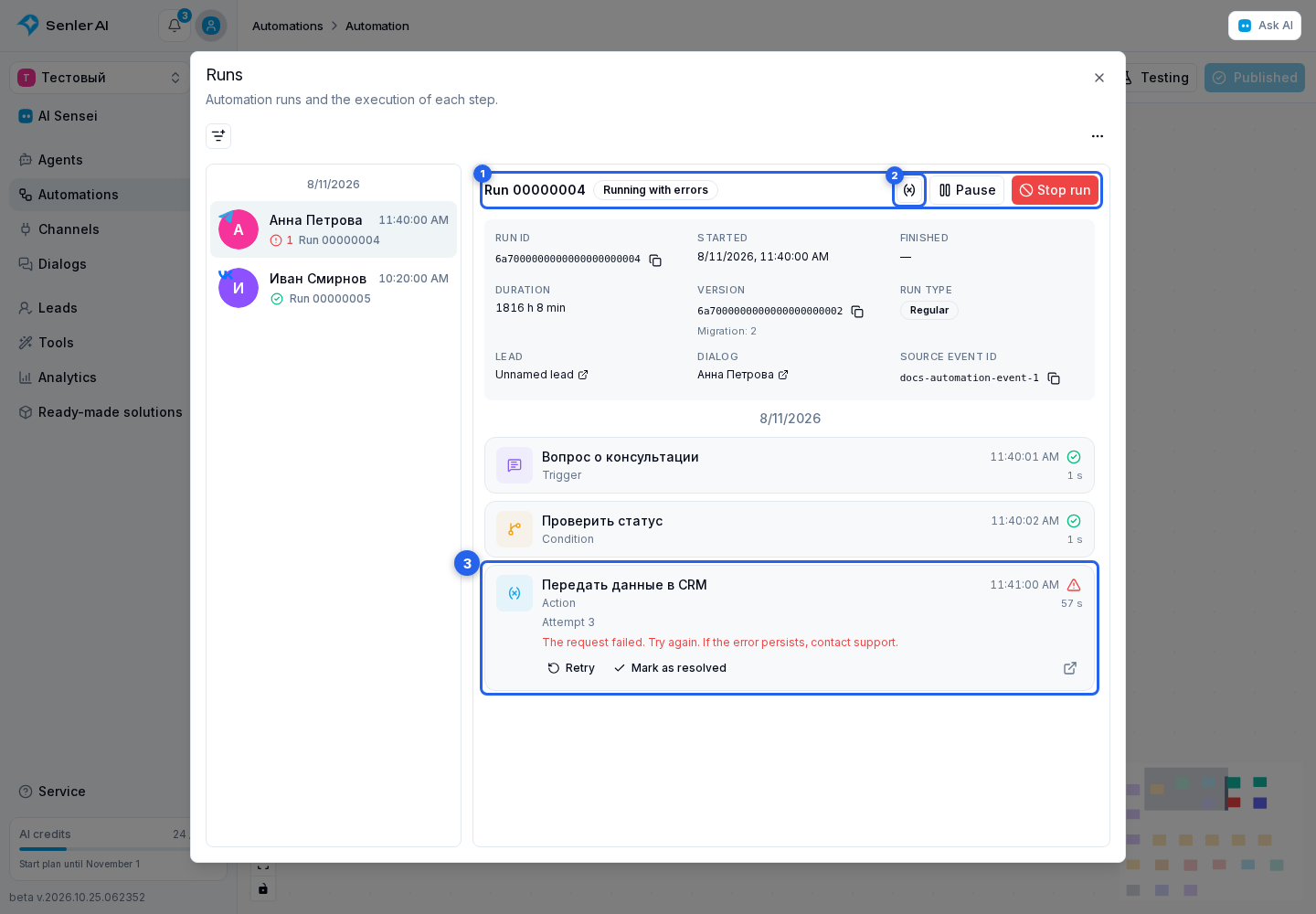
If a step failed, review the error. You can pause or stop execution; for multiple runs, use bulk actions.
Understand The Statuses
Run Statuses
- Running means the run is still executing steps;
- Paused means continuation is paused;
- Completed means the run has no unfinished tasks;
- Running with errors, Paused with errors, or Completed with errors show both the run state and failed steps;
- Stopped means the run was stopped permanently.
Completed does not mean that every workflow branch ran or that the expected test outcome was achieved. For example, a run may finish after a greeting, and a permitted click on its button can later continue the corresponding branch. When testing a scenario, compare the executed steps and their results with what you intended to verify.
Has errors and Require attention serve different purposes: the first finds runs with execution errors; the second finds runs with errors that have not been resolved yet. The Error closed label preserves the failed attempt's history.
Step Statuses
- Queued means the step has not started yet;
- Running means the step is executing now;
- Waiting means continuation is waiting for a timer, button, or reply. A sent message may already show a completed step: waiting for a reply is shown separately;
- Paused means the step was stopped together with the automation;
- Retrying or Step failed, retrying means the current attempt failed but another attempt is already scheduled;
- Completed, Failed, and Stopped are final step outcomes.
Permissions
The permission to view automations is sufficient to open the dialog and review runs. Pausing, resuming, stopping, retrying steps, marking errors as resolved, and bulk actions require permission to manage automations.