
Agent Auto-training
Summary
Auto-training prepares instruction variants from website content and conversations in connected channels. Choose a suitable variant, test its replies, and adapt the instruction to your task.
Auto-training can be selected by service administrators. To configure the instructions yourself, follow the manual setup guide.
Typical scenario
Open Agents in the left menu. In the agent list, click the create agent button.
- Choose auto-training.
- Click Next.
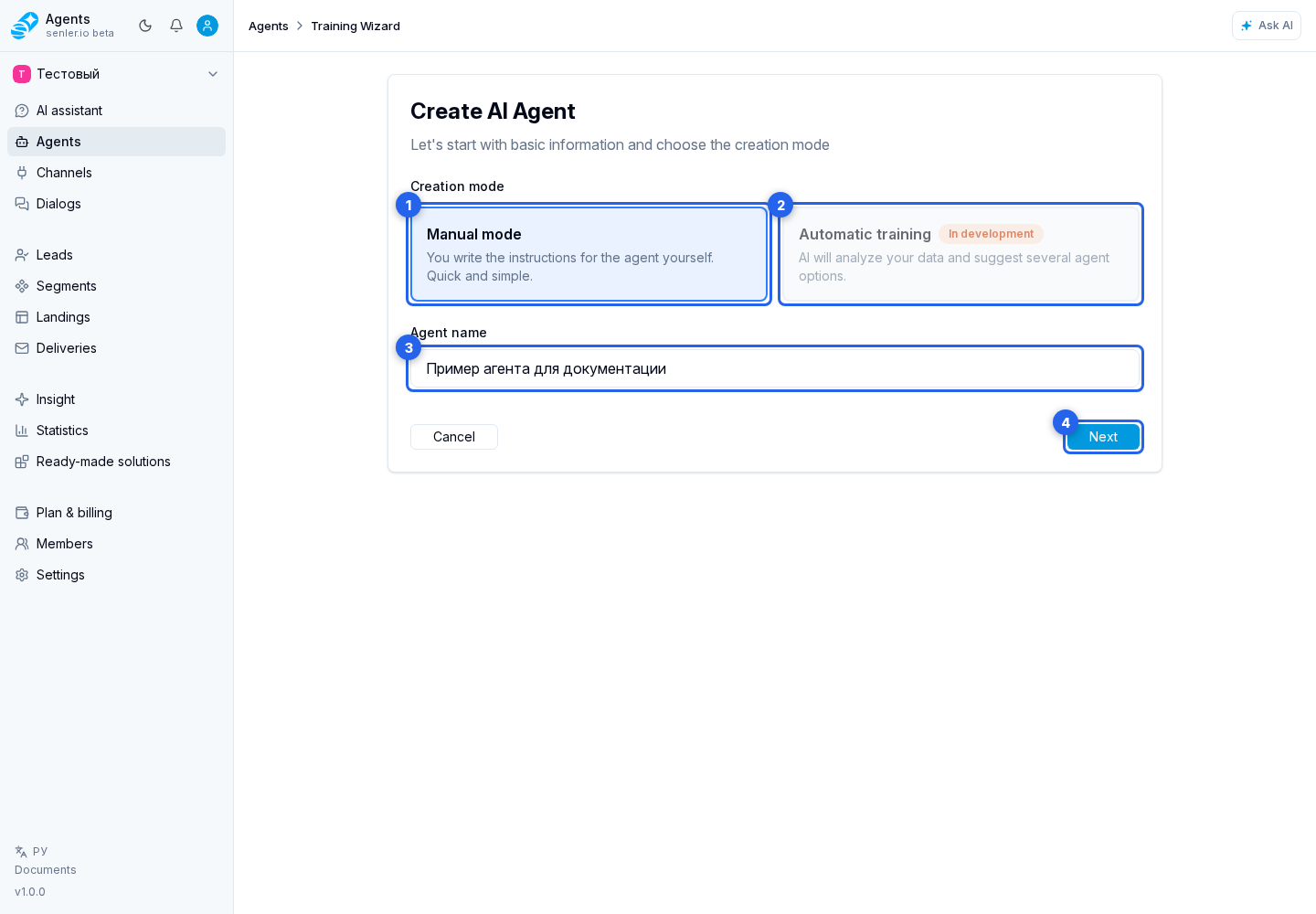
- Choose the websites and connected channels to use, then click Next.
- Configure channel history and training mode. Wait for the current time, volume, and credit estimate, then click Start training.
- Wait for completion and review data, costs, and agent variants.
- Review the selected variant's instructions and replies in testing, then save that variant. It becomes the agent's draft. Review the agent settings and publish the draft before using it with customers.
A current estimate is required before starting: it is recalculated after changing sources, period, or mode. For a paid run, the Senler credit charge does not exceed the confirmed estimate. Requests through your own keys are billed separately by the provider. Data selection and calculation details are in auto-training sources.
During training
- the process may take time;
- the page can be closed, training continues in the background;
- the state can be tracked by stages: parsing, AI analysis, generation of options, completion;
- if history loading is enabled, auto-training first retrieves available channel messages and then generates agent variants;
- for a website, auto-training may first build a page plan, then select important pages or continue with regular site discovery;
- the current URL, number of processed items, and selected pages may be shown in progress;
- training can be stopped with Stop; after stopping, scanning and generation end, and the return to settings button lets you start training again;
- when progress appears delayed, refresh the state; after an error, copy support information.
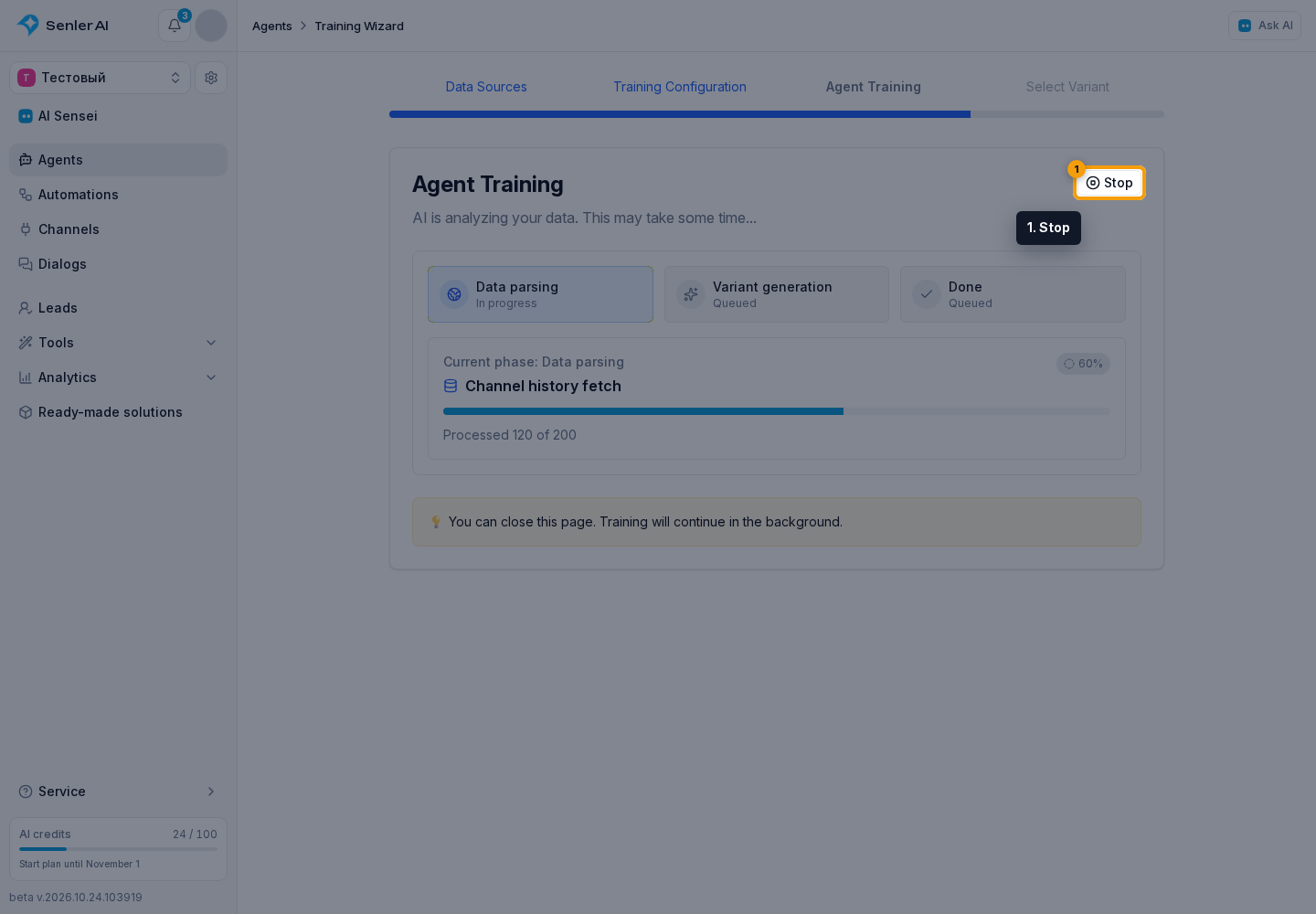
After completion, open the auto-training results: they show the used data, costs, and variants for creating an agent.
Retraining
For an existing agent, auto-training loads the previous run's sources, mode, and history depth. Change at least one setting and select Save and retrain. When the actual previous configuration cannot be loaded, the cabinet shows a warning instead of inventing replacement values. Retraining does not start when nothing changed.
Statuses and stopping
- "In progress" - the task is running;
- "Queued" - the task is waiting to start;
- "Errors" - part of processing failed;
- "Stopped" - the user cancelled active tasks;
- "Training stopped" means the current run will not produce agent variants until the user starts training again.
If no options appear
- check the status of the process;
- check if there is enough data;
- check for errors in the process or history;
- if the error is related to channel history loading, try reducing the period or turning off old history loading;
- if the status is "Stopped", return to settings and start training again;
- try another source or create an agent manually.