Agent Subscription Page
Summary
The subscription page introduces the agent and lets visitors subscribe to conversations with it. Configure it on the Subscription tab of a saved agent, alongside subscription conditions for messages and the Start button. Creating a link does not require keywords.
How to prepare the link
- Open an existing agent in the settings form.
- Open Subscription and design the page.
- Publish the agent. The first publication makes the agent, its subscription page, and everything required for subscription active together.
- On the same tab, select a suitable option in the links section and copy the ready URL.
The subscription page belongs to the agent: it opens from the agent form and has no separate publish action. Page changes take effect when the agent is published.
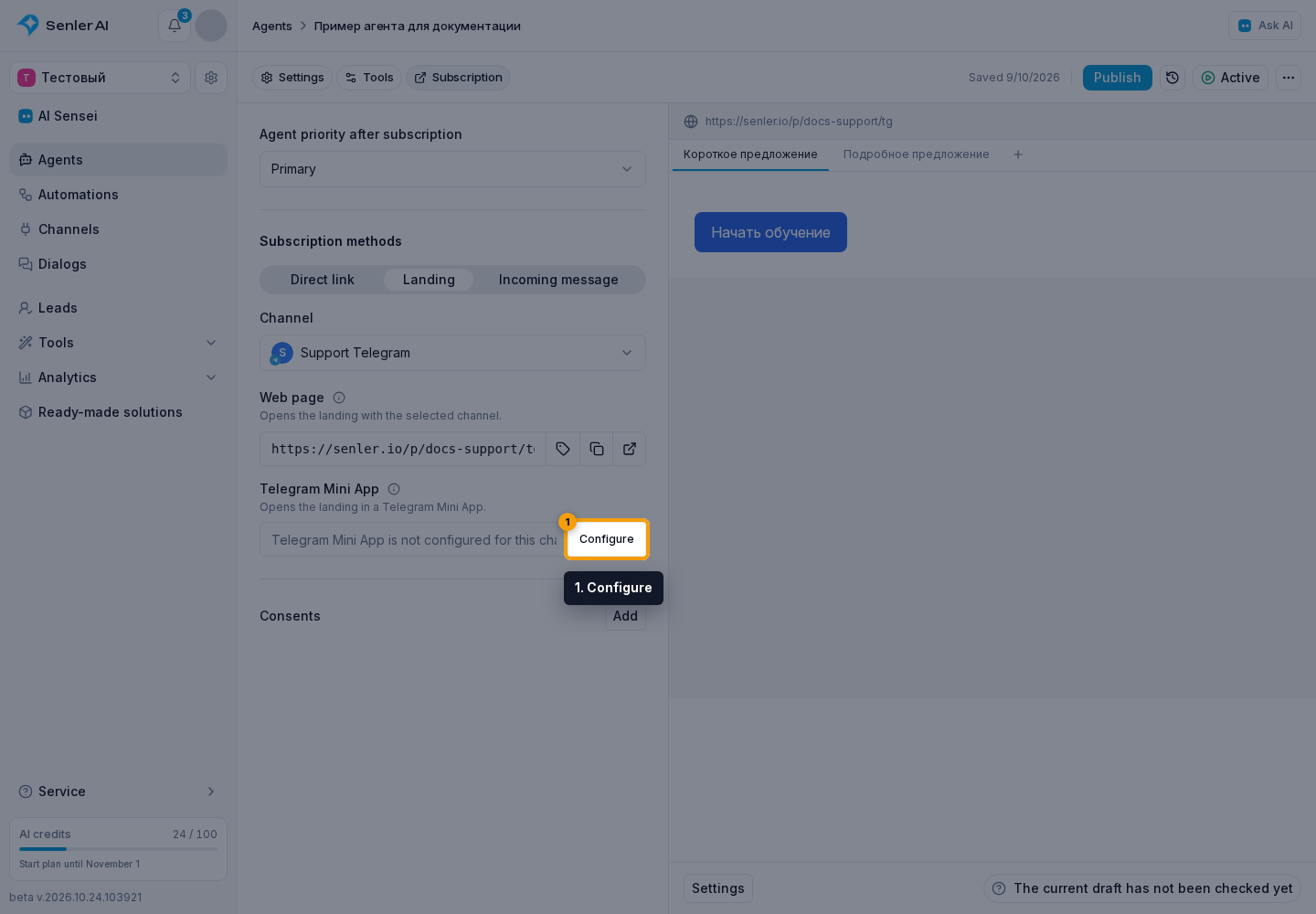
First select the agent priority after subscription. Subscription methods has three tabs: Direct link, Landing page, and Incoming message. Configure required consents below them. Priority and consents apply to every subscription method.
Incoming messages have a conversation example alongside them, and Landing page shows its editor. Links and the landing page are available after creating the agent; message and Start button conditions can be set during creation.
Channel and dialog type restrictions are available for enabled incoming message subscriptions and inside additional Start conditions. These settings are shared by those two methods. They do not affect the landing page or standard subscription link. Choosing a channel to obtain a link is a separate setting.
Page appearance
In the subscription page editor, click Settings. Here you can choose the language of system buttons and the page theme: Automatic, Light, or Dark. Automatic follows the VK theme when available, or the visitor's browser theme otherwise. With Light or Dark, you can set a custom background color.
Choose the theme first and the background second: switching themes resets a custom color. Select Save, check the page in preview, and publish the agent so visitors see the changes. For detailed appearance instructions, see Page settings.
For different visitors, prepare page or block variants, select them using conditions, or compare them in an A/B test. These settings also take effect when the agent is published.
View visitors, clicks, and subscriptions in subscription page statistics: open the editor's three-dot menu and select "Statistics".
To let visitors ask a question directly on the page, add a Widget block and select a chat channel.
Segment and consents
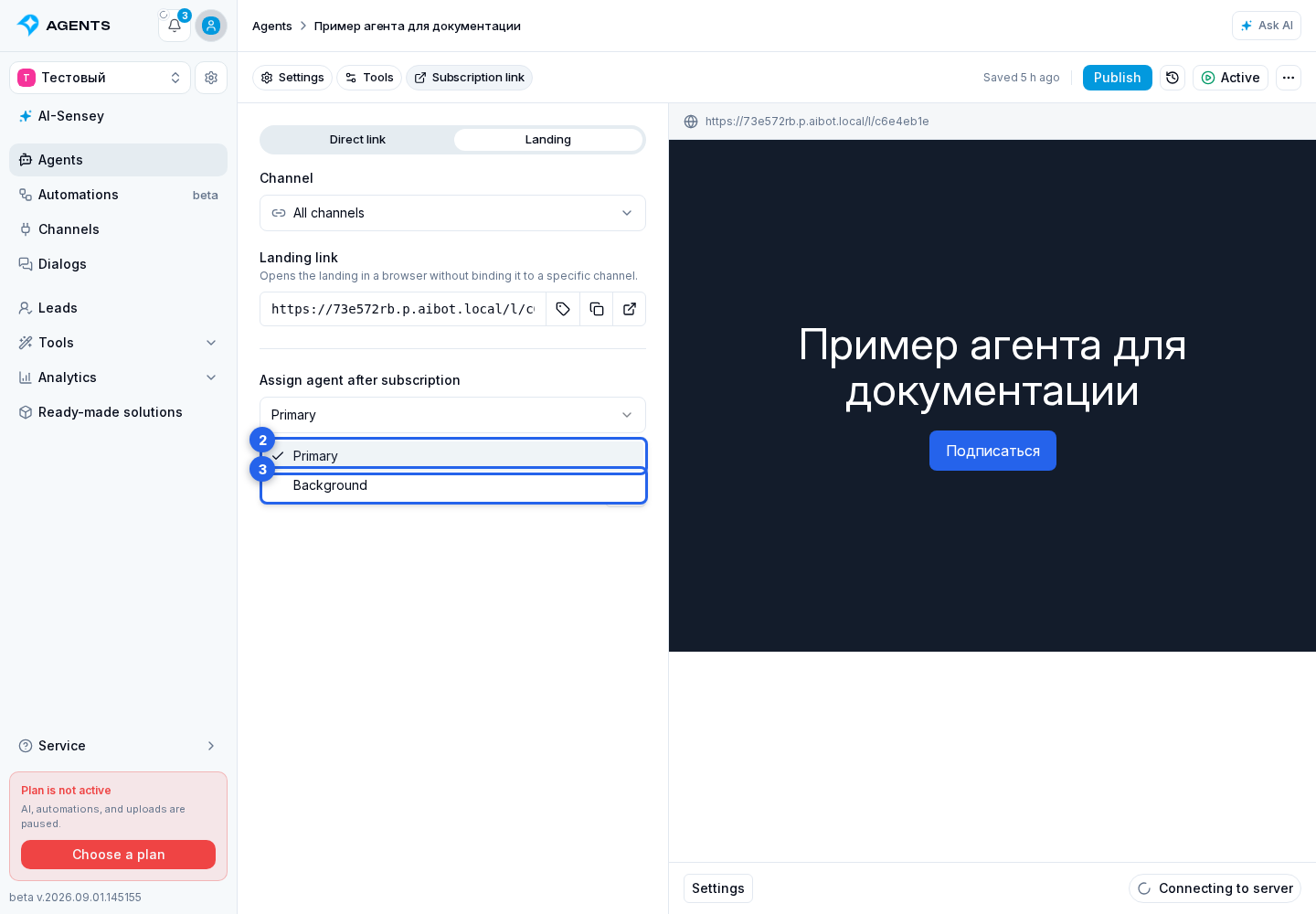
In Subscription, Agent priority after subscription defines which role the agent will occupy in the new member's dialogs: Primary or Background. Both can reply to the client. The role does not change the reply mode: reply preparation and delivery are configured separately.
If a person already belongs to the segment, opening the direct link again assigns the linked agent without creating another subscription or increasing the subscriber count again. If auto-assignment is disabled in the dialog, its settings are preserved.
A subscription can assign an inactive agent. The agent stays in the dialog but does not reply until activated. Once activated, it can reply to subsequent messages; the person does not need to open the link again.
- In Consents, select Add. Choose an existing document or select Create.
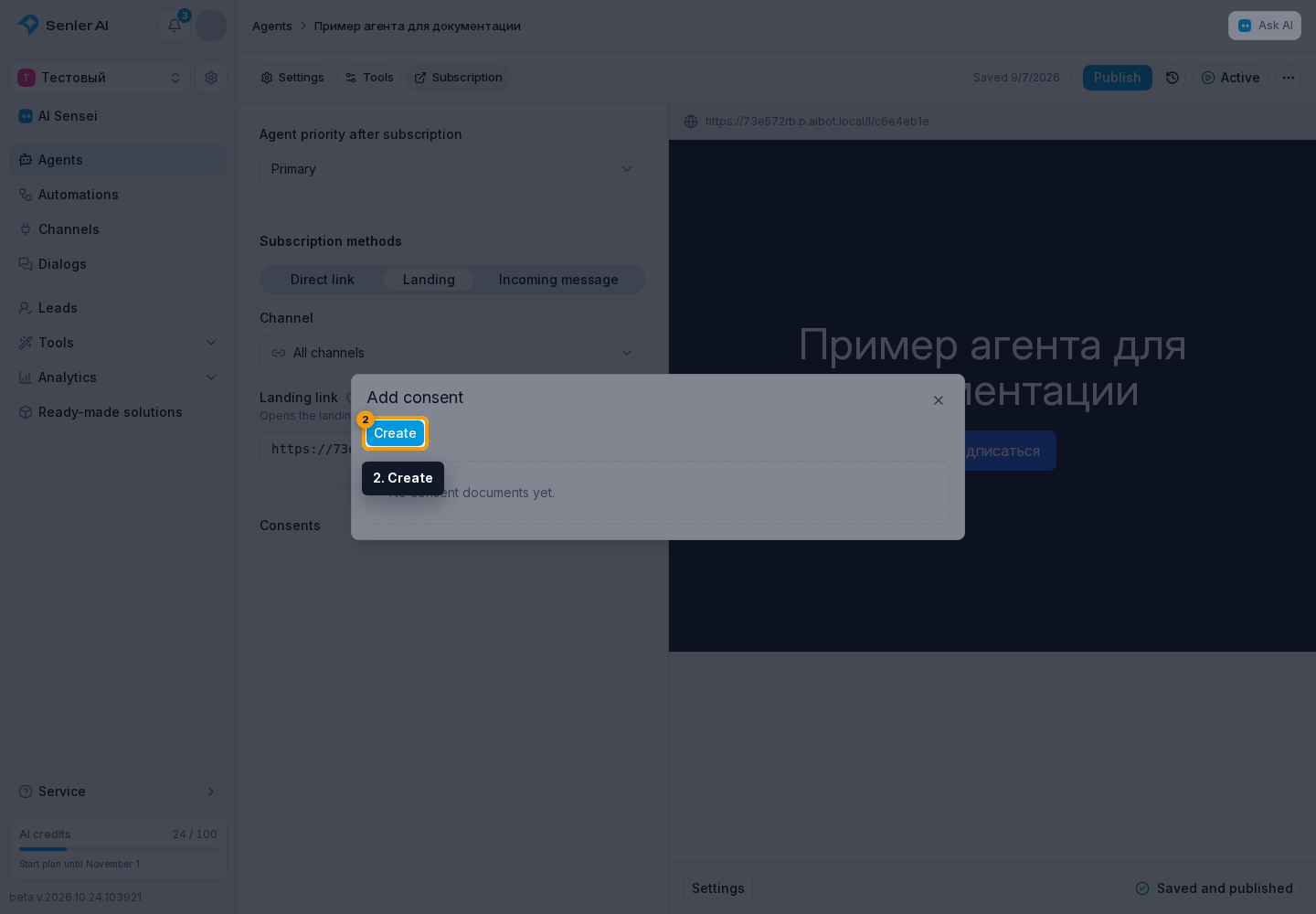
- In the new consent dialog, you can upload a PDF, choose a ready template, or start with a blank text document.
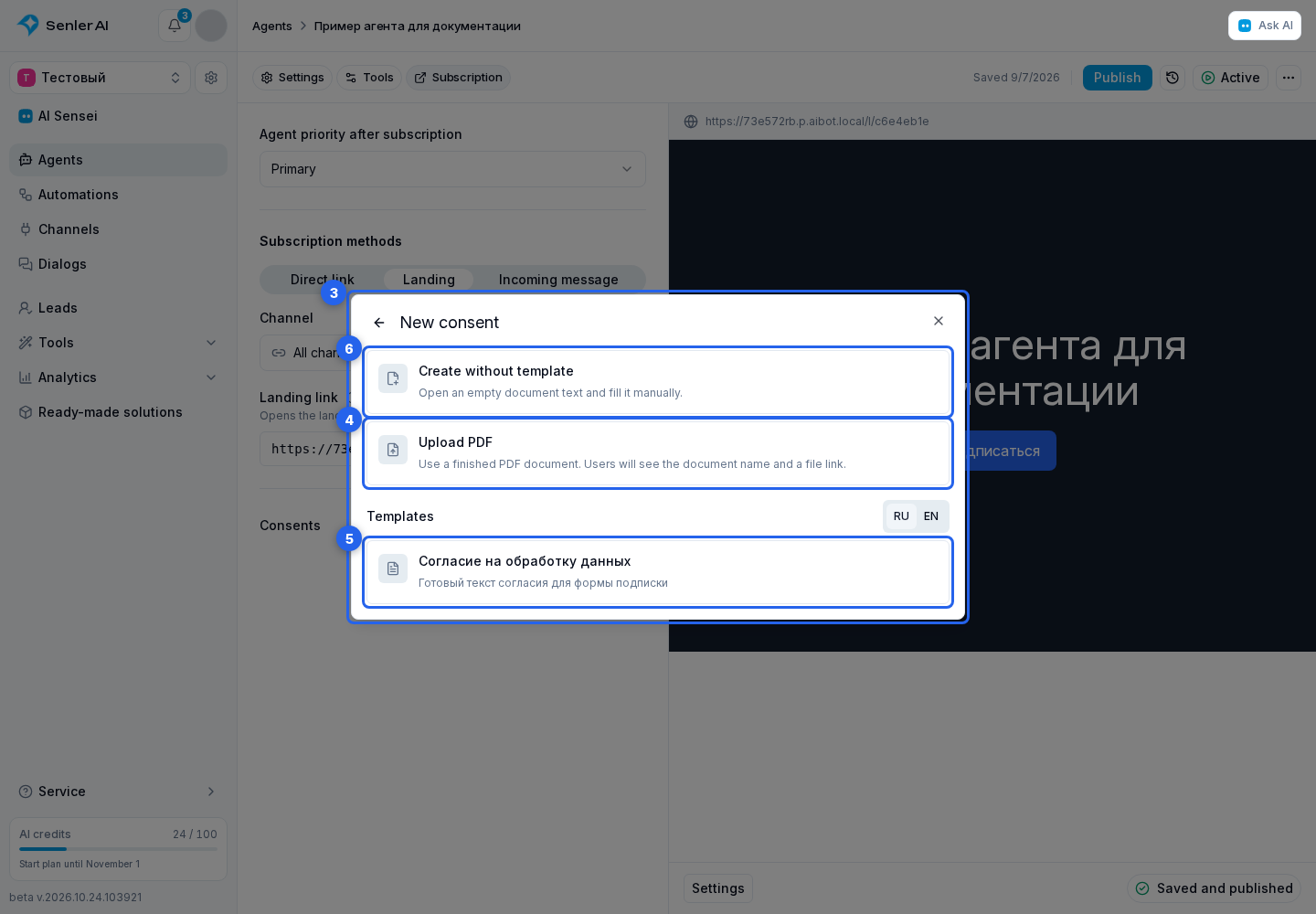
- For a text document, enter a name and document text.
- Select Create; the document is immediately added to the agent's managed segment. Cancel closes the dialog without creating it.
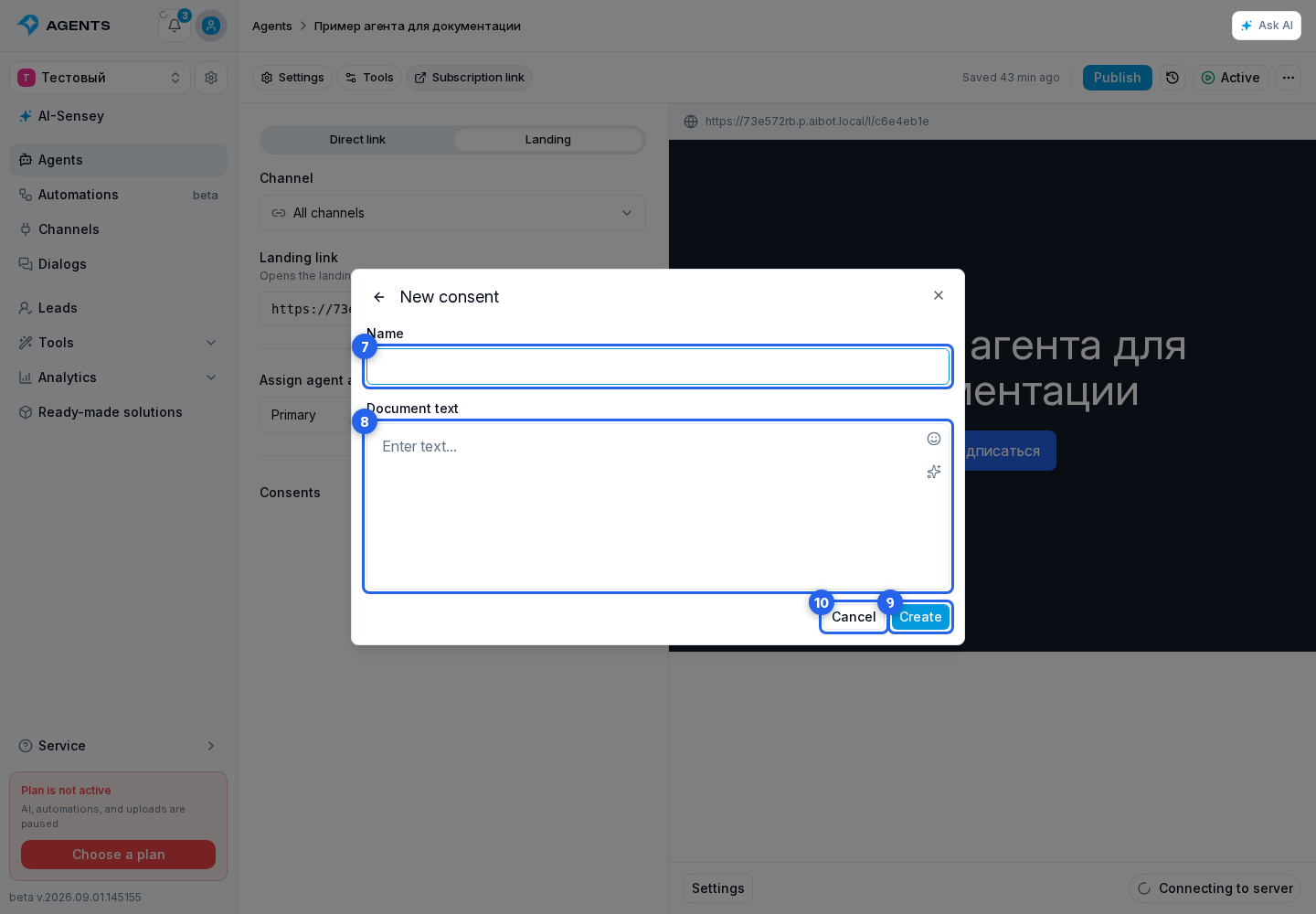
For a PDF, provide the file and document name. A ready template opens in the text editor so you can review it before creation. The role, text before agreements, and selected documents are stored in the managed segment draft and take effect when the agent is published.
Available link types
The main link opens the published page in a browser. Connected channels may also provide ways to open it in VK App, Telegram Mini App, MAX Mini App, or through a Telegram bot.
An agent page can additionally provide direct subscription links through VK messages, a Telegram bot, or a MAX bot. They are built for the managed agent segment independently of landing buttons and the channels selected in those buttons.
- Open the Direct link tab.
- In the channel selector, select the required channel.
- Use the copy action.
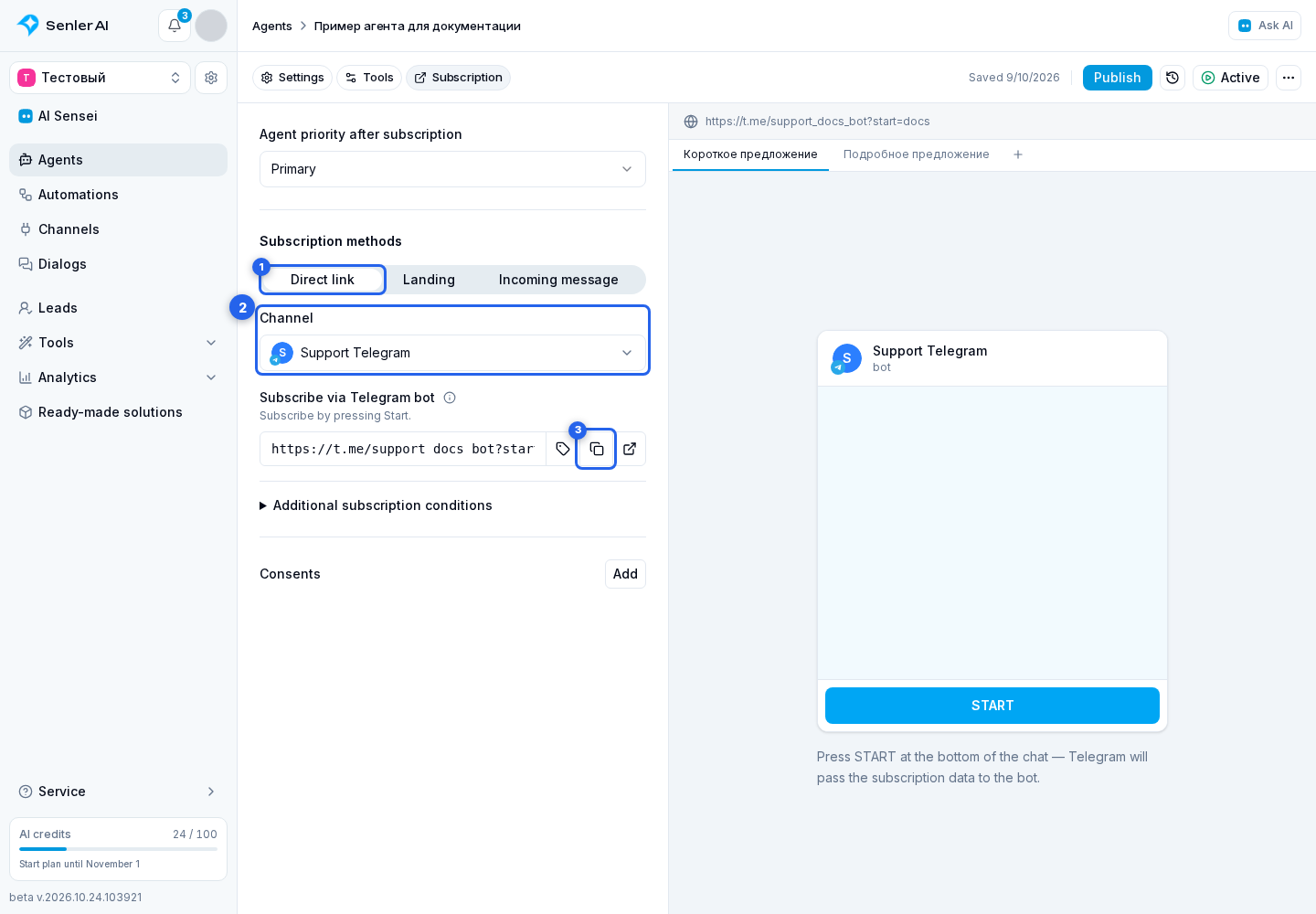
A direct link does not open a form, so it does not request a phone number or email. When the managed segment requires consents, the bot sends the documents and acceptance button; the user joins the segment after acceptance. Direct links are unavailable when the managed segment has paid subscription enabled.
If a link is missing
Check that:
- the agent has been published at least once;
- the required channel is connected, is not paused, and has a valid token;
- the Telegram or MAX bot has a username;
- the VK community can be identified;
- Mini App or VK App is configured and verified when the link should open inside the platform;
- the managed segment does not have paid subscription enabled when you need a direct link.
The links section shows the reason next to an unavailable option and provides Configure when the issue can be fixed in settings. You can return to the settings through the Agents item in the side menu.