
App event
When to use this step
An app event starts a run after an external change, such as a connected plugin reporting that an order was paid. It is a trigger, not a command to the application. If the automation should ask the application to perform work, use an app step.
Events are available in For dialogs automations. The plugin must be installed and active in this project, and its developer must enable the event for starting automations. Names and data depend on the plugin.
Add a trigger
Open the step catalog and find the event by its name or the application name. The group named after that application shows events labelled “Trigger” first, followed by entries labelled “Action”. Select the trigger you need.
Add the event to an empty area of the workflow. A trigger has no incoming connections: it cannot be inserted into an existing connection. Connect its output to the next step.
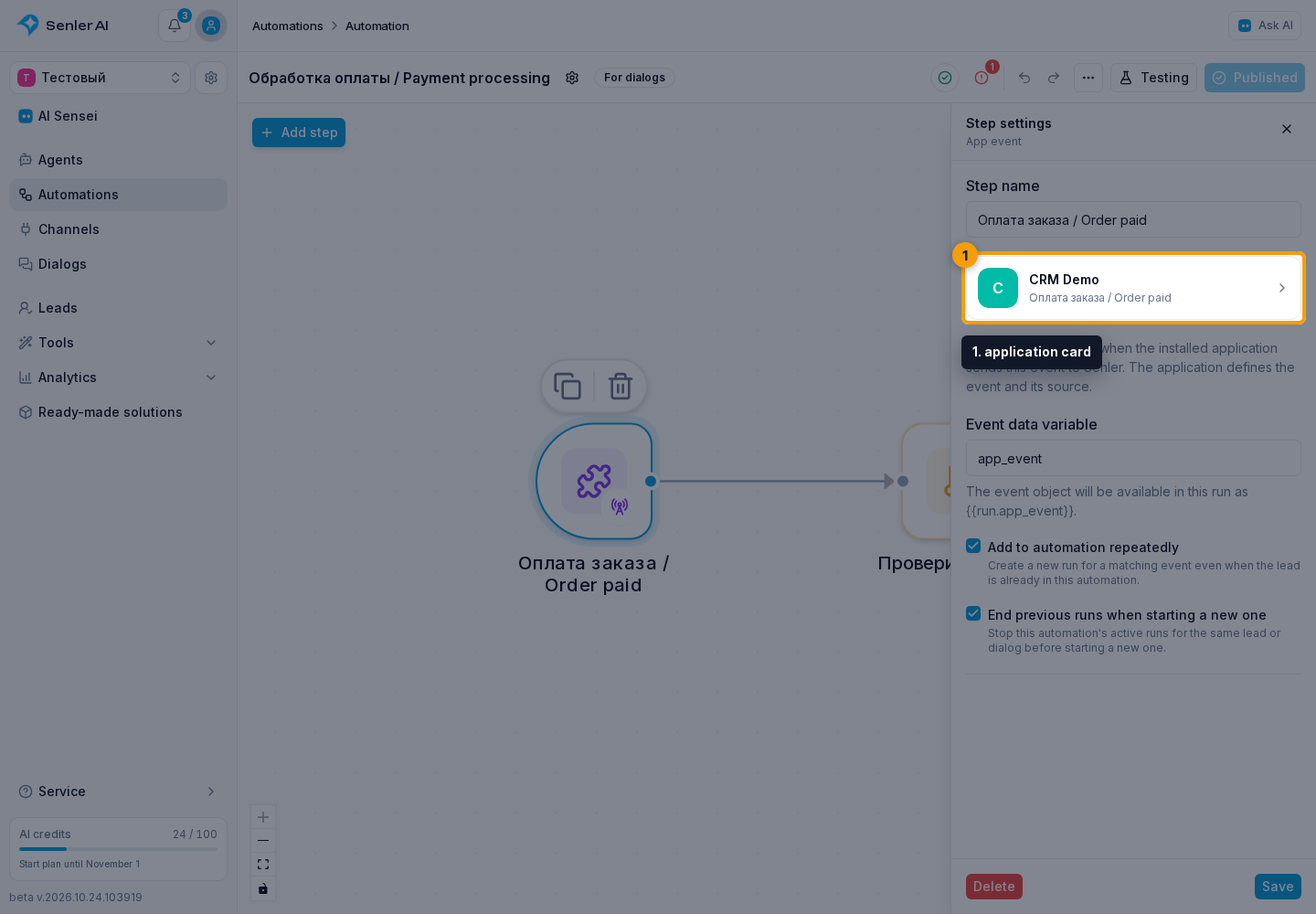
In the settings, check the application card to distinguish events with the same name from different plugins.
Store event data
In Event data variable, enter a name such as app_event. The field is required. The name must not start with $, contain a dot, surrounding whitespace, or a reserved prefix.
Subsequent steps can access the object as {{run.app_event}}. If the application sends an order_id field, use {{run.app_event.order_id}}. Use only fields the application sends in the event; check its documentation for their names.
Configure repeated events
By default, repeated entry is allowed and finishing previous runs is enabled. A new event replaces the active run of this automation for the same lead or dialog.
- Disable repeated entry to avoid starting another run while the previous one is active.
- Keep repeated entry enabled but disable finishing previous runs if events should be handled in parallel.
- Keep both enabled if handling the newest event takes priority.
After configuring the step, select Save.

Check the run
Add the required continuation, and publish the automation. Then perform an action in the connected application that it can report to Senler. Use its test mode or a sample object if the application's instructions provide one; do not make a real payment just to test. Open the run in Senler and check whether the automation started and what data arrived in the variable.
If you are developing the application itself, see Application events for delivery and dialog selection. You do not need to write an API request for ordinary automation setup.
Adding an event to the workflow does not send a request to an external system or create a test event. The application must send it to Senler and identify the intended dialog. Subscribed agents may also react separately in the same dialog if the developer has enabled this handling.
If the step is missing from the catalog, check the automation type, plugin installation and status, and whether the developer has enabled the event for automations.