
Landing button and subscription
Button and subscription
A button can be configured in Cover, Button, and Timer blocks.
- Select the block area and then the pencil.
- Select Configure in the button action field.
- In the Button settings dialog, choose the button action:
- Subscribe — subscribe the visitor to a segment;
- Open link — navigate to an
httporhttpsaddress; - Open landing — open another landing in this project;
- No button — remove the button from the block.
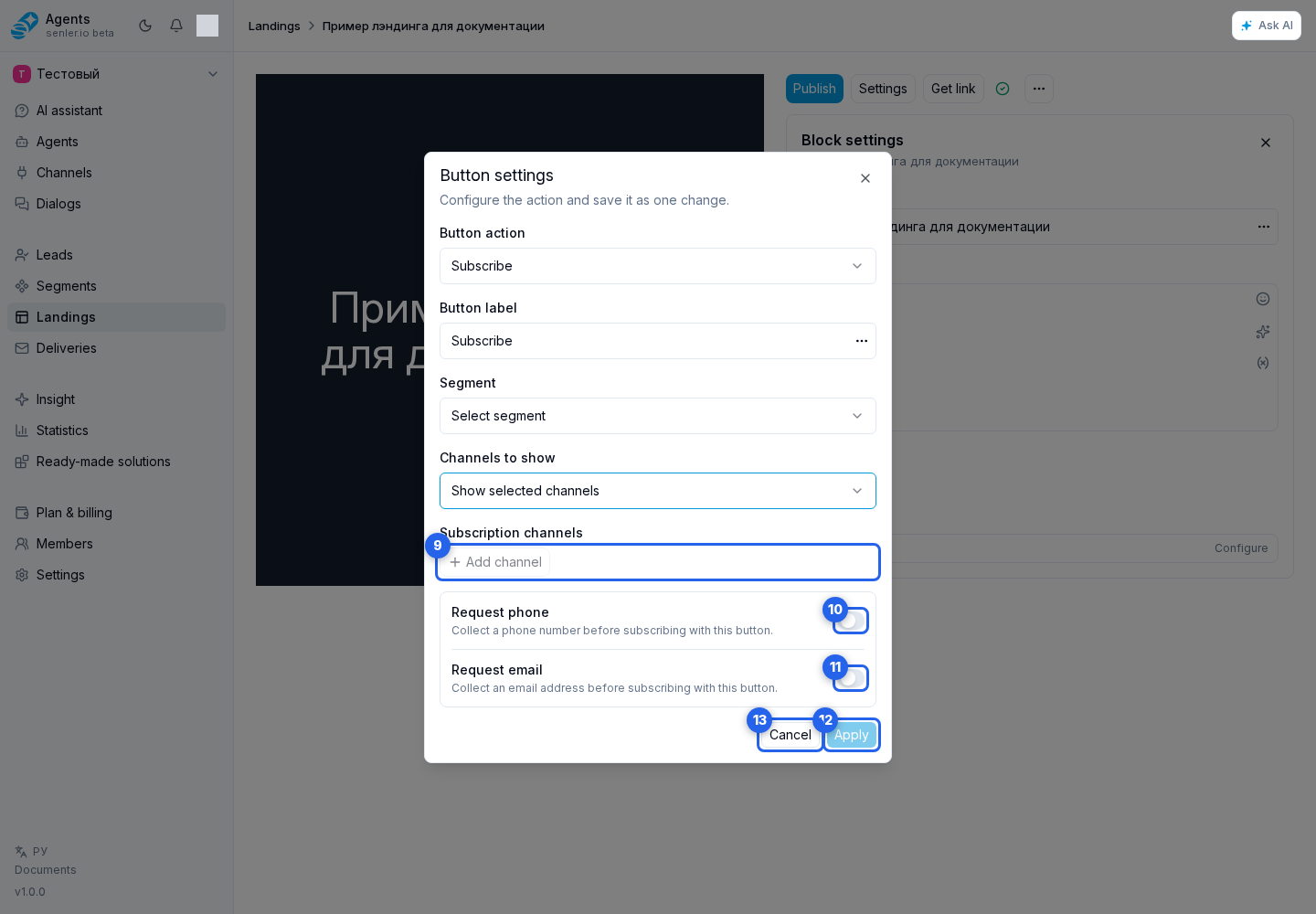
For subscription, enter the button label, choose the segment, and set the channel mode. All channels uses every suitable project channel. In Selected channels, add one or more subscription channels and give each option a clear visitor-facing label.
Select Add channel, then choose the channel in the row and edit its visitor-facing option label. Changing the channel replaces the label with the new channel's name, so enter custom text after selecting it. A channel cannot be added twice; when all available channels have been added, the add button is unavailable.
The trash button removes the channel only from this button's options without disconnecting it from the project. Keep at least one channel in Selected channels mode. Like the other button settings, these changes reach the block draft only after you select Apply.
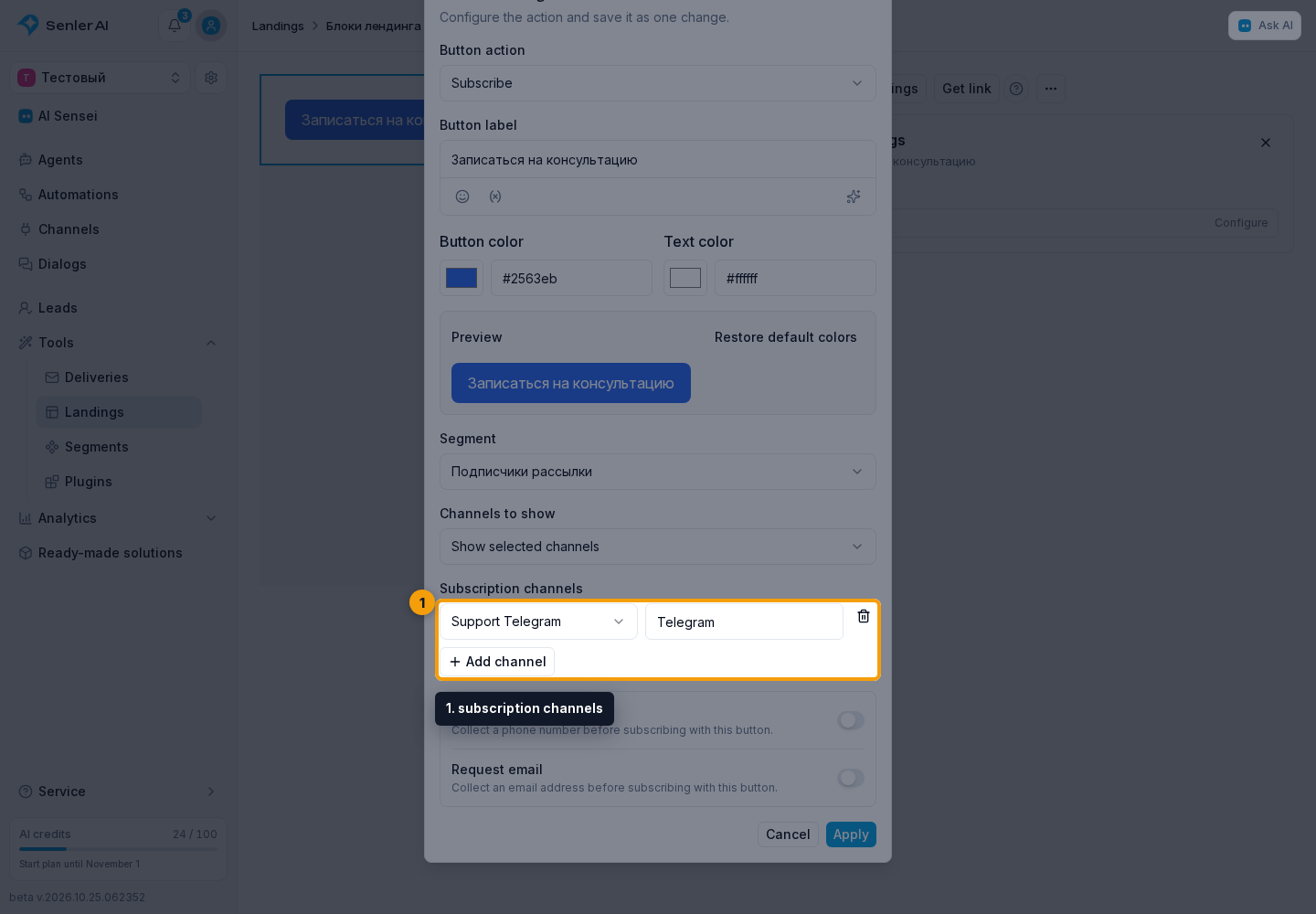
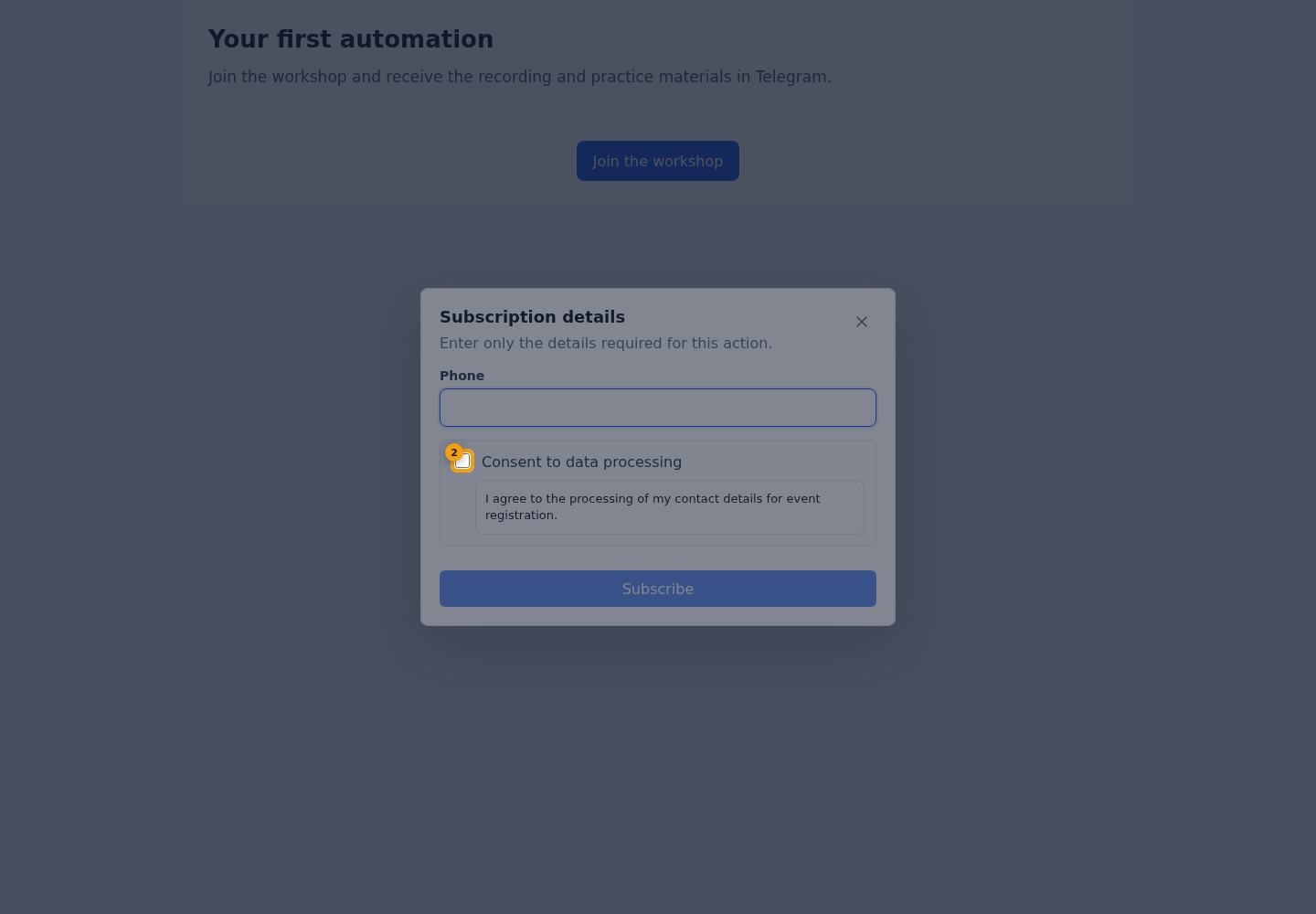
The Request phone and Request email switches apply only to this button. Contact details are requested after the click and before subscription is completed.
For Open link, enter the complete button address with the http or https protocol.
For Open landing, select the destination landing from the list. Search helps find it by name. You do not need to copy an address: navigation preserves the current browser tab or VK, Telegram, MAX app, channel, and UTM parameters. The next page has a Back button and selects its variants using its own rules. Several such buttons can form a custom landing collection.
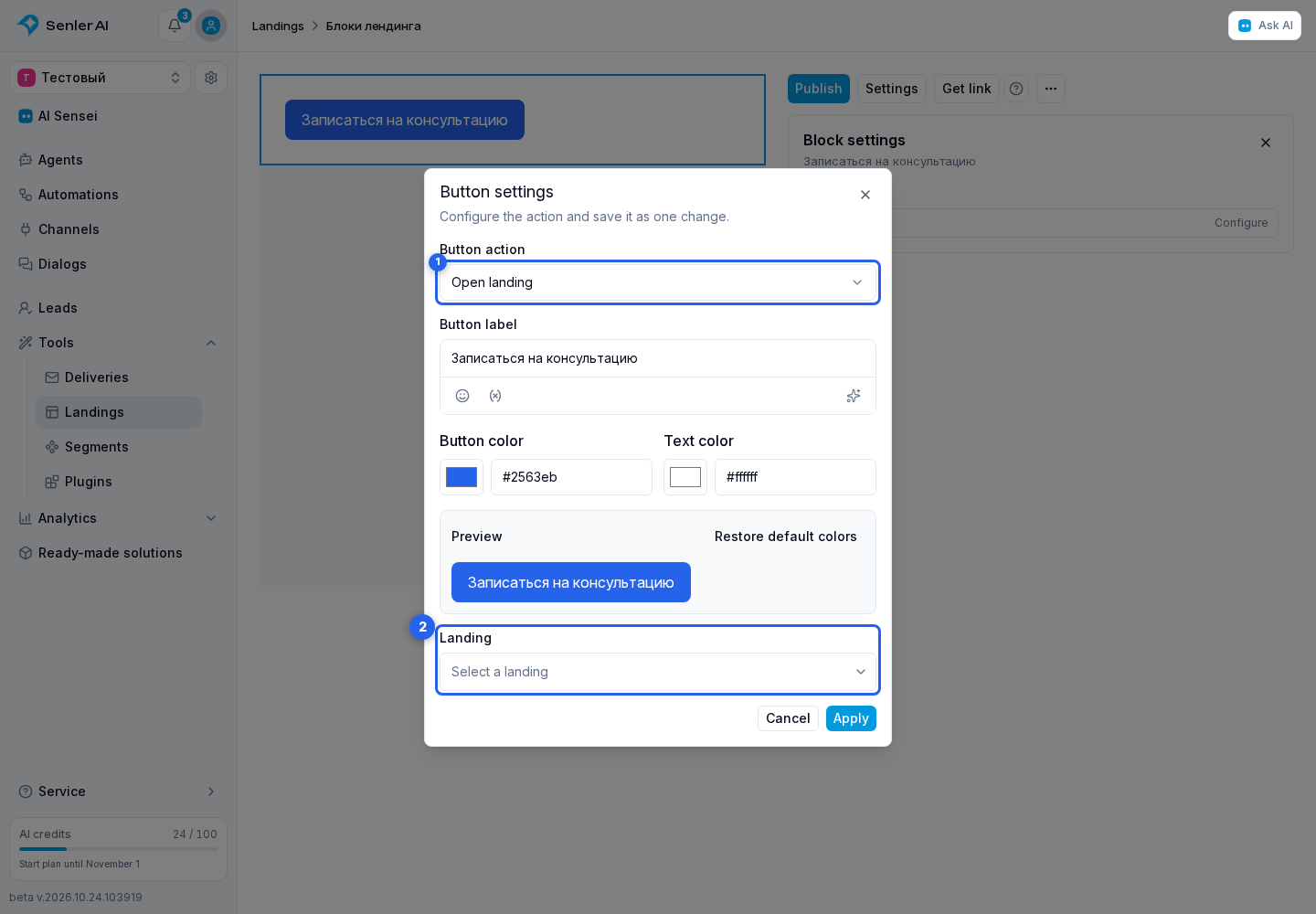
The destination landing must be published and enabled. If it is unpublished, disabled, or deleted, visitors see an unavailable navigation button; the rest of the page continues to work.
For every configured button, set the background color and text color in #ffffff format. The preview in the same dialog shows the resulting combination. A low-contrast warning does not block Apply, but more distinguishable colors are preferable. Restore default colors returns the blue background and white text.
Select Apply to transfer the complete setup to the block draft. If required fields are missing or colors do not use #RRGGBB format, an error appears and the dialog stays open. Cancel closes the dialog without applying changes made in it.
What the visitor sees
On the published page, the subscribe or unsubscribe button performs the action. It can be pressed in preview without changing a real subscription; the editor only switches the demonstration state.
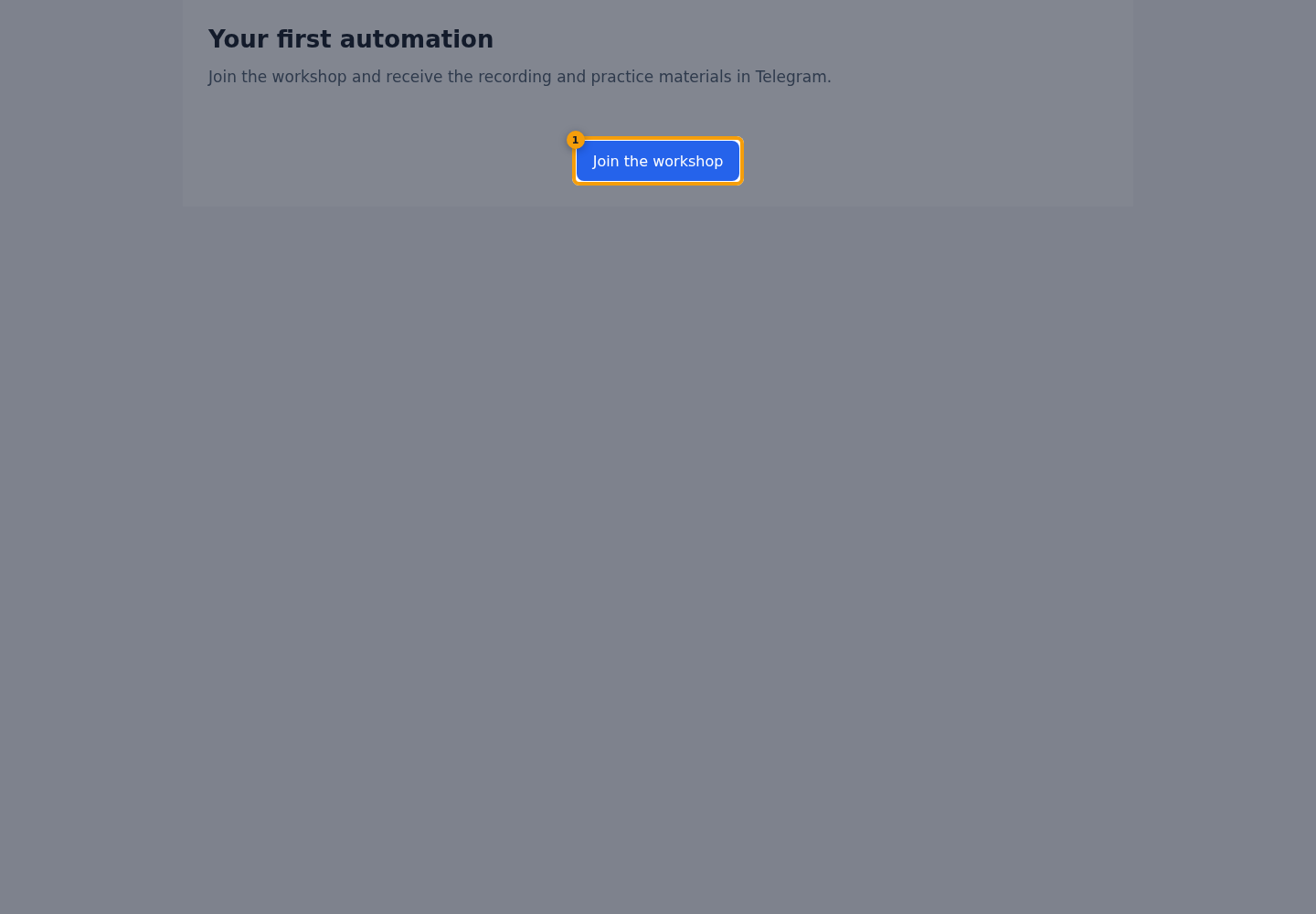
When the segment requires documents, the visitor selects the consent checkboxes before subscribing. They join the segment after every document is accepted and the action completes.
The subscription method depends on the selected channel. Use ready links from the cabinet instead of assembling a Mini App or bot address manually.
Inside VK App, press the subscription button and allow community messages if VK requests permission. Opening the landing alone does not subscribe you to the segment. If permission is declined or verification fails, the subscription is not completed; use the same button to try again. Once the subscription is confirmed, there is no need to open the chat or send a separate message.
If VK cannot request permission inside the app, a Temporary subscription issues window appears:
- Click Message the community and send a message.
- Return to the landing and click Subscribe in this window.
- Wait for the You are subscribed confirmation. Opening the chat alone does not complete the subscription on the landing.
If subscription is unavailable
On a published landing page, the button remains clickable even when subscription cannot currently be completed. After the click, the visitor sees a Could not subscribe dialog with the specific reason. This distinguishes a problem with the segment itself from a problem with one of the channels.
- If the selected segment was deleted or is no longer available for subscription, choose another segment in the button settings and publish the landing page again.
- If the button has no available channels left, configure a channel first and then publish the landing page again.
- If a channel is paused, enable it in the cabinet. If its connection or bot details are missing, reconnect the channel.
- For Telegram and MAX, check that the channel has a configured Mini App. For VK, check the app settings and its connection to the correct community.
The message names the affected channel. If the VK app has not yet been confirmed in the community, the same dialog includes a Connect VK app button: open it, complete the connection, return to the landing page, and try subscribing again. See Landing pages in channels for the remaining launch settings.
Button on an agent page
An agent subscription page already has its managed segment, so it is not selected separately. See Agent subscription page for page, consent, and agent role settings.