ruLog in to Senler

Lead List, Search, and Filters

In the project side menu, open Leads. The list page shows leads from all project channels available to you that have not been deleted.

What the list shows

The table shows the lead name and external ID, channel, subscription status, source, and creation date. The status column also marks blacklisted leads. It does not show the platform-side block flag: use the Blocked filter or open the lead profile.

Select a lead row to open its card. The row menu lets you refresh the profile from the platform, edit the operator note, add the lead to the blacklist, or remove it from the blacklist.

Search and channel

Search matches first name, last name, full name, username, and external ID. You can omit the @ before a username.

Use the Channel filter to select one or several project connections. Select All channels to show leads from every available non-deleted channel again. Leads from a deleted channel are excluded from the list, export, current-selection refresh, and bulk operations.

The adjacent Channel type filter keeps leads from the selected platform: Telegram, VK, MAX, Avito, Discord, Email, StreamVi, or the website widget.
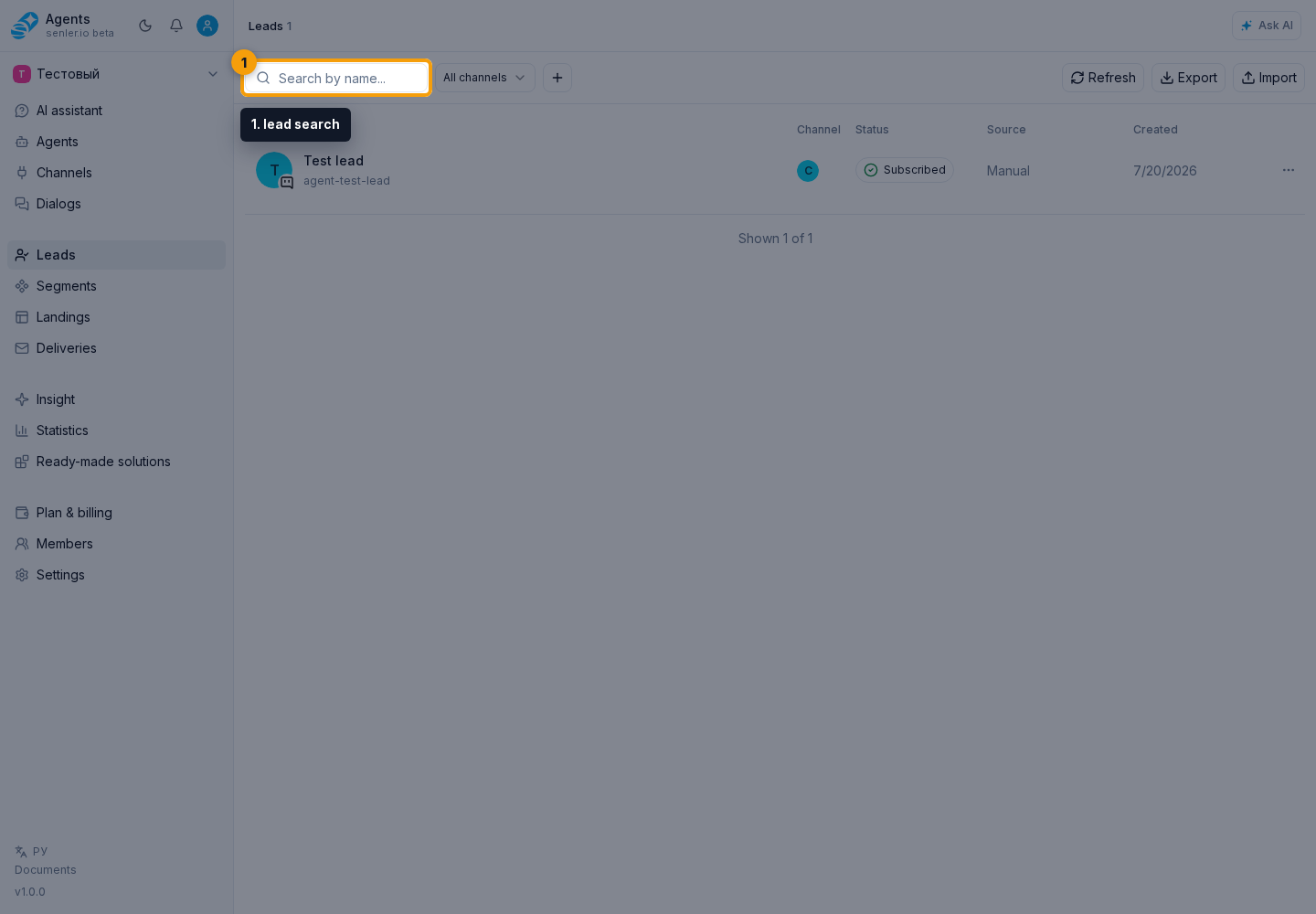
Lead List, Search, and Filters. Highlighted elements: 1. Search; 2. Channel filter; 3. Channel type; 4. add filter button
1. Search · 2. Channel filter · 3. Channel type · 4. add filter button

Selection Modes

The mode selector changes how the list is built. Channel and channel type filters work in every mode; the other extra filters belong to the General mode.

By Delivery

Choose Deliveries, then select a delivery with a completed run and a sending result: all, sent, errors, or not sent. After you select Apply, the table shows recipients of the latest run. You can narrow the selection to one lead and export it.

By Variable

In Variables mode, choose a lead variable and a condition. Value is set works for every type. Equals is also available for strings, numbers, Boolean values, and dates; in that case, enter the exact value.

For an Array variable, you can find leads whose array:

  • contains one specified item;
  • contains any item from a list or all items from a list;
  • is empty or not empty;
  • contains exactly, at least, or at most the specified number of items.

Enter a single item using its type's format. For an array of objects, provide a complete JSON object, for example {"id":"product-1"}. Contains any and Contains all expect a JSON array such as ["new","paid"], not a comma-separated string. For length conditions, enter a non-negative integer within the selected variable's limit.

Array filtering also provides result ordering: default order, longest arrays first, or shortest arrays first. If needed, use the lead search above the table to verify the selected condition against one profile.

Select Apply to view the selection and its count. After you apply it, the selected variable, condition, value, ordering, and specific lead are stored in the page address. You can reopen that address later or send it to someone with project access; the cabinet restores the filter and immediately builds the same selection.

By Variable. Highlighted elements: 1. lead variable; 2. condition; 3. exact value; 4. result ordering; 5. lead search above the table; 6. Apply
1. lead variable · 2. condition · 3. exact value · 4. result ordering · 5. lead search above the table · 6. Apply

Export downloads the complete result as UTF-8 CSV with the same condition and ordering, not only the visible page. Managing leads permission is required for export; the background task progress opens in the process dialog.

By Automation

Automations mode shows leads by their latest state in a published automation. Choose an automation, optionally narrow it to a published step, status, and a specific lead, then select Apply. Export is unavailable in this mode.

Selection Modes. Highlighted elements: 1. General mode; 2. Deliveries; 3. Variables mode; 4. Automations mode
1. General mode · 2. Deliveries · 3. Variables mode · 4. Automations mode

Additional filters

Select the add filter button in the filter bar, then choose a condition. The added filter appears in the row; the cross next to it removes the condition and its selected value.

  • Subscription separates subscribed and unsubscribed leads.
  • Blacklist shows leads that the team added to the blacklist or leads without that mark.
  • Blocked shows leads with or without a platform-side block flag, for example after the user blocks the bot.
  • Source accepts several values and selects leads by the first event that created the record.
  • Created date sets the period when the lead appeared.
Lead List, Search, and Filters. Highlighted elements: 5. filter bar; 6. Subscription; 7. Blacklist; 8. Blocked; 9. Source; 10. Created date; 11. Last updated
5. filter bar · 6. Subscription · 7. Blacklist · 8. Blocked · 9. Source · 10. Created date · 11. Last updated

The Last updated filter sets the period when the record was last updated.

Under Contacts, set the presence or absence of an email and phone separately. Has matches only a populated field.

Segment accepts up to 20 segments. When several are selected, a lead is included when it has the selected state in at least one of them. Under Membership, choose Any, Current, Former, or Awaiting entry. Selected segments are preserved when you switch the state.

Lead List, Search, and Filters. Highlighted elements: 13. email; 14. phone; 15. Segment; 16. Membership
13. email · 14. phone · 15. Segment · 16. Membership

The Awaiting entry state under Membership finds leads that still need to accept the required consents for a selected segment. Select one or more segments to apply this condition; if you choose awaiting entry first, the Segment field displays the select segment prompt.

Lead List, Search, and Filters. 17. Awaiting entry
17. Awaiting entry

UTM of the latest subscription

The UTM of latest subscription filter finds leads by the attribution of their latest subscription through a marked link. Values expand by utm_sourceutm_mediumutm_campaignutm_contentutm_term; a missing value appears as Not set.

You can select up to 20 branches. Selecting a level includes all values below it. Several selected branches use OR logic: a lead matches when its latest subscription belongs to at least one branch.

Channel, channel type, segment, and segment membership narrow both the UTM tree and the resulting selection. Segment and UTM conditions are checked within the same subscription, so the filter does not combine attribution from one channel with membership from another. Creating marked links is described in Segment subscription link and Landing links.

The list can open from another section with a selection for specific leads, spaces, segment membership, or pending consent already applied. These conditions appear as separate badges above the table. Remove one badge or reset all of them to broaden the selection.

Selected conditions are stored in the page address. You can reopen the link later or send it to another person who has access to these leads.

Lead source

The source shows the first event that caused the record to appear in the project. It does not replace the current subscription status.

  • Group join means the platform reported that the user joined.
  • Message means the lead first appeared after an incoming message.
  • Message permission means the platform reported that the user allowed messages.
  • Bot added means the bot was added to a chat and the platform provided a participant or sender.
  • Comment means the lead appeared after a publication comment.
  • Like means VK provided a Like or Like removal event for a tracked post or comment. This lead is created as unsubscribed. Removing the Like does not delete an existing card because the source stores why the lead first appeared, not the current reaction state.
  • Manual means a project operation created the record rather than an incoming platform event or an import.
  • Import means the record was added through import.

An unsubscribed VK lead without a message can therefore appear after a Like. To verify the reason, compare the source and creation date with the event history.

Bulk operations with agents, automations, and segments

All three actions apply to the complete current filtered selection, not only the loaded page. Check the filters and lead count before starting.

  • Agents opens the bulk agent assignment dialog. If Run an agent invocation in the dialog is enabled, the agent immediately prepares a response using the message history. The nested option also invokes the agent when it was already assigned.
  • Automations opens the bulk automation start dialog. By default, an active run is not duplicated. Start again if the automation is already active creates another parallel run.
  • Segment opens the segment operation dialog. When adding, you can assign segment agents, invoke them immediately including agents that were already assigned, and start segment-entry automations. These actions also run for leads that are already members of the segment.
Lead List, Search, and Filters. Highlighted elements: 18. Agents; 19. Automations; 20. Segment; 21. Refresh
18. Agents · 19. Automations · 20. Segment · 21. Refresh

Only active agents are available in the assignment dialog. The automation dialog shows only published automations that accept new runs. Recent bulk operations are available in the corresponding dialog, while the complete list of background tasks is in Processes.

Agent and automation actions use the lead's most recently active private dialog with Active or Completed status. Archived dialogs are not selected. If no matching dialog exists and the channel supports private dialogs, the system creates one. If a dialog cannot be created, the action for that lead fails. In a segment operation, the segment membership still changes.

The action runs in the background after it starts. In Processes, an agent operation reports assigned and invoked agents separately, while an automation operation reports started automation runs; both also show skipped records and failures.

Refreshing data

Refresh starts a background update for leads that match the current filters. Managing leads permission is required.

Check the table selection before starting. The refresh dialog contains the history of previous runs. Select Start refresh; after the start, the cabinet shows progress and counts for refreshed, skipped, and failed records.

Lead List, Search, and Filters. Highlighted elements: 22. refresh dialog; 23. history of previous runs; 24. Start refresh
22. refresh dialog · 23. history of previous runs · 24. Start refresh

To update one lead, open its profile and use profile synchronization.

If the required lead is missing

  1. Clear search and unnecessary filters, then select All channels.
  2. Try the exact external ID or username.
  3. Check whether the connected channel received an event from the user. For a VK lead from a comment or Like, find the matching event in history.
  4. Refresh changes data only for existing leads and cannot create a missing record. If the event exists but the lead does not, keep the channel, external ID, and event time and send them to support.