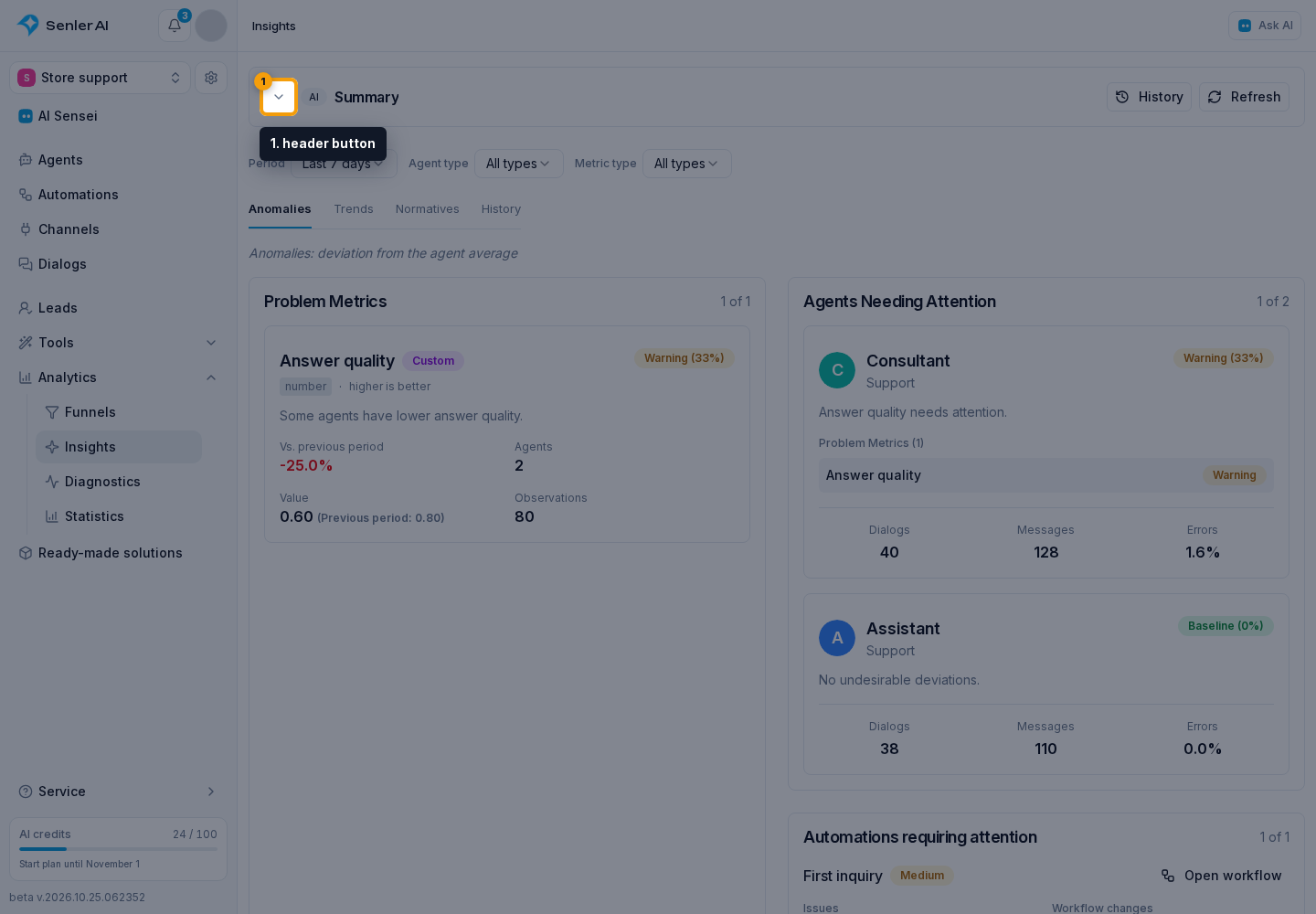
Insight AI Summary
In the sidebar's Analytics group, open Insights. The section page contains the AI summary.
The AI summary helps you understand customer conversations for the selected period: what people ask about, what difficulties arise and what could be improved in agent performance.
Start with the overall review, then check the positive findings and problem areas against metrics and dialogs. If enough data is available, examine important discussions. Use recommendations as a starting point for decisions: some concern agents, others concern the business more broadly.
The page shows the latest completed summary for the project. Its period appears at the bottom; switching filters or tabs does not recreate it. Agent and metric types in ranking filters do not limit its contents.
Creating and refreshing
- Choose a period in the Insight filters.
- If there is no summary yet, click Generate first summary.
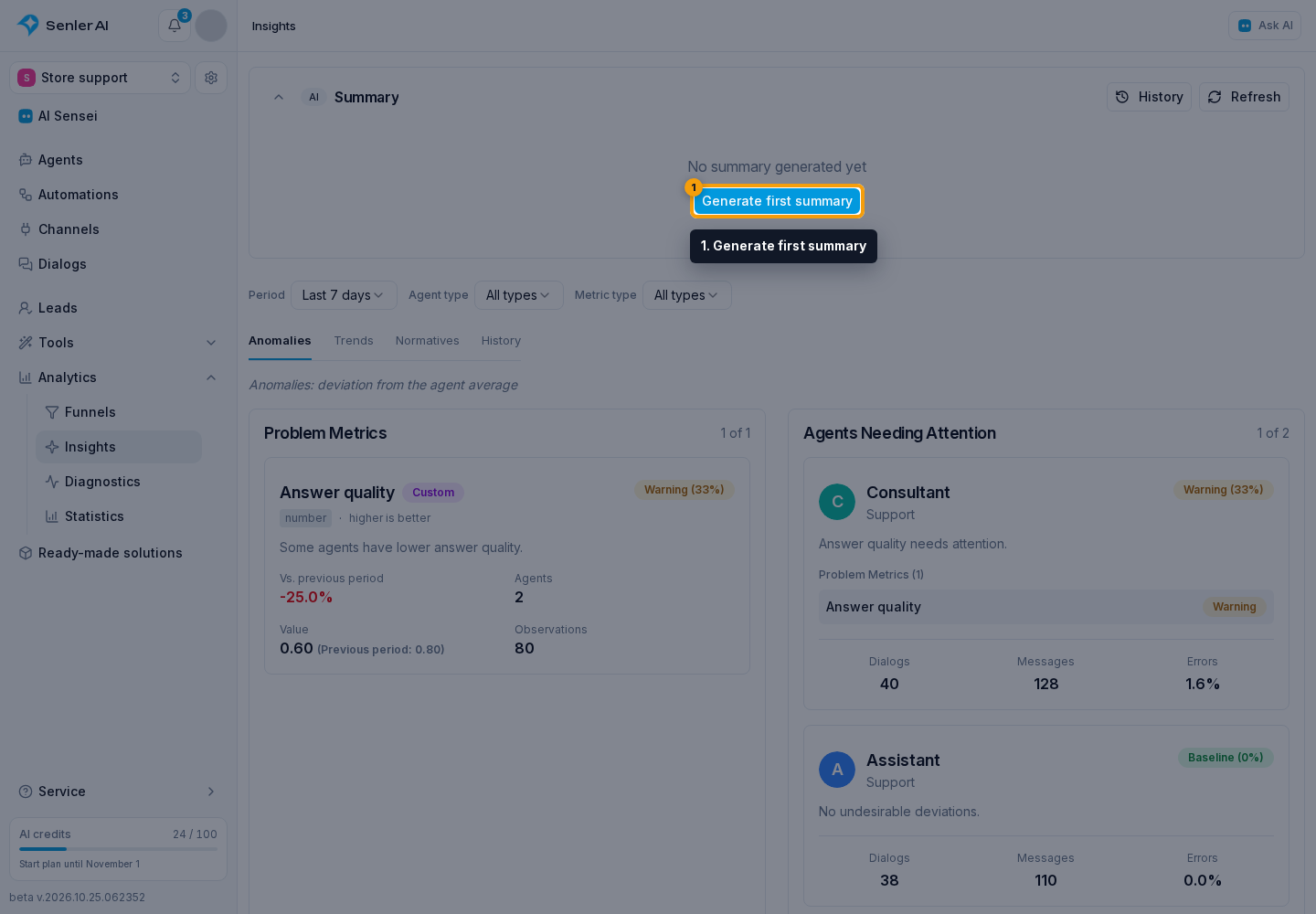
If a summary already exists, click Refresh in its header.
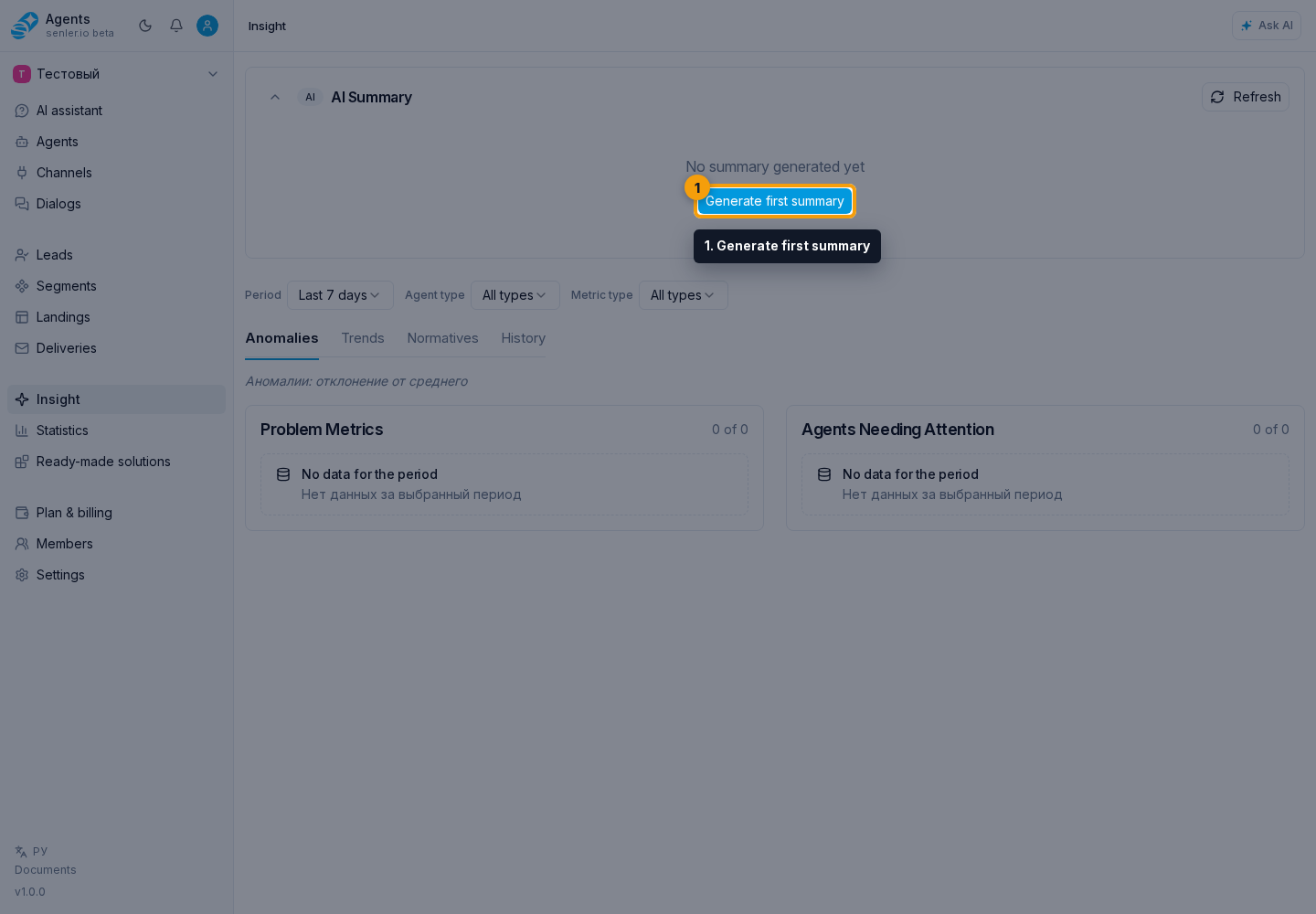
In the generation dialog:
- Choose a model in the model selector. The list shows the available options.
- Check the spending limit and project balance, then click Generate to start the analysis.
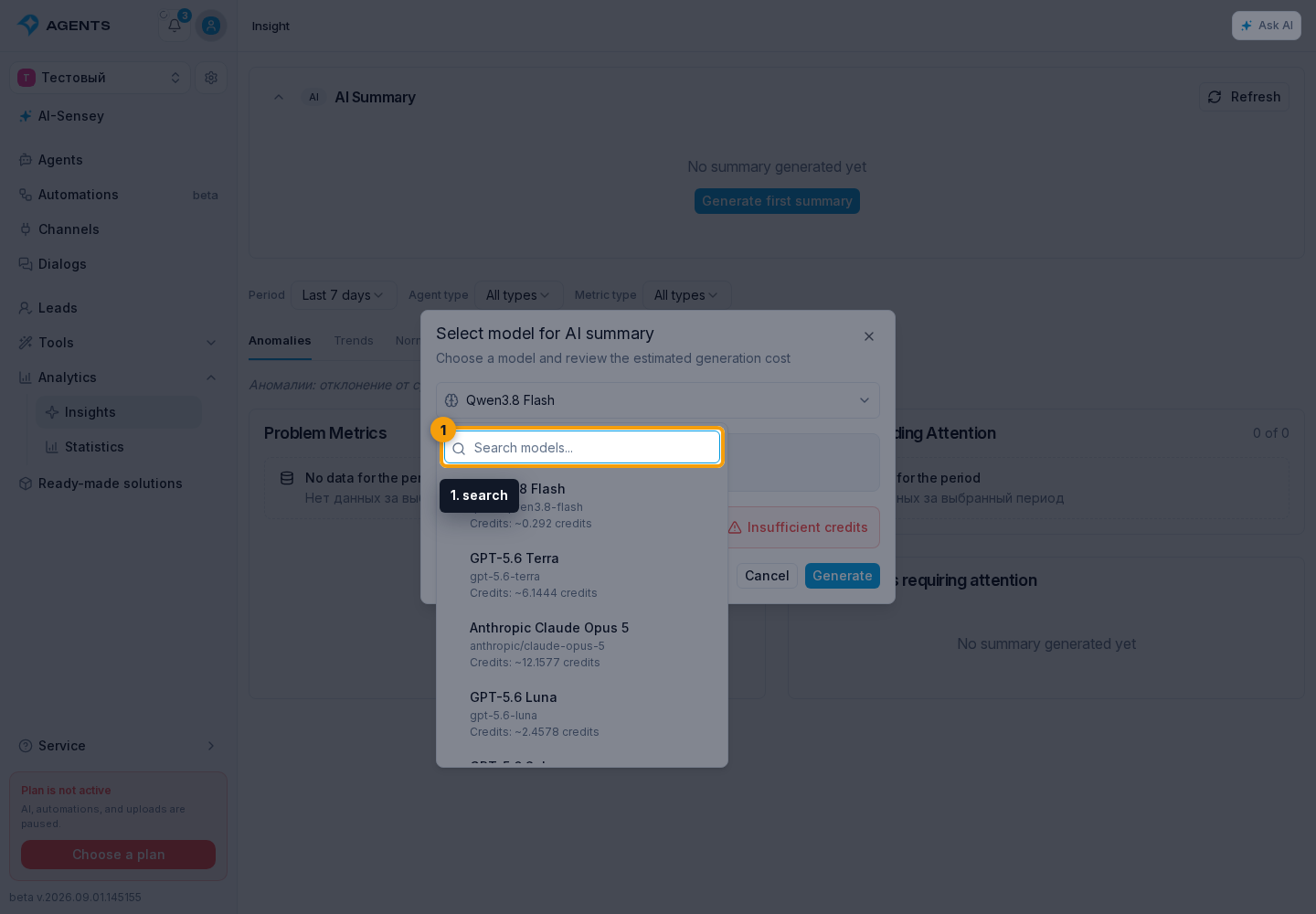
Use search by name to find the model you need in the list.
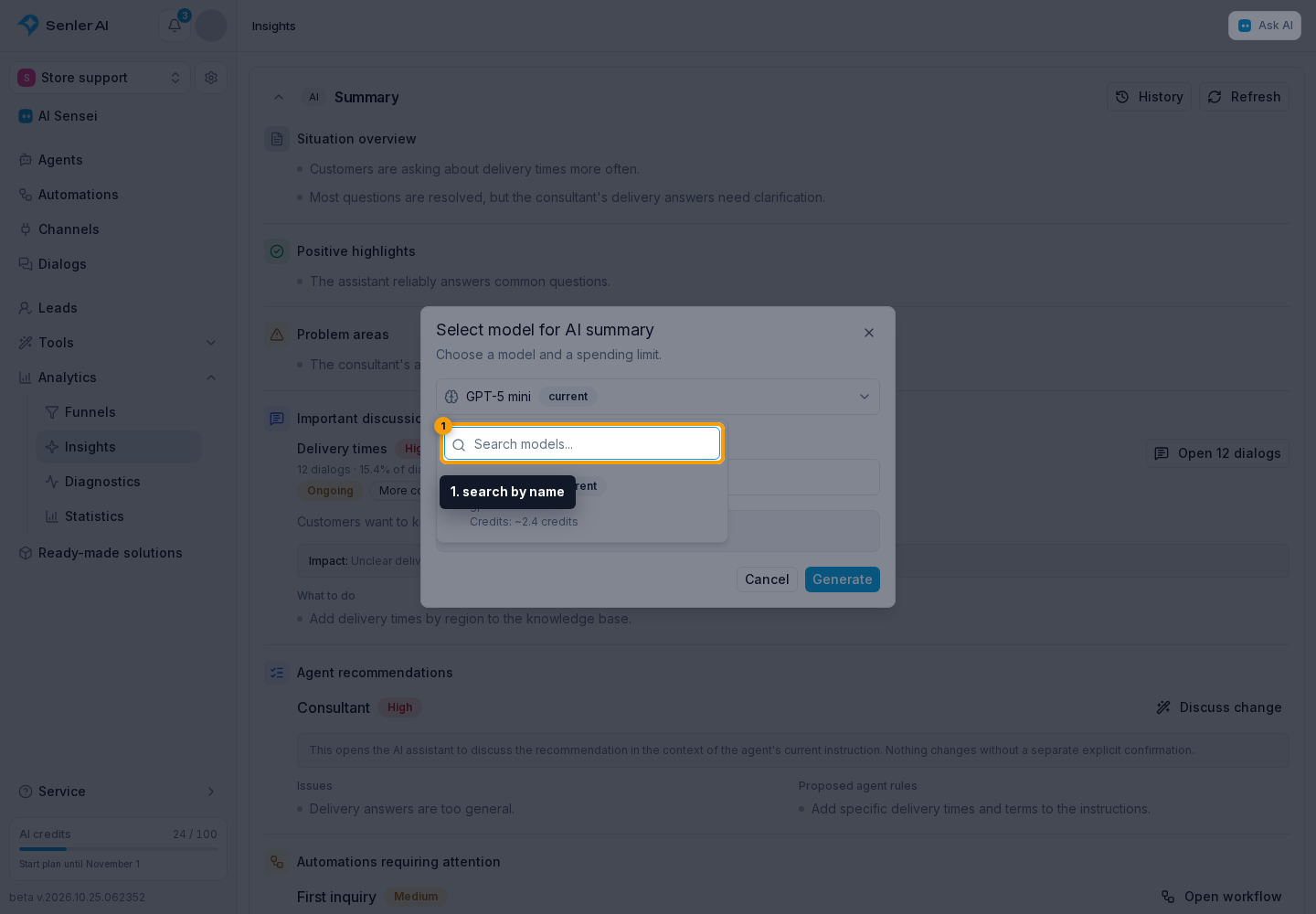
Opening the model dialog does not start analysis. The estimate shows potential Senler credit usage with a reserve for additional analysis steps; the completed summary shows actual usage. Generating and refreshing requires permission to manage analytics.
If the model uses your own key, requests through it are billed by the provider without consuming Senler credits. Without Senler fallback, the estimate is zero. With fallback allowed, it includes potential requests paid with Senler credits, not a mandatory charge.
While the summary is being prepared
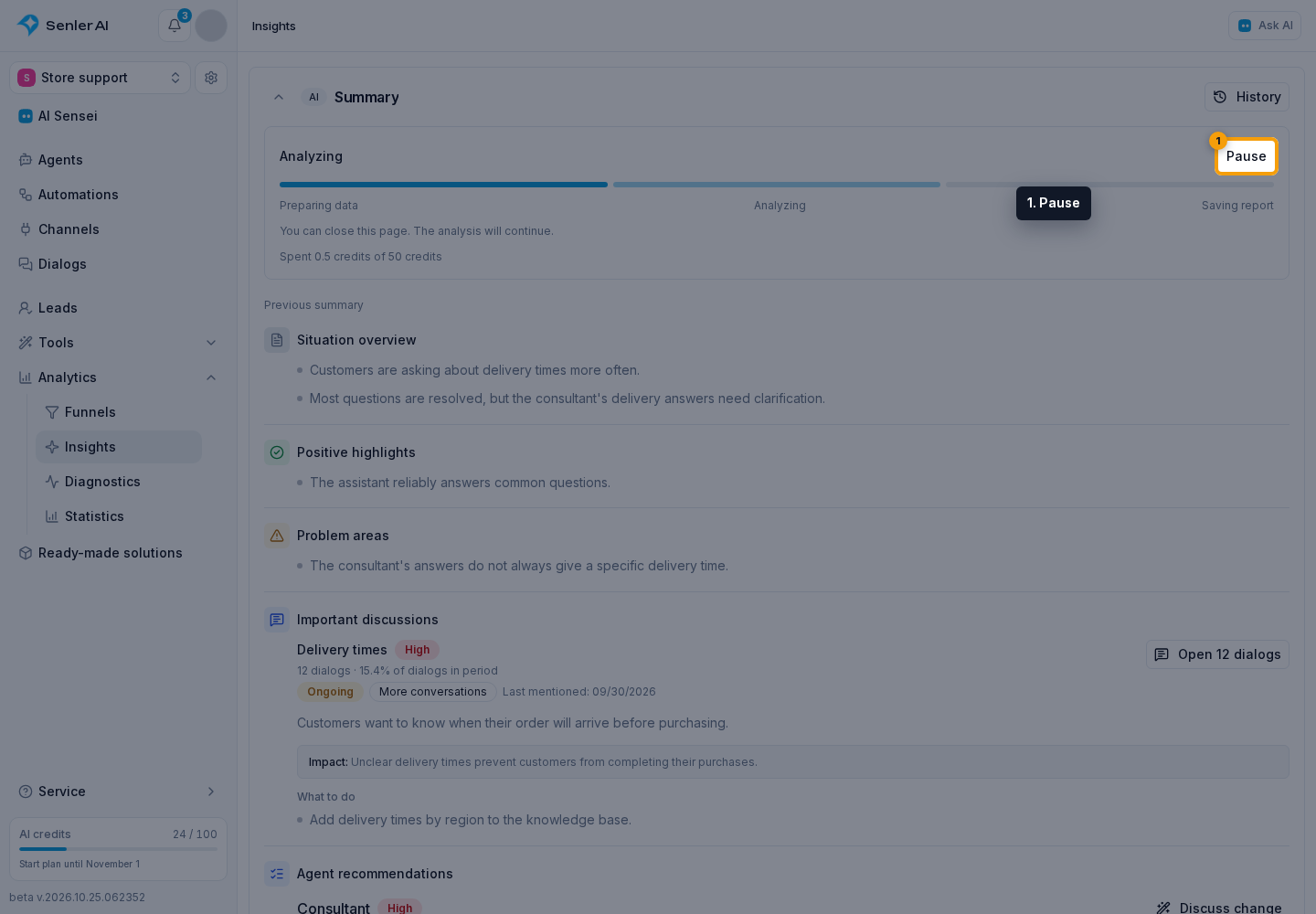
After starting, the progress display shows Preparing data, Analyzing and Saving report. These are work stages, not a time estimate. You can refresh or close the page: preparation continues on the server. The previous summary remains available until the new report is ready.
The start dialog suggests a total Senler credit limit with a reserve based on the selected model's estimate. You can change it before confirming. The limit does not cap your provider charges. With a compatible own key, you can set it to 0: analysis uses that key without paid Senler fallback.
Select Pause to stop after the current step; an AI request already started may finish and be charged.
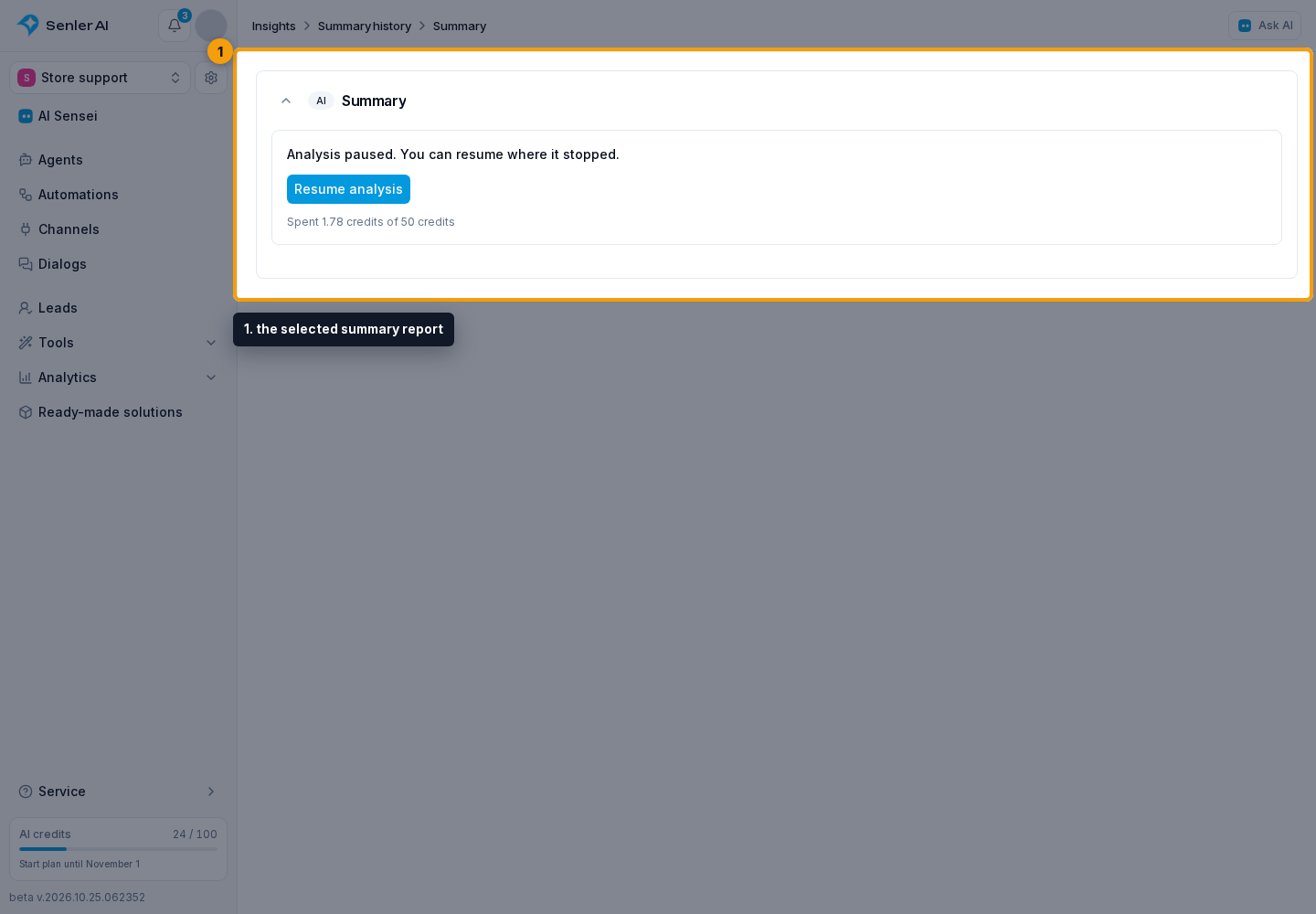
To continue, select Resume analysis and confirm the limit. The model, period and total limit stay the same; credits already spent count toward that limit. Saved AI responses are reused. If continuing requires requests through Senler and the limit is exhausted, the button reads Increase limit and the new amount must be confirmed. When analysis stops because of the limit or balance, the specific reason is shown. A compatible own key allows analysis to continue without Senler credits, but without fallback to Senler accounts. A complete report may not yet be available until analysis finishes.
Scheduled summaries run in the background in the same way. If an AI response cannot be confirmed after a failure, analysis stops to avoid repeating a paid request with an unknown outcome.
Summary history
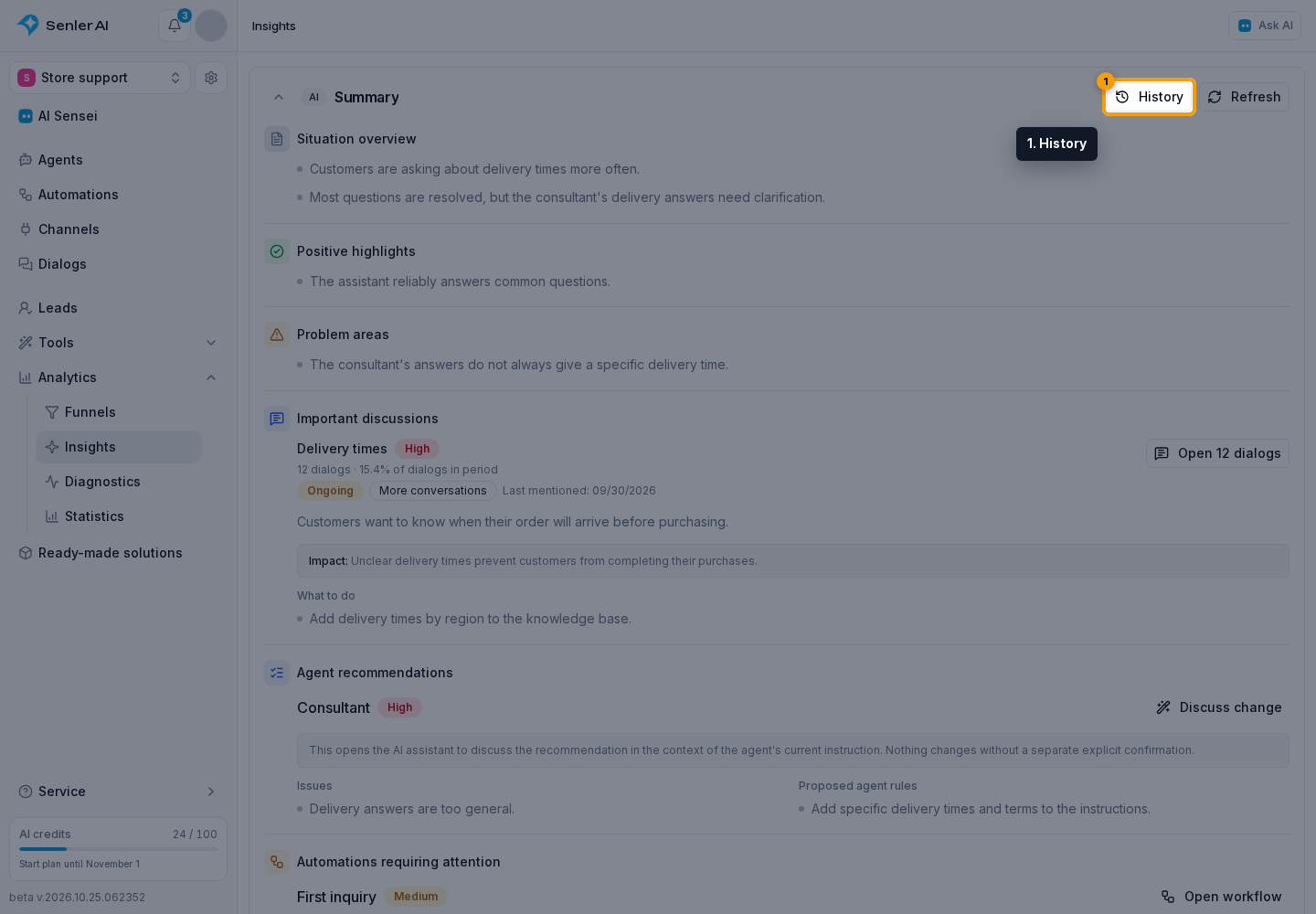
Select History in the AI summary header.
The history page lists completed and unfinished summaries in a table with their date, period, launch type, status and credits spent.
Select a summary row to open the selected summary report or resume that specific analysis. If there are more entries, select Show more below the table.
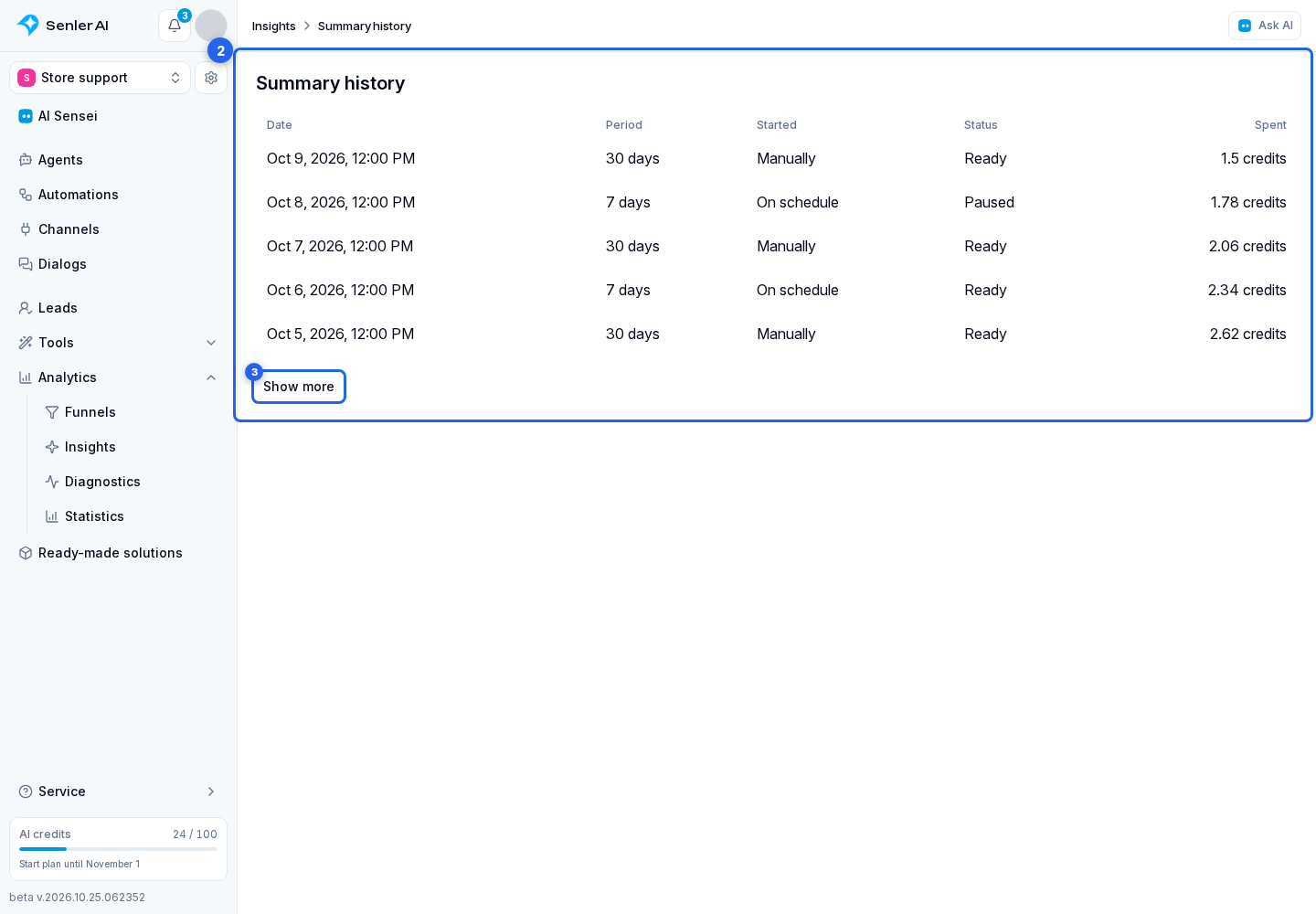
A paused summary stays in history even after newer reports appear. To create a new summary, return to Insights and select Refresh. A new limit is calculated for the selected model and period. An amount entered manually for an earlier run is not carried over.
Checking a summary conclusion
Choose a way to verify it:
- Anomalies show whether an agent or metric really stands out from the others;
- Trends help check changes compared with the previous period;
- Normatives show deviation from the metric's norm;
- History helps locate individual evaluations behind the result.
For example, the summary may show that customers often ask about family holidays but do not receive a suitable offer. Click "Open dialogs" next to the topic to examine those conversations. You can discuss a specific conversation with AI-Sensey: "Why did the customer not choose a tour, and what should we have offered?"
Important discussions
Important discussions groups recurring topics for the selected period. Each discussion may include:
- a title and high, medium or low priority;
- the number of unique dialogs and the topic's share of dialogs in the period;
- a state: "Ongoing", "Completed", "Mixed states" or "State unknown";
- a trend within the period: "New topic", "More conversations", "No notable change" or "Fewer conversations";
- the latest occurrence date;
- a brief explanation;
- potential impact on customers or the business;
- recommended actions.
The percentage measures the topic's scale among dialogs available for analysis in the selected period that contain lead messages, not its share of the short topic list on screen. This is an analytical estimate: one dialog can contain several meaningful fragments, and a fragment can cover several topics. The same conversation can support different topics, so their percentages do not have to add up to 100%. Grouping quality depends on the available conversation content and the agent's configured discussion categories.
Click Open dialogs to open the saved set of conversations supporting the topic. A Selection from AI summary chip appears in the list. While it is active, only supporting dialogs are shown. Click the chip's cross to remove the selection and return to all dialogs.
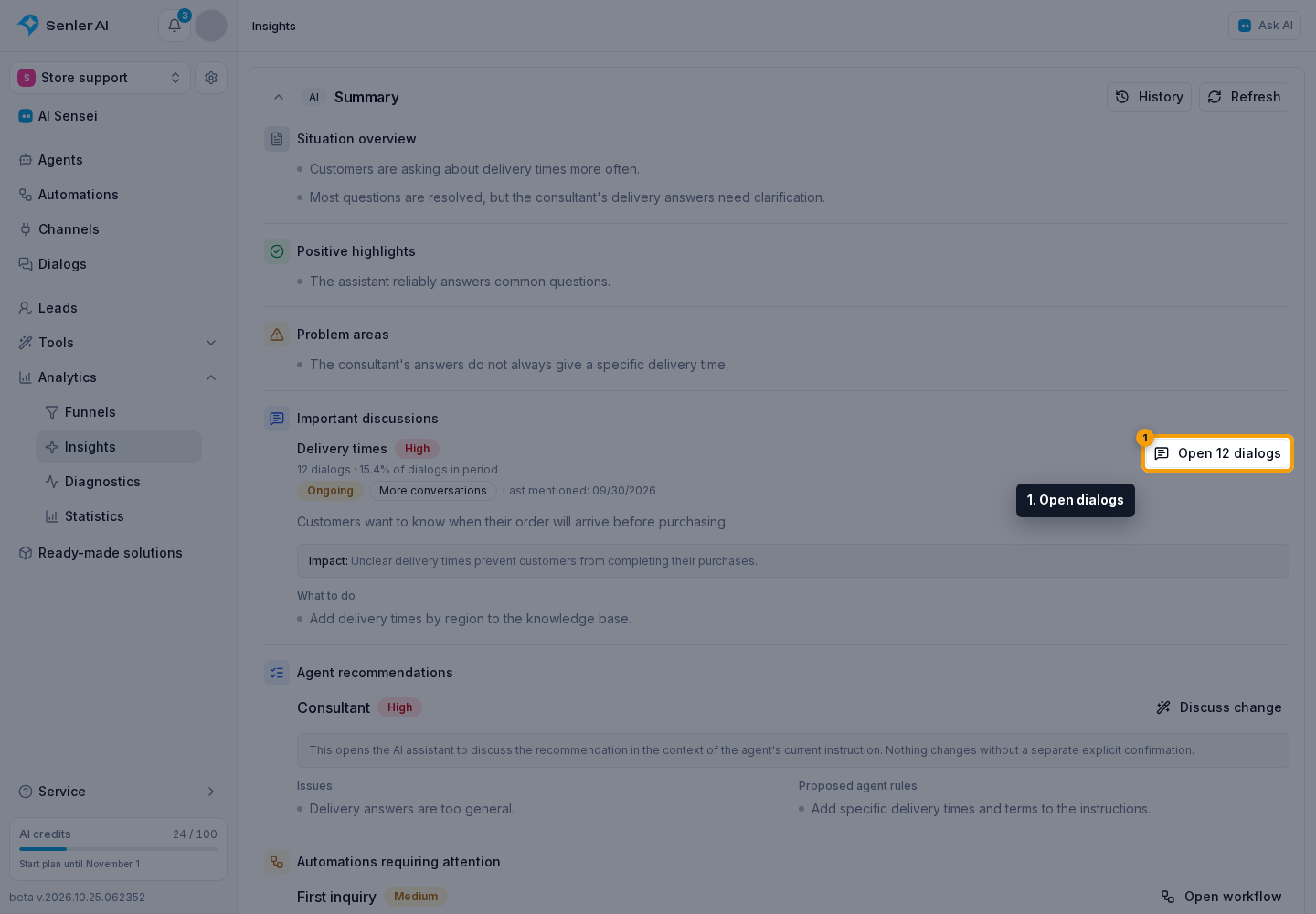
The button's count shows the topic's overall scale. For a very large topic, the saved selection for review can contain fewer dialogs. The button is unavailable when there are no accessible dialogs. If an older selection no longer opens, refresh the summary and try again. Check actual messages and indicators before deciding; use equal period lengths when comparing summaries and refresh each separately.
Automation recommendations
Automations requiring attention checks published automations using metric observations collected for the selected period. A conclusion about one metric and part of a scheme requires at least three observations.
Each recommendation shows the automation, priority, identified problems and proposed changes. Click Open workflow to open the editor. If it concerns a specific step, the editor highlights it and moves the scheme to it.
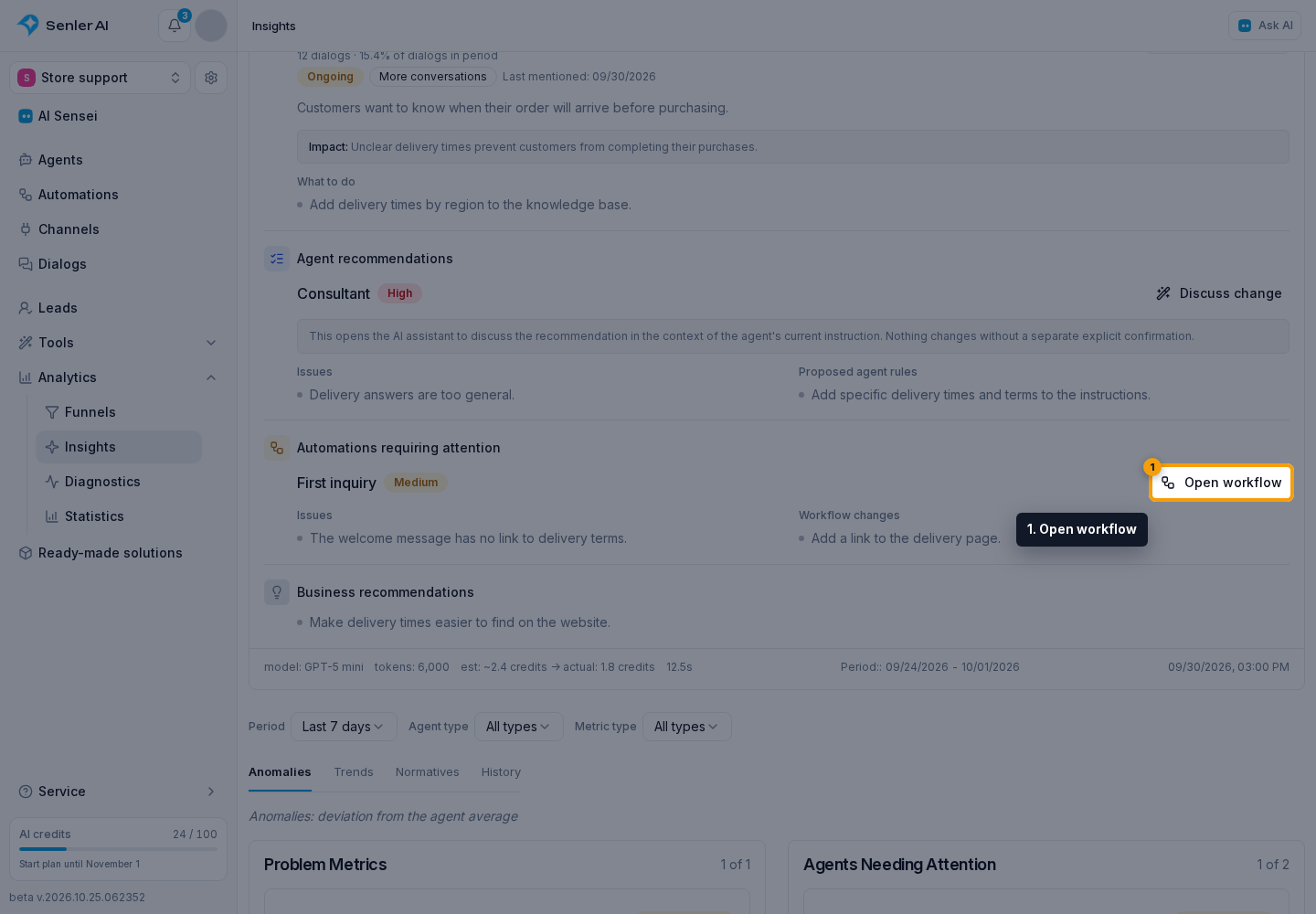
When there are no recommendations, the block explains the result:
- no problems were found, with the number of observations checked;
- there is no data yet for published automations;
- data exists, but no metric and part of a scheme has three observations yet;
- there are no published automations in the project;
- automation data could not be retrieved, but the rest of the summary was created;
- the summary has no automation analysis: refresh it to perform the check.
Having no recommendations does not by itself mean an error. Compare conclusions with automation processes and actual metrics before changing a scheme.
Discussing a recommendation
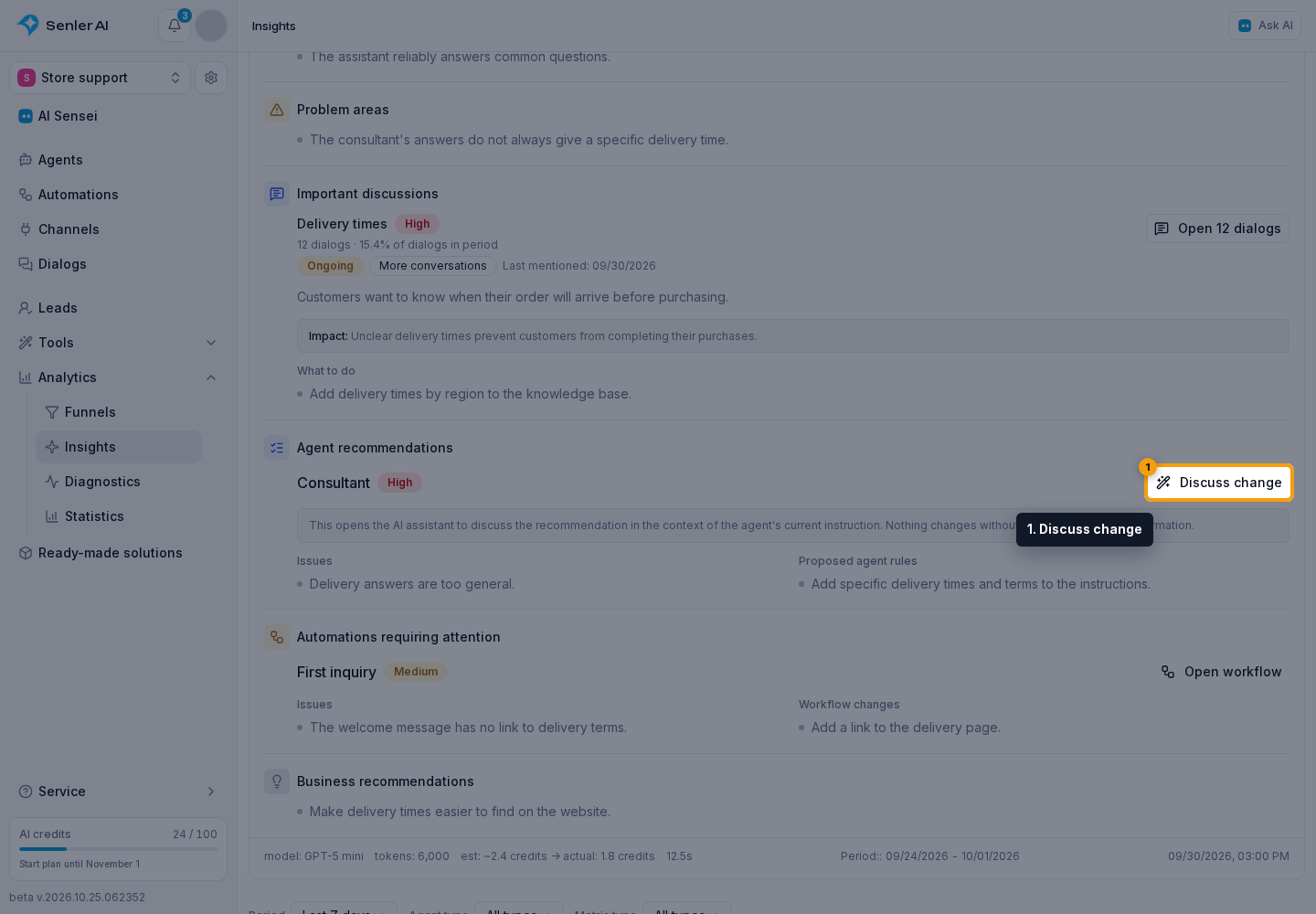
A recommendation identifies the agent, priority, problems found and suggested changes.
Discuss change opens AI-Sensey and attaches the selected agent, problems and suggestions to a new dialog. You do not need to copy the text manually. Opening the discussion does not change the agent's settings.
Generation details
The bottom of the completed summary shows the model, token count, estimated and actual credit costs, generation duration, analysis period and creation date. This helps distinguish last week's summary from a new result.
Collapse or expand the text using the header button. Collapsing does not delete the result or start another generation.