
Publishing and Launching an Agent
Summary
An agent's settings and its activity are controlled separately. First prepare and test the draft, then publish it. To reply to customers, the agent must also be active and assigned to a dialog.
All the actions below are in the agent form: open the project → Agents → the agent you need.
Draft
The draft is the set of settings you are editing. For an existing agent, changes are saved automatically. Wait for the saved status in the form header, then check answers in the test chat. If saving is still running or has failed, wait for a successful save first; otherwise the test will not use your latest edits.
The draft is not used in live dialogs. Even Changes saved means that edits have been saved for editing and testing, not published.
The draft includes more than the instruction text. It includes the name, avatar, model, response modes, capabilities, variables, MCP servers, knowledge base sources, their permissions, metrics, and Autostart. If any of these blocks changes, it is considered an unpublished change.
The same rule applies through the API or MCP: changes are saved to the draft and applied by a separate publication. Activation and deactivation take effect immediately and do not publish the draft.
The content of a shared knowledge base document is not part of the agent's draft. Saving the document itself changes it separately and does not wait for agent publication.
Who Else Is Editing the Agent
When another editor has the settings open, or an AI agent or automation is changing them, a participants button with a count appears in the header. Select it to open the list.
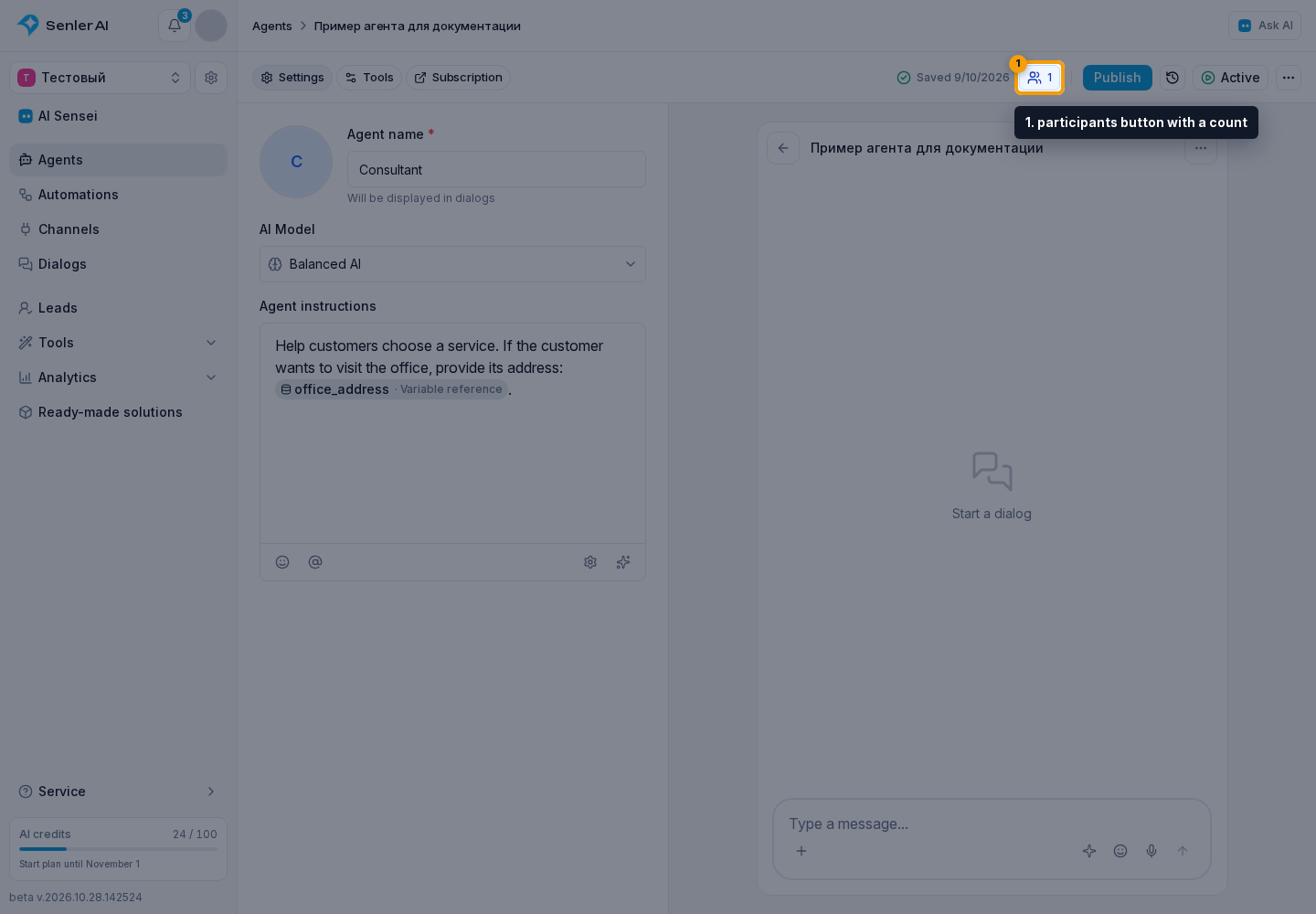
For a colleague, the list shows their name and selected field when known, or Agent settings are open. If you have opened the same agent in another window, the list shows You in another window. Users with view-only access do not appear in this list.
An AI agent is shown with its name, avatar, and AI badge; an automation is shown by its name. The label distinguishes current work, editing settings, from a recent action, saved changes. When the person who requested the agent's action is known, their name is shown too. This list reflects current and recent activity, not the complete change history; saved draft edits still need to be published separately.
If Changes Conflict
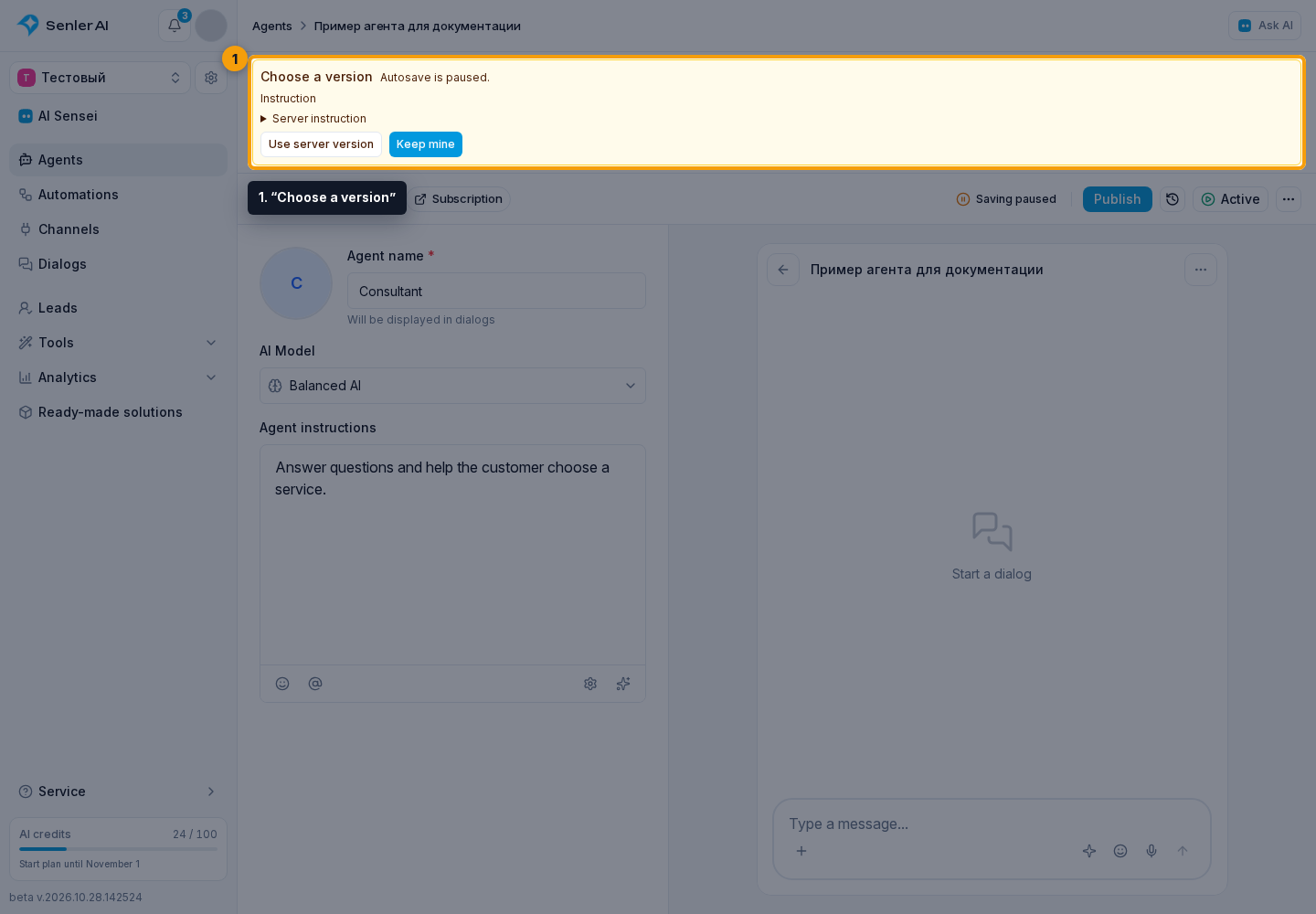
Changes to different fields are combined. If you and another editor change the same field and the edits cannot be merged automatically, “Choose a version” appears and autosave pauses. This is not an auto-assignment rule conflict: here you choose which draft changes to keep.
Review the listed fields. For the instruction, expand “Server instruction” to compare the text. “Use server version” replaces the disputed fields with the saved version, while “Keep mine” keeps your choice for those fields. Other independent edits are not discarded. After choosing, wait for the saved status, then test and publish the draft.
Publication
When you are satisfied with testing, select Publish in the header and confirm publication. On a phone, an upward-arrow icon replaces the label. Publication replaces the working version with the saved draft: those settings will be used in channels.
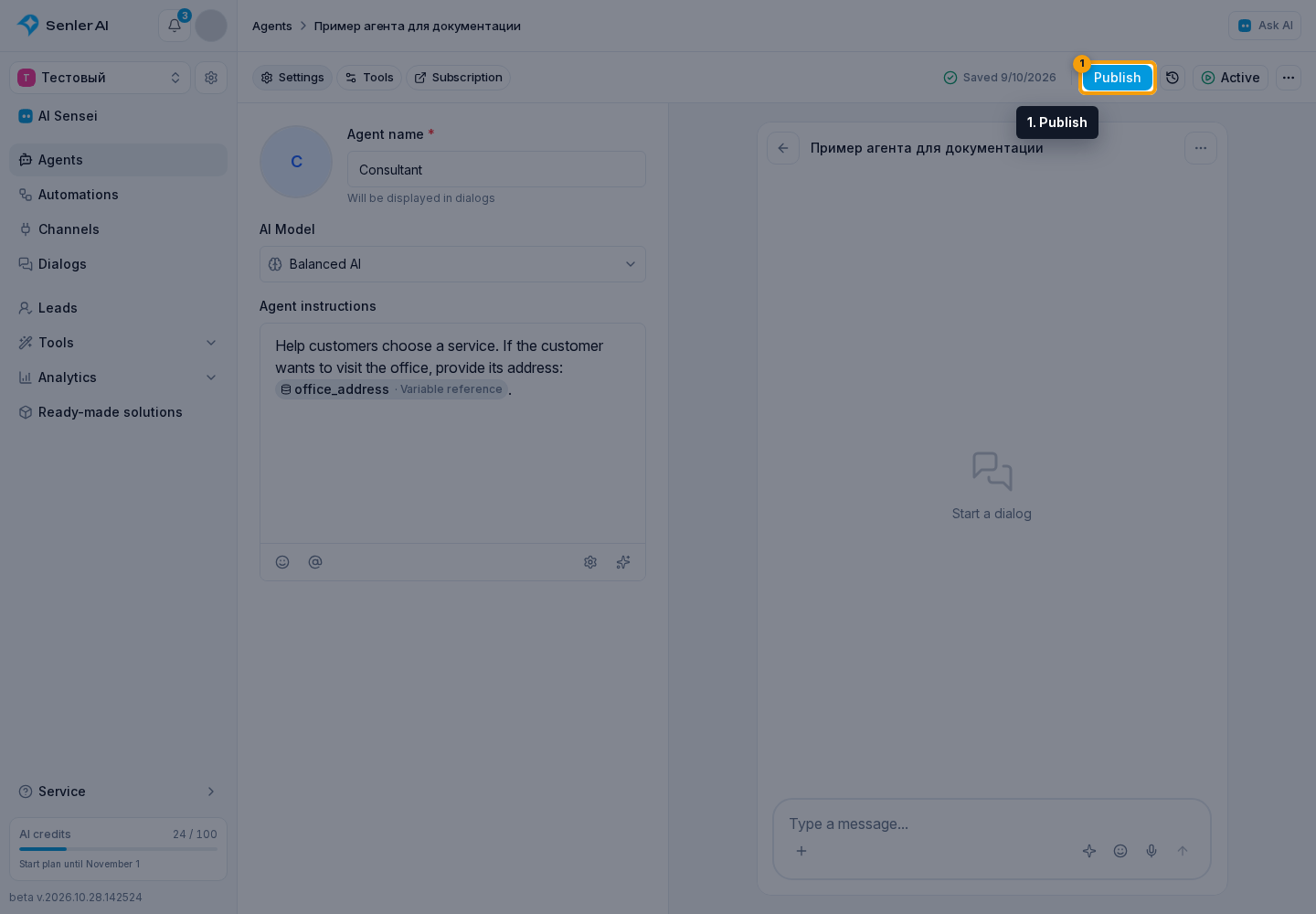
Publishing does not activate a stopped agent — activate it separately as described below.
If publication does not complete, the cabinet shows a Failed to publish agent dialog with the reason. Select Retry to publish the same saved draft again. Until publication succeeds, real channels continue to use the previous published version.
If the Publish button is missing
The button is in the agent settings form: project → Agents → the agent. When the draft matches the published version, the button is hidden. After new changes, it appears again next to the button for viewing the published version. On a phone, look for the upward-arrow icon in the form header.
Autosave saves the draft and does not publish it. A Changes saved label and an active agent status do not by themselves confirm that the new settings have been published.
Autostart Conflicts
If Autostart is enabled in the draft, publishing checks the published project and channel rules. When another published setting already uses the same area, a warning appears.
Review the Autostart conflict list. If the old rules should be replaced by this agent, confirm rule overwrite. After confirmation, old rules for this role and area are disabled.
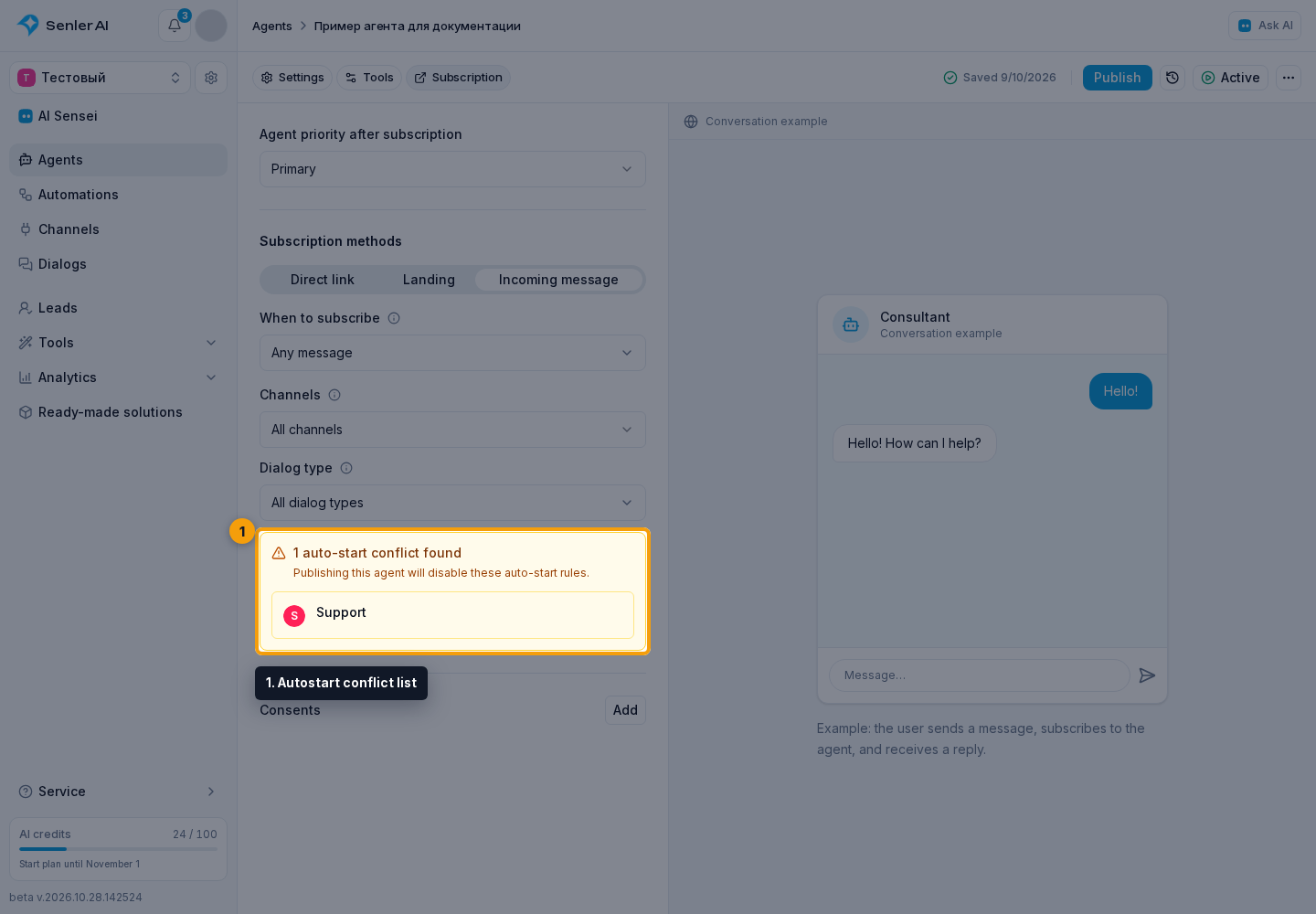
Segment assignment rules are configured on the specific segment page. They have higher priority than channel and project rules, but they are not included in the overwrite from the agent form.
Start/Stop
Click the current status on the right of the header — Active or Inactive. On a phone, this is the round status icon next to the ⋯ menu. It opens the agent activity menu.
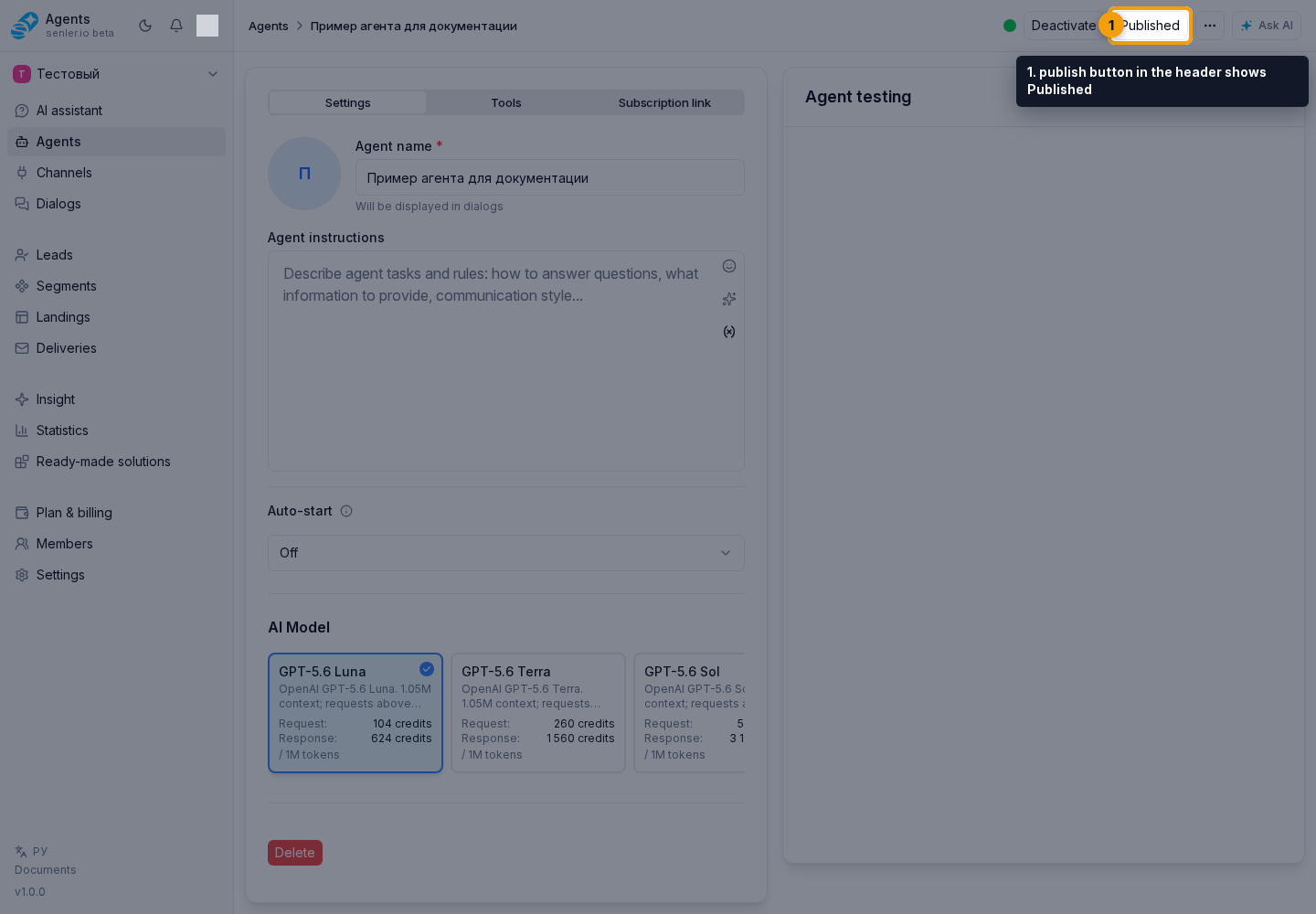
In the menu, select Activate or Deactivate. Wait for the status to change. This action does not require republishing the draft.
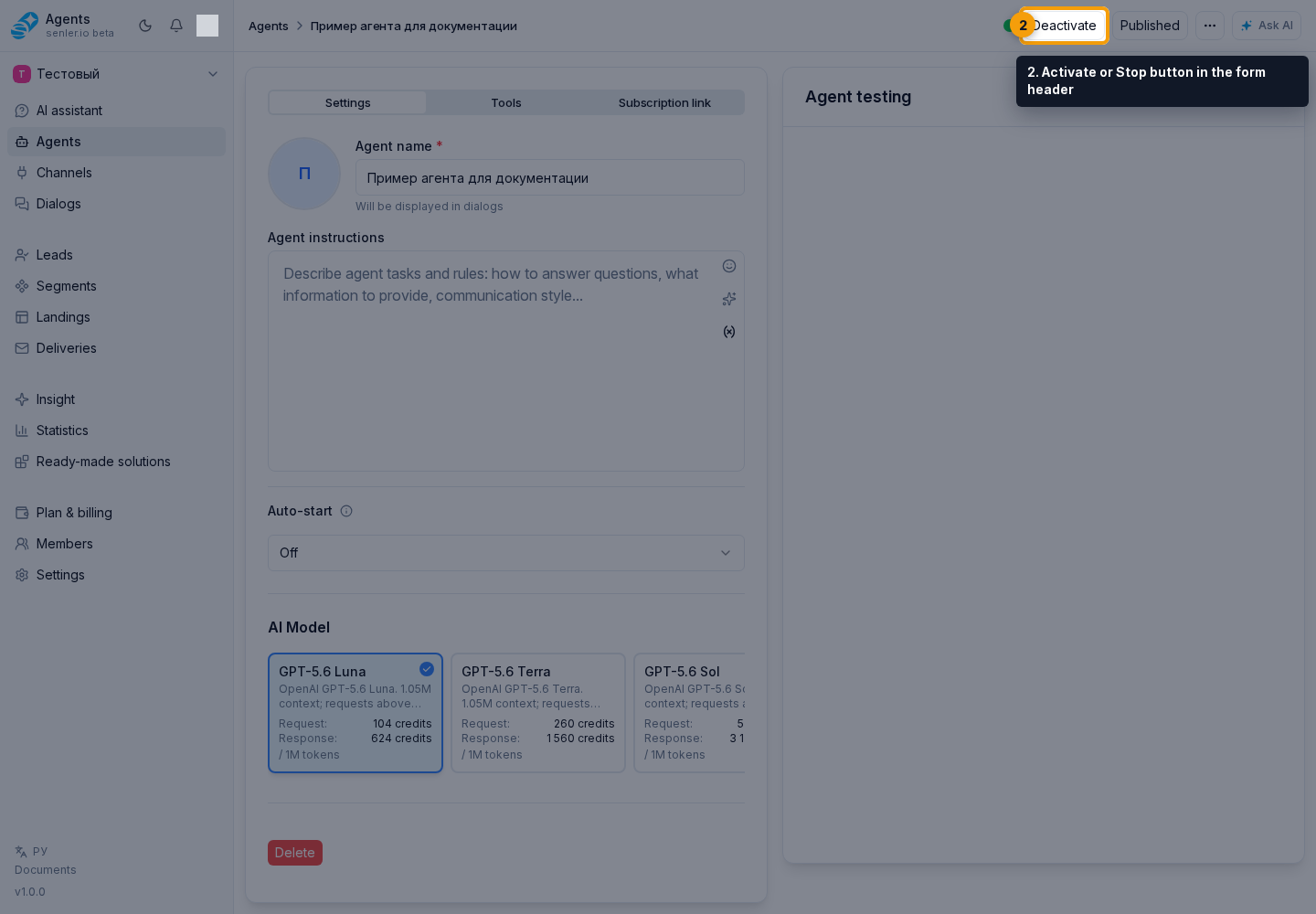
Stopping ends the agent's work in live dialogs: it interrupts unfinished replies, cancels unfinished timers created by the agent, and completes automation steps waiting for it with an error. The agent remains assigned to its dialogs. Reactivation allows new replies but does not restore canceled replies or timers. Publishing a new version does not by itself resume a stopped agent.
The test chat continues to use the draft: stopping the agent does not cancel reply preparation or timers in test dialogs. This lets you test settings without enabling replies to customers.
Being active does not automatically assign the agent to all customers. Configure Autostart and channels for automatic replies, or assign the agent manually to a particular dialog.
Rollback to published version
To discard unpublished changes, wait for autosave to finish and click the history icon next to Publish. The Published version dialog opens: compare the settings and select Revert changes if you want to replace the draft with them.
Reverting restores form fields, Autostart, MCP binding, knowledge base sources, their permissions, and selected metrics to the published state. Current draft edits will be lost. This action does not restore the contents of shared knowledge base documents.
Removing an agent
Deletion is in the ⋯ menu in agent settings and requires confirmation. It stops current replies and timers, including those in test dialogs, disables this agent's assignment rules, and detaches it from dialogs. If service needs to continue, prepare a replacement in advance. A deleted agent cannot be restored through the form.